
Introduction
This manual provides instructions for the Legami Meow Wireless Keyboard and Mouse Set. This wireless accessory is designed for general office and study use, featuring a unique Meow theme. It offers convenient wireless connectivity for your computer.

Image: The Legami Meow Wireless Keyboard and Mouse Set, featuring a purple keyboard with pink and white keys, and a matching pink and purple mouse.
Package Contents
The Legami Meow Wireless Keyboard and Mouse Set includes the following components:
- Wireless Keyboard (Meow Theme)
- Wireless Optical Mouse (Meow Theme)
- USB Receiver (Plug and Play)
- Type-C Adapter
- 2 AAA Batteries

Image: The product packaging, showing the keyboard and mouse set inside the box, highlighting wireless connection, USB/Type-C receiver, and included batteries.
Setup
1. Battery Installation
The keyboard and mouse require batteries for operation. The set includes 2 AAA batteries.
- Locate the battery compartment on the underside of the keyboard.
- Open the compartment cover.
- Insert the included AAA batteries, ensuring correct polarity (+ and - alignment).
- Close the battery compartment cover.
- Repeat these steps for the mouse, if it uses removable batteries. (Note: Some wireless mice may have internal rechargeable batteries or use a single AA battery, please check the mouse for specific battery requirements if different from AAA).
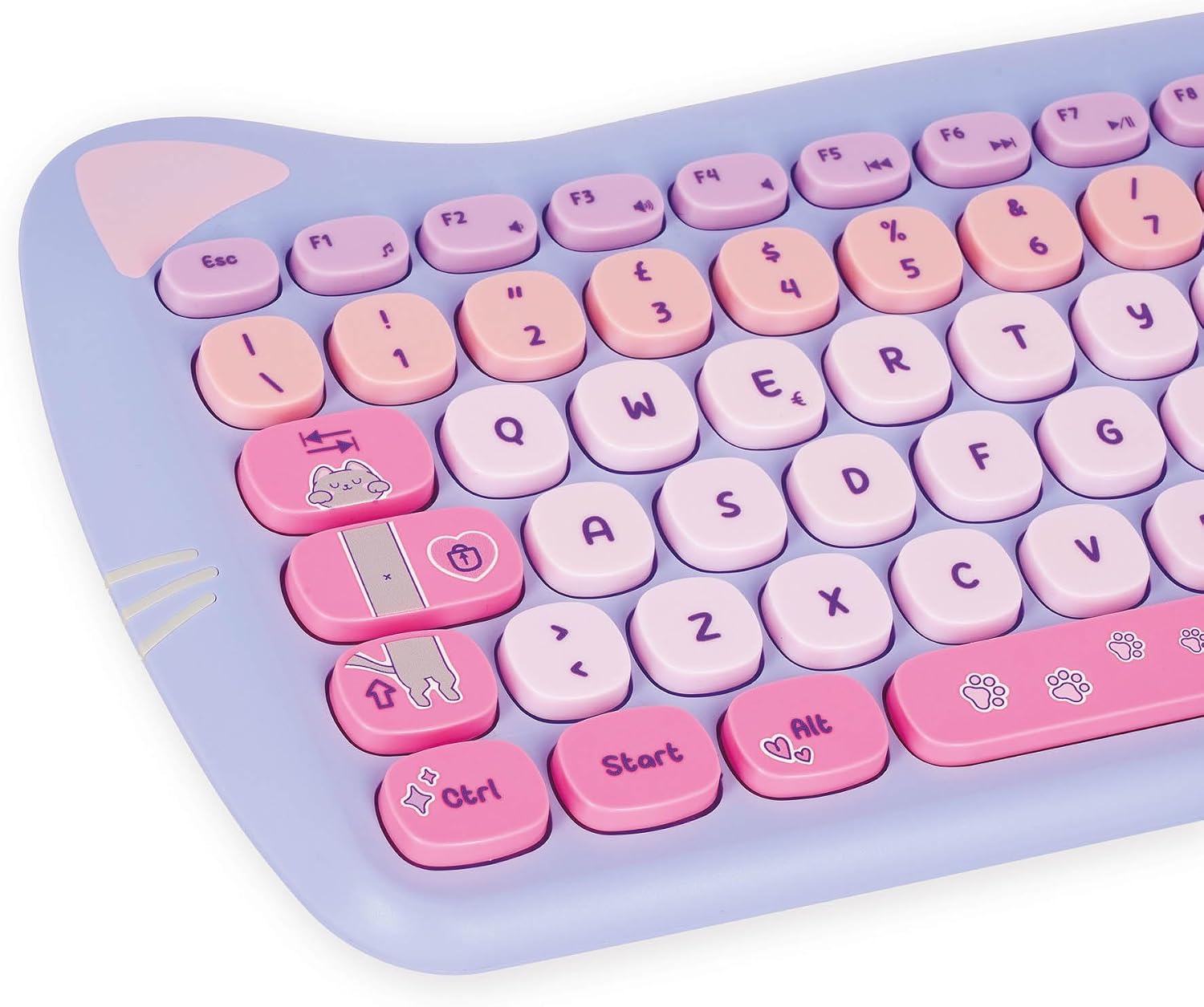
Image: A close-up view of the Legami Meow wireless keyboard, showing the key layout and design. The battery compartment is located on the underside.
2. Connecting the USB Receiver
The keyboard and mouse connect wirelessly via a single USB receiver.
- Locate the USB receiver, typically stored within the mouse or keyboard battery compartment for transport.
- Plug the USB receiver into an available USB-A port on your computer.
- If your computer only has USB-C ports, attach the provided Type-C adapter to the USB receiver, then insert it into a USB-C port.
- The keyboard and mouse are plug-and-play and should connect automatically without additional driver installation.
Operating Instructions
Keyboard Multimedia Keys
The keyboard is equipped with 15 multimedia keys, providing quick access to various functions. These keys are typically located along the top row (F1-F12) and may require pressing the Fn key simultaneously for activation, depending on your operating system and keyboard configuration.
- Volume Control: Adjust audio output (e.g., Mute, Volume Down, Volume Up).
- Media Playback: Control media (e.g., Play/Pause, Previous Track, Next Track, Stop).
- Browser/Email: Open web browser or email client.
- Other Functions: Specific keys may include calculator, search, or screen lock. Refer to the icons on the keys for their designated functions.
Mouse Speed Adjustment (DPI)
The optical mouse features 3 adjustable speed (DPI) options, allowing you to customize cursor sensitivity to your preference.
- Locate the DPI button on the mouse. This is typically a small button near the scroll wheel.
- Press the DPI button to cycle through the available speed settings. The cursor movement speed will change with each press.
- Select the DPI setting that best suits your task and comfort.
Maintenance
Proper care will extend the life of your Legami Meow Wireless Keyboard and Mouse Set.
- Cleaning: Use a soft, dry, lint-free cloth to clean the surfaces of the keyboard and mouse. For stubborn dirt, slightly dampen the cloth with water or a mild electronic cleaner. Avoid excessive moisture.
- Storage: When not in use for extended periods, remove batteries to prevent leakage. Store the devices in a cool, dry place away from direct sunlight and extreme temperatures.
- Avoid Liquids: Do not expose the keyboard or mouse to liquids. Spills can cause damage.
- Handle with Care: Avoid dropping or subjecting the devices to strong impacts.
Troubleshooting
If you encounter issues with your keyboard and mouse set, refer to the following common solutions:
- Devices Not Responding:
- Check battery levels in both the keyboard and mouse. Replace with fresh batteries if necessary.
- Ensure the USB receiver is securely plugged into a working USB port on your computer.
- Try plugging the receiver into a different USB port.
- Move the keyboard and mouse closer to the receiver to rule out signal interference.
- Lag or Intermittent Connection:
- Ensure no other wireless devices (e.g., Wi-Fi routers, cordless phones) are causing interference nearby.
- Avoid placing the receiver near large metal objects that might block the signal.
- Specific Keys or Mouse Buttons Not Working:
- Gently clean the area around the affected key or button to remove any debris.
- Re-install the batteries in the affected device.
Specifications
| Feature | Detail |
|---|---|
| Brand | Legami |
| Model Number | KAM0001 |
| Colour | Pink (Meow Theme) |
| Connectivity Technology | USB, Type-C (via adapter) |
| Special Features | 15 Multimedia Keys, 3-Speed Optical Mouse |
| Compatible Devices | Laptop, PC |
| Keyboard Description | Mechanical (QWERTY Layout) |
| Batteries Required | Yes, 2 AAA batteries (included) |
| Compatible Operating Systems | Windows, macOS, Linux (e.g., Mac OS 13 Ventura, Ubuntu 22.04, Windows 11) |
Safety Information
WARNING: This product is not a toy. Keep out of reach of small children. Read and store these instructions for future reference. Ensure proper battery disposal according to local regulations.
Warranty and Support
For warranty information and technical support, please refer to the official Legami website or contact your retailer. Keep your proof of purchase for any warranty claims.
For further assistance, visit the Legami official website: www.legami.com