
Temtop M10+, T1SE
Contents
Temtop M10+ Air Quality Monitor and T1SE Thermometer Hygrometer User Manual
Model: M10+, T1SE
1. Introduction
This manual provides comprehensive instructions for the safe and effective use of your Temtop M10+ Air Quality Monitor and Temtop T1SE Thermometer Hygrometer. These devices are designed to help you monitor various indoor air quality parameters and environmental conditions. Please read this manual thoroughly before operating the devices and retain it for future reference.
2. Safety Information
- Do not expose the devices to extreme temperatures, direct sunlight, or high humidity.
- Avoid dropping or subjecting the devices to strong impacts.
- Do not attempt to disassemble or repair the devices yourself. Contact customer support for assistance.
- Keep the devices away from water and other liquids.
- Use only the specified charging cable for the M10+ to prevent damage.
3. Package Contents
Verify that all items are present in your package:
- Temtop M10+ Air Quality Monitor
- Temtop T1SE Thermometer Hygrometer
- USB Charging Cable (for M10+)
- User Manual (this document)
4. Product Overview

Figure 4.1: Temtop M10+ Air Quality Monitor (right) and T1SE Thermometer Hygrometer (left). The M10+ displays PM2.5, temperature, and humidity, while the T1SE shows temperature, humidity, time, and date with a comfort indicator.

Figure 4.2: Overview of the Temtop M10+ features, highlighting its integrated alarm system, two-button operation, internal sensors for 6 key indicators, Bluetooth Low Energy (BLE) connectivity, 60-day battery endurance, and eye-care e-ink display.
4.1 Temtop M10+ Air Quality Monitor
- Display: E-ink screen showing PM2.5, CO2, TVOC, temperature, and humidity.
- Sensors: Integrated sensors for PM2.5, CO2, TVOC, temperature, and humidity.
- Connectivity: Bluetooth Low Energy (BLE) for app connection.
- Alerts: Audible and visual color-coded alerts for air quality levels.
- Battery: Rechargeable, offering up to 60 days of operation.
4.2 Temtop T1SE Thermometer Hygrometer
- Display: LCD screen showing temperature, humidity, time, and date.
- Indicators: Color-coded comfort indicator (DRY, COMFORT, WET).
- Temperature Unit: Switchable between Celsius and Fahrenheit.
- Battery: Long-lasting, typically up to 1 year on standby.
5. Setup
5.1 Temtop M10+ Initial Setup
- Charging: Connect the M10+ to a USB power source using the provided USB charging cable. The battery icon on the display will indicate charging status. A full charge can take several hours.
- Power On/Off: Press and hold the power button (usually located on the side or back) for a few seconds to turn the device on or off.
- Placement: Place the M10+ in a central location within the area you wish to monitor, away from direct drafts, heat sources, or open windows.
5.2 Temtop T1SE Initial Setup
- Battery Installation: Open the battery compartment on the back of the T1SE and insert the required batteries (typically AAA, not always included).
- Placement: Position the T1SE in the desired room. It can be placed on a flat surface using its integrated stand or mounted on a wall.
- Unit Selection: Use the “℃/℉ Switcher” button (if available) to select your preferred temperature unit (Celsius or Fahrenheit).
6. Operating Instructions
6.1 Temtop M10+ Operation

Figure 6.1: The M10+ display showing real-time air quality data and an example of the Temtop app interface with historical data.

Figure 6.2: The M10+ alert system, showing visual indicators (red, yellow, green bars) and a table detailing the thresholds for Poor, Fair, and Good air quality across various parameters (PM2.5, AQI, CO2, TVOC).
6.1.1 Reading the Display
The M10+ e-ink display shows real-time readings for:
- PM2.5: Particulate Matter 2.5 micrometers.
- CO2: Carbon Dioxide levels in parts per million (ppm).
- TVOC: Total Volatile Organic Compounds.
- Temperature: Current ambient temperature.
- Humidity: Current relative humidity.
A color-coded bar (green, yellow, red) on the right side of the display indicates the overall air quality status, corresponding to Good, Fair, or Poor levels respectively. An audible alert may also sound if levels exceed predefined thresholds.
6.1.2 App Connectivity
The Temtop M10+ connects to the Temtop app via Bluetooth Low Energy (BLE) for enhanced monitoring and data management.
- Download App: Download the 'Temtop' app from your smartphone's app store.
- Enable Bluetooth: Ensure Bluetooth is enabled on your smartphone.
- Pair Device: Open the Temtop app, follow the on-screen instructions to add a new device, and select your M10+ from the list of available devices.
- Data Access: Once connected, the app provides real-time data, historical graphs, data export options, and allows for device calibration and OTA (Over-the-Air) updates.

Figure 6.3: The Temtop app displaying historical data and allowing monitoring of multiple devices across a home.

Figure 6.4: Overview of the Temtop app functionalities, including device configuration, data export, historical trends, air insights, device calibration, and weather checks.
6.2 Temtop T1SE Operation
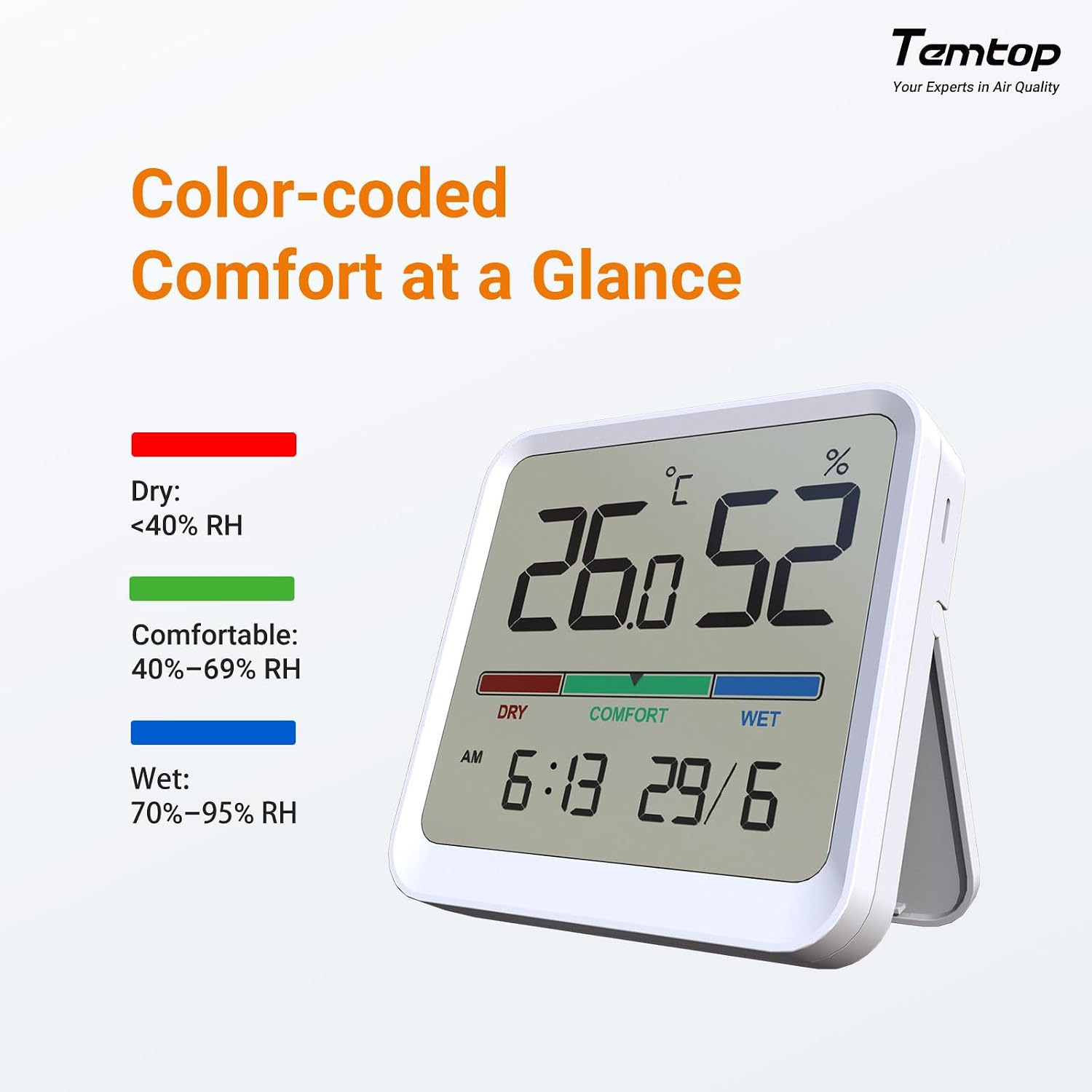
Figure 6.5: The T1SE display with its color-coded comfort indicator, showing temperature, humidity, and time.
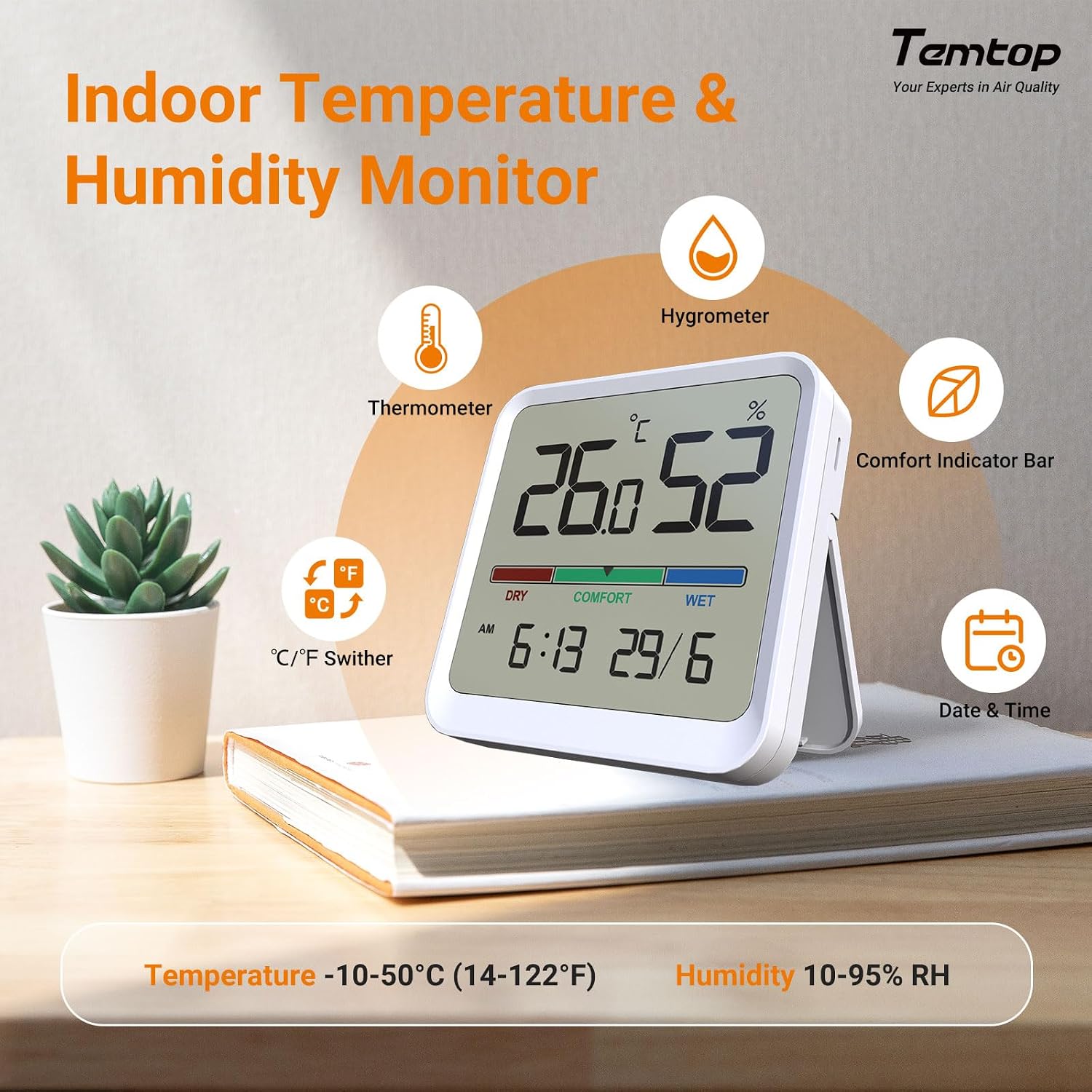
Figure 6.6: Key features of the T1SE, including its thermometer and hygrometer functions, comfort indicator bar, date and time display, and the ability to switch between Celsius and Fahrenheit.
6.2.1 Reading the Display
The T1SE display provides:
- Temperature: Current ambient temperature in ℃ or ℉.
- Humidity: Current relative humidity in %.
- Comfort Indicator: A colored bar (red for DRY, green for COMFORT, blue for WET) visually represents the humidity level.
- Time and Date: Current time and date.
6.2.2 Temperature Unit Switching
Press the “℃/℉ Switcher” button (usually on the back or side) to toggle between Celsius and Fahrenheit temperature readings.
7. Maintenance
7.1 Cleaning
- Wipe the devices with a soft, dry cloth.
- Do not use abrasive cleaners, solvents, or chemical agents.
- Ensure the air inlets/outlets on the M10+ are free from dust and obstructions.
7.2 Storage
- Store the devices in a cool, dry place when not in use.
- For long-term storage of the M10+, ensure it is fully charged before storing and recharge periodically to maintain battery health.
- Remove batteries from the T1SE if storing for extended periods to prevent leakage.
7.3 Battery Care (M10+ only)
- Charge the M10+ regularly to maintain optimal battery performance.
- Avoid completely draining the battery frequently.
- Do not expose the device to temperatures above 60℃ (140℉) as this can damage the battery.
8. Troubleshooting
| Problem | Possible Cause | Solution |
|---|---|---|
| M10+ does not power on. | Low battery or device malfunction. | Charge the device for at least 30 minutes. If it still doesn't power on, contact support. |
| M10+ cannot connect to the app. | Bluetooth is off, device is out of range, or app issue. | Ensure Bluetooth is on, the device is within 100ft (indoor) of your phone, and restart both the device and the app. |
| Inaccurate readings on M10+. | Sensor obstruction, device not calibrated, or environmental factors. | Ensure air inlets are clear. Perform a calibration via the app if available. Move the device to a different location. |
| T1SE display is blank. | Dead batteries. | Replace the batteries with new ones. |
| T1SE readings seem incorrect. | Device placement or environmental factors. | Ensure the device is not near heat sources, direct sunlight, or vents. Allow time for readings to stabilize after moving. |
9. Specifications
9.1 Temtop M10+ Air Quality Monitor
- Monitored Parameters: PM2.5, CO2, TVOC, Temperature, Humidity
- PM2.5 Range: 0-999 µg/m³
- CO2 Range: 400-5000 ppm
- Temperature Range: 14℉-122℉ (-10℃-50℃)
- Humidity Range: 10%-95% RH
- Battery Life: Up to 60 days (depending on usage)
- Connectivity: Bluetooth Low Energy (BLE)
9.2 Temtop T1SE Thermometer Hygrometer
- Monitored Parameters: Temperature, Humidity
- Temperature Range: 14℉-122℉ (-10℃-50℃)
- Temperature Accuracy: ±1.8℉ (±1℃)
- Humidity Range: 10%-95% RH
- Humidity Accuracy: ±5% RH
- Update Interval: 10 seconds
- Dimensions: Approximately 2.76 x 2.76 inches (70 x 70 mm)
- Weight: Approximately 57g
- Battery Life: Up to 1 year (standby)
10. Warranty and Support
Temtop products are designed for reliability and performance. For warranty information, please refer to the warranty card included with your product or visit the official Temtop website. If you encounter any issues or have questions regarding your Temtop M10+ or T1SE, please contact Temtop customer support through their official website or the contact information provided in your product packaging.
Online Support: www.temtop.com/support
Ask a question about this manual
Ask about setup, troubleshooting, compatibility, parts, safety, or missing instructions. Manuals+ will review the question and use this page’s manual context to help answer it.