1. Introduction
This manual provides essential instructions for setting up, operating, and maintaining your KOORUI G2511P 24.5-inch Gaming Monitor. Designed for an optimal gaming and viewing experience, this monitor features a 200Hz refresh rate, 1ms GTG response time, Full HD IPS panel with 90% DCI-P3 color gamut, HDR400 support, and Adaptive Sync technology. Please read this manual thoroughly before use to ensure proper functionality and longevity of your device.
2. Package Contents
Verify that all items listed below are present in your package:
- 24.5 inch monitor
- HDMI cable
- Power Adapter
- User Manual (this document)
3. Setup
3.1 Stand Assembly
The monitor stand consists of two parts: the base and the upright arm. These parts slide together. Once assembled, the stand then slips into a dedicated slot at the back of the monitor. Ensure the stand is securely locked into place before placing the monitor on a surface to prevent accidental detachment.

Figure 3.1: Front view of the KOORUI G2511P monitor with its stand.

Figure 3.2: Rear view highlighting the stand attachment and control joystick.
3.2 Connecting to Devices
The KOORUI G2511P monitor offers multiple connectivity options for various devices:
- HDMI: Connect your PC, gaming console, or other HDMI-enabled devices using the provided HDMI cable. The monitor features two HDMI 2.0 ports.
- DisplayPort (DP): For optimal gaming performance, connect your PC's graphics card to the monitor's DisplayPort 1.4 input.
- Audio Out: Use the 3.5mm audio jack to connect external headphones or speakers, as the monitor does not have built-in speakers.
- Power: Connect the power adapter to the monitor's DC input and then to a power outlet.

Figure 3.3: Monitor connectivity ports.
3.3 VESA Mounting
The monitor is VESA 75x75mm compatible, allowing it to be mounted on a wall or an adjustable monitor arm (sold separately). This provides flexibility for optimizing your workspace and viewing angles.

Figure 3.4: VESA mounting points on the monitor's rear.
4. Operating Instructions
4.1 Power On/Off
Press the power button/joystick located on the back of the monitor to turn it on or off. A brief press typically powers it on, while a longer press will power it off.
4.2 On-Screen Display (OSD) Menu Navigation
The monitor's settings are adjusted using a single joystick control located on the back. Push the joystick in to confirm selections, and move it up, down, left, or right to navigate through the menu options and adjust values.
- Push In: Select item / Confirm setting
- Up/Down: Navigate menu / Adjust value
- Left/Right: Select item / Adjust value
4.3 Display Settings and Features
Optimize your viewing experience through the OSD menu:
- Refresh Rate (200Hz): Ensures ultra-smooth motion, reducing blur in fast-paced content.
- Response Time (1ms GTG): Minimizes ghosting and input lag for competitive gaming.
- Resolution (FHD 1080p): Provides crisp and clear Full High Definition visuals.
- IPS Panel: Offers wide viewing angles (178°) and vibrant, accurate colors (90% DCI-P3).
- HDR400: Enhances contrast and color depth for a more immersive visual experience in compatible content.
- Adaptive Sync: Synchronizes the monitor's refresh rate with your graphics card's frame rate to eliminate screen tearing and stuttering.
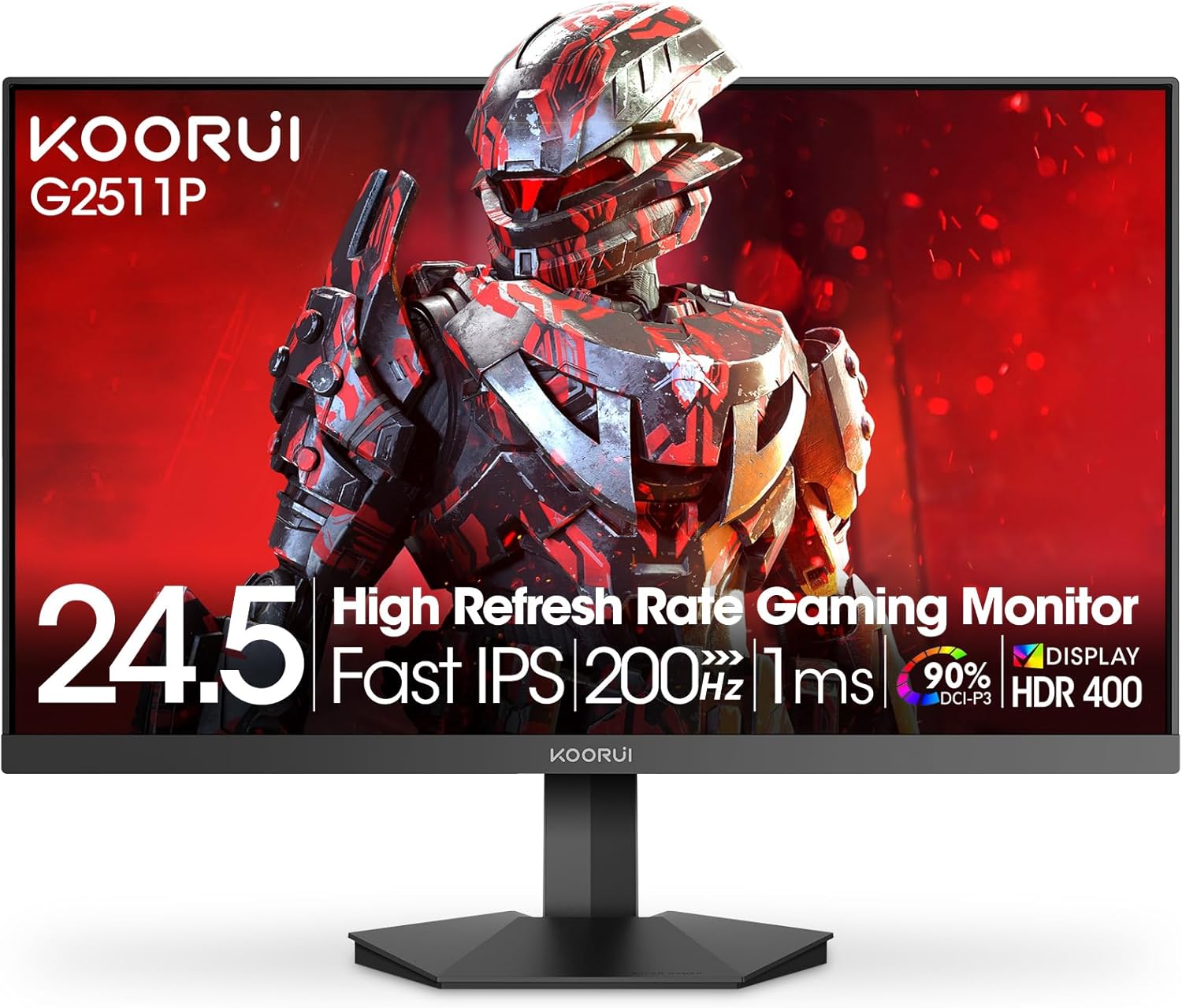
Figure 4.1: Key features of the KOORUI G2511P monitor.

Figure 4.2: Visual representation of high refresh rate benefits.
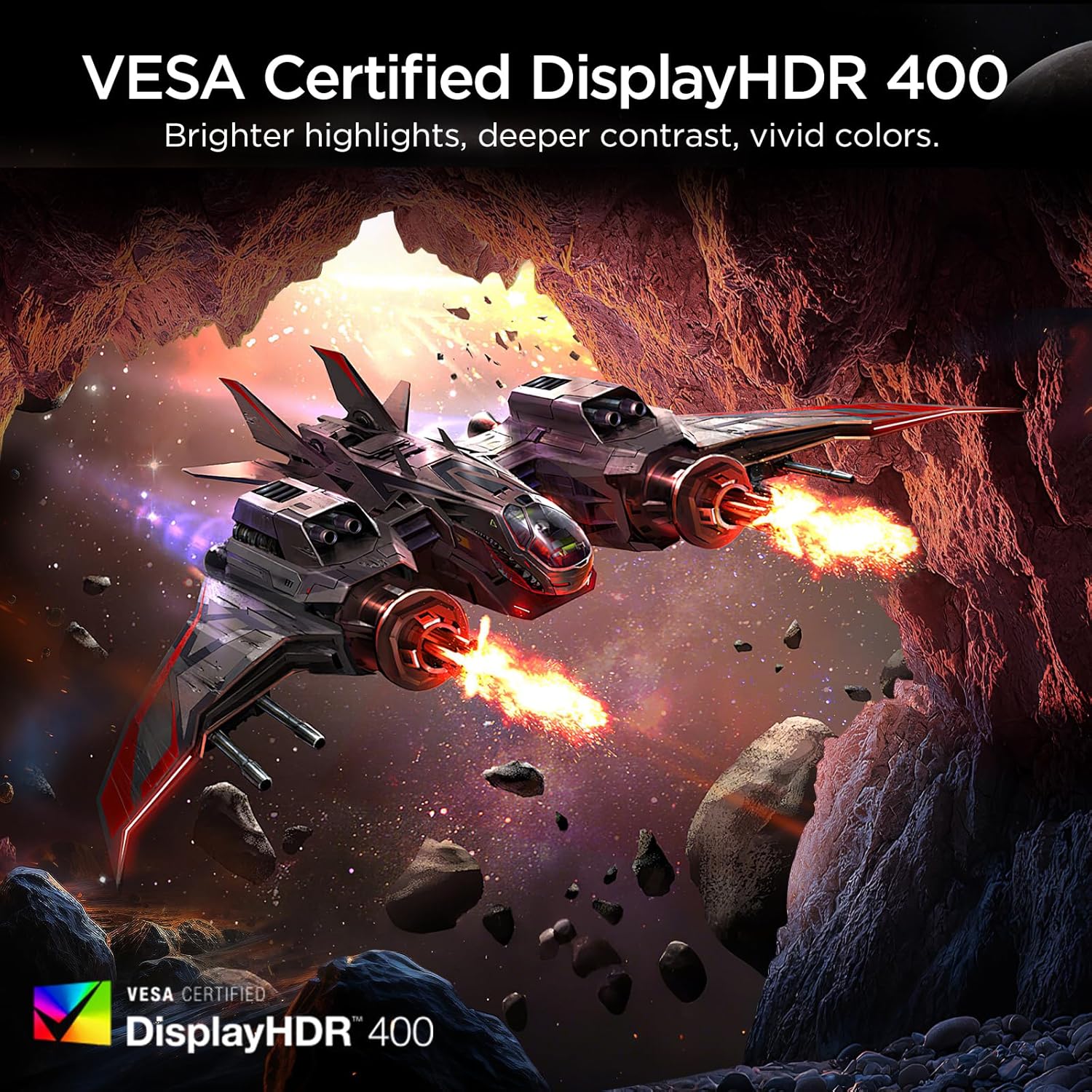
Figure 4.3: HDR400 for enhanced visual quality.
Figure 4.4: Adaptive Sync in action.
4.4 Pro-Gaming Enhancements
Access specialized gaming tools via the OSD menu:
- FPS Display Modes: Optimize visual settings for First-Person Shooter games.
- Adjustable On-Screen Timer: Track in-game events or personal bests.
- Customizable Crosshair Overlay: Improve aiming precision.

Figure 4.5: Pro-gaming enhancements for competitive play.
4.5 Eye Care Features
The KOORUI G2511P monitor incorporates features designed to reduce eye strain during extended use:
- Flicker-Free Technology: Reduces screen flickering that can cause eye fatigue.
- Low Blue Light Mode: Filters out harmful blue light emissions to protect your eyes.
5. Maintenance
To ensure the longevity and optimal performance of your monitor, follow these maintenance guidelines:
- Cleaning the Screen: Gently wipe the screen with a soft, lint-free cloth. For stubborn marks, lightly dampen the cloth with water or a non-ammonia, non-alcohol based screen cleaner. Do not spray cleaner directly onto the screen.
- Cleaning the Casing: Use a soft, dry cloth to clean the monitor's casing. Avoid abrasive cleaners or solvents.
- Ventilation: Ensure the ventilation openings on the monitor are not blocked to prevent overheating.
- Storage: When not in use for extended periods, store the monitor in a cool, dry place, away from direct sunlight and extreme temperatures.
6. Troubleshooting
If you encounter issues with your monitor, refer to the following common troubleshooting steps:
| Problem | Possible Solution |
|---|---|
| No Power | Check if the power cable is securely connected to both the monitor and the power outlet. Ensure the power adapter is functioning. |
| No Signal | Verify that the HDMI or DisplayPort cable is correctly connected to both the monitor and your device. Ensure the correct input source is selected in the OSD menu. |
| Flickering Screen | Check the cable connections. Ensure your graphics card drivers are up to date. Adjust the refresh rate in your device's display settings. |
| Poor Image Quality | Adjust brightness, contrast, and color settings in the OSD menu. Ensure the display resolution on your device matches the monitor's native resolution (1920x1080). |
| Adaptive Sync Not Working | Ensure Adaptive Sync is enabled in the monitor's OSD menu and in your graphics card's control panel. Use a DisplayPort cable for optimal performance. |
7. Specifications
| Feature | Specification |
|---|---|
| Model Number | G2511P |
| Screen Size | 24.5 Inches |
| Panel Type | IPS |
| Resolution | 1920 x 1080 (FHD 1080p) |
| Refresh Rate | 200Hz |
| Response Time | 1ms (GTG) |
| HDR Support | HDR400 |
| Color Gamut | 90% DCI-P3 |
| Image Brightness | 350 Candela per Square Meter |
| Image Contrast Ratio | 1200:1 |
| Connectivity | 2x HDMI 2.0, 1x DisplayPort 1.4, Audio Out |
| VESA Compatibility | 75x75mm |
| Product Dimensions | 8.84 x 22.05 x 17.52 inches |
| Item Weight | 9.63 pounds |
8. Warranty and Support
KOORUI monitors are manufactured with a focus on quality and reliable performance. This product comes with a 3-Year Limited Warranty. For any questions, technical assistance, or warranty claims, please contact KOORUI's dedicated support team. Refer to the contact information provided on the KOORUI official website or your purchase documentation.
9. Official Product Video
Watch the official product video for a visual overview of the KOORUI G2511P Gaming Monitor's features and capabilities.
Video 9.1: Official product video showcasing the KOORUI G2511P Gaming Monitor's features, including its 200Hz refresh rate, 1ms response time, HDR400, and Adaptive Sync technology.


