
CooSpo CS600
Contents
CooSpo CS600 Color Touchscreen GPS Bike Computer User Manual
Model: CS600
1. Introduction
Thank you for choosing the CooSpo CS600 Color Touchscreen GPS Bike Computer. This device is designed to enhance your cycling experience by providing precise tracking, navigation, and comprehensive data analysis. It features a 2.4-inch high-resolution color touchscreen, IPX7 waterproofing, Bluetooth/ANT+ connectivity, and a long-lasting 36-hour battery life.
This manual provides detailed instructions on how to set up, operate, and maintain your CS600 bike computer to ensure optimal performance and longevity.
2. What's in the Box

Image: The CooSpo CS600 retail box opened, displaying all included components: the CS600 device, a user manual, a USB Type-C charging cable, a mounting base, and an anti-lost rope.
- CooSpo CS600 Bike Computer x1
- User Manual x1
- USB Type-C Cable x1
- Mounting Base x1
- Anti-lost Rope x1
3. Setup
3.1 Charging the Device
Before first use, fully charge your CS600. Connect the provided USB Type-C cable to the charging port on the device and to a standard USB power adapter (not included). A full charge typically takes approximately 2 hours and provides up to 36 hours of battery life.
3.2 Mounting the Device
The CS600 comes with a handlebar mount. Secure the mounting base to your bicycle's handlebar using the provided rubber bands or zip ties. Ensure it is firmly attached and positioned for easy viewing during your ride. Once the base is secure, align the CS600 with the mount and twist it clockwise until it locks into place.
3.3 Powering On/Off
- Power On: Press and hold the power button (usually located on the side or bottom) for a few seconds until the screen illuminates.
- Power Off: Press and hold the power button until a power-off prompt appears on the screen, then confirm your selection.
4. Operating Instructions
4.1 Touchscreen Navigation

Image: A user's finger interacting with the 2.4-inch color touchscreen of the CooSpo CS600, showing clear data display and responsive touch control.
The CS600 features a responsive 2.4-inch color touchscreen. Swipe left or right to navigate between data pages, tap to select options, and use the physical buttons for quick actions like starting/stopping a ride or accessing menus.
4.2 GPS Tracking and Data Recording
The device utilizes advanced GPS and GLONASS satellite systems for fast and accurate positioning. Once powered on, the CS600 will automatically search for satellite signals. Ensure you are in an open area for quicker acquisition. The device tracks various metrics including speed, distance, time, altitude, and route data.

Image: An aerial view of a winding mountain road with green lines indicating a tracked route and orange pins marking GPS points, demonstrating the CS600's precise GNSS tracking.
4.3 Route Navigation
The CS600 supports built-in route navigation. You can upload routes to the device or use the breadcrumb trail feature to follow a previously recorded path. The clear on-screen mapping helps you stay on course.

Image: The CooSpo CS600 bike computer screen showing a detailed map with a highlighted route, current position, distance to next turn, speed, and heading.
4.4 Customizing Data Display
Personalize your riding experience by customizing the data dashboard. The CS600 offers over 150 data types. You can create tailored views for different riding styles, prioritizing the metrics most important to you.

Image: Multiple screens of the CooSpo CS600 demonstrating the customization options for data fields, allowing users to select and arrange metrics like speed, heart rate, power, and more.
4.5 CooSpoRide App Synchronization
Seamlessly connect your CS600 to the CooSpoRide app via Bluetooth. The app allows you to sync ride data, analyze performance, create custom workout plans, and automatically upload data to third-party platforms like Strava and TrainingPeaks.

Image: Two individuals reviewing cycling statistics and maps on their smartphones, which display the CooSpoRide app interface. Logos for Strava and TrainingPeaks are visible, indicating data synchronization capabilities.
4.6 Ecosystem Connectivity (Bluetooth/ANT+)
The CS600 supports both Bluetooth and ANT+ connectivity, allowing it to pair with a wide range of external sensors and devices. This includes speed, cadence, heart rate, and power sensors (sold separately), as well as smart bike lights, radar tail lights, e-bikes, electronic shifters, and indoor cycling trainers for a fully integrated experience.
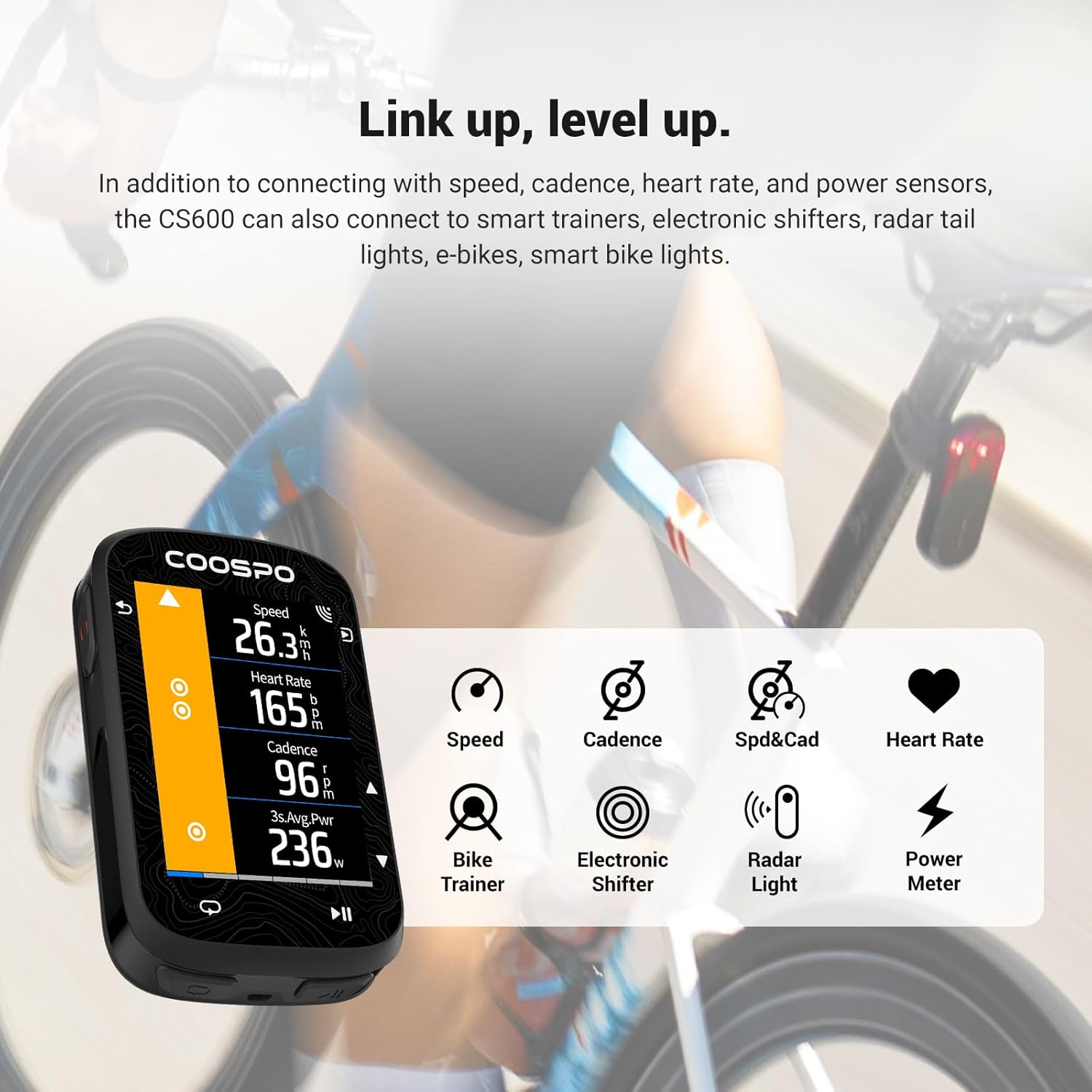
Image: The CooSpo CS600 bike computer displayed alongside icons representing various compatible sensors and devices, such as speed, cadence, heart rate, power meter, bike trainer, electronic shifter, and radar light, illustrating its broad connectivity.
5. Maintenance
5.1 Cleaning
Wipe the device with a soft, damp cloth. Avoid using abrasive cleaners or solvents that could damage the screen or casing. Ensure the charging port cover is securely closed to maintain water resistance.
5.2 Water Resistance
The CS600 is IPX7 waterproof, meaning it can withstand immersion in water up to 1 meter for 30 minutes. It is designed to confidently ride through heavy rain and storms. However, it is not recommended for underwater use or prolonged submersion.

Image: A composite image showcasing key features of the CooSpo CS600: a close-up of the device with water droplets indicating IPX7 waterproofing, the Type-C charging port, and a graphic emphasizing its lightweight design (14.5mm, 69g).
6. Troubleshooting
6.1 Device Not Powering On
- Ensure the device is fully charged. Connect it to a power source and wait a few minutes before attempting to power on again.
- Perform a soft reset by holding the power button for an extended period (e.g., 10-15 seconds).
6.2 GPS Signal Not Acquired
- Ensure you are in an open outdoor area with a clear view of the sky.
- Wait a few minutes for the device to acquire satellites. Initial acquisition may take longer.
- Check for any obstructions that might block the signal.
6.3 Sensors Not Connecting
- Ensure the sensors are awake and have fresh batteries.
- Check that Bluetooth/ANT+ is enabled on your CS600.
- Move the sensors closer to the CS600.
- Try re-pairing the sensors through the device settings.
6.4 Touchscreen Unresponsive
- Ensure the screen is clean and dry.
- Restart the device.
- If wearing gloves, try using bare fingers or compatible touchscreen gloves.
7. Specifications
| Feature | Detail |
|---|---|
| Model Name | CS600 |
| Display Size | 2.4 Inches |
| Connectivity Technology | ANT, Bluetooth |
| Waterproof Rating | IPX7 |
| Battery Life | 36 Hours |
| Charging Time | Approx. 2 hours (Type-C) |
| Item Weight | 120 Grams (4.2 ounces) |
| Mounting Type | Handlebar Mount |
| Map Type | Worldwide |
| Voice Command | Buttons, Touchscreen |
8. Warranty and Support
8.1 Warranty Information
The CooSpo CS600 comes with a 12-month manufacturer's warranty from the date of purchase. This warranty covers defects in materials and workmanship under normal use. It does not cover damage caused by misuse, accidents, unauthorized modifications, or normal wear and tear.
8.2 Customer Support
For technical assistance, warranty claims, or any questions regarding your CooSpo CS600, please contact CooSpo customer support. Refer to the contact information provided on the official CooSpo website or your purchase documentation.
Ask a question about this manual
Ask about setup, troubleshooting, compatibility, parts, safety, or missing instructions. Manuals+ will review the question and use this page’s manual context to help answer it.