
1. Introduction
This user manual provides essential information for setting up, operating, maintaining, and troubleshooting your NINGMEI Gaming PC Desktop Computer, model 5500 1660S. Please read this manual thoroughly before using your new computer to ensure proper functionality and longevity.
The NINGMEI Gaming PC is a prebuilt desktop system designed for gaming and demanding computing tasks. It features an AMD Ryzen 5 5500 processor, NVIDIA GeForce GTX 1660 Super graphics card, 16GB DDR4 RAM, and a 1TB NVMe SSD, running on Windows 11 Home.

Figure 1: NINGMEI Gaming PC Desktop Computer 5500 1660S
2. Package Contents
Verify that all items are present in the package:
- NINGMEI Gaming PC Desktop Computer (Model 5500 1660S)
- Power Cable
- Mousepad
- Documentation (Quick Start Guide, Warranty Information)
- Additional accessories (e.g., SATA cables, RGB fan remote control)
3. System Overview
3.1 Front Panel Ports
The front panel provides convenient access to frequently used ports and controls:
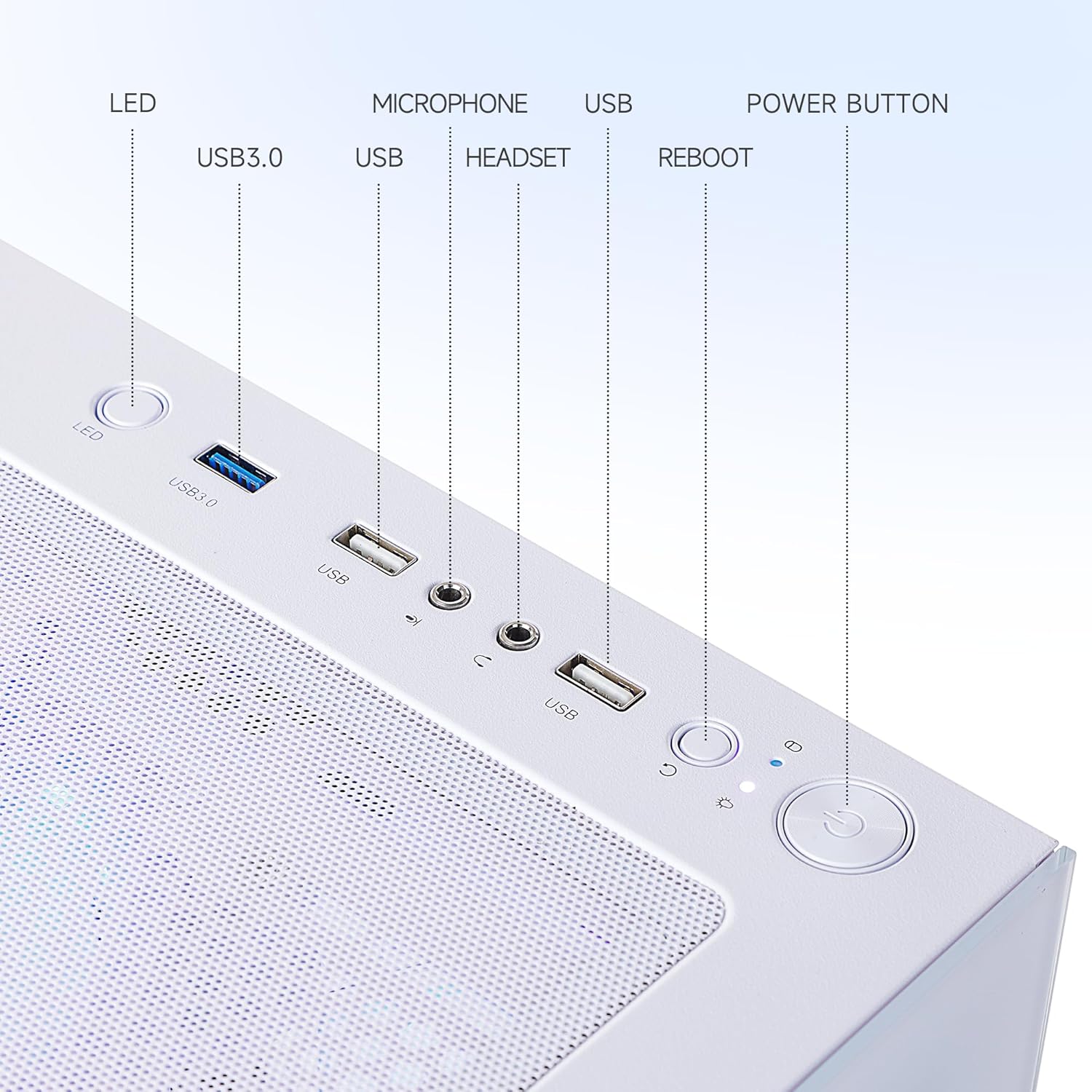
Figure 2: Front Panel Ports and Controls
- LED Indicator: Indicates system power status.
- USB 3.0 Ports (x2): For connecting high-speed USB devices.
- USB 2.0 Ports (x2): For connecting standard USB devices.
- Microphone Jack: For connecting a microphone.
- Headset Jack: For connecting headphones or a headset.
- Reboot Button: Initiates a system restart.
- Power Button: Turns the computer on or off.
3.2 Rear Panel Ports
The rear panel provides connectivity for essential peripherals:
- USB 3.2 Gen 1 Ports (x6): For connecting high-speed USB devices.
- USB 2.0 Ports (x6): For connecting standard USB devices.
- DVI Port (x1): For connecting a display.
- HDMI Port (x1): For connecting a display.
- RJ45 Ethernet Port (x1): For wired network connection (Realtek 1Gb Ethernet).
- Audio Jacks: For connecting speakers, headphones, or microphones.
- Power Input: For connecting the power cable.
3.3 Internal Components and Cooling
The PC features an optimized internal layout for efficient cooling and performance.

Figure 3: Internal Components and Airflow Design
The chassis incorporates a scientific air duct design to facilitate optimal thermal management, ensuring components operate within safe temperature ranges during extended use. This includes multiple cooling fans and a CPU air cooler.
4. Setup Guide
4.1 Unboxing
- Carefully remove the computer and all accessories from the packaging.
- Place the computer on a stable, flat surface with adequate ventilation.
- Remove any protective films or internal packaging materials from the PC case.
4.2 Connecting Peripherals
- Monitor: Connect your monitor to the graphics card's DVI or HDMI port on the rear of the PC using a compatible cable. Ensure the cable is securely fastened.
- Keyboard and Mouse: Connect your keyboard and mouse to any available USB ports on the front or rear panel.
- Network: For a wired connection, connect an Ethernet cable from your router or modem to the RJ45 port on the rear panel. For wireless connectivity, ensure the Wi-Fi antenna (if included) is attached.
- Audio: Connect speakers or headphones to the appropriate audio jacks on the rear or front panel.
- Power: Connect the power cable to the power input on the rear of the PC, then plug the other end into a grounded electrical outlet.
4.3 First Power On
- Ensure all connections are secure.
- Press the Power Button on the front panel of the PC.
- The system will boot up, and the operating system (Windows 11 Home) will begin its initial setup process. Follow the on-screen instructions to complete the Windows setup, including language, region, network connection, and user account creation.
5. Operating System Basics (Windows 11 Home)
Your NINGMEI Gaming PC comes pre-installed with Windows 11 Home. During the initial setup, you will configure basic settings. Once setup is complete, you can:
- Navigate the desktop and Start Menu.
- Install applications and games.
- Connect to the internet and browse the web.
- Manage files and folders using File Explorer.
- Customize system settings and personalize your experience.
For detailed information on Windows 11 features and usage, refer to Microsoft's official documentation or support resources.
6. Maintenance
6.1 Cleaning
Regular cleaning helps maintain optimal performance and extends the lifespan of your PC.
- Exterior: Use a soft, damp cloth to wipe down the exterior surfaces. Avoid harsh chemicals.
- Dust Filters: The PC case features a magnetic dust net on the top panel. Regularly remove and clean this filter to prevent dust accumulation inside the chassis.
- Internal Components: Periodically, with the PC powered off and unplugged, use compressed air to gently clear dust from internal components such as fans, heatsinks, and vents. Exercise caution to avoid damaging sensitive parts.

Figure 4: Magnetic Dust Filter for Easy Cleaning
6.2 Software Updates
Keep your operating system, drivers, and applications updated to ensure security, stability, and optimal performance.
- Windows Updates: Regularly check for and install Windows updates via the Settings app.
- Graphics Drivers: Download and install the latest graphics drivers from the NVIDIA website for your GeForce GTX 1660 Super to ensure compatibility and performance in games and applications.
- Other Drivers: Ensure all other system drivers (chipset, audio, network) are up to date.
7. Troubleshooting
If you encounter issues with your NINGMEI Gaming PC, refer to the following common troubleshooting steps:
- No Power:
- Ensure the power cable is securely connected to both the PC and the electrical outlet.
- Verify the power outlet is functional by plugging in another device.
- Check the power supply switch on the rear of the PC (if present) is in the 'ON' position.
- No Display on Monitor:
- Ensure the monitor is powered on and its input source is correctly selected.
- Verify the display cable (HDMI/DVI) is securely connected to both the PC's graphics card port and the monitor.
- Try a different display cable or monitor if available.
- Peripherals Not Working:
- Ensure USB devices (keyboard, mouse) are properly connected to the USB ports.
- Try connecting the device to a different USB port.
- Check device drivers in Windows Device Manager.
- System Slowdown or Freezing:
- Close unnecessary applications running in the background.
- Check Task Manager for processes consuming high CPU or RAM.
- Ensure the system has adequate ventilation and is not overheating.
- Run a virus/malware scan.
If these steps do not resolve the issue, please contact NINGMEI customer support.
8. Specifications
Detailed technical specifications for the NINGMEI Gaming PC Desktop Computer 5500 1660S:

Figure 5: Product Dimensions
| Component | Specification |
|---|---|
| Model Number | 5500 1660S |
| Processor | AMD Ryzen 5 5500 (3.6 GHz, 6 Cores, 12 Threads, Max Turbo Frequency 4.2 GHz) |
| Graphics Card | NVIDIA GeForce GTX 1660 Super (6GB GDDR6 Dedicated) |
| RAM | 16GB DDR4 3200MHz |
| Storage | 1TB NVMe SSD |
| Operating System | Windows 11 Home |
| Power Supply Unit (PSU) | 650W |
| Front Ports | 2x USB 3.0, HD-Audio & Mic |
| Rear Ports | 6x USB 3.2 Gen 1, 6x USB 2.0, 1x DVI, 1x HDMI, 1x RJ45 (Realtek 1Gb Ethernet) |
| Dimensions (LxWxH) | 17 x 9 x 18 inches (43.5 x 23 x 45.6 cm) |
| Item Weight | 23.6 pounds |
| Color | White |
9. Warranty and Support
NINGMEI provides a standard warranty for its products. Please refer to the warranty card included in your package for specific terms, conditions, and duration of coverage. Keep your proof of purchase for warranty claims.
Customer Support:
For technical assistance, troubleshooting, or warranty inquiries, please contact NINGMEI customer support through the official website or the contact information provided in your product documentation.
When contacting support, please have your product model number (5500 1660S) and purchase details readily available.