
1. Introduction
The ATK Blazing Sky X1 Ultimate is an ultra-lightweight wireless gaming mouse designed for esports performance. It features a lightweight construction, advanced sensor technology, and versatile connectivity options to provide precise control and comfort for competitive play. This manual provides essential information for setting up, operating, and maintaining your ATK Blazing Sky X1 Ultimate mouse.

Figure 1: ATK Blazing Sky X1 Ultimate Wireless Gaming Mouse.
2. Package Contents
Ensure all items are present in the package:
- ATK Blazing Sky X1 Ultimate Wireless Gaming Mouse
- USB-C Charging Cable
- ATK 8K Dongle (for 8K wireless polling)
- User Manual
3. Setup
3.1 Charging the Mouse
Connect the supplied USB-C cable to the mouse's charging port and the other end to a USB-A port on your computer or a compatible USB charger. The mouse will indicate charging status (e.g., LED indicator).
3.2 Connecting the Mouse
The ATK Blazing Sky X1 Ultimate supports quad-mode connectivity:
- 2.4G Wireless Mode: Insert the ATK 8K dongle into an available USB port on your computer. Turn on the mouse and select the 2.4G mode using the switch on the bottom of the mouse. The mouse should automatically connect.
- Bluetooth Mode: Turn on the mouse and select Bluetooth mode using the switch on the bottom. On your computer, go to Bluetooth settings and pair with the "ATK Blazing Sky X1" device.
- Wired Mode: Connect the mouse directly to your computer using the supplied USB-C cable. The mouse will function as a wired device and charge simultaneously.
3.3 Software Installation
For full customization of DPI, polling rate, button assignments, and macros, download and install the ATK HUB/Web Driver software from the official ATK website. This software allows you to personalize your mouse settings to match your preferences.

Figure 2: ATK HUB/Web Driver software interface and Nordic 52840 MCU.
4. Operating Instructions
4.1 DPI Adjustment
The ATK Blazing Sky X1 Ultimate features a PixArt PAW3950 Ultra sensor, offering up to 36,000 DPI (Dots Per Inch) via software. You can cycle through preset DPI stages using the dedicated DPI button on the mouse, or customize and fine-tune your DPI settings using the ATK HUB/Web Driver software.

Figure 3: PixArt PAW3950 Ultra Sensor specifications.
4.2 Polling Rate
The mouse supports adjustable polling rates from 125 Hz to 8000 Hz. For optimal performance and ultra-low latency, utilize the 8K wireless polling rate with the included ATK 8K dongle. Polling rate settings can be configured via the ATK HUB/Web Driver software.
4.3 Programmable Buttons
The X1 Ultimate is equipped with durable optical switches rated for 70 million clicks, providing crisp and reliable actuation. All buttons are programmable via the ATK HUB/Web Driver software, allowing you to assign macros, keybinds, or multimedia functions.

Figure 4: Ultra-lightweight design and Omron Optical Micro Switches.
4.4 Battery Life
The X1 Ultimate edition features a 500 mAh battery, providing approximately 75–150 hours of usage depending on the polling rate and usage intensity. Monitor battery status through the ATK HUB/Web Driver software or the mouse's LED indicator.
5. Maintenance
To ensure the longevity and optimal performance of your ATK Blazing Sky X1 Ultimate mouse, follow these maintenance guidelines:
- Cleaning: Use a soft, dry cloth to wipe the surface of the mouse. For stubborn dirt, lightly dampen the cloth with water or a mild cleaning solution. Avoid harsh chemicals or abrasive materials.
- Sensor Care: Keep the optical sensor on the bottom of the mouse clean and free from dust or debris. Use a cotton swab lightly dampened with isopropyl alcohol if necessary.
- Storage: Store the mouse in a cool, dry place away from direct sunlight and extreme temperatures when not in use.
6. Troubleshooting
If you encounter issues with your ATK Blazing Sky X1 Ultimate mouse, refer to the following common solutions:
- Mouse not responding: Ensure the mouse is charged and powered on. Check the connectivity mode (2.4G, Bluetooth, or wired) and ensure it matches your computer's connection. Re-insert the USB dongle or re-pair via Bluetooth.
- Tracking issues: Clean the optical sensor on the bottom of the mouse. Ensure you are using the mouse on a suitable surface (a mouse pad is recommended). Update the mouse firmware via the ATK HUB/Web Driver software.
- Battery not charging: Verify the USB-C cable is securely connected to both the mouse and the power source. Try a different USB port or charging cable.
- Software not detecting mouse: Ensure the mouse is connected to your computer. Reinstall the ATK HUB/Web Driver software.
7. Specifications
| Feature | Detail |
|---|---|
| Model Number | ATK Blazing Sky X1 Ultimate |
| Item Weight | 1.8 ounces (approx. 51g for X1 Ultimate) |
| Brand | ATK |
| Color | White |
| Connectivity Technology | NearLink, 2.4G Wireless, Bluetooth, Wired USB-C |
| Special Feature | Ultra-Lightweight, Programmable Buttons, Rechargeable |
| Movement Detection Technology | Optical |
| Sensor | PixArt PAW3950 Ultra (up to 36,000 DPI via software) |
| Switches | Optical Switches (70M clicks) |
| MCU | Nordic 52840 with Smartspeed 2.0 |
| Polling Rate | 125 Hz - 8000 Hz (8K with ATK 8K Dongle) |
| Battery | 500 mAh (75-150 hours depending on usage) |
| Dimensions | 127 × 64 × 40 mm |
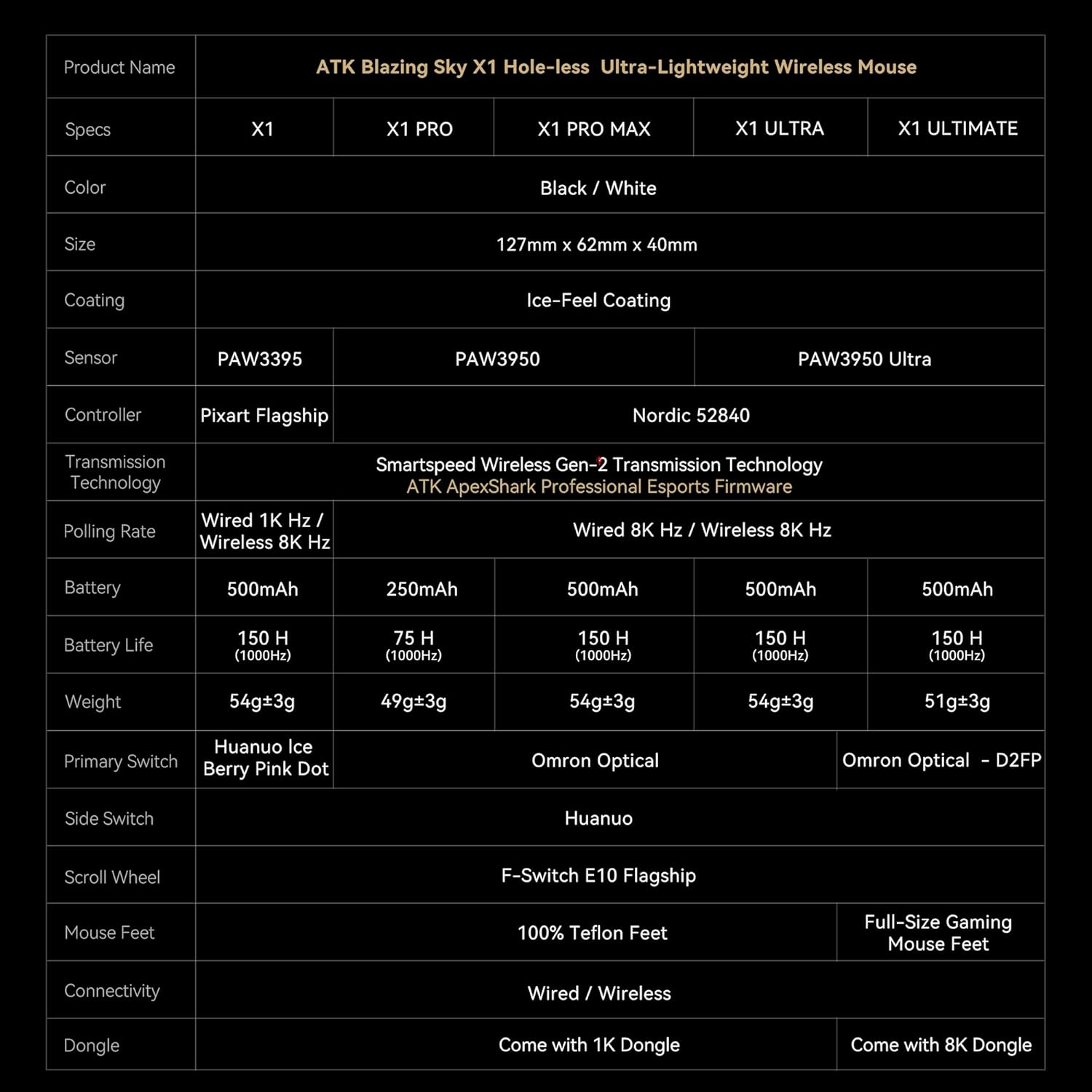
Figure 5: ATK Blazing Sky X1 Series Specification Table.
8. Warranty & Support
For detailed warranty information, product registration, and technical support, please visit the official ATK website or contact ATK customer service. Keep your proof of purchase for warranty claims.
- Online Support: Visit the ATK Store on Amazon for FAQs and product information.
- Contact: Refer to your product packaging or the ATK website for direct customer service contact details.


