
NEWFAST NF-RE556
NEWFAST NF-RE556 WiFi 6 Repeater AX3000
Instruction Manual
1. Introduction
Thank you for choosing the NEWFAST NF-RE556 WiFi 6 Repeater AX3000. This device is designed to extend your existing Wi-Fi network coverage, eliminate dead zones, and provide high-speed internet access throughout your home or office. Featuring dual-band WiFi 6 technology, a Gigabit Ethernet port, and four external antennas, it ensures a stable and fast connection for multiple devices. Please read this manual carefully before installation and operation to ensure optimal performance and safe use.
2. Package Contents
Verify that your package contains the following items:
- 1 x NEWFAST NF-RE556 WiFi 6 Repeater AX3000
- 1 x Quick Installation Guide
- 1 x Ethernet Cable
3. Product Overview
3.1 Device Layout
The NEWFAST NF-RE556 features a compact design with adjustable antennas for optimal signal direction and a Gigabit Ethernet port for wired connections.
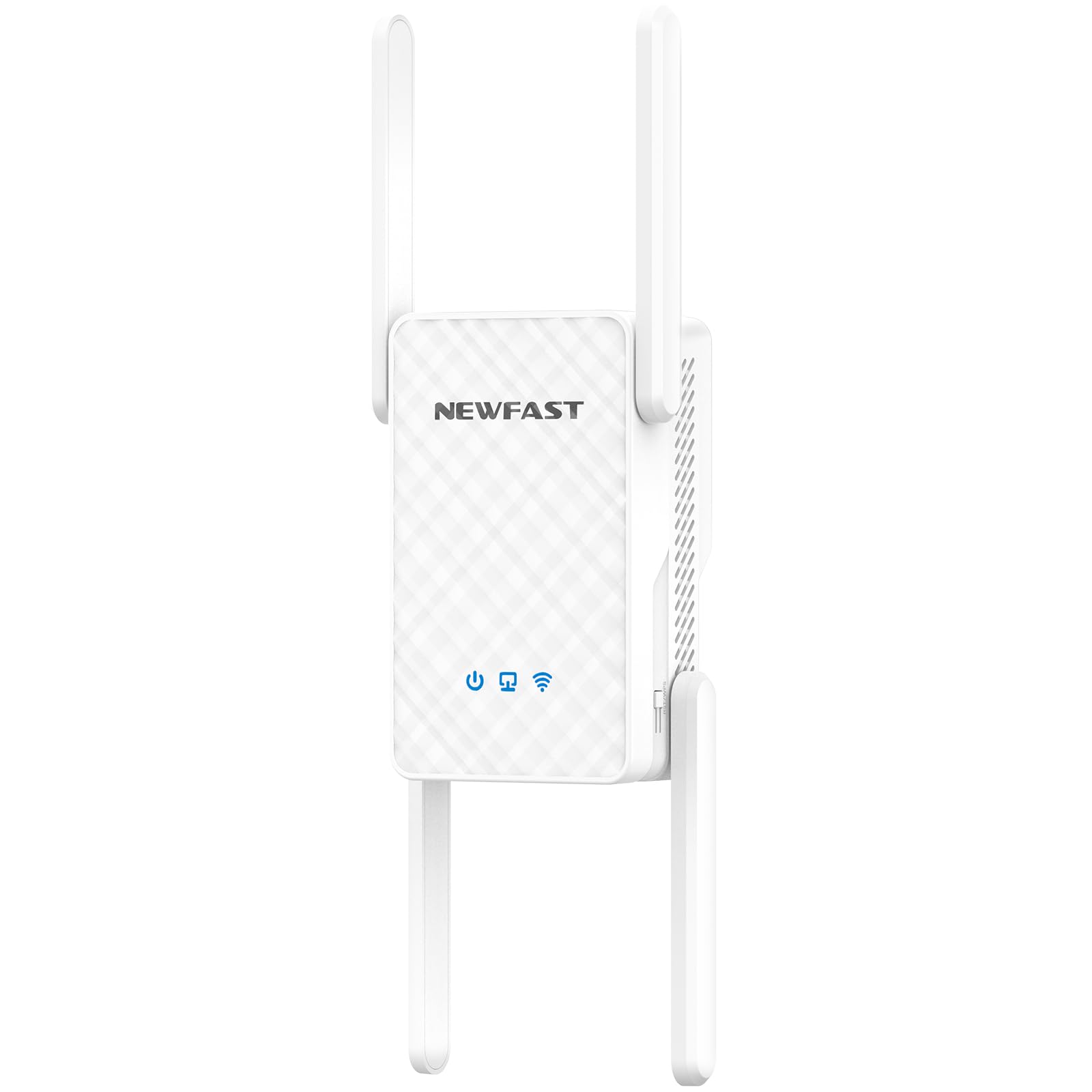
Image: Front view of the NEWFAST NF-RE556 WiFi 6 Repeater, showing its four adjustable external antennas and LED indicators for power, Wi-Fi signal, and Ethernet connection.
3.2 LED Indicators
The device includes several LED indicators to show its status:
- Power LED: Indicates power status.
- Wi-Fi LED: Indicates Wi-Fi signal strength and activity.
- LAN/WAN LED: Indicates Ethernet port connection status.
4. Installation and Setup
The NEWFAST NF-RE556 supports two main operating modes: Repeater Mode and Access Point (AP) Mode.

Image: Visual representation of the two operating modes: Repeater Mode, extending existing Wi-Fi, and Access Point Mode, converting a wired connection to wireless.
4.1 Repeater Mode Setup
Repeater Mode extends the coverage of your existing Wi-Fi network.
- Power On: Plug the repeater into an electrical outlet near your main router. Wait for the Power LED to turn solid.
- Connect: On your computer or mobile device, connect to the repeater's default Wi-Fi network (e.g., "NEWFAST_XXXX"). No password is required initially.
- Access Web Interface: Open a web browser and enter the default IP address (usually 192.168.1.1 or 192.168.0.1) or the domain name provided in the Quick Installation Guide.
- Login: Enter the default username and password (usually "admin" for both).
- Select Repeater Mode: Follow the on-screen wizard. Select "Repeater Mode" or "Extender Mode."
- Scan for Networks: The repeater will scan for available Wi-Fi networks. Select your main Wi-Fi network from the list.
- Enter Password: Enter the Wi-Fi password for your main network. You can choose to keep the same network name (SSID) or create a new one for the extended network.
- Apply Settings: Save the settings and wait for the repeater to restart.
- Relocate: Once configured, unplug the repeater and move it to a location halfway between your router and the Wi-Fi dead zone. Ensure the Wi-Fi LED indicates a good signal strength from your main router.
4.2 Access Point (AP) Mode Setup
AP Mode transforms a wired internet connection into a wireless network.
- Power On: Plug the repeater into an electrical outlet. Wait for the Power LED to turn solid.
- Connect Ethernet: Connect an Ethernet cable from your router's LAN port to the repeater's Gigabit Ethernet port.
- Connect to Repeater: On your computer or mobile device, connect to the repeater's default Wi-Fi network (e.g., "NEWFAST_XXXX").
- Access Web Interface: Open a web browser and enter the default IP address or domain name.
- Login: Enter the default username and password.
- Select AP Mode: Follow the on-screen wizard. Select "AP Mode" or "Access Point Mode."
- Configure Wi-Fi: Set a new Wi-Fi network name (SSID) and password for your new wireless network.
- Apply Settings: Save the settings and wait for the repeater to restart. The repeater will now broadcast a new Wi-Fi network.
5. Operating Modes
5.1 Repeater Mode
In Repeater Mode, the device acts as a wireless signal booster, receiving the Wi-Fi signal from your main router and re-transmitting it to extend coverage. This is ideal for eliminating Wi-Fi dead zones and improving signal strength in areas with weak reception.
5.2 Access Point (AP) Mode
In AP Mode, the device connects to your router via an Ethernet cable and creates a new wireless network. This is useful for adding Wi-Fi capability to a wired network or creating a separate Wi-Fi network in a specific area.
6. Advanced Features
6.1 Dual-Band WiFi 6 Technology
The NF-RE556 supports the latest WiFi 6 (802.11ax) standard, offering speeds up to 3000 Mbps (2402 Mbps on 5GHz and 574 Mbps on 2.4GHz). It utilizes a 160 MHz ultra-wide band, doubling the capacity of older WiFi 5 (80 MHz) devices, ensuring higher throughput and lower latency for all your connected devices.

Image: Illustration showing the dual-band capabilities of the repeater, with 574 Mbps on the 2.4GHz band and 2402 Mbps on the 5GHz band, supporting various user activities.
6.2 Gigabit Ethernet Port
Equipped with a Gigabit Ethernet port, the repeater allows for a stable and fast wired connection to devices such as desktop computers, gaming consoles, or smart TVs. This port can also be used for AP mode setup.

Image: A detailed view of the Gigabit Ethernet port on the NEWFAST NF-RE556, highlighting its capability for high-speed wired connections.
6.3 WPA3 Security
The NF-RE556 supports the WPA3 encryption protocol, providing enhanced security for your wireless network. This multi-layer protection helps safeguard your data against unauthorized access, hacking, and other cyber threats, ensuring a secure internet experience.

Image: A graphic depicting the secure encryption features of the NEWFAST NF-RE556, including WPA3 support for anti-virus, anti-piracy, anti-fraudulent use, and anti-leakage protection.
6.4 Efficient Heat Dissipation
Designed with a multi-face cooling system, the repeater effectively dissipates heat, preventing overheating and ensuring stable, continuous operation 24 hours a day.

Image: A diagram illustrating the multi-face cooling design of the NEWFAST NF-RE556, showing airflow paths for efficient heat dissipation.
6.5 Wide Compatibility
The NF-RE556 is compatible with over 65 types of devices, including smartphones, smart TVs, gaming consoles, security cameras, and computers, ensuring seamless connectivity for all your smart home devices.

Image: Icons representing various compatible devices such as smartphones, smart TVs, video game consoles, cameras, and computers, demonstrating the repeater's broad compatibility.
7. Maintenance
- Firmware Updates: Regularly check the manufacturer's website for firmware updates to ensure optimal performance and security.
- Cleaning: Use a soft, dry cloth to clean the device. Do not use liquid cleaners or aerosols.
- Placement: Ensure the repeater is placed in a well-ventilated area, away from direct sunlight, heat sources, and obstructions that could block the Wi-Fi signal.
- Restart: If you experience network issues, try restarting the repeater by unplugging it for 10 seconds and then plugging it back in.
8. Troubleshooting
- No Power:
Ensure the power adapter is securely connected to the repeater and a working electrical outlet. Try a different outlet.
- Cannot Connect to Repeater's Wi-Fi:
Make sure the repeater is powered on. If you've changed the default Wi-Fi name, check your device's Wi-Fi list for the new name. Try resetting the repeater to factory defaults (refer to the Quick Installation Guide for reset instructions).
- No Internet Access After Setup:
In Repeater Mode, ensure you entered the correct password for your main router's Wi-Fi network. Verify that your main router has internet access. In AP Mode, ensure the Ethernet cable is securely connected from your router to the repeater and that your router is providing internet.
- Weak Signal or Slow Speed:
Relocate the repeater closer to your main router, ensuring it's still within a good signal range of the router and closer to the desired coverage area. Adjust the external antennas for optimal signal reception. Minimize interference from other electronic devices.
- Repeater Disconnects Frequently:
Check for firmware updates. Ensure the repeater is not overheating. Try changing the Wi-Fi channel on your main router to avoid interference.
9. Specifications
| Parameter | Value |
|---|---|
| Brand | NEWFAST |
| Model | NF-RE556 |
| Wi-Fi Standard | WiFi 6 (802.11ax) |
| Frequency Band Class | Dual Band (2.4GHz & 5GHz) |
| Max. Wireless Speed | AX3000 Mbps (574 Mbps on 2.4GHz, 2402 Mbps on 5GHz) |
| Antennas | 4 x 5dBi External Antennas |
| Ethernet Port | 1 x Gigabit Ethernet (RJ45) |
| Security Protocols | WPA3 |
| Operating Modes | Repeater Mode, Access Point (AP) Mode |
| Dimensions (D x W x H) | 4.8 x 9.4 x 13 cm |
| Color | White |
| Compatible Devices | Computers, Smartphones, Smart TVs, Gaming Consoles, etc. |
10. Safety Information
- Do not expose the device to water or moisture.
- Do not open or attempt to repair the device yourself.
- Use only the provided power adapter.
- Keep the device away from extreme temperatures and direct sunlight.
- Ensure proper ventilation to prevent overheating.
11. Warranty and Support
NEWFAST products come with a standard manufacturer's warranty. For detailed warranty information, technical support, or customer service inquiries, please refer to the contact information provided in your product packaging or visit the official NEWFAST website. Please retain your proof of purchase for warranty claims.
Related documentsNF-RE556


Ask a question about this manual
Ask about setup, troubleshooting, compatibility, parts, safety, or missing instructions. Manuals+ will review the question and use this page’s manual context to help answer it.