
1. Important Safety Instructions
Please read and understand all safety instructions before using this product. Keep this manual for future reference.
- Strangulation Hazard: Keep all cords out of reach of children. Never place the camera or monitor within 3 feet (1 meter) of the crib or playpen. Secure cords to a wall or floor using cable clips.
- Choking Hazard: This product contains small parts. Keep out of reach of children.
- Overheating: Do not cover the camera or monitor with clothing, blankets, or any other material. Ensure proper ventilation.
- Water and Moisture: Do not expose the product to rain, moisture, or any liquids. Do not use near water sources such as bathtubs, sinks, or swimming pools.
- Power Source: Use only the provided power adapters. Using unauthorized adapters may damage the product and void the warranty.
- Interference: Keep the product away from other electronic devices that may cause interference, such as microwaves or Wi-Fi routers.
- Temperature: Operate and store the product within the recommended temperature range specified in the specifications section.
- Cleaning: Disconnect from power before cleaning. Use a dry, soft cloth. Do not use liquid or aerosol cleaners.
- Privacy: Ensure your Wi-Fi network is secure to prevent unauthorized access to your baby monitor feed.
2. Product Overview
The PARIS RHÔNE 2K Split-Screen Baby Monitor system includes a parent unit (monitor) and two camera units. It offers both local monitoring via the parent unit and remote monitoring via a smartphone app.
2.1 Package Contents
- Parent Unit (Monitor)
- 2 x Camera Units
- 2 x Power Adapters for Cameras
- 1 x Power Adapter for Monitor
- Instruction Manual (this document)
2.2 Components

Image: The parent unit (monitor) and a camera unit, illustrating the main components of the baby monitoring system.
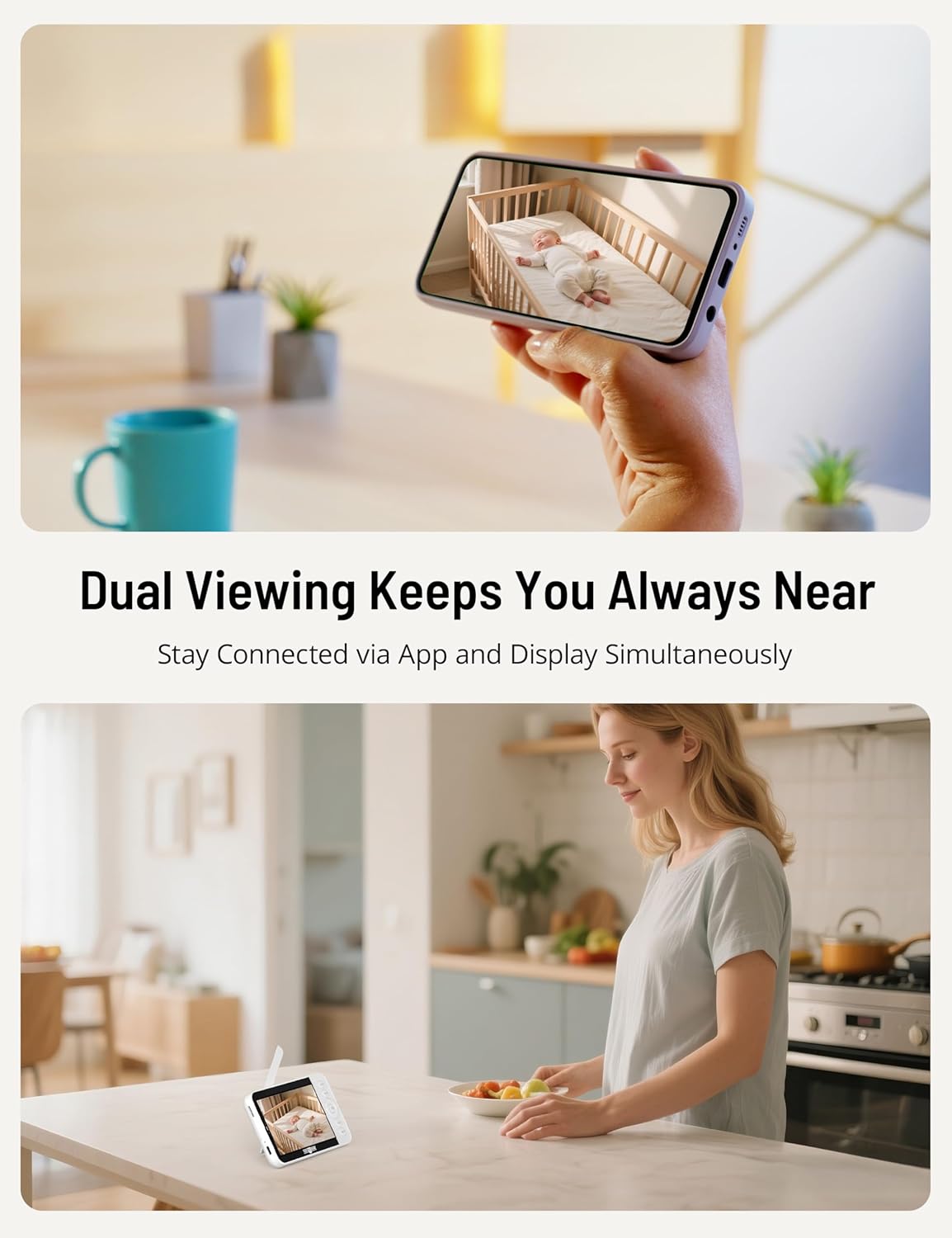
Image: All components included in the PARIS RHÔNE baby monitor package, including the monitor, two cameras, and power adapters.
The parent unit features a 5-inch display, control buttons, and a built-in battery. Each camera unit includes a 2K UHD lens, pan/tilt mechanism, night vision LEDs, and a speaker/microphone for two-way audio.
3. Setup
3.1 Powering On the Units
- Connect the power adapter to each camera unit and plug it into a power outlet. The camera will power on automatically.
- Connect the power adapter to the parent unit and plug it into a power outlet. Press and hold the power button on the parent unit to turn it on.
3.2 Camera Placement
Place the camera units in a location that provides a clear view of your baby. Ensure the camera is at least 3 feet (1 meter) away from the crib or playpen to prevent cord entanglement. The camera can be placed on a flat surface or mounted to a wall using the included mounting accessories.

Image: Illustration of a camera unit positioned securely on a surface near a crib, demonstrating safe placement.
3.3 Initial Pairing (if necessary)
The camera units are typically pre-paired with the parent unit. If a camera is not displaying video, follow these steps to re-pair:
- On the parent unit, navigate to the 'Camera Management' menu.
- Select an empty camera slot or the camera you wish to re-pair.
- Press the 'Pair' button on the back of the camera unit. The parent unit should display the camera feed once paired successfully.
3.4 App Connection (Optional WiFi Monitoring)
For remote viewing and advanced features, download the 'CloudEdge' app from your smartphone's app store.
- Ensure your smartphone is connected to a 2.4GHz Wi-Fi network.
- Open the CloudEdge app and create an account.
- Follow the in-app instructions to add your camera units. This usually involves scanning a QR code on the camera or manually entering its ID.
- Once connected, you can view live feeds, adjust settings, and receive alerts directly on your smartphone.

Image: A smartphone displaying the baby monitor app feed alongside the physical parent unit, demonstrating dual viewing options.
4. Operating Instructions
4.1 Parent Unit Controls
The parent unit features several buttons for navigation and control:
- Power Button: Turns the unit on/off.
- Menu Button: Accesses the main menu for settings.
- OK Button: Confirms selections.
- Navigation Buttons (Up/Down/Left/Right): Moves through menus and controls camera pan/tilt.
- Talk Button: Activates two-way audio.
- Zoom Button: Zooms in/out on the video feed.
- Split-Screen Button: Toggles split-screen view.
4.2 Split-Screen Viewing
To view feeds from both cameras simultaneously, press the dedicated Split-Screen button on the parent unit. The screen will divide to show both camera feeds. You can switch between cameras for full-screen viewing or focus on one feed while still monitoring the other in split-screen mode.

Image: The parent unit displaying a split-screen view, showing two different camera feeds simultaneously, ideal for monitoring multiple children or rooms.
4.3 Night Vision
The camera units are equipped with infrared LEDs for automatic night vision. In low-light conditions, the camera will automatically switch to night vision mode, providing a clear black-and-white image of your baby.

Image: A baby monitor camera unit highlighting its 355-degree pan, 115-degree tilt, 4X zoom, 2K HD resolution, and HD night vision capabilities.
4.4 Two-Way Audio
Press and hold the 'Talk' button on the parent unit to speak to your baby through the camera's speaker. Release the button to listen. This feature is also available through the smartphone app.
4.5 Motion and Cry Alerts
The monitor can detect motion and crying sounds. You can enable and adjust the sensitivity of these alerts in the parent unit's menu or via the smartphone app. When an alert is triggered, you will receive a notification on the parent unit and/or your smartphone.

Image: A smartphone displaying a 'CloudEdge' notification for a baby's cry, with a crying baby in a crib in the background, illustrating smart alert functionality.
4.6 Auto Tracking
When enabled, the camera can automatically pan and tilt to follow your baby's movements within its field of view, ensuring they remain in the frame.
4.7 Lullabies and RGB Night Light
The camera units feature a built-in RGB night light and can play 14 different lullabies. These can be controlled from the parent unit or the smartphone app to create a soothing environment for your baby.

Image: A baby sleeping peacefully in a crib with a camera unit emitting a soft night light, and a smartphone app showing night light settings and lullaby options.
4.8 Recording and Storage
The system supports recording video to a local SD card (not included) or to cloud storage (subscription may be required). You can review recorded footage through the parent unit or the smartphone app.

Image: A baby in a crib with a smartphone app overlay showing options for up to 3 viewers, cloud storage, and SD card storage, emphasizing shared monitoring and memory capture.
4.9 Secure Monitoring
The PARIS RHÔNE baby monitor utilizes AES-128 encryption for secure data transmission, protecting your family's privacy. You can also choose to use the local monitor without Wi-Fi for a completely private connection.

Image: A diagram illustrating the secure connection between the camera, monitor, and smartphone app, highlighting AES-128 encryption and the option to turn off the Wi-Fi channel for privacy.
5. Maintenance
5.1 Cleaning
- Ensure all units are powered off and unplugged before cleaning.
- Use a soft, dry, lint-free cloth to wipe the surfaces of the monitor and cameras.
- Do not use abrasive cleaners, solvents, or chemical sprays.
- Gently wipe the camera lens with a lens cleaning cloth if necessary.
5.2 Storage
If storing the unit for an extended period, ensure it is clean and dry. Store in a cool, dry place away from direct sunlight and extreme temperatures. Fully charge the parent unit's battery before storage and recharge every few months to maintain battery health.
6. Troubleshooting
If you encounter issues with your baby monitor, please refer to the following common problems and solutions:
| Problem | Possible Solution |
|---|---|
| No image on parent unit | Ensure both the camera and parent unit are powered on and connected to power. Check if the camera is paired with the parent unit. Move the camera closer to the parent unit to improve signal. |
| Poor video quality or signal loss | Reduce the distance between the camera and parent unit. Remove any obstructions (walls, furniture) that may interfere with the signal. Ensure no other electronic devices are causing interference. |
| No sound or distorted sound | Check the volume settings on the parent unit. Ensure the camera's microphone is not blocked. Move the camera closer to the baby. |
| Parent unit battery drains quickly | Reduce screen brightness. Turn off unnecessary features like continuous video display when not needed. Ensure the battery is fully charged before use. Battery life naturally decreases over time. |
| App connection issues | Ensure your smartphone is connected to a 2.4GHz Wi-Fi network. Restart your router and the camera unit. Verify correct Wi-Fi password entry in the app. Update the app to the latest version. |
| Motion/Cry alerts not working | Check alert settings in the parent unit menu or app. Adjust sensitivity levels. Ensure notifications are enabled on your smartphone for the CloudEdge app. |
7. Specifications
| Feature | Detail |
|---|---|
| Model Number | PE-BBM003 |
| Video Capture Resolution | 2K (1920p) via App, 720P on 5" Monitor |
| Screen Size | 5 inches |
| Connectivity Technology | Wired, Wireless (Wi-Fi 2.4GHz) |
| Special Features | 2-Way Audio, Built-in RGB Night Light, Cry Detection, HD Resolution, PTZ (Pan/Tilt/Zoom) Technology, Auto Tracking |
| Power Source | Corded Electric |
| Mounting Type | Tabletop Mount |
| Item Dimensions (L x W x H) | 3.35 x 0.63 x 6.06 inches |
| Item Weight | 2.55 pounds |
| Included Components | Charging Cable, Instruction Manual, Power Adapter |
8. Warranty and Support
PARIS RHÔNE products come with a limited warranty. For detailed warranty information, please refer to the warranty card included in your package or visit the official PARIS RHÔNE website. For technical support, troubleshooting assistance, or any inquiries, please contact PARIS RHÔNE customer service through their official channels.
You can find more information and support at the PARIS RHÔNE Store on Amazon.