1. Introduction
The Krisnorey BT609 is a Long Range Bluetooth 6.0 USB Adapter designed to provide advanced Bluetooth connectivity for your PC, laptop, or desktop computer. Featuring Bluetooth 6.0 BR/EDR+BLE Dual Mode Technology, it offers faster data transfer speeds, seamless high-quality audio streaming, lower power consumption, and enhanced anti-interference capabilities. With its built-in PA and external 5dBi high-gain antenna, it extends the transmission range significantly, allowing for more stable and quicker pairing with various Bluetooth devices.

Image: The Krisnorey BT609 Bluetooth 6.0 Adapter, showcasing its core features: faster speed, greater stability, reduced latency, and improved power efficiency.
2. Package Contents
- 1 x Krisnorey BT609 Long Range Bluetooth 6.0 USB Adapter
- 1 x User Manual (this document)

Image: The Krisnorey BT609 Bluetooth 6.0 USB Adapter, showing its compact design with an adjustable antenna.
3. Setup & Installation
3.1 Important Pre-installation Step: Disable Existing Bluetooth Devices
Before installing the BT609 adapter, it is crucial to disable any existing built-in or third-party Bluetooth devices on your computer. This prevents conflicts and ensures proper functionality of the new adapter.
- Right-click on "This PC" (or "My Computer") on your desktop.
- Select "Manage".
- In the Computer Management window, navigate to "Device Manager".
- Expand the "Bluetooth" section.
- Right-click on any existing Bluetooth adapter (e.g., "Intel(R) Wireless Bluetooth") and select "Disable device". Confirm if prompted.
- If there is no Bluetooth icon in Device Manager, you can skip this step.

Image: A visual guide demonstrating how to disable a PC's built-in Bluetooth function via Device Manager.
3.2 Installation for Windows 11/10/8.1 (Plug & Play)
For Windows 11, 10, and 8.1, the Krisnorey BT609 adapter is designed for plug-and-play operation, meaning drivers will typically install automatically with an internet connection.
- Ensure all existing Bluetooth devices are disabled as per Section 3.1.
- Plug the BT609 adapter into an available USB port on your computer.
- The system should automatically detect the adapter and install the necessary drivers. This may take a few moments.
- Once installed, the Bluetooth icon should appear in your system tray, indicating readiness for use.
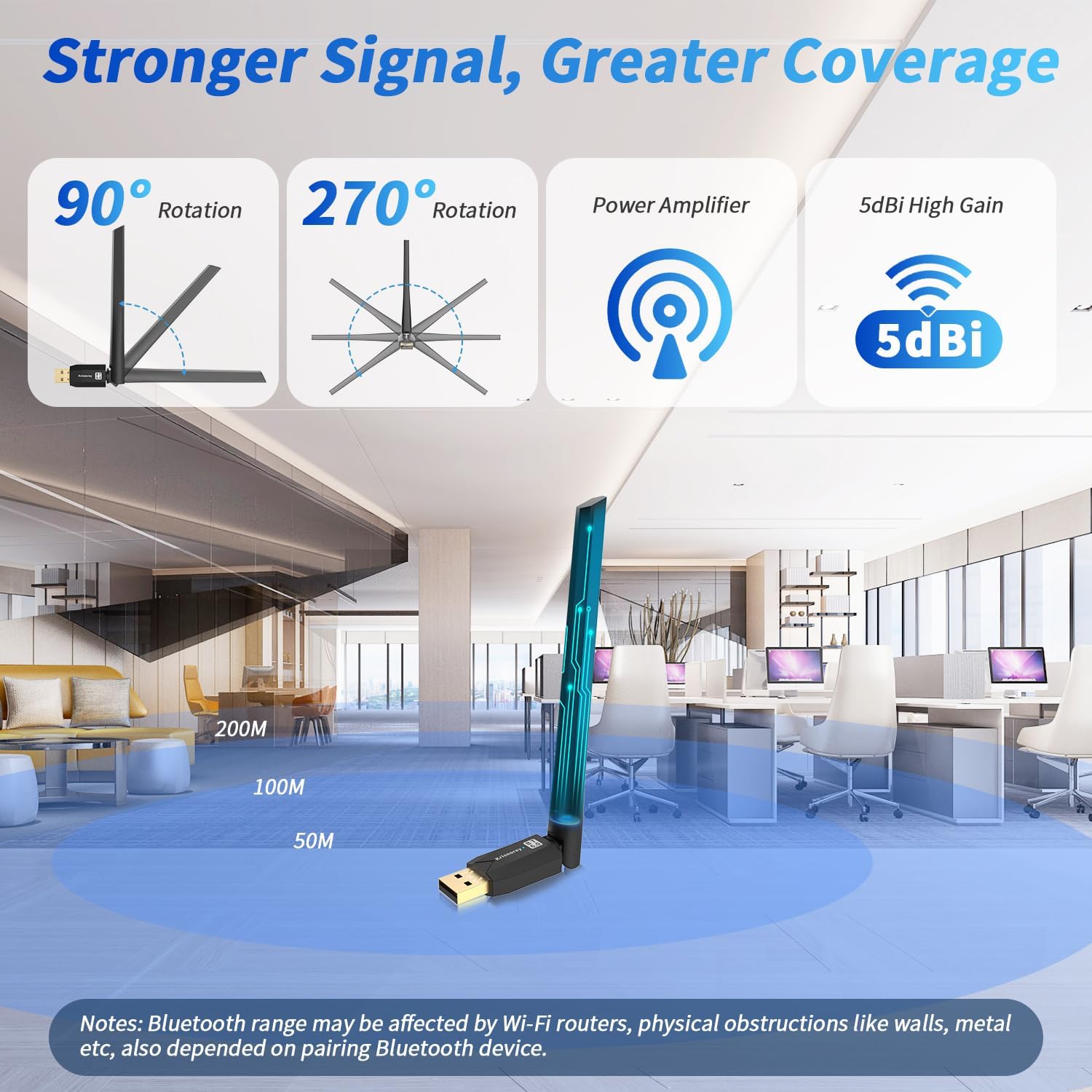
Image: The BT609 adapter plugged into a laptop, illustrating the plug-and-play setup for Windows 11/10/8.1.
3.3 Installation for Windows 7 (Driver Required)
For Windows 7, a driver installation is required. Please refer to the included driver disk or download the driver from the official Krisnorey website.
- Ensure all existing Bluetooth devices are disabled as per Section 3.1.
- Plug the BT609 adapter into an available USB port on your computer.
- Unzip the downloaded driver folder (or insert the driver disk).
- Locate and double-click the "Setup.exe" file to begin the installation.
- Follow the on-screen instructions to complete the driver installation.
- Once the installation is complete, restart your computer.
3.4 Setup Video Guide
For a visual walkthrough of the installation process, including disabling built-in Bluetooth and driver installation, please watch the following videos:
Video: How to Use Bluetooth 6.0 Adapter for PC. This video demonstrates the initial setup steps, including disabling existing Bluetooth and pairing devices.
Video: How to Use Bluetooth USB Adapter on PC/Laptop/Desktop. This video provides a general guide for using the Bluetooth adapter, including driver installation for Windows 7.
4. Operating Instructions
4.1 Pairing Bluetooth Devices
Once the BT609 adapter is successfully installed, you can begin pairing your Bluetooth-enabled devices.
- Ensure your Bluetooth device (headphones, speaker, keyboard, mouse, etc.) is in pairing mode. Refer to your device's manual for specific instructions.
- On your computer, right-click the Bluetooth icon in the system tray (usually near the clock).
- Select "Add a Bluetooth Device" or "Show Bluetooth Devices" and then "Add Bluetooth or other device".
- In the "Add a device" window, select "Bluetooth".
- Your computer will scan for nearby Bluetooth devices. Select your device from the list.
- Follow any on-screen prompts to complete the pairing process.

Image: An illustration of connecting various Bluetooth-enabled devices to your PC, supporting up to 7 devices simultaneously.
4.2 Connectivity Features
- Extended Range: The BT609 utilizes Class 1 radio technology with a built-in PA and external antenna, offering a transmission range of up to 656ft (200m) in open areas. This significantly reduces distance-related connectivity issues.
- Efficient Performance: Powered by the latest Bluetooth 6.0 technology with Enhanced Data Rate (EDR) and Bluetooth Low Energy (BLE), the adapter ensures faster speeds, lower power consumption, and better anti-interference.
- Multi-Device Support: Connect up to 5 different types of Bluetooth devices simultaneously without interference, including headphones, speakers, keyboards, mice, and game controllers (via PC).
- Seamless Reconnection: Once paired, devices will automatically reconnect when in range, providing a smooth user experience.

Image: The BT609 adapter demonstrating its strong signal and greater coverage in an office setting, with an adjustable antenna for optimal range.

Image: A user experiencing efficient work and a better Bluetooth experience with the BT609 adapter, connecting headphones and a mouse.

Image: A user enjoying ultra-clear sound with low latency, highlighting synchronized audio and video without lag.

Image: Various use cases demonstrating smart seamless connectivity, including music, data exchange, work, and gaming.
5. Maintenance
The Krisnorey BT609 Bluetooth adapter requires minimal maintenance. To ensure optimal performance and longevity:
- Keep the adapter clean and free from dust. Use a soft, dry cloth for cleaning.
- Avoid exposing the adapter to extreme temperatures, humidity, or direct sunlight.
- Do not attempt to disassemble or modify the adapter, as this will void any warranty.
- Ensure the antenna is not bent or damaged, as this can affect signal strength.
6. Troubleshooting
If you encounter issues with your Krisnorey BT609 adapter, please refer to the following troubleshooting tips:
- No Bluetooth Icon/Device Not Detected:
Ensure there are no built-in or external Bluetooth devices previously installed on your computer. If there are, disable all existing Bluetooth devices in "Device Manager" (as described in Section 3.1), then re-insert the BT609 adapter. - Pairing Issues:
Make sure your target Bluetooth device is in pairing mode and within range. Try restarting both your computer and the Bluetooth device. - Intermittent Connection/Poor Range:
The actual transmission range can be affected by physical obstructions (walls, metal objects) and wireless interference (e.g., Wi-Fi routers, other 2.4GHz devices). Try moving the adapter or your connected device to a different location. Ensure the antenna is positioned optimally. - Driver Problems (Windows 7):
If using Windows 7, confirm that the correct drivers have been installed and your computer has been restarted after installation. Re-installing the drivers may resolve issues. - Incompatible Devices:
Note that the BT609 adapter is not compatible with Windows 8/XP/Vista/Linux/MacOS/TV/Car Stereo/Home Stereo. It also does not work with ordinary 2.4GHz non-Bluetooth keyboards and mice.
7. Specifications
| Feature | Detail |
|---|---|
| Model Number | BT609 |
| Product Dimensions | 5.19 x 2.28 x 0.39 inches |
| Item Weight | 0.423 ounces (12 Grams) |
| Brand | Krisnorey |
| Hardware Interface | Bluetooth, USB 2.0 |
| Color | Black |
| Compatible Devices | Windows 7/8.1/10/11 OS PC Laptop Desktop Computer; Bluetooth Headphones / Headset / Earbuds / Speakers; Bluetooth Mouse / Keyboard; Bluetooth Smart Tablet / Printer / Cellphone / PC; PS4 / PS5 / Xbox Bluetooth Game Controller |
| Data Link Protocol | Bluetooth 6.0 BR/EDR+BLE Dual Mode, USB |
| Data Transfer Rate | 3 Megabits Per Second |
| Compatible Operating System Family | Windows |
| Minimum Required Operating System Version | Windows 7 |
8. Warranty & Support
Krisnorey is dedicated to providing high-quality digital products. While specific warranty details are not provided in this manual, Krisnorey products are generally backed by a commitment to quality and customer satisfaction. For any support inquiries, technical assistance, or warranty claims, please refer to the contact information provided with your purchase or visit the official Krisnorey website.
We recommend retaining your proof of purchase for any warranty-related services.