
ONIKUMA X33
Contents
ONIKUMA X33 Gaming Headset User Manual
Model: X33
1. Introduction
Thank you for choosing the ONIKUMA X33 Gaming Headset. This over-ear headset is designed to provide an immersive audio experience for gaming across multiple platforms, including PC, PS5, PS4, and Xbox. It features vibrant LED lighting, a noise-cancelling microphone for clear communication, and comfortable earcups for extended use. This manual provides detailed instructions for setup, operation, maintenance, and troubleshooting to ensure optimal performance of your headset.
2. Package Contents
Please verify that all items are present in your package:
- ONIKUMA X33 Gaming Headset (Pink)
- USB-A to USB-C Adapter (if applicable, for broader compatibility)
- User Manual (this document)

Figure 2.1: Contents of the ONIKUMA X33 Gaming Headset package, including the headset, USB cable, and user manual.
3. Product Overview
Familiarize yourself with the key components of your ONIKUMA X33 Gaming Headset:
- Adjustable Headband: For a comfortable fit on various head sizes.
- Plush Earcups: Over-ear design with memory foam cushions for comfort and passive noise isolation.
- Integrated Microphone: Flexible, noise-cancelling microphone for clear voice pickup.
- LED Lighting: RGB illumination on earcups and light bars for aesthetic enhancement.
- Wired USB Connection: Durable cable with USB connector for reliable audio and power.
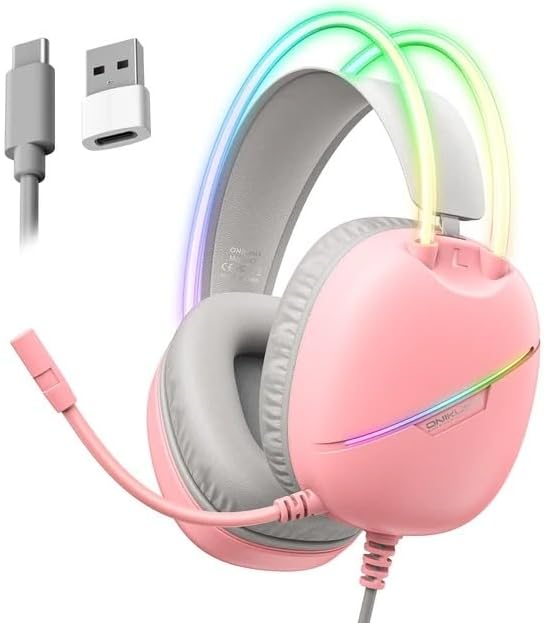
Figure 3.1: Front view of the ONIKUMA X33 Gaming Headset, highlighting the earcups, microphone, and USB connection.

Figure 3.2: Rear view of the headset, illustrating the LED light bars extending from the earcups.

Figure 3.3: Side view of the headset, showcasing the LED strip on the earcup.
4. Setup Instructions
Follow these steps to set up your ONIKUMA X33 Gaming Headset:
- Connect the Headset:
- Locate an available USB port on your PC, PS5, PS4, or Xbox console.
- Insert the USB connector of the headset into the USB port. If your device only has USB-C ports, use the provided USB-A to USB-C adapter.
- The headset's LED lights should illuminate upon successful connection, indicating power.
- Configure Audio Settings (PC/Mac):
- Windows: Right-click the speaker icon in the taskbar, select "Sound settings" or "Open Sound settings". Under "Output", select "ONIKUMA X33" or "USB Audio Device". Under "Input", select "ONIKUMA X33 Microphone" or "USB Audio Device".
- macOS: Go to System Preferences > Sound. In the "Output" tab, select "ONIKUMA X33" or "USB Audio Device". In the "Input" tab, select "ONIKUMA X33 Microphone" or "USB Audio Device".
- Configure Audio Settings (PS5/PS4/Xbox):
- PS5: Go to Settings > Sound > Audio Output. Select "ONIKUMA X33" as your output device. For microphone, go to Sound > Microphone > Input Device and select "ONIKUMA X33".
- PS4: Go to Settings > Devices > Audio Devices. Select "ONIKUMA X33" for both "Output Device" and "Input Device".
- Xbox: The headset should be automatically recognized. If not, go to Settings > General > Volume & audio output. Ensure "Headset format" is set correctly and "Headset mic" is enabled.
- Adjust Fit: Adjust the headband to ensure the earcups sit comfortably over your ears, providing a snug fit without excessive pressure.
5. Operating Instructions
5.1 Audio Control
The ONIKUMA X33 headset manages audio through your connected device's system settings. Adjust the master volume directly from your PC, console, or laptop's audio controls.
5.2 Microphone Usage
- Positioning: Bend the flexible microphone boom to position the microphone approximately 1-2 inches (2.5-5 cm) from your mouth for optimal voice clarity.
- Noise-Cancelling: The integrated noise-cancelling feature helps reduce background noise, focusing on your voice. Ensure your environment is as quiet as possible for best results.
- Mute/Unmute: If the headset features an inline mute button (check your specific model), press it to toggle the microphone on or off. Otherwise, use your device's software settings to mute/unmute the microphone.
5.3 LED Lighting
The RGB LED lighting on the ONIKUMA X33 headset is powered directly via the USB connection. The lights will automatically illuminate when the headset is connected and powered. There are no user-adjustable controls for the LED patterns or colors on the headset itself; they operate in a pre-set rainbow illumination mode.
6. Maintenance and Care
Proper care will extend the lifespan of your headset:
- Cleaning: Use a soft, dry cloth to wipe down the earcups and headband. For stubborn dirt, a slightly damp cloth can be used, but ensure no moisture enters the speaker grilles or USB connector. Do not use harsh chemicals or abrasive cleaners.
- Cable Care: Avoid sharp bends or kinks in the USB cable. Do not pull the cable to disconnect the headset; always grasp the USB connector.
- Storage: Store the headset in a cool, dry place away from direct sunlight and extreme temperatures. Avoid placing heavy objects on top of the headset.
- Handling: Handle the headset gently. Do not drop it or subject it to strong impacts.
7. Troubleshooting
If you encounter issues with your ONIKUMA X33 Gaming Headset, please refer to the following common problems and solutions:
| Problem | Possible Cause | Solution |
|---|---|---|
| No sound from headset |
|
|
| Microphone not working |
|
|
| LED lights not illuminating |
|
|
| Sound quality is poor or distorted |
|
|
8. Specifications
| Feature | Detail |
|---|---|
| Model Name | X33 |
| Brand Name | ONIKUMA |
| Color | Pink |
| Headphones Ear Placement | Over Ear |
| Headphones Form Factor | Over Ear |
| Impedance | 32 Ohm |
| Noise Control | Active Noise Cancellation (for microphone) |
| Frequency Response | 20 Hz (Note: This value typically represents a range, e.g., 20Hz-20kHz) |
| Sensitivity | 108 dB |
| Headphones Jack | USB |
| Compatibility | PC, PS5, PS4, Xbox, Laptop |
| Package Dimensions | 25 x 20 x 20 cm |
| Item Weight | 1 kg |
9. Warranty and Support
For warranty information, please refer to the warranty card included with your product or visit the official ONIKUMA website. If you require technical support or have questions not covered in this manual, please contact ONIKUMA customer service through their official channels. Keep your purchase receipt as proof of purchase for warranty claims.
Documents and downloads
Ask a question about this manual
Ask about setup, troubleshooting, compatibility, parts, safety, or missing instructions. Manuals+ will review the question and use this page’s manual context to help answer it.