1. Introduction
This manual provides essential instructions for setting up, operating, and maintaining your NEWISION 7-Inch Android 15 Tablet P7. Please read this guide thoroughly to ensure optimal performance and longevity of your device. The NEWISION P7 tablet features a 7-inch IPS HD display, runs on Android 15, and offers 8GB RAM (3GB physical + 5GB virtual) with 32GB internal storage, expandable up to 1TB.
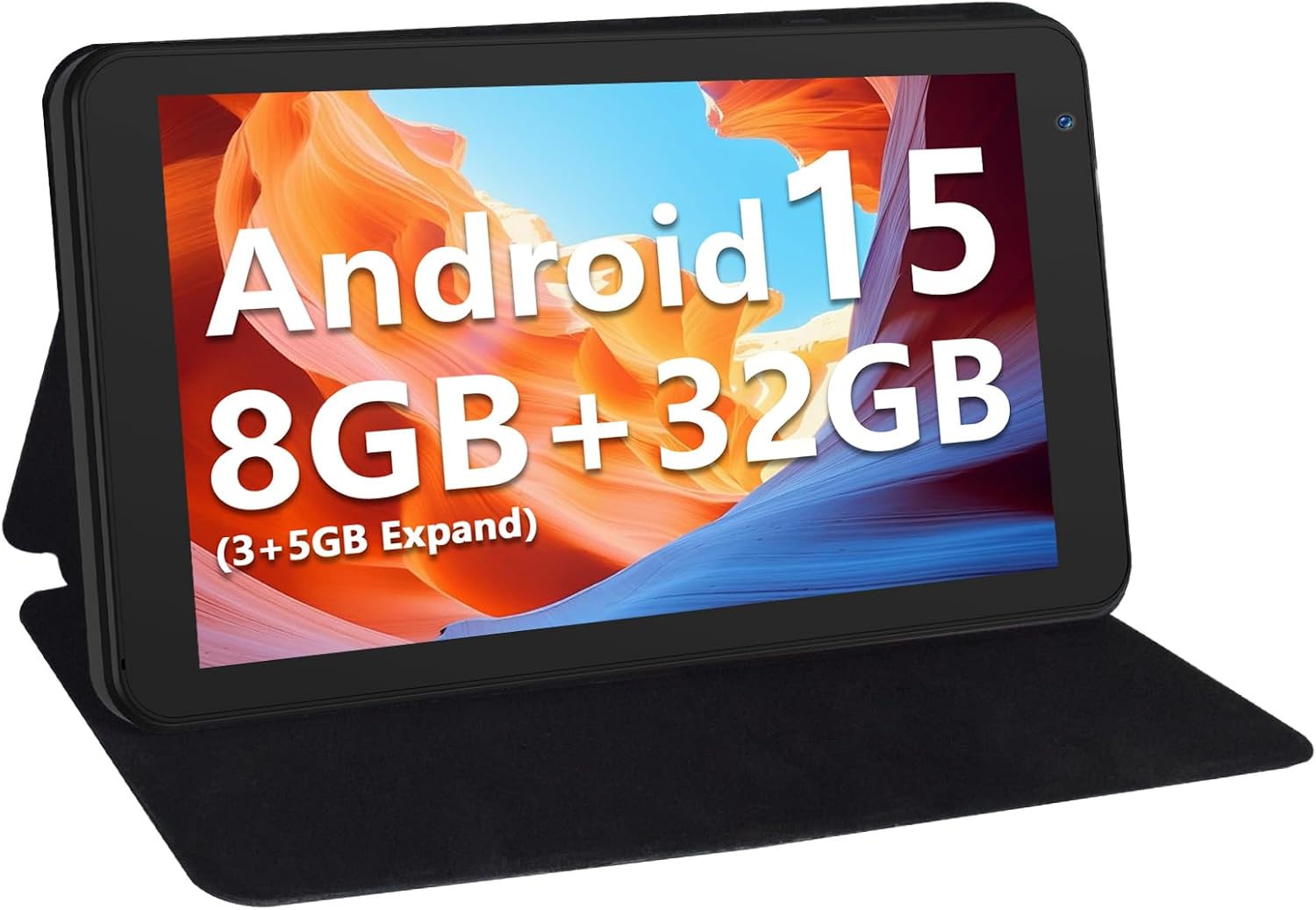
Image 1.1: The NEWISION 7-Inch Android 15 Tablet P7, shown with its protective case, highlighting its compact design and display.
2. Setup
2.1. Unboxing and Initial Inspection
Carefully remove all components from the packaging. Verify that all items listed in the package contents are present and undamaged. The package typically includes the tablet, a protective case, a USB-C charging cable, and a quick start guide.
Video 2.1: An unboxing video demonstrating the contents of the NEWISION 7-Inch Tablet package, including the tablet and its accessories.
2.2. Physical Overview
Familiarize yourself with the tablet's buttons and ports:
- Power Button: Located on the side, used to turn the tablet on/off or wake/sleep the screen.
- Volume Buttons: Adjust audio levels.
- USB-C Port: For charging and data transfer.
- 3.5mm Headphone Jack: For connecting headphones.
- MicroSD Card Slot: For expandable storage.
- Front Camera: For video calls and selfies.
- Rear Camera: For capturing photos and videos.
- Speakers: For audio output.

Image 2.1: A detailed diagram illustrating the location of all ports, buttons, and cameras on the NEWISION P7 tablet.
2.3. Charging the Tablet
Before first use, fully charge the tablet. Connect the provided USB-C cable to the tablet's USB-C port and the other end to a compatible USB power adapter (not included) or a computer's USB port. The battery indicator on the screen will show charging status.
2.4. Initial Power On and Basic Setup
Press and hold the Power Button until the screen turns on. Follow the on-screen prompts to:
- Select your language.
- Connect to a Wi-Fi network.
- Sign in with your Google account or create a new one. This is necessary to access the Google Play Store and other Google services.
- Set up screen lock (PIN, pattern, or password).
3. Operating the Tablet
3.1. Android 15 Interface
The tablet runs on Android 15, offering a user-friendly and optimized experience. Navigate by swiping, tapping, and pinching the touchscreen. The home screen provides quick access to your favorite apps and widgets. Swipe down from the top of the screen to access quick settings and notifications.
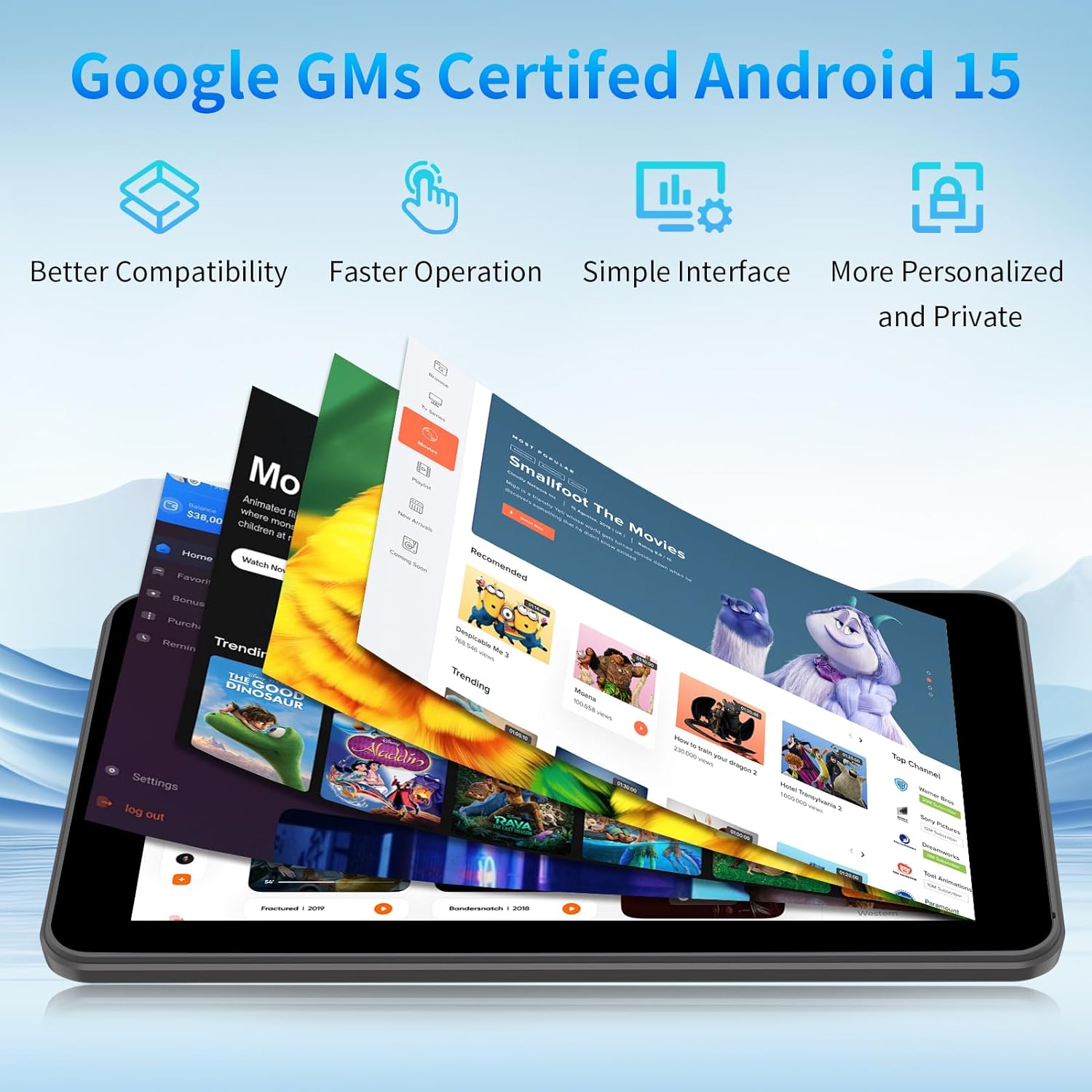
Image 3.1: The NEWISION P7 tablet showcasing the clean and intuitive interface of the Android 15 operating system.
3.2. App Management and Google Play Store
The Google Play Store is pre-installed, allowing you to download a wide variety of applications, games, books, and movies. To install an app:
- Open the Play Store app.
- Search for the desired app.
- Tap Install.
To uninstall an app, press and hold the app icon on the home screen or app drawer, then drag it to the 'Uninstall' option.
3.3. Connectivity
- Wi-Fi: The tablet supports dual-band Wi-Fi (2.4G and 5G) for stable and fast internet connections. Access Wi-Fi settings from the quick settings panel or the main Settings app.
- Bluetooth: Connect wireless headphones, speakers, or other Bluetooth-enabled devices. Enable Bluetooth in Settings and pair with your device.
- OTG (On-The-Go): The USB-C port supports OTG functionality, allowing you to connect peripherals such as USB keyboards, mice, or flash drives using a compatible OTG adapter (sold separately).
3.4. Storage Management
The tablet comes with 32GB of internal storage. You can expand this up to 1TB using a MicroSD card (not included). Insert the MicroSD card into the designated slot until it clicks into place. Manage your storage in Settings > Storage.

Image 3.2: Visual representation of the tablet's storage capacity, including 8GB RAM, 32GB ROM, and 1TB expandable storage.
3.5. Camera Usage
The tablet features dual cameras: a front camera for video calls and a rear camera for photos and videos. Open the Camera app to capture moments. Tap the screen to focus and press the shutter button to take a picture.

Image 3.3: The tablet's dual camera in action, demonstrating its use for capturing images and engaging in video calls.
3.6. Display and Audio
- IPS HD Display: The 7-inch 1024x600 IPS HD screen provides clear visuals. Adjust brightness and other display settings in Settings > Display.
- Reading Mode: To reduce eye strain, especially during prolonged reading, activate the reading mode feature in display settings.
- Dual Speakers: Enjoy enhanced audio quality for videos and music through the tablet's dual speakers.
3.7. Portability and Usage Scenarios
Weighing only 500g with a slim profile, the tablet is designed for easy portability. The included custom-fit case also functions as a stand for hands-free viewing.

Image 3.4: The NEWISION P7 tablet demonstrating its portability by fitting into a bag and its versatility with a desk stand mode for hands-free use.

Image 3.5: Examples of how the NEWISION P7 tablet can be used for various activities such as studying, working, listening to music, and watching movies.
4. Maintenance
4.1. Cleaning the Device
To clean your tablet, use a soft, lint-free cloth. For stubborn smudges, slightly dampen the cloth with water or a screen cleaner specifically designed for electronics. Avoid using harsh chemicals or abrasive materials.
4.2. Battery Care
To prolong battery life:
- Avoid extreme temperatures.
- Do not leave the tablet fully charged or fully discharged for extended periods.
- Use the provided charging cable.
4.3. Software Updates
Regularly check for and install software updates to ensure your tablet has the latest features, security patches, and performance improvements. Go to Settings > System > System update.
4.4. Storage Optimization
Periodically clear unnecessary files, cache data, and uninstall unused apps to free up storage space and maintain optimal performance. You can use the built-in storage manager in Settings > Storage.
5. Troubleshooting
If you encounter issues with your tablet, refer to the following common solutions:
- Tablet is unresponsive: Press and hold the Power Button for about 10-15 seconds to force a restart.
- Apps are slow or crashing: Close background apps, clear app cache (Settings > Apps > [App Name] > Storage > Clear cache), or restart the tablet.
- Wi-Fi connectivity issues: Ensure Wi-Fi is enabled, restart your router, or forget and reconnect to the network in Wi-Fi settings.
- Battery drains quickly: Reduce screen brightness, disable unused features like Bluetooth or GPS, close background apps, or check for app updates.
- Storage full: Delete unnecessary files, uninstall unused apps, or insert a MicroSD card for additional storage.
5.1. Factory Reset
If problems persist, a factory reset may be necessary. This will erase all data on your tablet, so ensure you back up important information first. Go to Settings > System > Reset options > Erase all data (factory reset).
6. Specifications
Key technical specifications for the NEWISION P7 Tablet:
| Feature | Specification |
|---|---|
| Model | P7 |
| Operating System | Android 15 |
| Screen Size | 7 Inches |
| Screen Resolution | 1024x600 IPS HD |
| Processor | 1.8 GHz (5-Core A333) |
| RAM | 8GB (3GB Physical + 5GB Virtual) |
| Internal Storage | 32GB |
| Expandable Storage | Up to 1TB via MicroSD Card |
| Wi-Fi | Dual-Band (2.4G/5G) |
| Bluetooth | Supported |
| Battery Capacity | 3500mAh |
| Average Battery Life | Approx. 4 hours (video playback) |
| Cameras | Dual Camera (Front & Rear) |
| Ports | USB-C, 3.5mm Headphone Jack |
| Dimensions (LxWxH) | 7.5 x 4.3 x 0.35 inches |
| Item Weight | 1.1 pounds |

Image 6.1: An overview of the NEWISION P7 tablet highlighting its core specifications through visual icons.
7. Warranty and Support
For product support, technical assistance, or warranty inquiries, please refer to the contact information provided with your purchase documentation or visit the official NEWISION website. While a 2-year protection plan may be available for purchase separately, standard warranty terms apply as per regional consumer laws.


