Introduction
This manual provides essential information for the setup, operation, and maintenance of your Kodak QLED SE 43-inch Full HD Smart Linux TV (Model 43QSE5073). Please read this manual thoroughly before using the television to ensure proper functionality and safety.

Image: Front view of the Kodak QLED SE 43-inch Full HD Smart Linux TV, showcasing its display and slim bezels.
What's in the Box
Verify that all components are present in the packaging:
- 1 LED TV
- 1 Wall Mount (N)
- 1 Remote Control
- 2 AAA Batteries (for remote control)
- 1 Power Cord
- Base Stand
- 4 Stand Screws
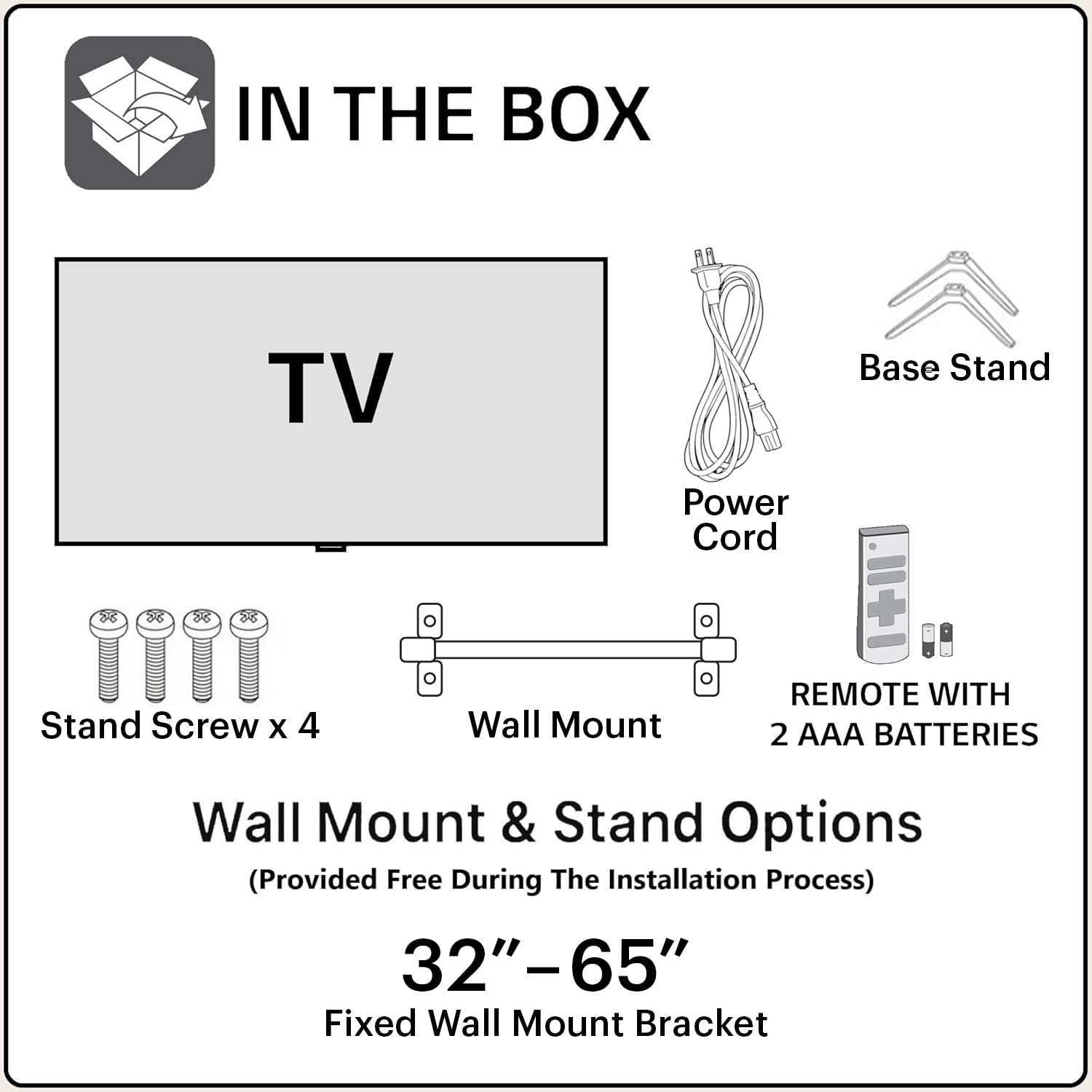
Image: Diagram illustrating the items included in the TV packaging, such as the TV unit, remote, power cord, stand, screws, and wall mount.
Setup Instructions
1. Physical Installation
Your television can be installed using either the included base stand or a wall mount.
Stand Installation:
- Carefully place the TV screen-down on a soft, flat surface to prevent damage.
- Attach the base stands to the designated slots on the bottom of the TV.
- Secure the stands with the provided stand screws.
Wall Mount Installation:
The TV comes with a wall mount. Professional installation is recommended for wall mounting to ensure safety and proper alignment. Refer to the wall mount instructions for detailed steps.
2. Connecting Peripherals
The TV offers various connectivity options for external devices.
- HDMI Ports: Connect gaming consoles, set-top boxes, or Blu-ray players to the 2 HDMI ports. One port supports eARC for enhanced audio return.
- USB Ports: Connect hard drives or other USB devices to the 2 USB ports for media playback.
- Ethernet: For a stable internet connection, connect an Ethernet cable to the RJ45 port.
- Optical Audio Out: Connect to external sound systems for digital audio output.
- AV Input: For older devices, use the AV1 and AV2 inputs (Audio-L, Audio-R, Video).
- Earphone Jack: Connect headphones for private listening.

Image: Close-up view of the TV's rear panel, highlighting the various input/output ports including HDMI, USB, Optical, Ethernet, and AV inputs.
3. Power On
- Connect the power cord to the TV and then to a power outlet.
- Press the power button on the TV or the remote control to turn on the television.
- Follow the on-screen instructions for initial setup, including language selection, network connection (Wi-Fi or Ethernet), and channel scanning.
Operating Instructions
1. Remote Control
The included remote control allows you to navigate the TV's features. Insert the 2 AAA batteries into the remote control, ensuring correct polarity.

Image: Front view of the Kodak TV remote control, showing buttons for power, navigation, volume, and quick access to apps like YouTube.
Key Functions:
- Power Button: Turns the TV on or off.
- Navigation Pad (Up/Down/Left/Right/OK): Navigates menus and confirms selections.
- Volume +/-: Adjusts the volume level.
- Mute: Mutes or unmutes the sound.
- Home: Returns to the main Smart TV interface.
- Back: Returns to the previous screen.
- Input: Selects the input source (HDMI, AV, etc.).
- App Buttons: Quick access to pre-installed applications like YouTube.
2. Smart TV Features
Your Kodak QLED SE TV runs on a Linux operating system and offers a range of smart features.
- In-Built Wi-Fi: Connect to your home network wirelessly for internet access. Supports Dual Band Wi-Fi.
- Screen Mirroring: Cast content from compatible Android or iPhone devices to the TV screen.
- Supported Applications: Access popular streaming services such as JioHotstar, YouTube, Prime Video, Sony Liv, and Zee5.
- Google Assistant: Use voice commands for search, control, and information (if supported by the specific Linux TV implementation).
- Open Browser: Browse the internet directly on your TV.
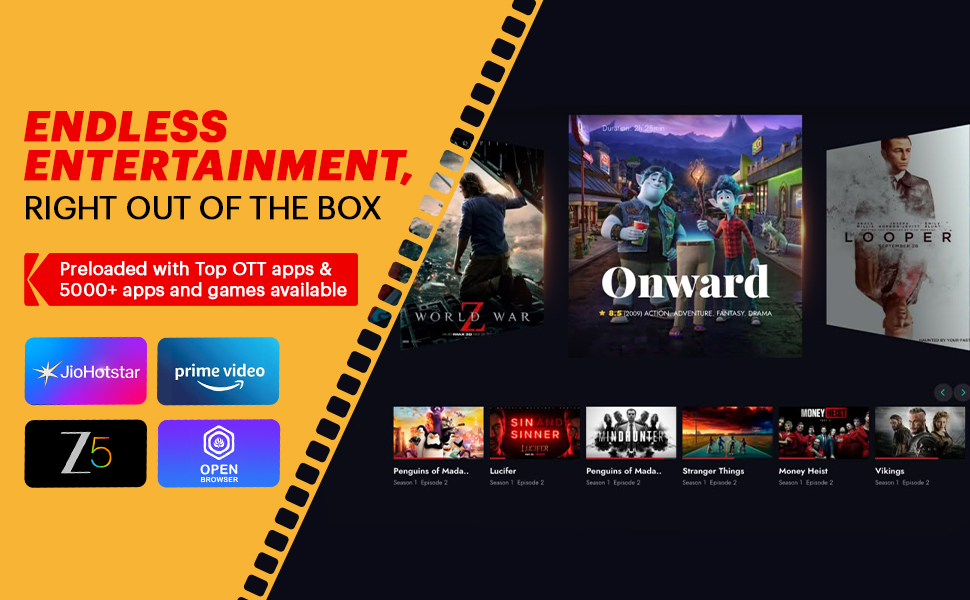
Image: A TV screen displaying icons for various streaming applications like JioHotstar, Prime Video, Zee5, and an open browser, indicating available entertainment options.
3. Picture and Sound Settings
Customize your viewing and listening experience through the TV's settings menu.
Picture Settings:
- Picture Mode: Select from predefined modes (e.g., Standard, Vivid, Movie, User) or adjust settings manually.
- Brightness: Adjust the overall luminance of the screen.
- Contrast: Controls the difference between the brightest and darkest areas.
- Color: Adjusts the intensity of colors.
- Sharpness: Enhances the edges of objects in the picture.
Sound Settings:
- Sound Mode: Choose from modes like Standard, Music, Movie, or User.
- Equalizer: Fine-tune audio frequencies.
- Surround Sound: Enable or disable surround sound processing.
- Audio Output: Select between TV speakers, Optical Out, or HDMI eARC.
Maintenance
Proper care ensures the longevity and performance of your television.
- Cleaning the Screen: Gently wipe the screen with a soft, dry microfiber cloth. For stubborn marks, slightly dampen the cloth with water or a screen-specific cleaning solution (do not spray directly on the screen).
- Cleaning the Body: Use a soft, dry cloth to wipe the TV's frame and back panel.
- Ventilation: Ensure adequate airflow around the TV. Do not block ventilation openings.
- Power Off: Turn off the TV and unplug it from the power outlet during electrical storms or when not in use for extended periods.
Troubleshooting
Refer to the following table for common issues and their solutions.
| Problem | Possible Cause | Solution |
|---|---|---|
| No power | Power cord disconnected; Power outlet off | Ensure power cord is securely connected; Check power outlet and circuit breaker. |
| No picture, but sound is present | Incorrect input source selected; Loose HDMI/AV cable | Press the 'Input' button on the remote to select the correct source; Check cable connections. |
| No sound, but picture is present | Volume muted or too low; External audio system issue | Unmute or increase volume; Check connections to external audio devices. |
| Remote control not working | Batteries depleted or incorrectly inserted; Obstruction between remote and TV | Replace batteries; Ensure clear line of sight to TV's IR receiver. |
| Wi-Fi connection issues | Incorrect password; Router issues; Signal interference | Re-enter Wi-Fi password; Restart router; Move TV closer to router or use Ethernet. |
| Smart TV apps freezing or slow | Insufficient memory; Network congestion | Close unused apps; Restart TV; Check internet speed. |
Specifications
Detailed technical specifications for the Kodak QLED SE 43-inch Full HD Smart Linux TV (Model 43QSE5073).

Image: Diagram illustrating the physical dimensions of the 43-inch Kodak QLED SE TV, including width, height, and depth.
| Feature | Detail |
|---|---|
| Brand | KODAK |
| Model | 43QSE5073 |
| Screen Size | 43 Inches (108 cm) |
| Display Technology | QLED, VA Panel |
| Resolution | Full HD (1920 x 1080 Pixels) |
| Refresh Rate | 60 Hz |
| Brightness | 400 Nits |
| Viewing Angle | 178 Degrees |
| Image Contrast Ratio | 5000:1 |
| Response Time | 10 Milliseconds |
| Operating System | Linux |
| Memory Storage Capacity | 4 GB ROM, 512 MB RAM |
| Sound Output | 40 Watts (Bottom Firing Speakers) |
| Speaker Configuration | Surround Sound |
| Connectivity | 2 HDMI ports (eARC), 2 USB ports, Dual Band Wi-Fi, Bluetooth 5.0, Optical, Ethernet |
| Remote Control Technology | IR, Bluetooth |
| Product Dimensions (LxWxH) | 97 x 12 x 65 cm |
| Item Weight | 5.9 kg |
| Power Consumption (On-mode) | 0.5 KW |
Warranty and Support
Your Kodak QLED SE 43-inch Full HD Smart Linux TV comes with a 1 Year Warranty Care from the date of purchase. For any technical assistance, service requests, or warranty claims, please contact Kodak customer support. Keep your purchase receipt and product serial number readily available.
For further information or support, please refer to the official Kodak website or contact their customer service.


