
1. Introduction
Welcome to the Hexgears GK1702 Wireless RGB Mechanical Keyboard user manual. This guide provides detailed instructions for setting up, operating, maintaining, and troubleshooting your new keyboard. The GK1702 is a versatile, low-profile mechanical keyboard designed for both Windows and Mac users, offering dual-mode connectivity (Bluetooth 5.0 and USB-C wired), customizable RGB lighting, and durable Kailh low-profile clicky switches.
2. Package Contents
Please verify that all items are present in your package:
- Hexgears GK1702 Wireless RGB Mechanical Keyboard
- USB-C to USB-A Cable
- 2 x AA Batteries (included)
- User Manual (this document)
3. Product Overview
The Hexgears GK1702 keyboard combines performance and durability with a sleek design. Below are some key features and a visual guide to its components.
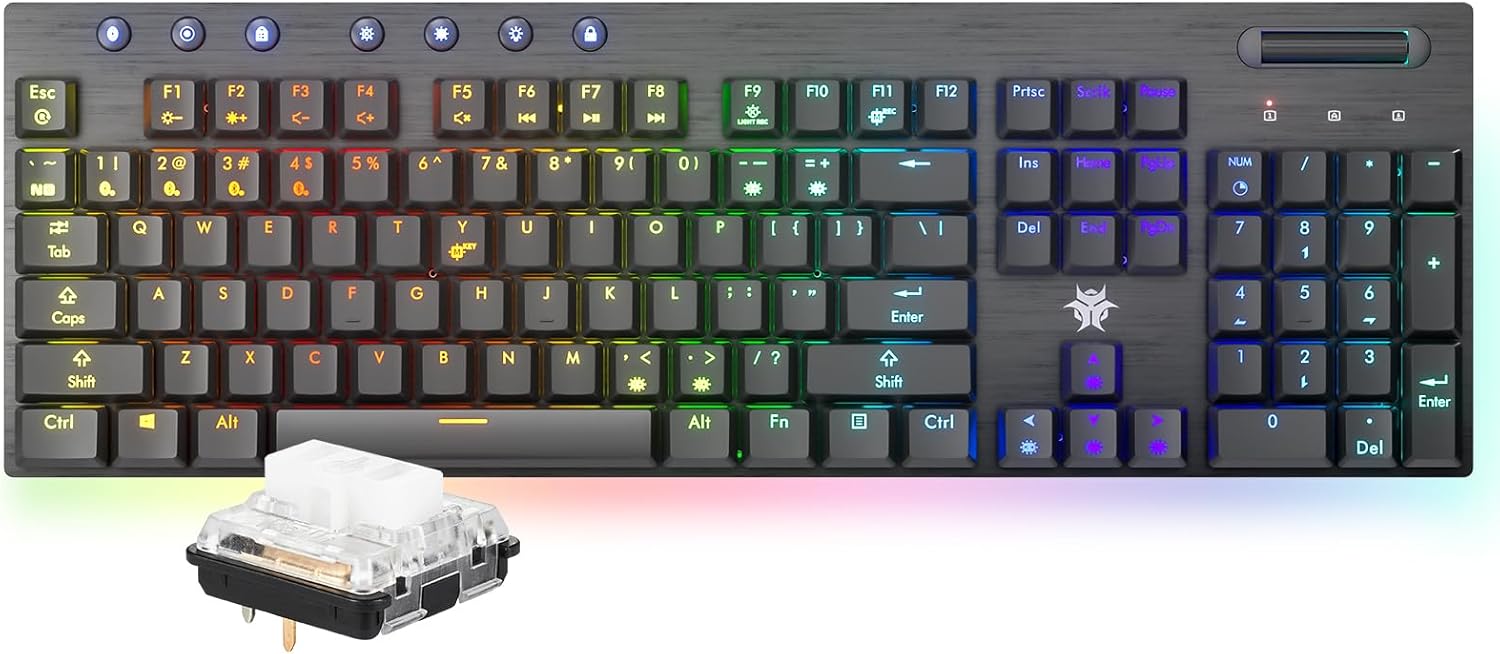
The Hexgears GK1702 Wireless RGB Mechanical Keyboard, showcasing its full layout and a detailed view of its low-profile clicky switch.

An overview of the Hexgears GK1702 keyboard's key features, including dual-mode connectivity, dual system compatibility, ultra-thin design, long battery life, media scroll, macro programming, 16.8 million RGB lighting, and ambient lighting.

A comprehensive diagram labeling the various functional components of the Hexgears GK1702 keyboard, including switches, media controls, and FN key combinations.
4. Setup
4.1 Battery Installation
- Locate the battery compartment on the underside of the keyboard.
- Open the compartment cover.
- Insert the two AA batteries, ensuring correct polarity.
- Close the battery compartment cover.
4.2 Wired Connection
- Connect the USB-C end of the provided cable to the keyboard's USB-C port.
- Connect the USB-A end of the cable to an available USB port on your computer.
- The keyboard will automatically be recognized and ready for use.
4.3 Bluetooth Connection
The keyboard supports Bluetooth 5.0 and can store up to 4 paired devices.

Illustration demonstrating the keyboard's dual-mode smart connection, supporting Bluetooth 5.0 wireless connectivity for up to 4 storable devices and a reliable USB-C wired connection.
- Ensure the keyboard is powered on.
- Press the Bluetooth button (usually indicated by a Bluetooth icon) on the keyboard. The light should turn blue.
- Hold down the FN key and one of the device keys (1, 2, 3, or 4) for 3 seconds. The light will blink, indicating pairing mode.
- On your device (computer, laptop, tablet, or phone), search for Bluetooth devices and select "Hexgears-BK1/2/3/4" (matching the device key you selected).
- Double-click to connect. The light will become solid blue once connected.
5. Operating Modes
5.1 Dual-Mode Versatility
The GK1702 supports both wired and wireless operation. You can seamlessly switch between modes and connected devices.
- Wired Mode: Connect via the USB-C cable for a stable, lag-free connection.
- Bluetooth Mode: Connect wirelessly to up to four different devices.
5.2 Switching Between Devices (Bluetooth)
Once paired, you can switch between your 4 Bluetooth devices by simply pressing FN + 1/2/3/4 (corresponding to the device slot).
5.3 Dual System Compatibility
The keyboard is compatible with both Windows and Mac operating systems. Specific key functions may adapt automatically or require manual switching depending on the system.
6. Customization
6.1 RGB Backlighting and Ambient Lighting
The GK1702 features per-key RGB backlighting and a sweeping underglow light bar, offering 16.8 million colors and various lighting effects.

The keyboard illuminated with 16.8 million RGB backlighting and a synchronized ambient light strip, creating an immersive visual experience.
Use the dedicated backlight function keys (refer to the keyboard layout diagram in Section 3) to cycle through different lighting modes, adjust brightness, and change colors.
6.2 Media Control
The keyboard includes a dedicated volume roller for easy audio adjustment.
6.3 N-Key Rollover (NKRO)
The GK1702 supports Full N-Key Rollover, ensuring that every keypress is registered accurately, even when multiple keys are pressed simultaneously. This feature is automatically active.

An image demonstrating the Full N-Key Rollover (NKRO) feature, allowing for accurate registration of multiple simultaneous key presses, crucial for gaming.
7. Key Features
7.1 Low-Profile Clicky Switches
The GK1702 is equipped with Kailh low-profile clicky switches, known for their tactile feedback and audible click. These switches have a lifespan of 70 million keypresses and a 1.2mm actuation point for fast and responsive typing.

Detailed view of the low-profile clicky switches, featuring a 1.2mm actuation point, crisp audible feedback, POM switch slide, and a 70 million keypress lifespan, compared to traditional mechanical switches.
7.2 Marathon Battery Life
Powered by a robust 4000mAh battery, the GK1702 offers extended usage times:
- Up to 360 hours of operation with backlighting off.
- Up to 90 hours of operation with backlighting on.

Visual representation of the keyboard's 4000mAh battery, providing up to 360 hours of working time with the backlight off and 90 hours with the backlight on.
7.3 Ultra-Thin Design
The keyboard features a sleek 27.70mm thickness and a durable aluminum frame, combining portability with a premium feel.

A side profile view emphasizing the keyboard's slim design, durable aluminum frame, and 25.0mm thickness, enhancing typing speed and efficiency.
8. Maintenance
8.1 Cleaning the Keyboard
To clean your keyboard, you can use the key lock feature to disable all key inputs, preventing accidental commands.
- Press the dedicated key lock button (refer to the keyboard layout diagram in Section 3) to disable key input.
- Use a soft, dry cloth to wipe down the keycaps and frame.
- For deeper cleaning, use compressed air to remove dust and debris from between the keys.
- Do not use harsh chemicals or abrasive materials, as these may damage the keyboard's finish or keycaps.
- Press the key lock button again to re-enable key input after cleaning.
9. Troubleshooting
If you encounter issues with your Hexgears GK1702 keyboard, please refer to the following common solutions:
- Keyboard not responding: Ensure the keyboard is charged or connected via USB-C. Check the power switch.
- Bluetooth connection issues: Ensure Bluetooth is enabled on your device and the keyboard is in pairing mode. Try re-pairing the device. Make sure the keyboard is not connected to another device.
- Keys not registering: Check if the key lock feature is active. Ensure the keyboard is properly connected (wired or Bluetooth).
- RGB lighting not working: Use the dedicated lighting control keys to adjust modes and brightness. Ensure the keyboard has sufficient power.
- Incorrect key functions (Mac/Windows): The keyboard should automatically adapt. If not, check for any specific key combinations in the full manual (if provided separately) to switch modes.
For further assistance, please contact Hexgears customer support.
10. Specifications
| Feature | Detail |
|---|---|
| Model | GK1702 |
| Connectivity Technology | Bluetooth 5.0, USB-C |
| Compatible Devices | Laptop, MAC, PC, Tablet, Xbox |
| Special Features | RGB Backlit + RGB Side Light Strip, Clicky Switches, N-Key Rollover |
| Switch Type | Kailh Low-Profile Clicky Switches |
| Actuation Point | 1.2mm |
| Switch Lifespan | 70 Million Keypresses |
| Battery Capacity | 4000mAh |
| Battery Type | 2 AA batteries (included) |
| Working Time (Backlight Off) | Up to 360 hours |
| Working Time (Backlight On) | Up to 90 hours |
| Material | Aluminum, Plastic |
| Item Weight | 1.46 pounds |
| Package Dimensions | 19.01 x 7.4 x 2.13 inches |
11. Official Product Video
This official product video from HEXGEARS STORE provides a brief visual overview of the GK1702 Low Profile Gaming Keyboard, highlighting its sleek design and dynamic RGB lighting effects.
12. Warranty and Support
For information regarding product warranty, returns, or technical support, please refer to the warranty card included in your package or visit the official Hexgears website. Keep your proof of purchase for any warranty claims.


