1. Introduction
The Tenda WiFi 7 Mesh System BE5100 ME6 Pro is designed to provide extensive and high-speed wireless coverage for your home. This dual-band system utilizes WiFi 7 technology to deliver enhanced network performance, stability, and capacity for multiple devices. It supports advanced features such as Multi-Link Operation (MLO), Ethernet backhaul, and seamless roaming to ensure a consistent and reliable internet experience throughout your living space.
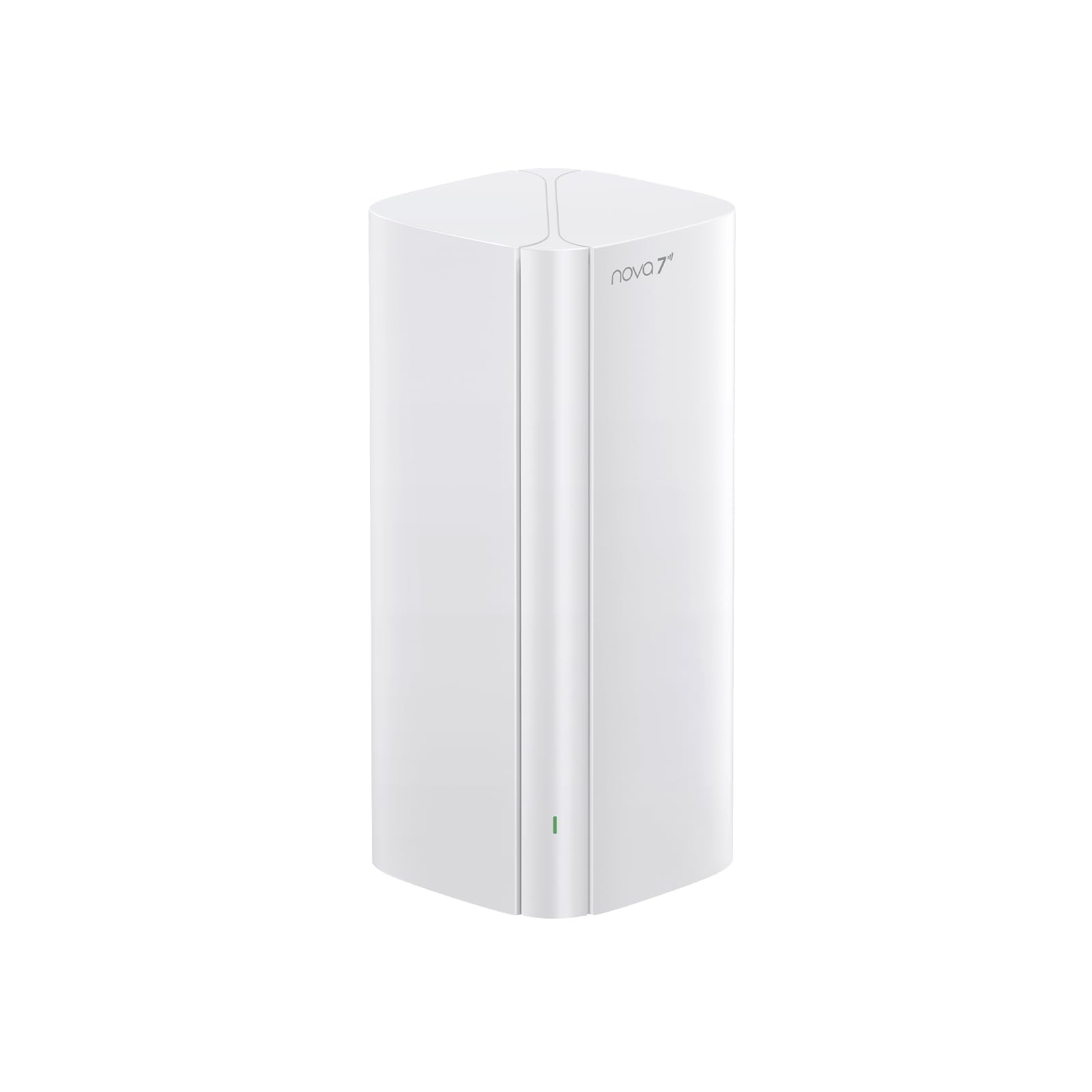
Image 1.1: Tenda WiFi 7 Mesh System BE5100 ME6 Pro unit.
2. Package Contents
Verify that all items are present in your package:
- ME6 Pro Unit x 1
- Power Adapter x 1
- Quick Installation Guide (QIG) x 1
- Gigabit Ethernet Cable x 1
3. Product Overview
The ME6 Pro unit features a sleek design with essential ports and indicators for easy setup and operation.
3.1. Ports and Buttons
- Power Port: Connects to the included power adapter.
- 1x 2.5G WAN/LAN Port: An auto-sensing port that can function as either a Wide Area Network (WAN) port for internet connection or a Local Area Network (LAN) port for high-speed wired devices.
- 2x 1G LAN Ports: Standard Gigabit Ethernet ports for connecting wired devices such as computers, gaming consoles, or smart TVs.
- Reset Button: Used to restore the unit to factory default settings.
- Mesh Button: Used for establishing or extending the Mesh network.
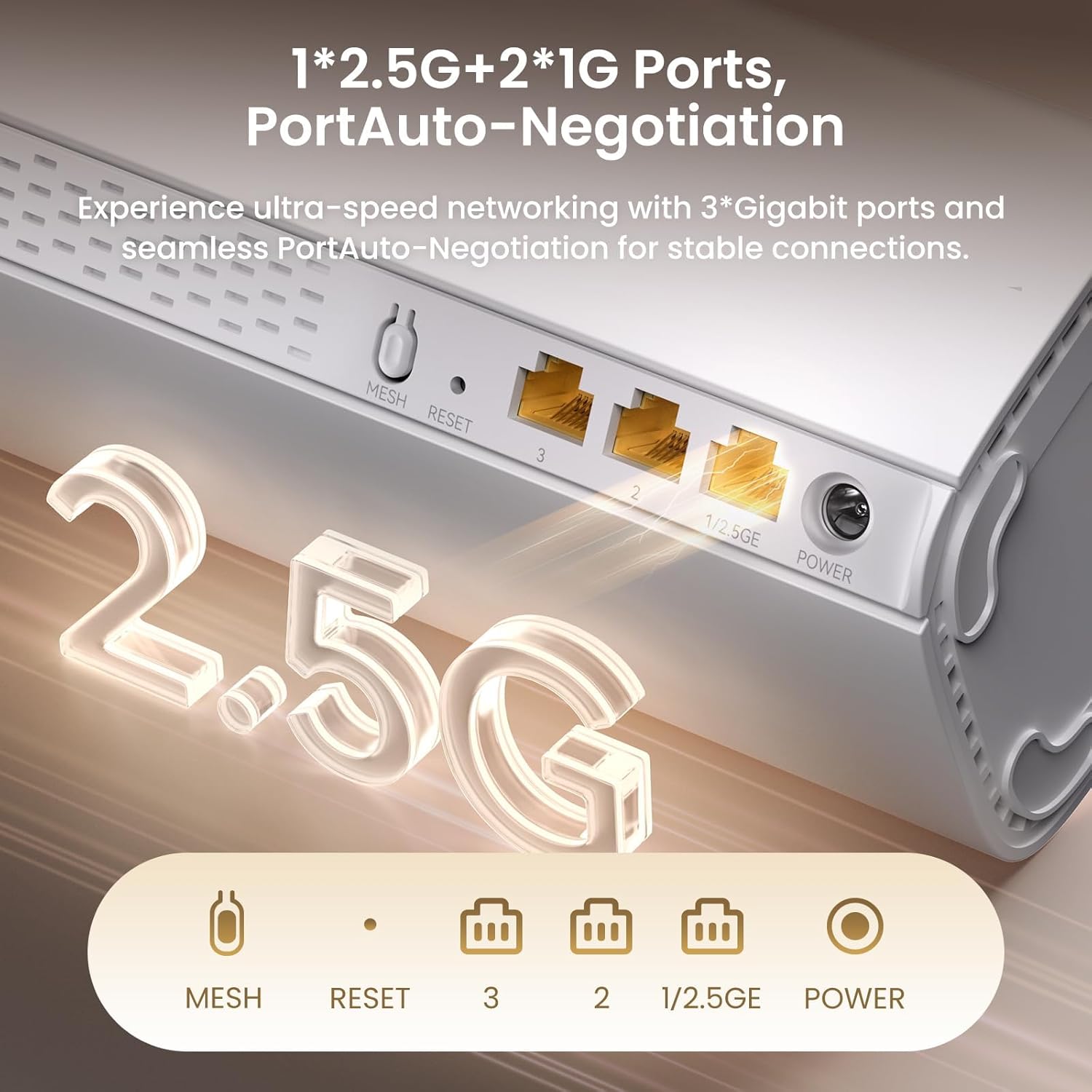
Image 3.1: Rear view of the ME6 Pro unit showing ports and buttons.
4. Setup Instructions
Follow these steps to set up your Tenda WiFi 7 Mesh System BE5100 ME6 Pro.
4.1. Initial Setup
- Power Off Modem: Disconnect the power from your existing modem or router.
- Connect the ME6 Pro: Use the included Ethernet cable to connect the WAN/LAN port (2.5G) of the ME6 Pro unit to your modem's LAN port.
- Power On: Connect the power adapter to the ME6 Pro unit and plug it into a power outlet. Wait for the unit to power on and the indicator light to stabilize.
- Power On Modem: Reconnect power to your modem and wait for it to fully boot up and establish an internet connection.
- Connect to Default Wi-Fi: On your mobile device, go to Wi-Fi settings and connect to the default Tenda network (SSID usually starts with 'Tenda_XXXX').
- Access Setup Page: Open a web browser or the Tenda WiFi App. The system should automatically redirect you to the setup page.
- Configure Network: Follow the on-screen prompts to set your new Wi-Fi name (SSID) and password. You may also configure other internet settings as required by your Internet Service Provider (ISP).
- Complete Setup: Once configured, your devices will disconnect from the default network. Reconnect your devices to your newly created Wi-Fi network using the new password.
4.2. Adding Additional Mesh Units (if applicable)
If you have multiple ME6 Pro units, you can expand your Mesh network:
- Place Additional Units: Position additional ME6 Pro units in areas needing extended coverage, ideally within 10 meters of another unit.
- Power On: Plug in the additional units. Wait for them to power on.
- Pairing: Press the Mesh button on the primary unit and then on the new unit(s) within 1-3 seconds. The indicator light will blink green rapidly during pairing. Once successfully paired, the indicator will turn solid green.
- Wired Backhaul: For enhanced stability and speed, you can connect Mesh units using Ethernet cables. Connect a LAN port on one unit to a LAN port on another unit.
5. Key Features
The Tenda WiFi 7 Mesh System BE5100 ME6 Pro offers a range of features designed to optimize your home network.
- Ultra-Fast WiFi 7 Performance: The system offers dual-band WiFi 7 connectivity, providing speeds up to 688 Mbps on the 2.4 GHz band and 4323 Mbps on the 5 GHz band. This enables efficient handling of high-bandwidth activities such as 4K/8K streaming, online gaming, and multiple device connections. Note: The 6GHz band is not supported on BE5100 models.
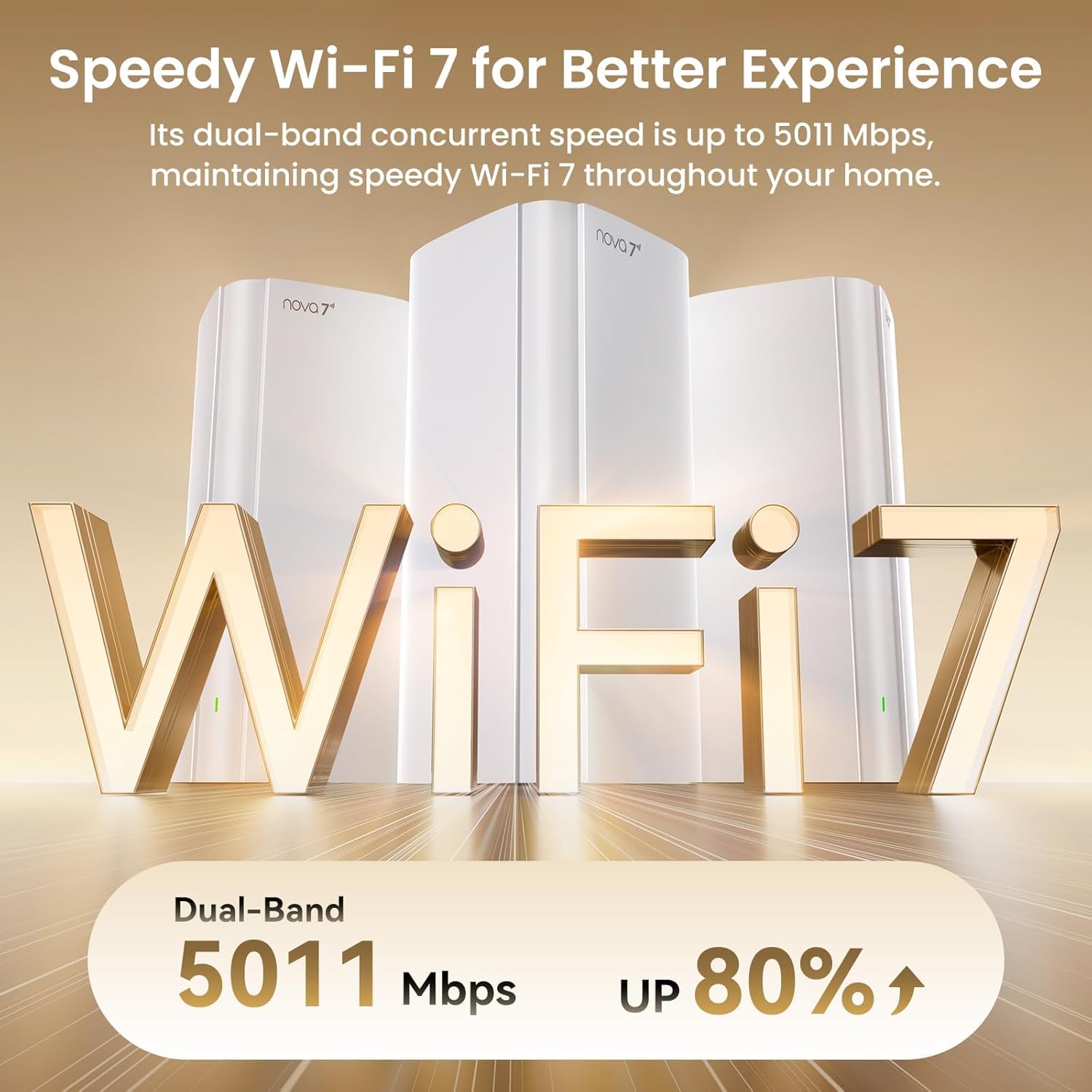
Image 5.1: Illustration of WiFi 7 speed performance.
- Wired Ethernet Backhaul: Wired Ethernet backhaul is supported, which enhances Mesh network stability and speed by reducing wireless interference. This ensures consistent network performance throughout your home, including large areas, minimizing dead zones.
- Whole-Home Coverage & High Capacity: Equipped with 5 internal antennas and 5 independent high-power Front-End Modules (FEMs), the system provides WiFi coverage up to 2,500 sq. ft., suitable for large apartments or duplexes. This design aims to deliver reliable connectivity in all areas.

Image 5.2: Visual representation of whole-home coverage.
- 2.5G Auto-Sensing WAN/LAN Port: The 2.5G port supports auto-negotiation for either WAN or LAN functions, accommodating broadband speeds up to 2000 Mbps or high-speed connections for devices like Network Attached Storage (NAS) and gaming PCs. Wired backhaul is also supported for improved Mesh network speed.
- MLO (Multi-Link Operation): Multi-Link Operation (MLO) technology combines multiple frequency bands to optimize latency, throughput, and connection stability. This supports over 160 devices simultaneously, providing stable performance for various applications in multi-user environments.
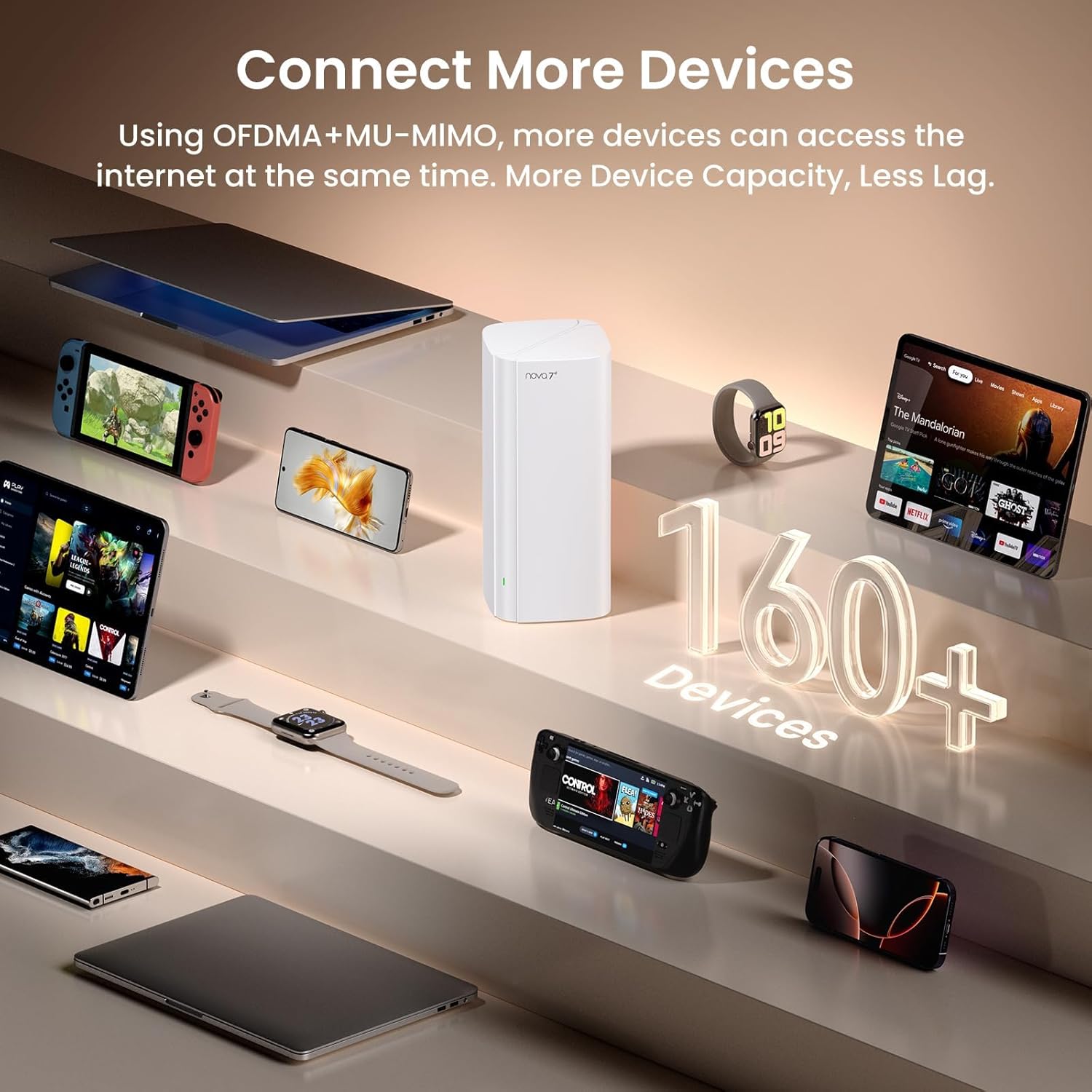
Image 5.3: Depiction of multiple devices connected to the Mesh system.
- Smart App Control & Alexa Compatibility: Network setup and management are facilitated by the Tenda WiFi App. The app allows users to manage connected devices, monitor real-time network status, and offers compatibility with Amazon Alexa for voice control.

Image 5.4: Overview of key features of the Tenda WiFi 7 Mesh System.
6. Operating Modes
The ME6 Pro supports various operating modes to suit different network requirements:
- Router Mode: The default mode where the ME6 Pro acts as the primary router, managing your network and providing internet access.
- Access Point (AP) Mode: Allows the ME6 Pro to extend an existing wired network by converting it into a wireless network.
- WISP Mode: Wireless Internet Service Provider mode, used to connect to a wireless ISP network.
- Client + AP Mode: Functions as a wireless client to connect to another Wi-Fi network while also broadcasting its own Wi-Fi signal.
7. Maintenance
Regular maintenance helps ensure optimal performance and longevity of your Mesh system.
- Firmware Updates: Periodically check for and install firmware updates via the Tenda WiFi App or web interface. Updates often include performance improvements and security patches.
- Rebooting: If you experience network issues, try rebooting the primary Mesh unit by unplugging it from power for 10 seconds and then plugging it back in. Allow a few minutes for the system to restart.
- App Diagnostics: Utilize the Network Diagnosis feature in the Tenda WiFi App to identify and resolve common network problems.
- Physical Placement: Ensure units are placed in open areas, away from large metal objects or appliances that may cause interference.
8. Troubleshooting
If you encounter issues with your Tenda WiFi 7 Mesh System, refer to the following common solutions:
- No Internet Connection:
- Verify that your modem is working correctly and has an active internet connection.
- Check all Ethernet cable connections between the modem and the ME6 Pro unit.
- Reboot both your modem and the ME6 Pro unit.
- Weak Wi-Fi Signal or Dead Zones:
- Adjust the placement of your Mesh units to ensure optimal coverage. Avoid placing them near obstructions or other electronic devices.
- If using multiple units, ensure they are properly paired and within effective range of each other.
- Devices Not Connecting:
- Confirm you are using the correct Wi-Fi password.
- Try restarting the device that is unable to connect.
- Check the Tenda WiFi App for any device management settings that might be blocking the device.
- Slow Speeds:
- Ensure your internet service plan supports the speeds you expect.
- Minimize the number of active devices consuming high bandwidth simultaneously.
- If possible, use wired Ethernet connections for devices that require maximum speed.
9. Specifications
Detailed technical specifications for the Tenda WiFi 7 Mesh System BE5100 ME6 Pro.
| Feature | Specification |
|---|---|
| Brand | Tenda |
| Model Name | ME6 Pro |
| Product Dimensions | 3.39 x 3.39 x 7.48 inches |
| Item Weight | 13.8 ounces |
| Frequency Band Class | Dual-Band |
| Wireless Communication Standard | 802.11ac (WiFi 7 compatible) |
| Ports | 1x 2.5G WAN/LAN, 2x 1G LAN |
| Special Feature | QoS, EasyMesh, MLO, VPN, Seamless Roaming |
| Compatible Devices | Smartphone, Personal Computer, Security Camera, Smart Television, Tablet, Printer, Gaming Console |
| Recommended Uses | Indoor |
| Color | White |
10. Warranty and Support
For warranty information and technical support, please refer to the official Tenda website or contact their customer service. The Quick Installation Guide included in your package also contains contact details and warranty specifics.
- Online Support: Visit the Tenda official website for FAQs, troubleshooting guides, and firmware downloads.
- Customer Service: Contact Tenda customer support for personalized assistance.


