
1. Product Overview
The Bewinner MP3 Music Player with Camera is a portable multimedia device designed for music playback, photo and video recording, and other entertainment functions. It features a responsive touchscreen, Bluetooth connectivity, and expandable storage.

Image 1.1: Front view of the Bewinner MP3 Player displaying time and date, alongside its USB-C charging cable.
Key Features:
- 2.01-inch IPS HD Touchscreen Display
- Built-in 720P Digital Camera with 90-degree rotating lens
- Bluetooth 5.4 Connectivity
- Expandable Storage up to 128GB (via memory card)
- Support for multiple audio formats (MP3, WMA, WAV, APE, FLAC, AAC LC, M4A, OGG)
- Integrated Speaker and Voice Recorder
- Additional functions: FM Radio, E-book reader, Photo viewer, Alarms, Stopwatch
2. Setup Guide
2.1 Charging the Device
- Connect the provided USB-C cable to the charging port on the MP3 player.
- Connect the other end of the USB-C cable to a compatible USB power adapter (not included) or a computer's USB port.
- The device will indicate charging status on the screen. A full charge typically takes approximately 2 hours.
2.2 Installing a Memory Card
The device supports memory card expansion up to 128GB. A memory card is required for storing a large number of songs, photos, and videos.
- Locate the memory card slot on the side of the MP3 player.
- Gently insert the memory card into the slot until it clicks into place. Ensure the card is oriented correctly.
- To remove, gently push the card inward until it springs out.
2.3 Powering On/Off
- To Power On: Press and hold the Power button until the screen illuminates.
- To Power Off: Press and hold the Power button until the power-off prompt appears, then confirm on the touchscreen.
3. Operating Instructions
3.1 Navigating the Interface
The MP3 player features a 2.01-inch touchscreen for navigation. Swipe left/right or tap icons to access different functions.
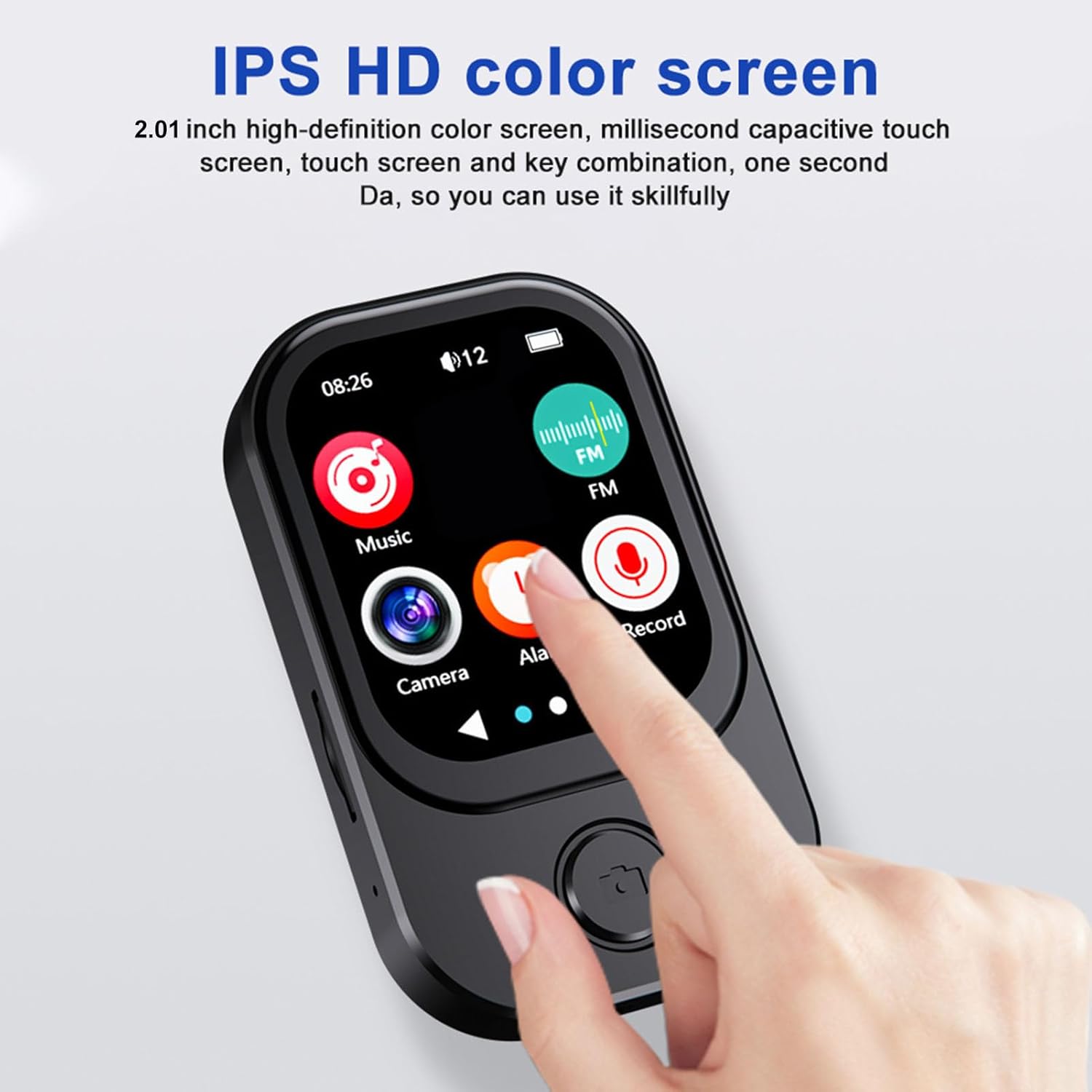
Image 3.1: A finger interacting with the responsive touchscreen interface of the MP3 player.
3.2 Music Playback
- From the main menu, tap the 'Music' icon.
- Browse your music library by artist, album, genre, or folder.
- Tap a song to begin playback.
- Use the on-screen controls for play/pause, skip tracks, and volume adjustment.
3.3 Using the Camera
The integrated camera allows for both photo and video recording.
- From the main menu, tap the 'Camera' icon.
- The camera lens can be rotated 90 degrees for flexible shooting angles.
- Tap the screen to take a photo or switch to video recording mode.
- Recorded photos and videos are saved to the memory card.

Image 3.2: The MP3 player highlighting its rotating camera lens and various recording functions.
3.4 Bluetooth Connectivity
- From the main menu, navigate to 'Settings' and then 'Bluetooth'.
- Turn Bluetooth on and search for available devices.
- Select your desired headphones or speaker from the list to pair.
3.5 Other Functions
- FM Radio: Access the FM Radio app to scan for and listen to local radio stations.
- Voice Recorder: Use the built-in microphone to record voice memos.
- E-books: Transfer compatible e-book files to the device and read them using the e-book reader.
- Video Playback: Videos may require format conversion before playback on the device. Refer to the device's software for compatible formats.
4. Maintenance
4.1 Cleaning
- Use a soft, dry, lint-free cloth to clean the device's screen and body.
- Avoid using abrasive cleaners, solvents, or aerosol sprays, as these can damage the device.
4.2 Storage
- Store the device in a cool, dry place away from direct sunlight and extreme temperatures.
- When not in use for extended periods, ensure the battery is partially charged (around 50%) to prolong its lifespan.
5. Troubleshooting
5.1 Device Not Turning On
- Ensure the device is fully charged. Connect it to a power source and wait a few minutes before attempting to power on again.
- If the battery is completely drained, it may take a few minutes of charging before the device responds.
5.2 Cannot Connect to Bluetooth Device
- Ensure Bluetooth is enabled on both the MP3 player and the target device.
- Make sure both devices are within the effective Bluetooth range (typically 10 meters).
- Try unpairing and re-pairing the devices.
5.3 Poor Audio Quality
- Check the audio file format and ensure it is supported.
- If using wired headphones, ensure they are fully plugged into the 3.5mm audio port.
- If using Bluetooth, ensure a stable connection and that the volume is appropriately set on both devices.
5.4 Storage Issues / Memory Card Not Detected
- Ensure the memory card is correctly inserted into the slot.
- Try removing and reinserting the memory card.
- Verify that the memory card is not damaged and is formatted correctly (e.g., FAT32).
6. Specifications
| Feature | Specification |
|---|---|
| Model Number | Bewinner6rb3g52470-13 |
| Dimensions | Approx. 67.5 x 41 x 13.5mm (2.7 x 1.6 x 0.5in) |
| Weight | 3.74 ounces |
| Color | Black |
| Battery | Built-in 500mAh Lithium-ion Battery |
| Screen | 2.01 inch IPS Screen |
| Bluetooth Version | BT 5.4 |
| Photo Resolution | 1280x720 |
| Video Recording Resolution | 1280x720 |
| Charging Port | Type C |
| Audio Port | 3.5mm |
| Memory Card Support | Up to 128GB |
| Supported Audio Formats | MP3, WMA, WAV, APE, FLAC, AAC LC, M4A, OGG |
7. Warranty and Support
For warranty information and customer support, please refer to the documentation provided at the time of purchase or contact your retailer. You may also visit the official Bewinner website for further assistance.