1. Introduction
The Geekplus ASUS NUC 14 Essential Mini PC is a compact and versatile computing solution designed for various tasks, from office productivity to 4K media streaming. This mini PC integrates an Intel N150 processor, 16GB DDR5 RAM, and a 512GB NVMe SSD, providing efficient performance in a small form factor. It comes pre-installed with Windows 11 Pro, offering a ready-to-use experience.
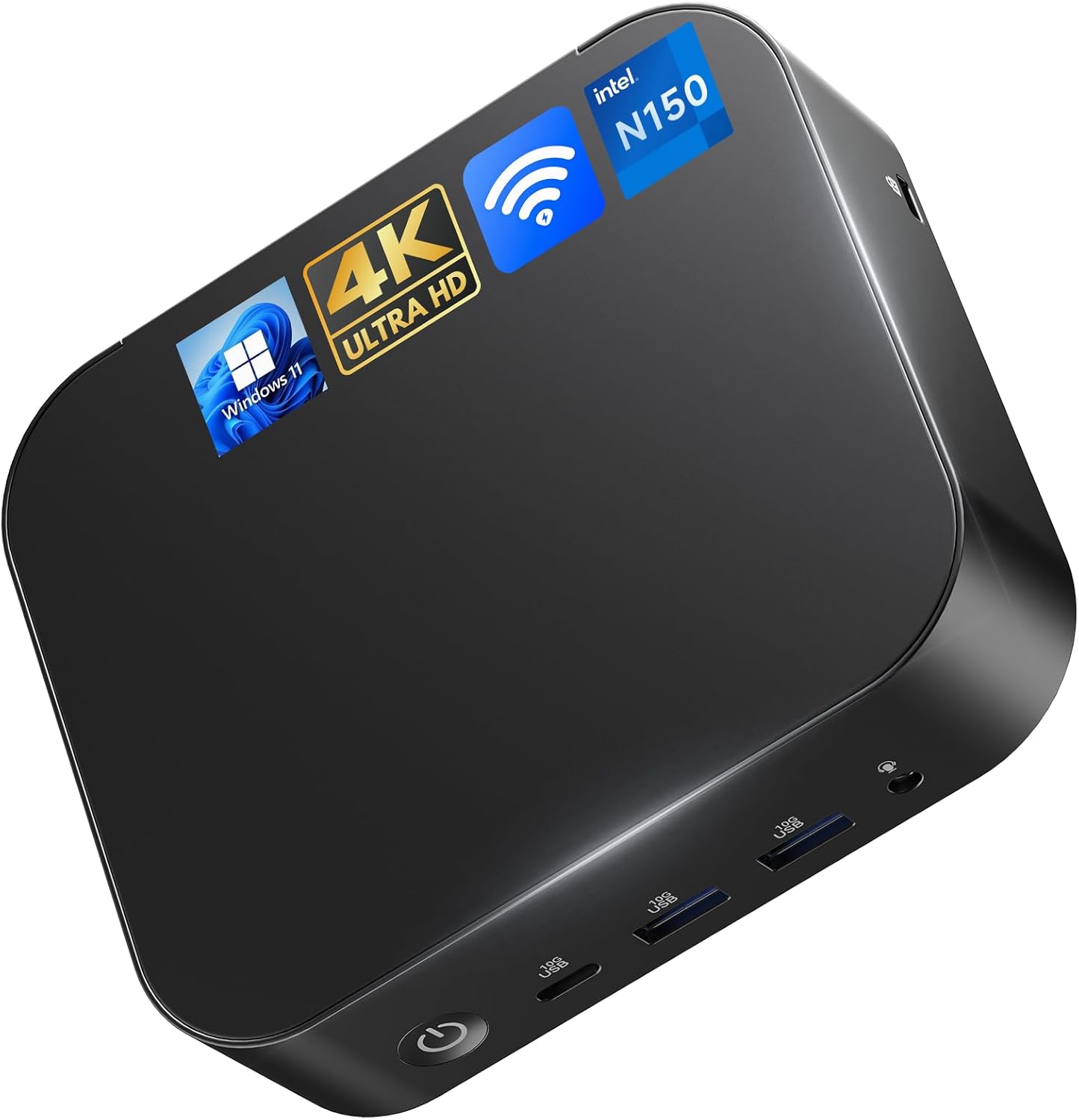
Image 1.1: Front view of the Geekplus ASUS NUC 14 Essential Mini PC.
2. Package Contents
Please verify that all items are present in the package:
- ASUS NUC 14 Essential Slim Mini PC (x1)
- Power Supply (x1)
- AC Cable (x1)
3. Product Features
3.1. Compact Design and Efficient Performance
The ASUS NUC 14 Essential Mini PC features a 12th Gen Intel N150 processor (4C/4T, up to 3.6GHz) within an ultra-compact 5.31" x 4.53" x 1.42" chassis. This design delivers efficient single-core performance while maintaining a low 6W TDP, making it suitable for sustainable computing and reducing operational costs. It supports smooth web browsing, office tasks, 4K streaming, and light creative projects with significantly less power consumption than traditional desktops.

Image 3.1: Overview of key features including processor, memory, storage, and cooling.
3.2. Durable Construction
Engineered with a reinforced ABS shell, a strategically placed metal mid-frame, and a baseplate, the device ensures optimal strength and cooling balance. Features like tool-free upgrades, vibration-damping feet, and a 3D antenna contribute to its durability without adding unnecessary bulk.
3.3. Memory and Storage
Equipped with 16GB DDR5-4800 RAM and a 512GB PCIe NVMe SSD (PCIe 3.0 x4, expandable to 2TB), the Mini PC offers accelerated multitasking and high-speed data processing. This configuration supports rapid file transfers and improved system responsiveness for demanding workloads.
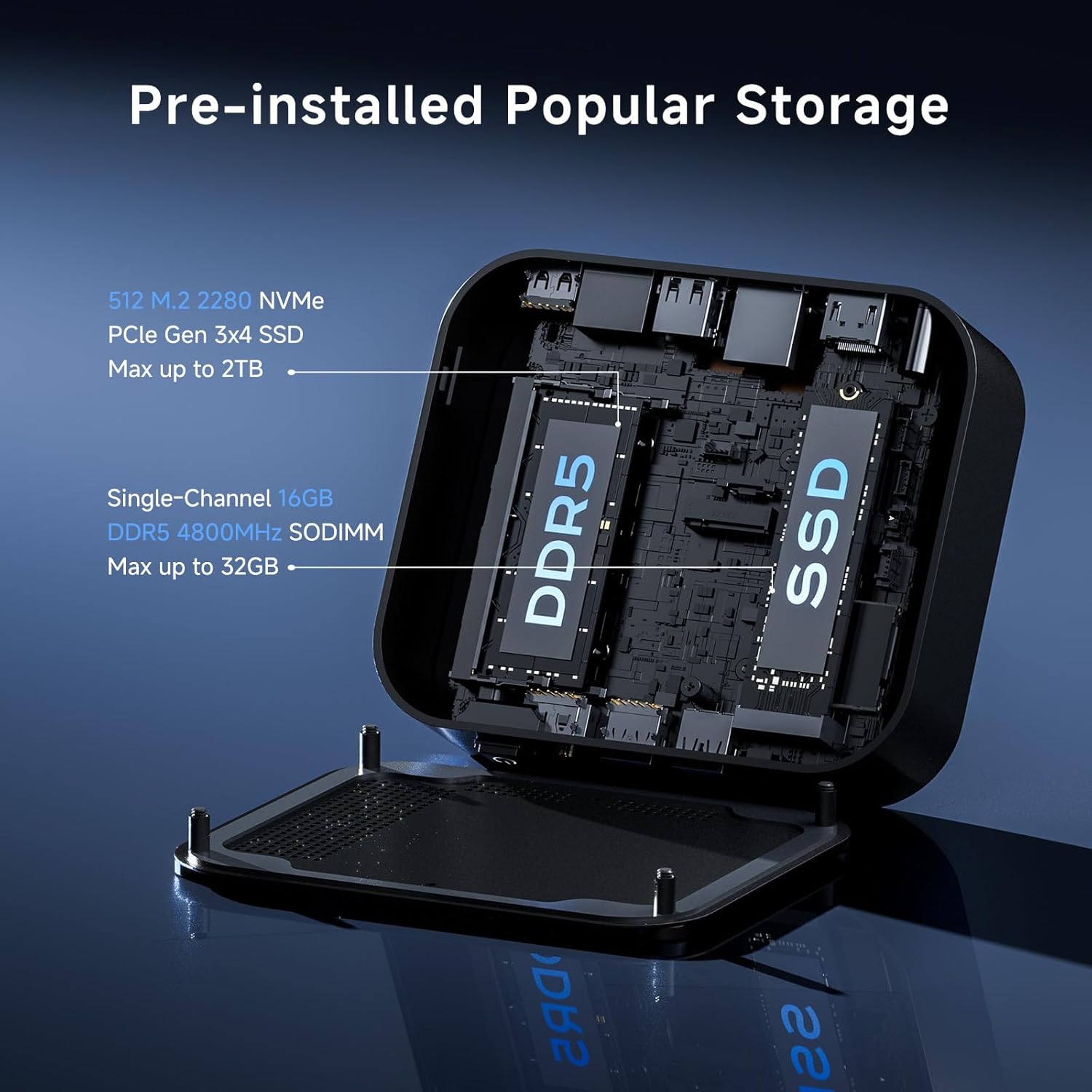
Image 3.2: Internal view highlighting the DDR5 RAM and NVMe SSD components.
3.4. Triple-Screen Display Support
The integrated Intel Graphics with 24EUs and 1000MHz clock speed supports triple 4K displays via HDMI, MiniDP, and USB-C. This capability is beneficial for professionals requiring multiple screens for tasks such as video editing, coding, data analysis, or streaming.

Image 3.3: Illustration of the mini PC supporting a triple 4K display setup.
3.5. Advanced Connectivity
Featuring Wi-Fi 6E for ultra-stable wireless connections (up to 3x faster than Wi-Fi 5), Bluetooth 5.3 for low-latency wireless peripheral pairing, and a 2.5Gbps LAN port, the Mini PC ensures high-speed and reliable network and peripheral connectivity.

Image 3.4: The mini PC connected to a high-speed 2.5Gbps Ethernet network.
3.6. Efficient Cooling System
The IceBlast 2.0 Cooling System incorporates dual copper heat pipes, a larger silent fan, vortex airflow, and an enhanced heatsink over the CPU module. This design provides effective heat dissipation with minimal noise output.

Image 3.5: Diagram illustrating the internal cooling system components and airflow.
3.7. Operating System Flexibility
The Mini PC comes with Windows 11 Pro pre-installed and offers full compatibility with Windows 11 64-bit, Ubuntu 24.04 LTS 64-bit, and RedHat Enterprise Linux 64-bit, allowing users to switch to their preferred operating system.
4. Setup Guide
4.1. Connecting Peripherals
Before powering on your Mini PC, connect your essential peripherals:
- Display: Connect your monitor(s) to the HDMI, DisplayPort, or USB-C video output ports. The Mini PC supports up to three 4K displays.
- Keyboard and Mouse: Connect your USB keyboard and mouse to any available USB-A ports.
- Network (Optional): For a wired connection, connect an Ethernet cable from your router or modem to the 2.5Gbps LAN port.
- Other USB Devices: Connect any other USB devices such as external drives or webcams to the available USB ports.
- Audio: Connect headphones or speakers to the 3.5mm headset jack if desired.
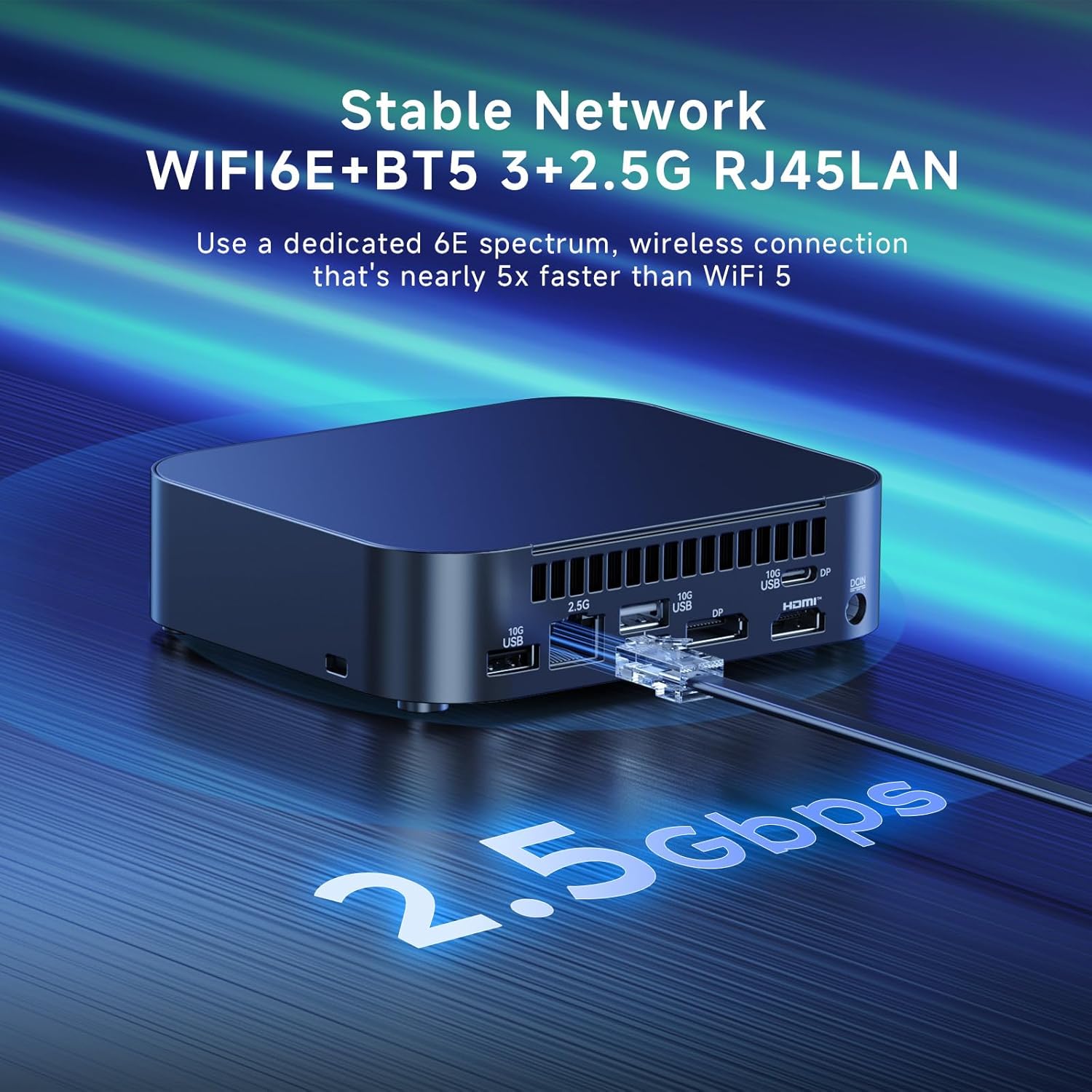
Image 4.1: Detailed diagram of the front and rear ports of the Mini PC.
4.2. Power Connection
Connect the provided power supply to the DC IN port on the Mini PC, then plug the AC cable into a power outlet.
4.3. Initial Boot
Press the power button located on the front of the Mini PC. The system will boot up, and you will be guided through the initial setup process for Windows 11 Pro.
5. Operating Instructions
5.1. Power On/Off
- Power On: Press the power button once.
- Power Off: From Windows, go to Start > Power > Shut down. Alternatively, press and hold the power button for 5 seconds to force a shutdown (use only when necessary).
5.2. Network Connectivity
- Wi-Fi: In Windows 11, click the network icon in the taskbar, select your Wi-Fi network, and enter the password. The Mini PC supports Wi-Fi 6E for enhanced performance.
- Wired LAN: If an Ethernet cable is connected, the system will automatically detect the wired network connection.
5.3. Bluetooth Pairing
To pair Bluetooth devices:
- Ensure your Bluetooth device is in pairing mode.
- In Windows 11, go to Settings > Bluetooth & devices.
- Turn on Bluetooth and click 'Add device'.
- Select 'Bluetooth' and choose your device from the list to complete pairing.
5.4. Multi-Display Configuration
After connecting multiple monitors, Windows 11 will typically detect them automatically. You can configure display settings by right-clicking on the desktop and selecting 'Display settings' to arrange displays, change resolution, or set display modes (e.g., Extend, Duplicate).
6. Maintenance
6.1. Cleaning
- Use a soft, dry cloth to clean the exterior of the Mini PC.
- For dust accumulation in vents, use compressed air. Ensure the device is powered off before cleaning.
- Avoid using liquid cleaners directly on the device.
6.2. Software Updates
Regularly update your operating system and drivers to ensure optimal performance and security. Windows 11 Pro will typically manage updates automatically, but you can manually check via Settings > Windows Update.
6.3. Hardware Upgrades
The Mini PC features an easy-access chassis for tool-free upgrades of RAM and SSD. Refer to the detailed instructions provided with the product for specific upgrade procedures. Ensure the device is powered off and unplugged before performing any hardware maintenance.
7. Troubleshooting
7.1. No Power
- Ensure the power adapter is securely connected to both the Mini PC and a working power outlet.
- Verify the power outlet is functional by plugging in another device.
- Try a different power outlet if available.
7.2. No Display
- Check that the display cable (HDMI, DisplayPort, or USB-C) is securely connected to both the Mini PC and the monitor.
- Ensure the monitor is powered on and set to the correct input source.
- Test with a different display cable or monitor if possible.
7.3. Network Connectivity Issues
- Wi-Fi: Check if Wi-Fi is enabled in Windows settings. Restart your router/modem. Ensure you are within range of your Wi-Fi network.
- Wired LAN: Verify the Ethernet cable is properly connected. Check the status lights on the LAN port; they should be active. Restart your router/modem.
7.4. Peripheral Not Detected
- Try connecting the peripheral to a different USB port.
- Ensure the peripheral has its own power source if required.
- Check the device manager in Windows for any driver issues.
8. Specifications
| Feature | Specification |
|---|---|
| Processor | Intel N150 (4C/4T, up to 3.6 GHz) |
| RAM | 16GB DDR5 RAM |
| Storage | 512GB PCIe NVMe SSD (expandable to 2TB) |
| Graphics | Intel Graphics (24EUs, 1000MHz) |
| Max Screen Resolution | 3840x2160 Pixels (4K) |
| Video Outputs | HDMI 2.1, DisplayPort 1.4, USB-C (DisplayPort 1.4) |
| Wireless Connectivity | Wi-Fi 6E, Bluetooth 5.3 |
| Wired LAN | 2.5Gbps RJ45 |
| USB Ports | 1x USB 2.0 Type-A, 3x USB 3.2 Gen2 Type-A, 2x USB 3.2 Gen2 Type-C (one with DisplayPort 1.4) |
| Audio | 3.5mm Headset Jack |
| Operating System | Windows 11 Pro (pre-installed) |
| Dimensions (LxWxH) | 5.31 x 4.53 x 1.42 inches |
| Weight | 2.66 pounds |
9. Warranty and Support
Geekplus Store provides comprehensive product support for the ASUS NUC 14 Essential Mini PC. This includes:
- A 3-year product warranty covering defects in design and craftsmanship.
- A 2-year unconditional return and exchange policy for any reason.
- Lifetime worry-free user support from the dedicated Geekplus aftersales team.
For any product concerns or support inquiries, please contact the Geekplus support team for prompt assistance.


