1. Introduction
This manual provides essential information for setting up, operating, and maintaining your ACEMAGICIAN Vista Mini V1 PC. The Vista Mini V1 is a compact and efficient mini computer designed for home and office use, powered by the 12th Gen Intel N97 processor and pre-installed with Windows 11 Pro.
2. Package Contents
Verify that all items listed below are included in your package:
- ACEMAGICIAN Vista Mini V1 PC
- Power Adapter
- HDMI Cable
- VESA Mount Plate with Screws
- User Manual

Figure 2.1: Included items in the ACEMAGICIAN Vista Mini V1 PC package.
3. Physical Overview
Familiarize yourself with the ports and features of your Vista Mini V1 PC:
- Front Panel: Power Button, Power Light, 2x USB 3.2 ports, 3.5mm Audio Jack.
- Rear Panel: LAN Port (1000Mbps Ethernet), HDMI 2.0 port, DP 1.4 port, 2x USB 2.0 ports, Power Interface.
- Sides: Ventilation grilles for optimized airflow.

Figure 3.1: Front and rear port layout of the Vista Mini V1 PC.
4. Setup
Follow these steps to set up your ACEMAGICIAN Vista Mini V1 PC:
- Connect Display: Connect your monitor(s) to the PC using the HDMI 2.0 or DP 1.4 ports. The PC supports dual 4K displays.
- Connect Peripherals: Plug in your USB keyboard and mouse into the available USB 3.2 or USB 2.0 ports.
- Connect Power: Connect the power adapter to the PC's power interface and then plug it into a power outlet.
- Power On: Press the power button on the front panel. The power light will illuminate, and the PC will begin to boot.
5. Operating System Initial Configuration
Upon first boot, the pre-installed Windows 11 Pro will guide you through the initial setup process:
- Language and Region: Select your preferred language and region.
- Network Connection: Connect to your network via Wi-Fi or by plugging an Ethernet cable into the LAN port. It is recommended to connect to the internet for updates during setup.
- Updates: The system may check for and install updates. This process may require a reboot.
- License Agreement: Review and accept the Windows 11 Pro license agreement.
- User Account: Create a user account and set up your preferences.
6. Specifications
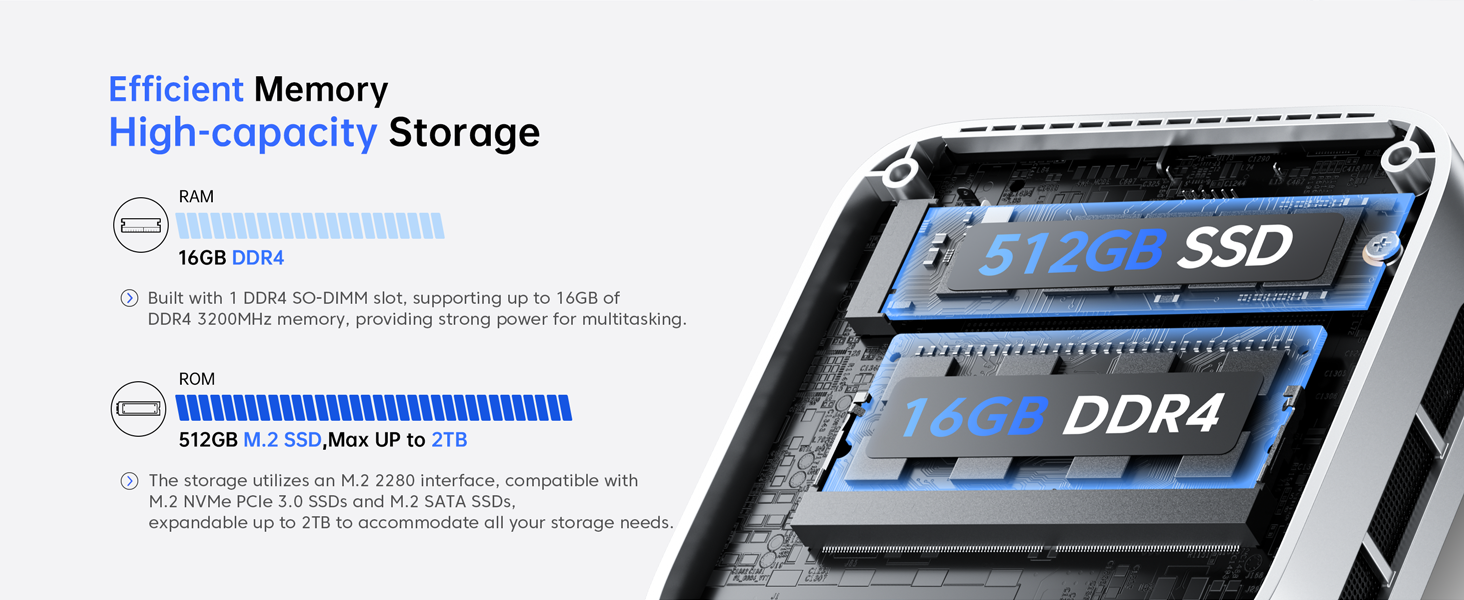
Figure 6.1: Key features of the Vista Mini V1 PC.
| Feature | Description |
|---|---|
| Processor | 12th Gen Intel Alder Lake N97 (4 cores/4 threads, up to 3.6GHz, 6MB cache) |
| RAM | 16GB DDR4 |
| Storage | 512GB M.2 2280 SSD (Expandable up to 2TB M.2 NVMe/SATA SSD) |
| Graphics | Intel UHD Graphics (24 EUs, 1.20GHz max frequency) |
| Display Output | HDMI 2.0, DP 1.4 (Supports Dual 4K Displays) |
| Operating System | Windows 11 Pro (Pre-installed) |
| Connectivity | 1000Mbps Ethernet, Wi-Fi, Bluetooth |
| Ports | 2x USB 3.2, 2x USB 2.0, 3.5mm Audio Jack |
| Dimensions | 3.9 x 3.9 x 1.3 inches |
| Weight | 1.3 pounds |
| Cooling System | 2300rpm Silent Fan + Optimized Airflow |
7. Maintenance
To ensure optimal performance and longevity of your Mini PC, consider the following maintenance tips:
- Keep Vents Clear: Ensure that the ventilation grilles on the sides of the PC are not obstructed to allow for proper airflow and prevent overheating.
- Software Updates: Regularly check for and install operating system and driver updates to maintain system stability and security.
- Cleaning: Use a soft, dry cloth to clean the exterior of the PC. Avoid using liquid cleaners directly on the device.
- Storage Management: Periodically review and manage your storage to free up space and improve performance. Consider upgrading the SSD if more space is needed.
8. Troubleshooting
If you encounter issues with your Vista Mini V1 PC, refer to the following common problems and solutions:
- No Display:
- Ensure the monitor is powered on and the video cables (HDMI/DP) are securely connected to both the PC and the monitor.
- Try a different video cable or monitor if available.
- PC Does Not Power On:
- Verify that the power adapter is correctly connected to the PC and a working power outlet.
- Check if the power outlet is functional by plugging in another device.
- Slow Performance:
- Close unnecessary applications running in the background.
- Check Task Manager (Ctrl+Shift+Esc) for high CPU, memory, or disk usage.
- Ensure there is sufficient free space on the SSD.
- Network Connectivity Issues:
- For Wi-Fi, ensure the Wi-Fi adapter is enabled and you are connected to the correct network with the right password.
- For Ethernet, check the cable connection and ensure your router/modem is working correctly.
- Restart your router/modem and the Mini PC.
9. Warranty and Support
Your ACEMAGICIAN Vista Mini V1 PC comes with a 1-year warranty and 2-year quality assurance. For any technical assistance or support, please contact ACEMAGICIAN customer service. 24-hour support is available to address your queries and concerns.
For further assistance, please refer to the contact information provided in the included User Manual or visit the official ACEMAGICIAN website.


