
1. Introduction
This manual provides essential information for setting up, operating, and maintaining your Machenike Mini Desktop. Please read this manual thoroughly before using the device to ensure proper functionality and longevity.
The Machenike Mini Desktop, model GTR HP8745H00, is a compact and powerful computing solution featuring an AMD Ryzen 7 8745HS processor, AMD Radeon Graphics, 32GB DDR5 RAM, and a 1TB SSD, running on Windows 11 Home.
2. Package Contents
Verify that all items are present in the package:
- Machenike Mini Desktop (GTR HP8745H00)
- Power Adapter
- User Manual (this document)
- (Additional accessories may vary by region or bundle)
3. Product Overview
The Machenike Mini Desktop is designed for efficiency and performance in a small form factor. Below is an illustration of the device and its various ports.

Image: Front view of the Machenike Mini Desktop, showcasing its compact design and front-facing ports.
3.1. Port Layout
Familiarize yourself with the available ports for connecting peripherals and displays.
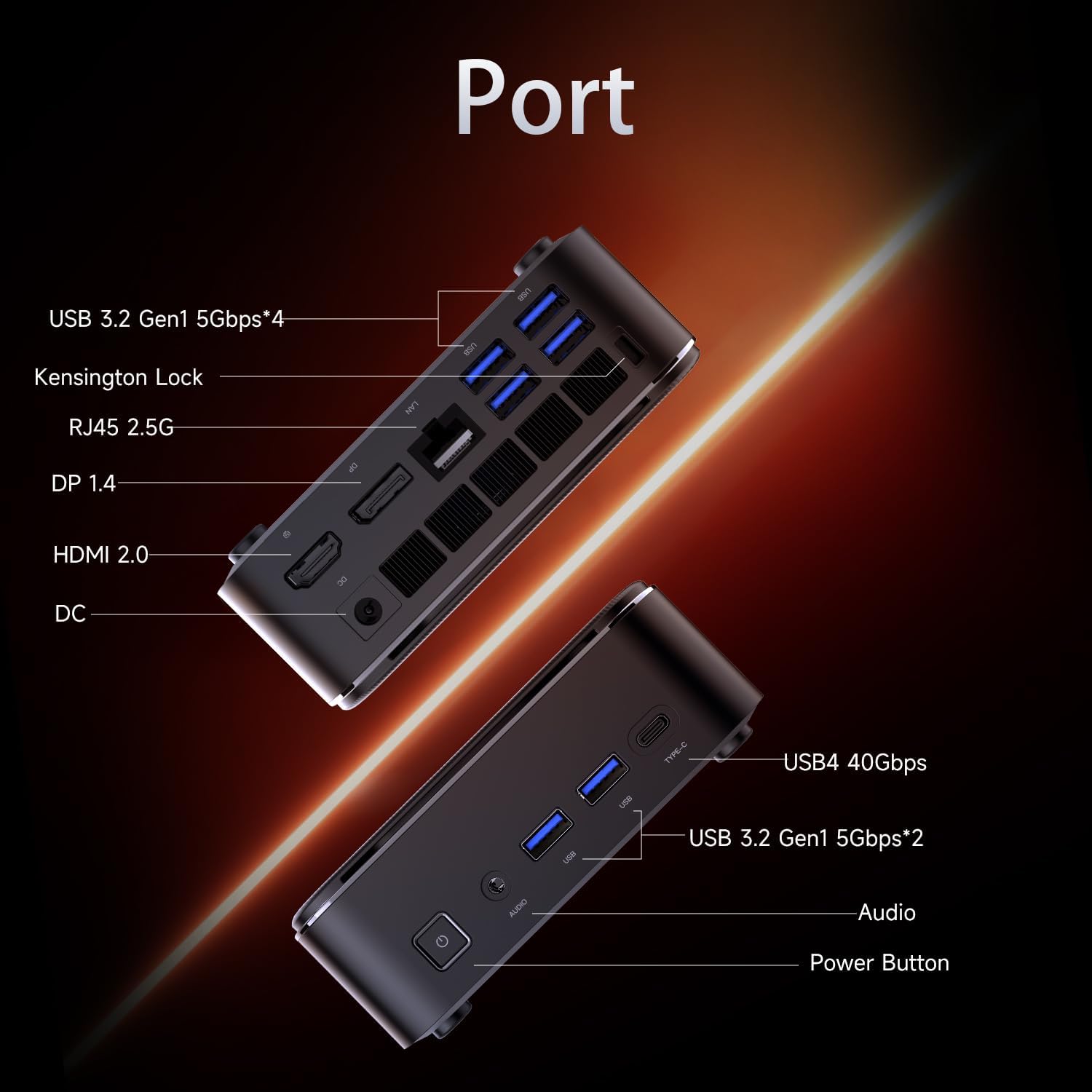
Image: Diagram illustrating the various ports on the Machenike Mini Desktop, including USB, Type-C, HDMI, DisplayPort, RJ45, and audio connections.
- Front Ports: Power Button, 3.5mm Audio Jack, 2 x USB 3.2 Gen1 (5Gbps), 1 x Type-C (USB4 40Gbps)
- Rear Ports: 2 x USB 3.2 Gen1 (5Gbps), 1 x USB 3.2 Gen2 (10Gbps), 1 x Type-C, 1 x HDMI 2.1, 1 x RJ45, 1 x Display Port, DC Power Input, Kensington Lock Slot, Restart Button
4. Initial Setup
Follow these steps to set up your Machenike Mini Desktop:
- Connect Display: Connect your monitor or display to the Mini Desktop using an HDMI or DisplayPort cable. The device supports 4K resolution.
- Connect Peripherals: Plug in your keyboard, mouse, and any other USB devices into the available USB ports.
- Connect Power: Connect the power adapter to the DC power input port on the Mini Desktop, then plug the adapter into a power outlet.
- Power On: Press the power button located on the front of the device. The system will boot up.
- Windows Setup: Follow the on-screen instructions to complete the initial Windows 11 Home setup, including language, region, network connection, and user account creation.
5. Operating Instructions
5.1. Power On/Off
- Power On: Press the power button on the front of the device.
- Shut Down: Click the Start button in Windows, then select Power > Shut down.
- Restart: Click the Start button in Windows, then select Power > Restart.
5.2. Network Connection
- Wi-Fi: The device supports Wi-Fi 6. During Windows setup or via Windows Settings, select your Wi-Fi network and enter the password.
- Wired (Ethernet): Connect an Ethernet cable from your router or modem to the RJ45 port on the back of the Mini Desktop.
5.3. Connecting External Devices
- USB Devices: Connect USB flash drives, external hard drives, printers, or other USB peripherals to any available USB 3.2 Gen1 or Gen2 ports.
- Type-C Devices: Use the Type-C ports for compatible devices, including high-speed data transfer (up to 40Gbps on the front Type-C port) or display output.
- Audio: Connect headphones or speakers to the 3.5mm audio jack on the front.
- Bluetooth: The device supports Bluetooth for wireless peripherals like keyboards, mice, and speakers. Pair devices through Windows Settings > Bluetooth & devices.
6. Maintenance
Regular maintenance helps ensure optimal performance and extends the lifespan of your Mini Desktop.
- Cleaning: Use a soft, dry cloth to clean the exterior. For dust accumulation in vents, use compressed air. Ensure the device is powered off and unplugged before cleaning.
- Software Updates: Regularly check for and install Windows updates and driver updates to ensure system stability and security.
- Ventilation: Ensure the Mini Desktop is placed in a well-ventilated area. Avoid blocking the air vents to prevent overheating.
- Data Backup: Periodically back up important data to an external drive or cloud storage.
7. Troubleshooting
This section addresses common issues you might encounter.
- No Power:
- Ensure the power adapter is securely connected to both the Mini Desktop and a working power outlet.
- Test the power outlet with another device.
- No Display:
- Verify that the HDMI or DisplayPort cable is securely connected to both the Mini Desktop and the monitor.
- Ensure the monitor is powered on and set to the correct input source.
- Try a different cable or monitor if available.
- No Internet Connection:
- For Wi-Fi, check if the Wi-Fi adapter is enabled in Windows Settings and if you are connected to the correct network with the right password.
- For wired connection, ensure the Ethernet cable is properly connected and your router/modem is working.
- Bluetooth Connectivity Issues:
- Ensure Bluetooth is enabled in Windows Settings.
- Remove and re-pair the problematic Bluetooth device.
- Update Bluetooth drivers through Device Manager.
- Ensure the device is within range and fully charged.
- System Slowdown:
- Check Task Manager for resource-intensive applications.
- Ensure sufficient free space on the SSD.
- Run a disk cleanup and defragmentation (for HDD, though SSDs don't need defragging).
- Perform a malware scan.
8. Specifications
Detailed technical specifications for the Machenike Mini Desktop (GTR HP8745H00):
| Feature | Specification |
|---|---|
| Model | GTR HP8745H00 |
| Processor | AMD Ryzen 7 8745HS (8 Cores, 16 Threads, 16MB L3 Cache, up to 5.1 GHz) |
| Graphics | AMD Radeon Graphics (Integrated) |
| RAM | 32GB DDR5 (4800 MHz) |
| Storage | 1TB PCIe M.2 SSD |
| Operating System | Windows 11 Home |
| Wireless Connectivity | Wi-Fi 6 (802.11ax), Bluetooth |
| Front Ports | 1 x Power Button, 1 x 3.5mm Audio, 2 x USB 3.2 Gen1 (5Gbps), 1 x Type-C (USB4 40Gbps) |
| Rear Ports | 2 x USB 3.2 Gen1 (5Gbps), 1 x USB 3.2 Gen2 (10Gbps), 1 x Type-C, 1 x HDMI 2.1, 1 x RJ45, 1 x Display Port, DC Power Input, Kensington Lock, Restart Button |
| Max Screen Resolution | 3840 x 2160 (4K) |
| Dimensions (LxWxH) | 5.05 x 1.96 x 5.05 inches |
| Weight | 3.4 pounds |
| Color | Black |
9. Warranty and Support
Machenike products are covered by a limited warranty. For specific warranty terms and conditions, please refer to the warranty card included with your product or visit the official Machenike website.
For technical support, troubleshooting assistance, or to inquire about service, please contact Machenike customer support or visit the official brand store: