
1. Introduction
This manual provides comprehensive instructions for the installation, setup, operation, and maintenance of your Veise VE027 WiFi Smart Lock. Please read this manual thoroughly before installation and use to ensure proper function and safety. The Veise VE027 offers multiple access methods including WiFi remote control, fingerprint, PIN code, IC card, and traditional key access.

Image 1.1: Veise VE027 Smart Lock components including the exterior keypad, interior unit, IC cards, and physical keys.
2. Product Overview
2.1 Key Features
- Built-in WiFi (2.4GHz): Remote control via KK Home App, real-time status, alerts, user management, access logs.
- Multiple Unlock Methods: App (Remote), Fingerprints, PIN Codes, IC Cards, Physical Keys, Alexa, Google Home.
- Multi-functionality: Type-C emergency charging port, low-battery alerts, voice feedback, anti-peeping mode, wrong entry limit, backlit keypad, away mode, vacation mode.
- IC Card Integration: 13.56 MHz IC cards for seamless swipe functionality. One card can open multiple locks.
- Security: Military-grade encryption for all access methods.
2.2 Components

Image 2.1: Front and back units of the Veise VE027 Smart Lock, along with included IC cards and physical keys.
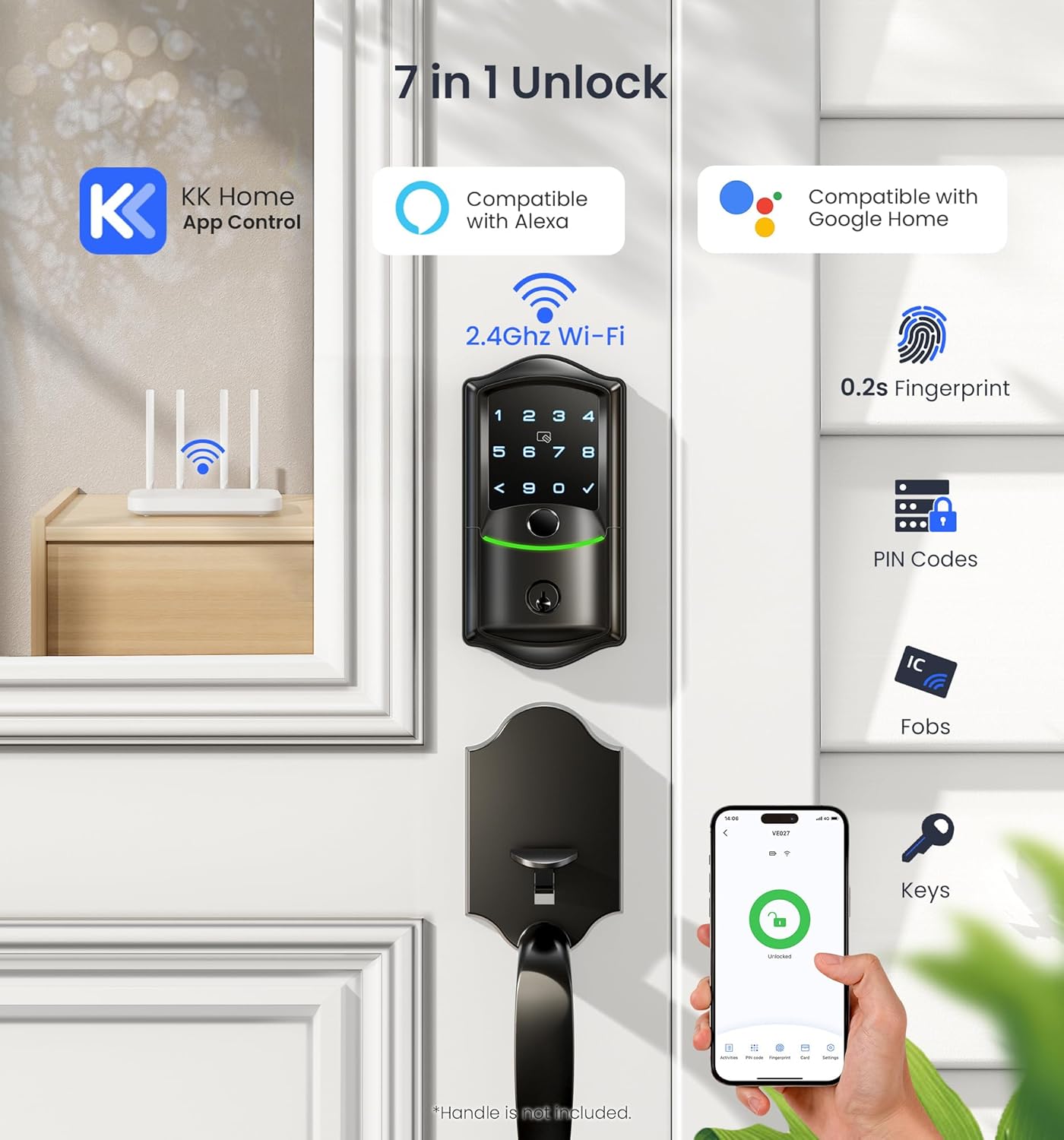
Image 2.2: Visual representation of the seven unlock methods: KK Home App, Alexa, Google Home, Fingerprint, PIN Codes, IC Fobs, and Physical Keys.

Image 2.3: Overview of the smart lock's multi-tech engine, highlighting Wi-Fi remote control, Bluetooth local control, 5-in-1 locking, 3 voice setups, Type-C emergency port, and real-time alarm.
3. Installation Guide
The Veise VE027 Smart Lock is designed for standard deadbolt installations. Ensure your door meets the following specifications:
- Door thickness: Typically 1 3/8" to 2" (35mm to 50mm).
- Backset: 2 3/8" or 2 3/4" (60mm or 70mm).
- Cross bore hole: 2 1/8" (54mm).
- Edge bore hole: 1" (25mm).
3.1 Tools Required
- Phillips head screwdriver
- Measuring tape
- Pencil
3.2 Installation Steps (General)
- Prepare the Door: Ensure the door is properly drilled according to the dimensions above. If replacing an existing deadbolt, remove it.
- Install the Latch: Insert the latch into the door edge and secure it with screws. Ensure the latch bolt faces the correct direction.
- Install the Exterior Assembly: Place the exterior keypad assembly onto the door, feeding the cable through the cross bore hole.
- Install the Interior Mounting Plate: Secure the interior mounting plate to the exterior assembly using screws, ensuring the cable passes through the plate.
- Connect the Cable: Connect the cable from the exterior assembly to the interior assembly.
- Install the Interior Assembly: Attach the interior assembly to the mounting plate and secure it with screws.
- Install Batteries: Insert 4 AA alkaline batteries (not included) into the battery compartment of the interior assembly. Ensure correct polarity.
- Test Operation: Manually test the deadbolt mechanism to ensure smooth operation.
For detailed, step-by-step visual instructions, refer to the installation video or diagrams provided with your product packaging.
4. Setup
4.1 KK Home App Setup
- Download the App: Search for "KK Home" in your smartphone's app store (iOS or Android) and download it.
- Create Account: Open the app and follow the prompts to create a new user account.
- Add Device: Tap the "+" icon or "Add Device" option in the app. Select your Veise VE027 Smart Lock from the list of available devices.
- Connect to WiFi: Follow the in-app instructions to connect your lock to your 2.4GHz WiFi network. This typically involves putting the lock into pairing mode and entering your WiFi credentials.
- Name Your Lock: Assign a name to your lock for easy identification (e.g., "Front Door Lock").

Image 4.1: The KK Home app interface on a smartphone, showing remote lock/unlock functionality, real-time notifications, user management, scheduled codes, and lock history.

Image 4.2: The Veise VE027 Smart Lock is compatible with multiple apps including KK Home, DD Lock, TT Lock, Smart Life, and Tuya Smart, supporting 13.56 MHz IC cards.
4.2 Adding Access Methods (Users, Fingerprints, PINs, IC Cards)
All access methods are managed through the KK Home App or directly on the lock's keypad.
- Adding Fingerprints:
a. In the KK Home App, navigate to the lock's settings and select "Fingerprints."
b. Follow the on-screen prompts to register a new fingerprint. You will be asked to place your finger on the lock's sensor multiple times for accurate registration. - Creating PIN Codes:
a. In the KK Home App, select "PIN Codes."
b. Choose the type of PIN code: Permanent, Scheduled, or One-Time.
c. Enter your desired PIN code (6-10 digits recommended) and confirm. - Registering IC Cards:
a. In the KK Home App, select "IC Cards."
b. Tap "Add Card" and follow the instructions to present the IC card to the lock's sensor.
c. Assign a name to the card for identification.
Image 4.3: Included IC cards for convenient tap-to-unlock access.

Image 4.4: Demonstrates the process of swiping an IC card on the smart lock for entry.

Image 4.5: An IC card can be programmed to unlock multiple Veise smart locks, suitable for various doors like side doors, bedrooms, offices, or garages.
- Voice Control Integration (Alexa/Google Home):
a. Ensure your Veise VE027 lock is successfully connected to the KK Home App.
b. Open your Alexa or Google Home app.
c. Search for and enable the "KK Home" skill/service.
d. Link your KK Home account. Your smart lock should now appear as a discoverable device.
5. Operating Instructions
5.1 Unlocking the Door
- Fingerprint: Place your registered finger on the fingerprint sensor. The lock will unlock if the fingerprint is recognized.
- PIN Code: Enter your 6-10 digit PIN code on the keypad, then press the '✓' (check) button.
- IC Card: Present your registered IC card to the card reader area on the lock.
- Physical Key: Insert the physical key into the keyhole and turn to unlock.
- KK Home App: Open the app, select your lock, and tap the "Unlock" button.
- Voice Control: Use voice commands through Alexa or Google Home (e.g., "Alexa, unlock the front door"). You may need to provide a voice PIN for security.
5.2 Locking the Door
- One-Touch Lock: Press and hold the '✓' (check) button on the keypad for 2 seconds.
- Auto-Lock: The lock will automatically lock after a set period (configurable in the app).
- KK Home App: Open the app, select your lock, and tap the "Lock" button.
- Physical Key: Turn the physical key to lock the door.
5.3 Advanced Modes
- Anti-Peeping Mode: When entering a PIN code, you can input random digits before or after your actual PIN to prevent others from guessing your code. Example: XXX + PIN + XXX.
- Away Mode: Activates enhanced security features, often disabling certain access methods or triggering alarms upon unauthorized attempts.
- Vacation Mode: Temporarily disables all user access except for administrator access, ideal for extended periods away.
6. Maintenance
6.1 Battery Replacement
The Veise VE027 Smart Lock requires 4 AA alkaline batteries. When the battery level is low, the lock will provide a low-battery alert through voice feedback and the KK Home App. Replace all four batteries simultaneously with new, high-quality alkaline batteries. Do not mix old and new batteries or different battery types.
6.2 Emergency Power
In case of complete battery depletion, the lock features a Type-C emergency charging port located on the exterior unit. Connect a portable power bank via a Type-C cable to temporarily power the lock and gain access.
6.3 Cleaning
Clean the lock's exterior surfaces with a soft, dry cloth. Avoid using abrasive cleaners, solvents, or harsh chemicals, as these can damage the finish and electronic components. Keep the fingerprint sensor and keypad free from dirt and moisture for optimal performance.
7. Troubleshooting
- Lock not responding:
- Check battery level and replace if necessary.
- Ensure the lock is properly installed and all cables are connected.
- Use the emergency Type-C power port if batteries are completely dead. - Fingerprint not recognized:
- Ensure your finger is clean and dry.
- Try different angles or re-register your fingerprint in the app.
- Clean the fingerprint sensor. - PIN code not working:
- Verify the PIN code is correct and active in the app.
- Ensure you are pressing the '✓' button after entering the code.
- Check if the lock is in 'wrong entry limit' mode (too many incorrect attempts). - App connectivity issues:
- Ensure your home WiFi network (2.4GHz) is stable.
- Restart your router and the smart lock.
- Check if the lock is within range of your WiFi router.
- Update the KK Home App to the latest version. - IC card not working:
- Ensure the IC card is properly registered in the app.
- Present the card correctly to the sensor area.
7.1 Factory Reset
A factory reset will erase all user data and settings, returning the lock to its original state. Refer to the specific instructions provided with your lock or within the KK Home App for the exact factory reset procedure, as it may vary slightly.
8. Specifications
| Attribute | Specification |
|---|---|
| Brand | Veise |
| Model Name | VE027 |
| Lock Type | Deadbolt |
| Material | Metal |
| Control Method | App, Push Button, Touch, Voice |
| Connectivity | Built-in WiFi (2.4GHz) |
| IC Card Frequency | 13.56 MHz |
| Power Source | 4 AA Batteries (not included) |
| Emergency Power | Type-C Port |
9. Warranty and Support
For warranty information, technical support, or further assistance, please refer to the warranty card included with your product or visit the official Veise website. You may also contact Veise customer service directly through the contact information provided in your product packaging or on their website.


