
1. Introduction
Thank you for choosing the Zunate 8K Digital Camera. This camera is designed for high-quality photography and videography, featuring 8K UHD video recording, 88MP photo capture, Wi-Fi connectivity, and an 18x digital zoom. Its 180° flip screen makes it ideal for vlogging and selfies. Please read this manual carefully to understand how to operate your camera and utilize all its functions effectively.
Video 1: Zunate 8K Digital Camera Features Overview. This video highlights the key functionalities and design of the camera, including its 8K video capability, autofocus, and flip screen.
2. What's in the Box
Upon opening your Zunate 8K Digital Camera package, please verify that all the following items are included:
- Zunate 8K Digital Camera
- USB Charging Cable
- Camera Strap
- Lens Cap
- User Manual (this document)
- Cleaning Cloth
- Battery
- Camera Pouch
Video 2: Zunate 8K Digital Camera Unboxing. This video demonstrates the unboxing process and shows all included accessories with the camera.
3. Product Overview
Familiarize yourself with the camera's components and controls.

Image 1: Camera Views. This image displays the Zunate 8K Digital Camera from multiple angles, highlighting its compact design and button layout.
- Front: Lens, Built-in LED fill light, Microphone, Speaker.
- Top: Power button, Shutter button, Zoom lever, Mode dial.
- Back: 3.0-inch 180° flip screen, Navigation buttons (Up, Down, Left, Right, OK), Menu button, Display button, Playback button, Wi-Fi button.
- Side: USB port, HDMI port, External Microphone port.
- Bottom: Battery compartment, SD card slot, Tripod mount.

Image 2: 180° Flip Screen. The camera features a 3.0-inch Ultra HD screen that can flip 180 degrees, useful for self-portraits and vlogging.
4. Setup
4.1. Charging the Battery
- Open the battery compartment cover on the bottom of the camera.
- Insert the battery, ensuring correct polarity.
- Close the battery compartment cover.
- Connect the camera to a power source using the provided USB cable. The charging indicator will illuminate.
- The indicator will turn off once the battery is fully charged.
4.2. Inserting a Memory Card
A memory card (not included) is required to store photos and videos. This camera supports SD cards.
- Open the memory card slot cover, usually located near the battery compartment.
- Insert the SD card with the metal contacts facing the correct direction (refer to the diagram inside the compartment).
- Push the card in until it clicks into place.
- Close the memory card slot cover.
Note: Format the memory card in the camera before first use to ensure optimal performance. Refer to the "Formatting Memory Card" section in the operating instructions.
4.3. Attaching the Camera Strap
Thread the camera strap through the strap eyelets on the camera body to prevent accidental drops.
5. Operating the Camera
5.1. Power On/Off
- To power on, press and hold the Power button.
- To power off, press and hold the Power button again.
5.2. Basic Photography and Video Recording
- Turn on the camera.
- Rotate the Mode Dial to select your desired mode (e.g., Photo Mode, Video Mode).
- Frame your shot using the 180° flip screen.
- Press the Shutter Button halfway to activate autofocus.
- Press the Shutter Button fully to take a photo or start/stop video recording.
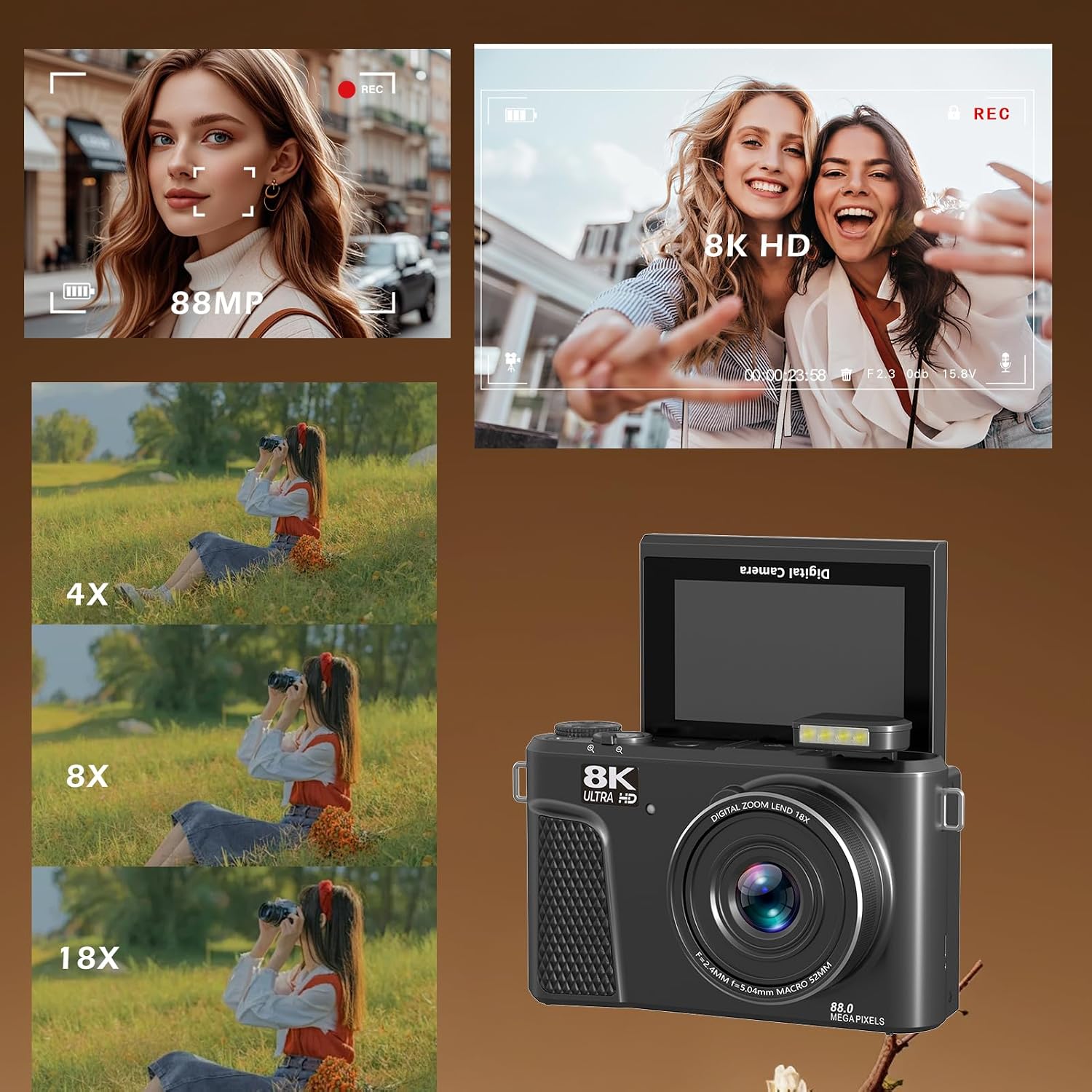
Image 3: High-Resolution Capture. The camera supports 88MP photography and 8K HD video recording, capturing fine details.
5.3. Zoom Function
Use the Zoom Lever located around the shutter button to adjust the 18x digital zoom. Push it left to zoom out and right to zoom in.

Image 4: Digital Zoom Capability. This illustration shows the effect of the 18x digital zoom, allowing users to capture distant subjects.
5.4. Built-in LED Fill Light
The camera includes a built-in LED fill light for improved illumination in low-light conditions. Activate it via the camera's menu settings or a dedicated button if available.

Image 5: LED Fill Light Function. This image illustrates the difference in lighting when the camera's built-in LED fill light is turned off versus on, enhancing visibility in darker environments.
5.5. Creative Filters and Modes
Explore the 18 creative filters and various shooting modes (e.g., Photo Mode, Continuous Shooting, Timed Mode, Slow Motion, Video Mode, Auto Mode, Time Lapse, Loop Recording) to enhance your photos and videos. Access these options through the Menu button.

Image 6: Multifunctional Camera Modes. This graphic displays the nine distinct shooting modes, offering versatility for various photographic and videographic needs.

Image 7: 18 Creative Filters. The camera offers a selection of 18 creative filters to add artistic effects to your photos and videos.
5.6. Wi-Fi Connectivity and Social Sharing
Connect your camera to a smartphone via Wi-Fi using the dedicated app. This allows for remote control, live preview, settings adjustment, and quick sharing of photos and videos to social media platforms.

Image 8: Webcam Function. The camera can be used as a webcam, making it suitable for live streaming and video calls.
5.7. Webcam Mode
The camera supports USB Webcam mode, compatible with Windows 7 and above, and OS X systems. Connect the camera to your computer via USB, then select "Webcam Mode" from the camera's menu or on your computer's video input settings.
6. Maintenance
- Cleaning the Lens: Use a soft, lint-free cloth or a lens brush to gently clean the lens. Avoid touching the lens with your fingers.
- Cleaning the Screen: Wipe the screen with a soft, dry cloth. For stubborn smudges, use a screen cleaner specifically designed for electronics.
- Storage: When not in use, store the camera in a dry, cool place, away from direct sunlight and extreme temperatures. Remove the battery if storing for extended periods.
- Battery Care: Do not expose the battery to high temperatures or attempt to disassemble it. Dispose of old batteries responsibly.
7. Troubleshooting
| Problem | Possible Cause | Solution |
|---|---|---|
| Camera does not power on. | Low or depleted battery. Battery inserted incorrectly. | Charge the battery fully. Reinsert the battery correctly. |
| Cannot take photos/record videos. | No memory card inserted. Memory card full. Memory card error. | Insert a memory card. Delete unnecessary files or use a new card. Format the memory card. |
| Images are blurry. | Lens is dirty. Camera shake. Incorrect focus. | Clean the lens. Hold the camera steady or use a tripod. Ensure autofocus is engaged or adjust manually. |
| Wi-Fi connection issues. | Incorrect password. Out of range. App not installed. | Verify Wi-Fi password. Move closer to the connected device. Install the correct Zunate camera app. |
8. Specifications
| Feature | Detail |
|---|---|
| Manufacturer | Zunate |
| Model Number | zunate2214250106511 |
| Product Dimensions | 16 x 8 x 15 cm; 600 g |
| Aspect Ratio | 16:9 |
| Photo Sensor Technology | CCD |
| Supported File Formats | JPG, MP4 |
| Optical Zoom | 18x (Digital Zoom) |
| Max Webcam Image Resolution | 88 MP |
| Photo Sensor Size | 1 inch |
| Min Shutter Speed | 3 Seconds |
| Exposure Control Type | Manual, Automatic |
9. Warranty and Support
For warranty information and technical support, please refer to the warranty card included in your product packaging or visit the official Zunate website. Keep your purchase receipt as proof of purchase for any warranty claims.
Online Support: Visit the Zunate Store on Amazon