
1. Introduction
The YHV L600 Smart Lock is an advanced keyless entry deadbolt designed to enhance home security and convenience. This smart lock integrates seamlessly with Apple HomeKit, offering multiple unlocking methods including fingerprint recognition, Apple Home Keys, Siri voice control, a touchscreen keypad, physical keys, and key fobs. It features built-in Wi-Fi for remote control and real-time monitoring.
This manual provides detailed instructions for the installation, operation, maintenance, and troubleshooting of your YHV L600 Smart Lock. Please read it thoroughly before installation and use to ensure optimal performance and safety.

Image: The YHV L600 Smart Lock showing its exterior keypad, interior unit, and a smartphone displaying the Apple Home app interface for unlocking.
2. Setup and Installation
The YHV L600 Smart Lock is designed for easy DIY installation, typically taking about 15 minutes with no drilling required for standard door preparations. Follow these steps for a successful setup.
2.1 Door Compatibility and Dimensions
Before installation, verify your door's dimensions and compatibility. The lock supports standard single-cylinder deadbolt setups.

Image: A diagram illustrating required door dimensions (backset, minimum distance, cross bore diameter, door thickness, door hole diameter) and compatible door lock types (single cylinder).
- Backset: 2⅜" (60mm) or 2¾" (70mm)
- Minimum Distance: 4" (100mm)
- Cross Bore Diameter: 1½" (38mm) or 2⅛" (54mm)
- Door Thickness: 1⅜" - 2⅛" (35-55mm)
- Door Hole Diameter: 1" (25mm)
2.2 Installation Steps
- Prepare the Door: Ensure your door meets the compatibility requirements.
- Install the Latch: Insert the deadbolt latch into the door edge.
- Install the Exterior Assembly: Mount the exterior keypad assembly onto the door.
- Install the Interior Assembly: Attach the interior unit, connecting the cable from the exterior assembly.
- Insert Batteries: Install 8 AA batteries into the interior unit.
- Calibrate the Lock: The lock will automatically calibrate to fit left or right-handed doors.
- App Setup: Scan the QR code provided in the packaging to download the companion app and complete the setup process, including pairing with Apple HomeKit.
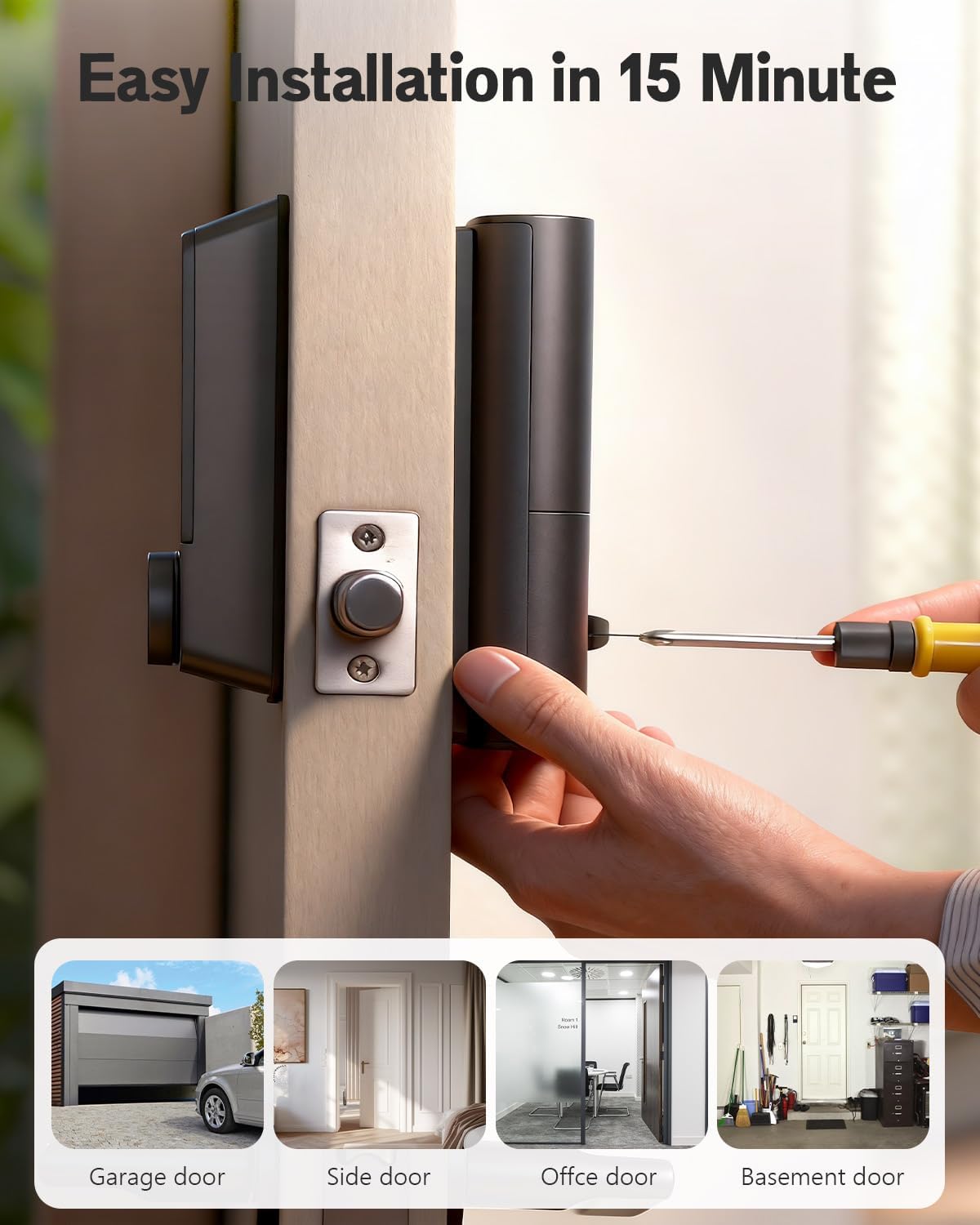
Image: A person using a screwdriver to install the YHV L600 Smart Lock on a door, with small icons showing various door types (garage, side, office, basement).

Image: Two YHV L600 Smart Locks shown on left and right-handed doors, illustrating automatic calibration.
3. Operating Instructions
The YHV L600 Smart Lock offers multiple convenient and secure ways to access your home.
3.1 Apple HomeKit Integration
The L600 is fully compatible with Apple HomeKit, providing seamless integration with your Apple ecosystem.
- Apple Home Keys: Tap your iPhone or Apple Watch to the lock to unlock. This feature works even if your device's battery is depleted.
- Siri Voice Control: Use Siri on your Apple HomePod, HomePod mini, or Apple TV to control the lock with voice commands.
- Apple Home App: Remotely control and monitor your lock from anywhere using the Apple Home App.

Image: A collage showing unlocking the YHV L600 Smart Lock using an iPhone, tapping an iPhone to the lock, and using an Apple Watch, all compatible with Apple Home.

Image: A woman on a sofa using Siri to unlock the door, with a HomePod mini nearby. Text indicates 'Hey Siri, open the door' and 'OK, the door is open'.

Image: A hand holding a smartphone showing the Apple Home app interface with the YHV L600 lock status as 'Unlocked'.

Image: A hand holding an iPhone near the YHV L600 Smart Lock, demonstrating the Home Key unlock feature.

Image: A person's wrist with an Apple Watch held near the YHV L600 Smart Lock, illustrating Apple Watch control.
3.2 Fingerprint Recognition
The integrated AI fingerprint recognition allows for quick and secure access in under 0.3 seconds. The lock supports up to 50 unique fingerprints.

Image: A finger being placed on the fingerprint sensor of the YHV L600 Smart Lock, with text highlighting 'AI Chip' and '0.3S Recognition' for up to '50 Fingerprints'.

Image: A hand using the fingerprint sensor on the YHV L600 Smart Lock, emphasizing 0.3-second unlock and AI self-learning capabilities.
3.3 Touchscreen Keypad
Enter your personalized access codes on the touchscreen keypad. The lock supports up to 50 unique codes for family, friends, and guests.

Image: A smartphone screen displaying a list of users (Family, Friends, Pet, Courier) with associated password management options for the YHV L600 Smart Lock.
3.4 Key Fobs and Physical Keys
For traditional access, the lock includes key fobs for effortless tap-to-unlock functionality and backup physical keys.
- Key Fobs: Tap the fob to the designated area on the lock for quick entry.
- Physical Keys: Two backup physical keys are provided. These can also be copied by professional locksmiths if needed.

Image: A hand tapping a key fob to the YHV L600 Smart Lock for access.

Image: A hand inserting a physical key into the YHV L600 Smart Lock for manual unlocking.
3.5 Remote Control and Monitoring
With built-in Wi-Fi, you can control and monitor your lock remotely via the Apple Home App or the Cldbus App (compatible with Android phones).
- App Remote Control: Lock or unlock your door from anywhere.
- Real-time Logs: Every entry and exit is logged in the app, providing a history of access.

Image: A person using a smartphone to remotely control the YHV L600 Smart Lock via an app, showing the lock/unlock interface.

Image: A smartphone screen showing a notification log of lock events, including NFC unlock, one-click unlock, and remote unlock, with timestamps.
3.6 Advanced Security Features
- Smart Auto-Lock: Configure the lock to automatically lock after a set period (10-99 seconds), ensuring your door is always secured.
- Anti-Peeping Password: Enter random digits before or after your actual code to prevent others from guessing your password by observing finger patterns.
- Duress Password and Fingerprint: In a coercive situation, entering a pre-configured duress password or using a duress fingerprint will silently send an alert to your emergency contacts without alerting the intruder.
- Dormant Mode: Activate dormant mode to disable most lock functions during specific hours (e.g., overnight) for enhanced security while you sleep.

Image: A woman walking away from a door with the YHV L600 Smart Lock, illustrating the auto-lock feature with a timer of 10-99 seconds.

Image: A man holding a child, demonstrating the anti-peeping password feature on the YHV L600 Smart Lock keypad, showing random digits entered before the correct password.

Image: A hand holding an iPhone displaying a notification for 'Duress Password Unlock', indicating an alert has been sent.

Image: A smartphone screen showing the 'Dormant Mode' settings within the lock's app, with options to enable/disable and set dormant times.
4. Maintenance
Proper maintenance ensures the longevity and reliable operation of your YHV L600 Smart Lock.
4.1 Battery Management
The lock operates on 8 AA batteries, providing approximately 8 months of typical use. The system will send proactive low-battery alerts.
- Battery Replacement: Replace all 8 AA batteries when low-battery alerts are received.
- Emergency Charging: An external USB-C port is available for emergency power if the batteries are completely depleted. This port is for power supply only and does not support data transfer.

Image: A visual representation of 8 AA batteries inside the YHV L600 Smart Lock, indicating an 8-month battery life and comparing it to other smart locks with 4 AA batteries.

Image: The interior unit of the YHV L600 Smart Lock with the battery cover removed, showing the compartment for 8 AA batteries.

Image: The YHV L600 Smart Lock with a USB-C cable connected for emergency power, alongside a smartphone displaying a low battery notification.
4.2 Durability and Environmental Conditions
The lock is rated IP54 for resistance to dust and water, and is BHMA certified for robust construction. It operates reliably in temperatures ranging from 4°F to 140°F (-20°C to 60°C).

Image: The YHV L600 Smart Lock depicted in a stormy, rainy environment and a hot, desert environment, highlighting its IP54 waterproof rating and operating temperature range of -4°F to 140°F.

Image: The YHV L600 Smart Lock displayed with BHMA certification details, including 100,000 Keypad Life Test, 218H Salt Spray Test, 176H Humidity Test, and 2,850N Appearance Pressure Resistance.
5. Troubleshooting
This section addresses common issues you might encounter with your YHV L600 Smart Lock.
- Lock not responding: Check battery levels. If batteries are low or depleted, replace them or use the emergency USB-C port. Ensure the lock is properly installed and all connections are secure.
- Fingerprint not recognized: Ensure your finger is clean and dry. Re-register your fingerprint if the issue persists. Ensure the fingerprint sensor is clean.
- Keypad not responding: Check for low battery. Ensure the keypad is clean and free from debris.
- Remote access issues: Verify your Wi-Fi connection and ensure the lock is connected to your home network. Check the Apple Home App or Cldbus App for connectivity status. Ensure your Apple HomeKit hub (HomePod, Apple TV) is online and functioning.
- Auto-lock not engaging: Verify the auto-lock settings in the app. Ensure the door is fully closed and the deadbolt can extend freely.
- Difficulty with installation: Review the door compatibility requirements and installation steps. Contact customer support if you encounter persistent issues.
6. Specifications
| Feature | Detail |
|---|---|
| Brand | YHV |
| Model Name | L600 |
| Lock Type | Biometric, Deadbolt, Homekit, Keypad |
| Special Features | Apple Home Key, Auto-Lock, Fingerprint, One-Touch Lock, Passcode Unlock |
| Material | Aluminum, Pure Copper, Stainless Steel |
| Item Dimensions (L x W x H) | 2.8 x 1.3 x 6.7 inches |
| Item Weight | 6.2 ounces |
| Power Source | 8 AA Batteries (not included) |
| Battery Life | Up to 8 months (typical use) |
| Emergency Power | USB-C Port |
| Connectivity | Bluetooth, Wi-Fi |
| Control Method | App, Push Button, Remote, Voice |
| Operating Temperature | 4°F to 140°F (-20°C to 60°C) |
| Water Resistance | IP54 |
| Certifications | BHMA Certified |
| UPC | 850070711326 |
7. Warranty and Support
YHV stands behind the quality of its products.
- Warranty: The YHV L600 Smart Lock comes with a 3-year manufacturer's warranty, covering mechanical defects.
- Customer Support: For any questions, technical assistance, or warranty claims, please contact YHV customer service. Refer to the product packaging or the official YHV website for contact information.

Image: A graphic indicating 'YHV Guarantee' with '3 Year Warranty' and '7/24 Online Service'.