
Introduction
The SmailWolf RS8 is an ultra-light gaming mouse designed for high performance and versatility. It features a 1000Hz polling rate, multiple connectivity options (Bluetooth, 2.4GHz wireless, and wired USB), and customizable RGB lighting. This manual provides instructions for setup, operation, maintenance, and troubleshooting.
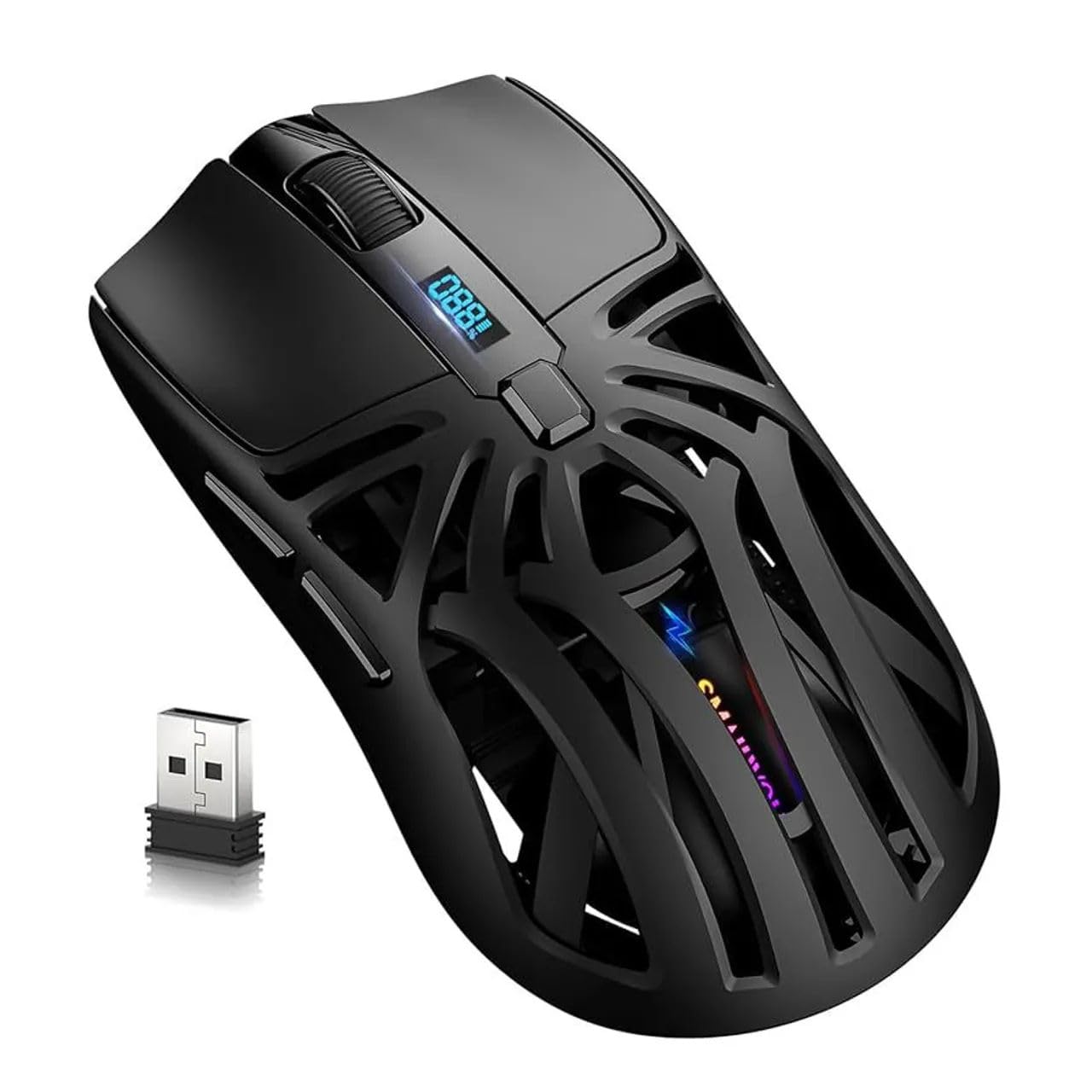
Image: Top view of the SmailWolf RS8 gaming mouse, highlighting its ergonomic design and central digital display.
Setup
Package Contents
Ensure the following items are included in your package: SmailWolf RS8 Gaming Mouse, USB Receiver, USB Charging Cable.
Charging the Mouse
Connect the USB charging cable to the mouse's charging port and to a USB power source. The digital display will indicate the battery level.
Connectivity Options
The SmailWolf RS8 supports three connection modes: 2.4GHz wireless, Bluetooth, and wired USB.

Image: Underside of the SmailWolf RS8 mouse, showing the mode switches and the compartment for the USB receiver.
2.4GHz Wireless Connection
- Locate the USB receiver stored in the compartment on the underside of the mouse.
- Plug the USB receiver into an available USB port on your computer.
- Switch the mode selector on the bottom of the mouse to the 2.4G position.
- The mouse should automatically connect to your computer.
Bluetooth Connection
- Switch the mode selector on the bottom of the mouse to the Bluetooth position.
- On your computer, go to Bluetooth settings and search for new devices.
- Select "SmailWolf RS8" from the list of available devices to pair.
- The mouse should connect and be ready for use.
Wired USB Connection
- Connect the USB charging cable to the mouse and to a USB port on your computer.
- The mouse will function as a wired mouse and will also charge simultaneously.
Operating Instructions
DPI Adjustment
The SmailWolf RS8 features six-speed DPI adjustment, with a maximum sensitivity of 12000 DPI. Use the dedicated DPI button (usually located behind the scroll wheel) to cycle through the preset DPI levels (e.g., 1200, 1600, 3200, 6400, 10000, 12000). The digital display may show the current DPI setting.
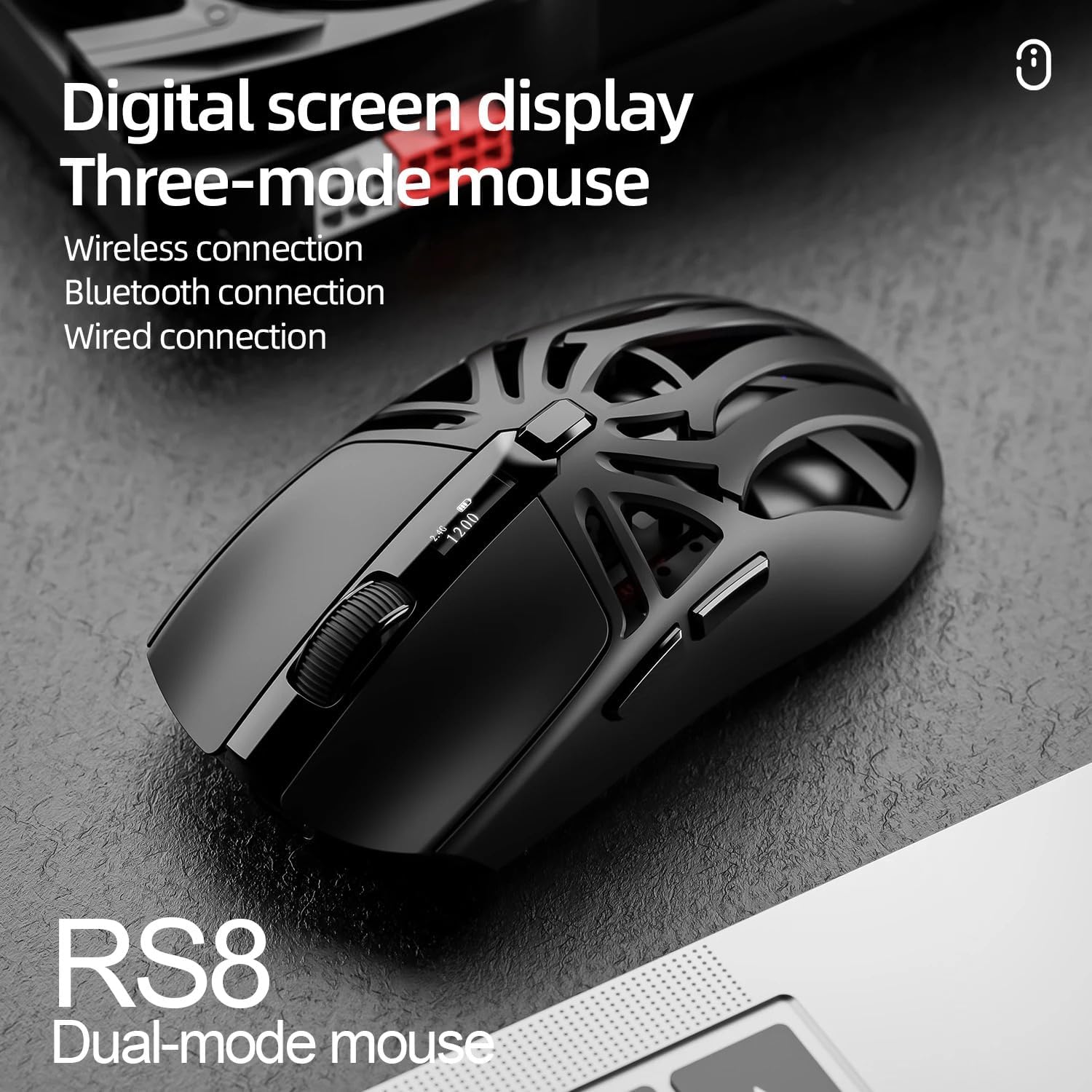
Image: SmailWolf RS8 mouse displaying DPI settings on its digital screen.
RGB Lighting Configuration
The mouse features customizable RGB lighting with 16.8 million colors. Specific buttons or software (if available) can be used to change lighting modes and colors. Refer to the manufacturer's website for any available software.

Image: Detail of the SmailWolf RS8 mouse showcasing its RGB lighting effect.
Button Functions
The mouse has 6 programmable buttons. Default functions include:
- Left Click
- Right Click
- Scroll Wheel (Click and Scroll)
- DPI Cycle Button
- Forward Button (Side)
- Back Button (Side)
For advanced customization, check if dedicated software is available from the manufacturer.
Maintenance
Cleaning
To clean the mouse, use a soft, dry cloth. For stubborn dirt, slightly dampen the cloth with water or a mild cleaning solution. Avoid using harsh chemicals or abrasive materials.
Battery Care
To prolong battery life, avoid fully discharging the mouse frequently. Charge the mouse when the battery indicator is low. If storing the mouse for an extended period, charge it to approximately 50% and store in a cool, dry place.
Troubleshooting
Mouse Not Responding
- Ensure the mouse is charged.
- Check the connection mode (2.4GHz, Bluetooth, or wired).
- For 2.4GHz, ensure the USB receiver is securely plugged in. Try a different USB port.
- For Bluetooth, ensure Bluetooth is enabled on your computer and the mouse is paired correctly. Try re-pairing.
- For wired, ensure the USB cable is securely connected.
- Restart your computer.
Intermittent Connection
- Move the mouse closer to the USB receiver or Bluetooth device.
- Avoid interference from other wireless devices.
- Ensure the mouse battery is not low.
DPI Not Changing
- Press the DPI button firmly.
- Ensure the mouse is powered on and connected.
Specifications
- Model: SmailWolf RS8
- Connectivity: Bluetooth, 2.4GHz Wireless, USB Wired (Tri-mode)
- DPI Sensitivity: Up to 12000 DPI (6 adjustable levels)
- Polling Rate: 1000 Hz
- Buttons: 6
- Weight: 49 Grams (Ultra-light)
- Dimensions (L x W): 12 cm x 6.5 cm
- Lighting: RGB (16.8 million colors)
- Operating System Compatibility: Windows (Windows 10 minimum)
- Recommended Use: Gaming
- Material: Plastic
- Color: Black
- Power Source: Built-in rechargeable battery (charged via USB)
- Optical Sensor: Yes
- Orientation: Right-handed
- Country of Origin: Brazil
Warranty and Support
This product is manufactured by HYPEDFLOW. For warranty information or technical support, please refer to the retailer or manufacturer's official website. The product description indicates that specific warranty details may be provided by the seller or local regulations.
Manufacturer: HYPEDFLOW


