
1. Introduction and Overview
Welcome to the LG Ultragear 34G630A-B 34-Inch WQHD Curved Gaming Monitor. This manual provides essential information for setting up, operating, and maintaining your new monitor. Designed for speed, precision, and visual impact, this monitor offers an immersive gaming and productivity experience.
Key features include:
- 34-Inch 21:9 UltraGear WQHD (3440x1440) Curved Display: Provides expansive horizontal real estate for immersive gaming and multitasking.
- 240Hz Refresh Rate: Ensures smooth, fluid visuals for competitive gaming.
- 1ms (GtG) Response Time: Minimizes ghosting for sharp and clear gaming visuals.
- Vivid Color and HDR Brilliance: Up to 95% DCI-P3 color gamut and VESA DisplayHDR 400 for lifelike visuals.
- AMD FreeSync Premium: Delivers ultra-smooth, tear-free visuals by synchronizing the monitor's refresh rate with your GPU.
- Versatile Connectivity: Includes USB Type-C PD 15W, DisplayPort, and HDMI ports.
- Advanced Gaming Features: Dynamic Action Sync, Black Stabilizer, FPS Counter, and Crosshair for enhanced gameplay.
- Ergonomic Stand: Offers height, tilt, and swivel adjustments for optimal viewing comfort.

Image: The LG UltraGear 34-Inch WQHD (3440 x 1440) Curved Display, showcasing its immersive design.
2. What's in the Box
Please ensure all components are present before proceeding with setup:
- Monitor
- Power Cable
- HDMI Cable
- DisplayPort Cable
3. Setup Instructions
3.1 Assembling the Stand
Attach the stand base to the stand neck, then secure the assembled stand to the back of the monitor. Refer to the quick setup guide included in the box for detailed visual instructions.
3.2 Connecting the Monitor
Connect the power cable to the monitor and a power outlet. Use the provided HDMI or DisplayPort cable to connect your computer or gaming console to the monitor. For USB-C compatible devices, use a USB Type-C cable for both display and data transfer.
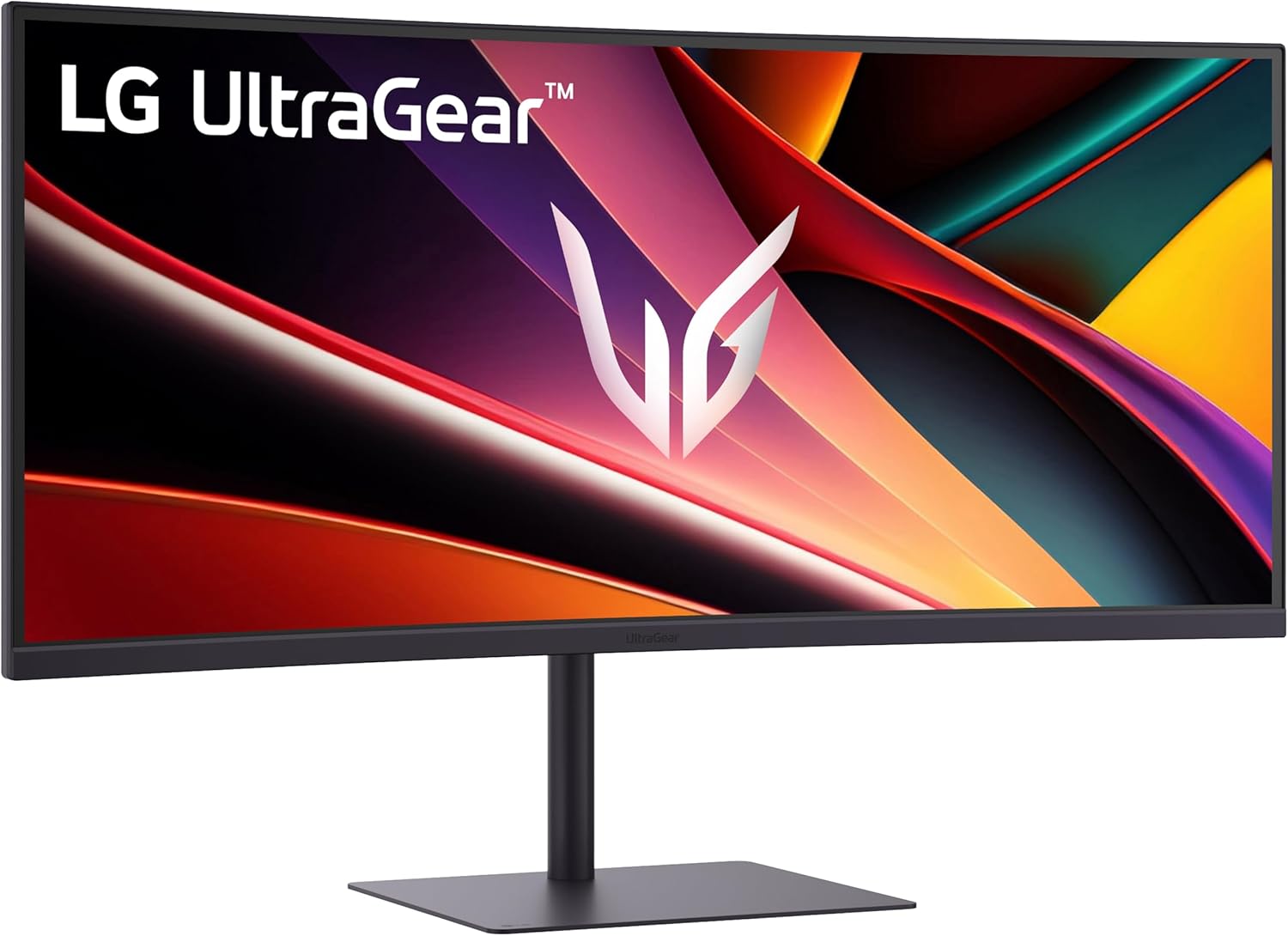
Image: Rear view of the LG UltraGear monitor, highlighting the HDMI, DisplayPort, and USB Type-C ports for connectivity.
3.3 Adjusting the Stand
The ergonomic stand allows for various adjustments:
- Height: Adjust the monitor's vertical position for optimal eye level.
- Tilt: Angle the screen up or down to reduce glare and improve viewing comfort.
- Swivel: Rotate the screen horizontally to share your view or adjust your position.

Image: The LG UltraGear monitor with its adjustable stand, illustrating the swivel, tilt, and height adjustment capabilities for ergonomic setup.
4. Operating Instructions
4.1 Powering On/Off
Press the power button (usually located on the bottom center or rear of the monitor) to turn the monitor on or off.
4.2 On-Screen Display (OSD) Menu
Use the joystick button (typically located on the bottom center of the monitor) to navigate the OSD menu. This menu allows you to adjust various settings such as brightness, contrast, color, and gaming features.
4.3 Display Features
- WQHD (3440 x 1440) Resolution: Enjoy crisp and detailed visuals across the expansive 21:9 ultrawide screen.
- 240Hz Refresh Rate: Experience ultra-smooth motion, crucial for fast-paced games.
- 1ms (GtG) Response Time: Minimizes motion blur and ghosting for clear action.
- VESA DisplayHDR 400: Delivers vibrant colors and enhanced contrast for a more immersive visual experience.
- AMD FreeSync Premium: Eliminates screen tearing and stuttering by synchronizing the monitor's refresh rate with your graphics card.

Image: The LG UltraGear monitor showcasing a high-speed motorcycle game, emphasizing the 240Hz refresh rate for fast, responsive gameplay.
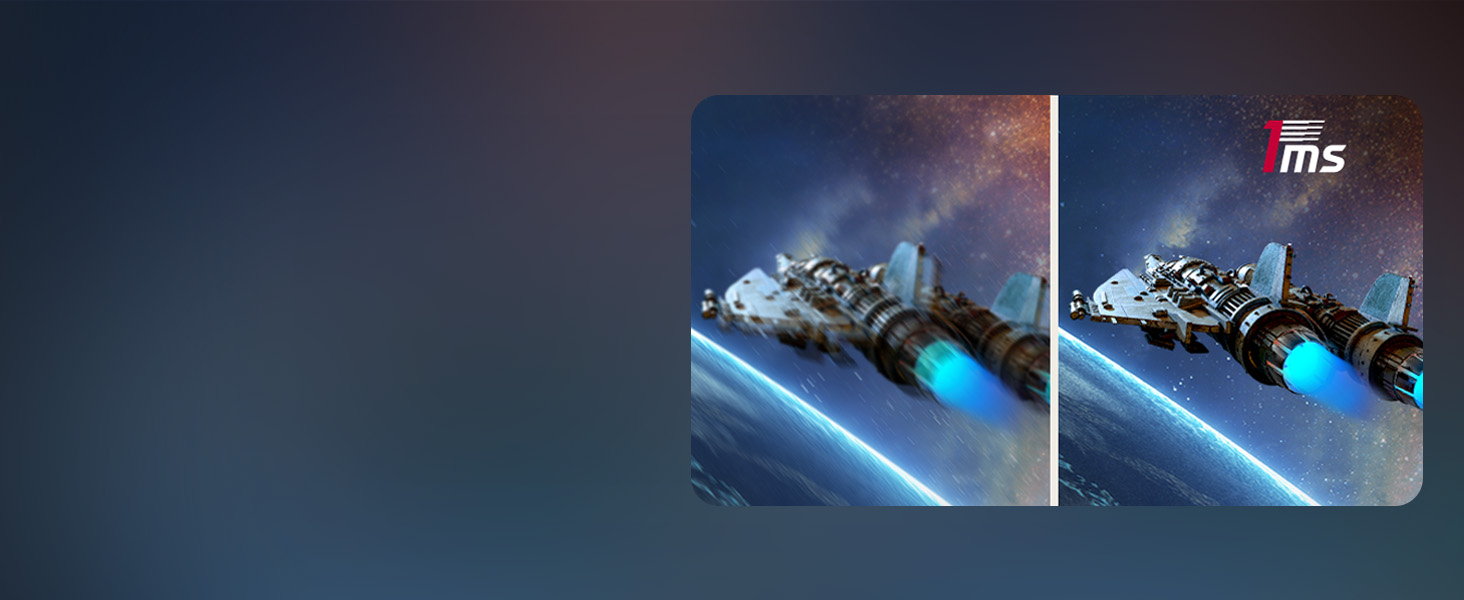
Image: A side-by-side comparison illustrating the difference between a blurry image and a sharp image of a spaceship, demonstrating the 1ms (GtG) response time.
Video: Official LG UltraGear video demonstrating the benefits of DisplayHDR 400 for vibrant colors and contrast in gaming.
Video: Official LG UltraGear video explaining AMD FreeSync Premium technology for tear-free, low-latency gaming.
4.4 Advanced Gaming Features
Access these features through the OSD menu under 'Game Adjust':
- Dynamic Action Sync (DAS): Reduces input lag for real-time response.
- Black Stabilizer: Brightens dark scenes to help you spot enemies hiding in shadows.
- FPS Counter: Displays your real-time frame rate on screen.
- Crosshair: Enhances aiming precision with an on-screen crosshair.

Image: Icon representing Dynamic Action Sync (DAS) feature.

Image: A visual comparison demonstrating how Black Stabilizer brightens dark areas in a game scene.

Image: A game screenshot with an overlay showing '240' as the FPS Counter.

Image: A visual comparison showing the Crosshair feature activated in a game, providing an aiming reticle.
Video: Official LG UltraGear video demonstrating the Gaming UI features like Crosshair, Black Stabilizer, and Dynamic Action Sync.
5. Maintenance
To ensure the longevity and optimal performance of your LG UltraGear monitor, follow these maintenance guidelines:
- Cleaning the Screen: Gently wipe the screen with a soft, lint-free cloth. For stubborn marks, lightly dampen the cloth with water or a specialized screen cleaner. Avoid using harsh chemicals or abrasive materials.
- Cleaning the Casing: Use a soft, dry cloth to clean the monitor's casing. Do not use liquid cleaners directly on the casing.
- Ventilation: Ensure the monitor's ventilation openings are not blocked. Proper airflow prevents overheating.
- Power Off When Not in Use: Turn off the monitor when not in use for extended periods to save energy and prolong its lifespan.
- Avoid Direct Sunlight: Do not expose the monitor to direct sunlight or excessive heat, as this can damage the screen and internal components.
6. Troubleshooting
If you encounter any issues with your monitor, please refer to the following common troubleshooting steps:
- No Power: Check if the power cable is securely connected to both the monitor and the power outlet. Ensure the power outlet is functional.
- No Signal: Verify that the HDMI, DisplayPort, or USB Type-C cable is correctly connected to both the monitor and your computer/device. Ensure the correct input source is selected in the OSD menu.
- Flickering Screen: Check the cable connections. Try a different cable or port. Ensure your graphics card drivers are up to date. Adjust the refresh rate in your computer's display settings.
- Image Quality Issues (Blurry/Distorted): Ensure the monitor's native resolution (3440 x 1440) is selected in your computer's display settings. Check cable quality and connections.
- Sound Issues: If using built-in speakers, ensure the volume is turned up on both the monitor and your computer. Check audio output settings on your computer.
- FreeSync Not Working: Ensure FreeSync Premium is enabled in the monitor's OSD menu and your graphics card settings. Use a compatible DisplayPort or HDMI 2.1 cable.
For more complex issues, please consult the LG support website or contact customer service.
7. Specifications
| Feature | Specification |
|---|---|
| Standing Screen Display Size | 34 Inches |
| Screen Resolution | 3440 x 1440 (WQHD) |
| Max Screen Resolution | 3440 x 1440 Pixels |
| Refresh Rate | 240Hz |
| Response Time | 1ms (GtG) |
| Aspect Ratio | 21:9 |
| Screen Surface Description | Matte |
| HDR Support | VESA DisplayHDR 400 |
| Sync Technology | AMD FreeSync Premium |
| Connectivity | 2x HDMI, 1x DisplayPort, 1x USB Type-C (PD 15W), 2x USB 3.0 Ports |
| Built-in Speakers | Yes |
| Adjustments | Tilt, Height, Swivel |
| Color | Black |
| Item Weight | 16.1 pounds |
| Product Dimensions | 9.2 x 31.8 x 20.2 inches |
8. Warranty and Support
Your LG 34G630A-B monitor comes with a standard manufacturer's warranty. Please refer to the warranty card included in your product packaging for specific terms and conditions, including coverage duration and service procedures.
For technical support, product registration, or to download the latest drivers and software, please visit the official LG Electronics website: www.lg.com/us/support
You can also contact LG customer service directly for assistance.