
Introduction
This manual provides instructions for the setup, operation, maintenance, and troubleshooting of your Lenovo ThinkPad P14s Gen 6 Mobile Workstation. Please read this manual thoroughly before using your device to ensure proper functionality and longevity.
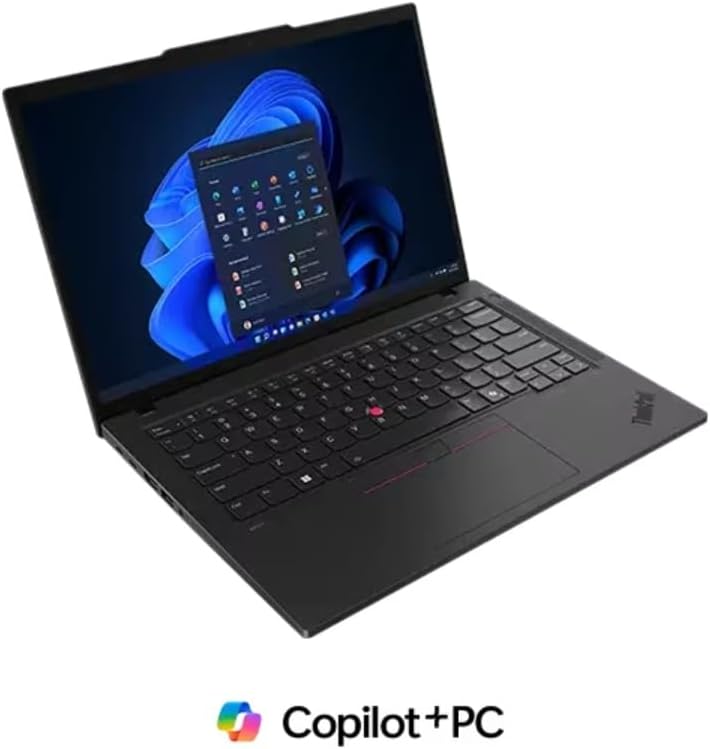
Image: The Lenovo ThinkPad P14s Gen 6 Mobile Workstation, showcasing its sleek design and display.
What's in the Box
Verify that all items are present in the packaging:
- Lenovo ThinkPad P14s Gen 6 laptop computer
- Battery (integrated)
- Power adapter and cord
Setup
Initial Power On and Charging
- Connect the power adapter to the laptop's USB-C port and then to a power outlet.
- Allow the battery to charge for at least 30 minutes before initial use, or until the battery indicator shows sufficient charge.
- Press the power button to turn on the laptop.
- Follow the on-screen instructions to complete the Windows 11 Pro setup.
Connecting Peripherals
The ThinkPad P14s Gen 6 offers various ports for connecting external devices. Refer to the port diagram below for identification.
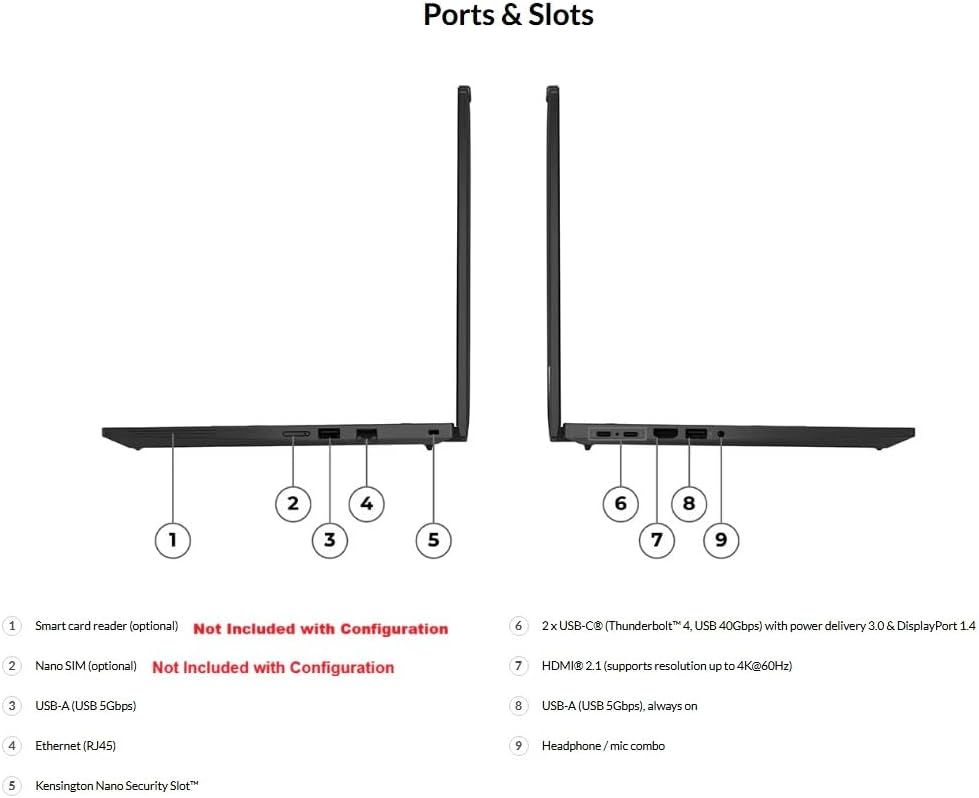
Image: Diagram illustrating the various ports and slots on the Lenovo ThinkPad P14s Gen 6 Mobile Workstation.
- USB-A (USB 5Gbps / USB 3.2 Gen 1): Connect USB devices such as mice, keyboards, or external storage. One port is "Always On" for charging devices even when the laptop is off.
- USB-C (Thunderbolt 4 / USB4 40Gbps): Use for power delivery (PD 3.0), DisplayPort 1.4 output, and high-speed data transfer.
- HDMI 2.1: Connect to external displays or projectors, supporting up to 4K resolution at 60Hz.
- Headphone / microphone combo jack (3.5mm): Connect headphones, earbuds, or external microphones.
- Ethernet (GbE RJ-45): Connect to a wired network.
- Security keyhole: For physical security locks.
Operating Your ThinkPad P14s Gen 6
Keyboard and TrackPoint

Image: Top-down view of the Lenovo ThinkPad P14s Gen 6 keyboard, featuring the TrackPoint and touchpad.
The ThinkPad P14s Gen 6 features a backlit, spill-resistant keyboard with multimedia Fn keys and a dedicated Copilot key. The integrated TrackPoint provides precise cursor control, complemented by the multi-touch touchpad.
- Fn Keys: Use the Function (Fn) key in combination with F1-F12 keys for quick access to system functions like volume, brightness, and wireless settings.
- Copilot Key: Press this key to quickly access the Copilot AI assistant in Windows 11.
- TrackPoint: Use the red TrackPoint nub in the center of the keyboard to move the cursor. The three buttons below the spacebar function as left-click, scroll, and right-click for the TrackPoint.
- Touchpad: The large touchpad supports multi-touch gestures for navigation and control.
Fingerprint Reader
For enhanced security and quick login, the laptop includes a fingerprint reader. Set up your fingerprint in Windows Hello settings to use this feature.
Wireless Connectivity
The ThinkPad P14s Gen 6 supports Wi-Fi 7 (MediaTek Wi-Fi 7 MT7925 2x2 BE) and Bluetooth 5.4 for high-speed wireless connections to networks and peripherals.
- Wi-Fi: Connect to available Wi-Fi networks through the Windows network settings.
- Bluetooth: Pair Bluetooth devices such as headphones, speakers, or mice via Windows Bluetooth settings.
Maintenance
General Care
- Keep the laptop away from extreme temperatures, direct sunlight, and high humidity.
- Avoid placing heavy objects on the laptop.
- Do not expose the laptop to liquids. In case of spills, power off immediately and disconnect from power.
Cleaning
- Screen: Use a soft, lint-free cloth lightly dampened with water or a screen cleaner. Do not spray cleaner directly onto the screen.
- Keyboard and Chassis: Use a soft, dry cloth. For stubborn dirt, a slightly damp cloth with mild soap solution can be used, ensuring no liquid enters openings.
- Ports: Keep ports free of dust and debris. Use compressed air if necessary, holding the can upright.
Battery Care
- To prolong battery life, avoid fully discharging the battery frequently.
- Store the laptop in a cool, dry place if not used for extended periods.
- The 57 Wh Li-Polymer battery supports Rapid Charge, allowing up to 80% charge in 1 hour with the 65W AC adapter.
Troubleshooting
This section addresses common issues you might encounter. For more complex problems, refer to Lenovo's official support resources.
No Power / Laptop Not Turning On
- Ensure the power adapter is securely connected to both the laptop and a working power outlet.
- Check if the power outlet is functional by plugging in another device.
- If the battery is completely drained, it may take a few minutes of charging before the laptop can power on.
Display Issues
- No image on screen: Ensure the laptop is powered on. Try connecting an external monitor via HDMI to check if the issue is with the laptop's internal display.
- Dim screen: Adjust screen brightness using the Fn keys (usually F5/F6 or similar icons).
Connectivity Problems (Wi-Fi/Bluetooth)
- Wi-Fi not connecting: Check if Wi-Fi is enabled in Windows settings. Restart your router and the laptop. Ensure you have the correct Wi-Fi password.
- Bluetooth device not pairing: Ensure Bluetooth is enabled on both the laptop and the device. Place devices close to each other. Try removing and re-pairing the device.
System Performance Issues
- Slow performance: Close unnecessary applications. Check Task Manager for processes consuming high CPU or memory. Ensure Windows and drivers are up to date.
- Overheating: Ensure ventilation vents are not blocked. Use the laptop on a hard, flat surface.
Technical Specifications
| Feature | Specification |
|---|---|
| Processor | AMD Ryzen AI 9 HX PRO 370 Processor (2.00 GHz up to 5.10 GHz) |
| Memory | 96 GB DDR5-5600MT/s (SODIMM) (2 x 48 GB) |
| Storage | 2 TB SSD M.2 2280 PCIe Gen4 Performance TLC Opal |
| Display | 14" WUXGA (1920 x 1200), IPS, Anti-Glare, Non-Touch, 100% sRGB, 500 nits, 60Hz, Low Power |
| Graphics | Integrated AMD Radeon 890M |
| Operating System | Windows 11 Pro 64 |
| Camera | 5MP RGB+IR with Microphone and Privacy Shutter |
| Battery | 4 Cell Li-Polymer 57 Wh, supports Rapid Charge (up to 80% in 1hr with 65W AC adapter) |
| Wireless Connectivity | MediaTek Wi-Fi 7 MT7925 2x2 BE & Bluetooth 5.4 |
| Keyboard | Backlit, Black, 6-row, spill-resistant, multimedia Fn keys, Copilot key - English (US) QWERTY |
| Security | Fingerprint Reader, ThinkShield security suite |
| Ports |
|
| Dimensions (LxWxH) | 12.44 x 8.81 x 0.43 inches |
| Weight | Approximately 4 lbs (1.81 kg) |
| Color | Black |
Warranty and Support
Standard Warranty
Your Lenovo ThinkPad P14s Gen 6 Mobile Workstation comes with a One Year Courier or Carry-in Lenovo Warranty. This warranty covers manufacturing defects and hardware failures under normal use conditions.
For detailed terms and conditions, please refer to the warranty documentation included with your product or visit the official Lenovo support website.
Extended Protection Plans
Extended protection plans are available to provide additional coverage beyond the standard warranty period. These plans can offer peace of mind and protect your investment for a longer duration.
- 2-Year Protection Plan
- 4-Year Protection Plan
- Complete Protect: A monthly plan covering eligible past and future purchases.
Details on purchasing and registering for these plans can be found on the Lenovo support website or through authorized resellers.
Customer Support
For technical assistance, driver downloads, or service requests, please visit the official Lenovo Support website. You will need your product's serial number, which can typically be found on a label on the bottom of the laptop or in the system information settings.
Online Support: support.lenovo.com


