
1. Introduction
The MINIBEAR D22 Kids Toy Smartphone is designed to provide a safe and engaging digital experience for children aged 3-12. This device features a 3.97-inch HD touchscreen, dual cameras, and a variety of pre-installed educational games and creative applications. It operates without a SIM card or Wi-Fi for most functions, ensuring a secure environment free from external online content. This manual provides detailed instructions for setup, operation, and maintenance of your new device.
2. What's in the Box
Upon unboxing your MINIBEAR D22 Kids Toy Smartphone, please ensure all the following items are present:
- 1 x MINIBEAR D22 Kids Smart Phone
- 1 x Silicone Protective Case
- 1 x Lanyard
- 1 x 32GB SD Card (pre-installed or separate)
- 1 x USB Charging Cable
- 1 x User Manual (this document)

Image: All items included in the MINIBEAR D22 Kids Toy Smartphone package.
3. Product Overview
Familiarize yourself with the key components and features of your MINIBEAR D22 Kids Toy Smartphone.

Image: Labeled diagram of the MINIBEAR D22 Kids Toy Smartphone's physical features.
- Power Button: Located on the side, used to turn the device on/off or wake/sleep the screen.
- Volume Up/Down: Adjusts the device's audio output.
- Rear Camera: For taking photos and videos.
- Flashlight: Integrated light source.
- Touch Screen: 3.97-inch HD display for interaction.
- Home Button: Returns to the main menu.
- Lanyard Hole: For attaching the included lanyard.
- USB-C Port: For charging the device and transferring data.
4. Setup
4.1 Initial Charge
- Connect the provided USB charging cable to the device's USB-C port.
- Plug the other end of the cable into a compatible USB power adapter (not included) or a computer's USB port.
- Allow the device to charge fully before first use. The battery indicator on the screen will show charging status.
4.2 Installing the Protective Case and Lanyard
- Carefully insert the smartphone into the silicone protective case, ensuring all buttons and ports align correctly.
- Attach the lanyard to the designated lanyard hole on the device or case for secure carrying.
4.3 Powering On/Off
- To Power On: Press and hold the Power Button until the screen lights up.
- To Power Off: Press and hold the Power Button, then follow the on-screen prompts to shut down.
- To Sleep/Wake: Briefly press the Power Button.
5. Operating Instructions
5.1 Basic Navigation
- Touchscreen: Navigate through menus and applications by tapping, swiping, and dragging on the 3.97-inch HD touch screen.
- Home Button: Tap the physical Home button below the screen to return to the main application menu.
5.2 Camera and Video Functions
The device is equipped with dual cameras (front and rear) for capturing photos and videos.
- From the main menu, tap the 'Camera' icon to open the camera application.
- Switch between front and rear cameras using the on-screen icon.
- Tap the shutter button to take a photo or start/stop video recording.
- Explore various fun stickers and frames available within the camera app to enhance photos.
- View captured media in the 'Gallery' application.

Image: A child interacting with the dual camera, applying fun stickers and frames.
5.3 Educational Games and Apps
The smartphone includes over 200 educational games and applications designed to develop various skills.
- ABC Learning: Interactive lessons for alphabet recognition and basic vocabulary.
- Storytelling: Engaging audio stories to foster imagination and listening skills.
- Drawing & Coloring: The 'iDraw' app offers rich brush styles and colors for creative expression.
- STEM Activities: Games focusing on science, technology, engineering, and mathematics concepts.
- Montessori & Brain Training: Activities designed to enhance logical thinking, memory, and problem-solving.
- Music Player: Play pre-loaded music or transfer your child's favorite songs via the SD card.
- Flashlight: A simple utility for exploration.
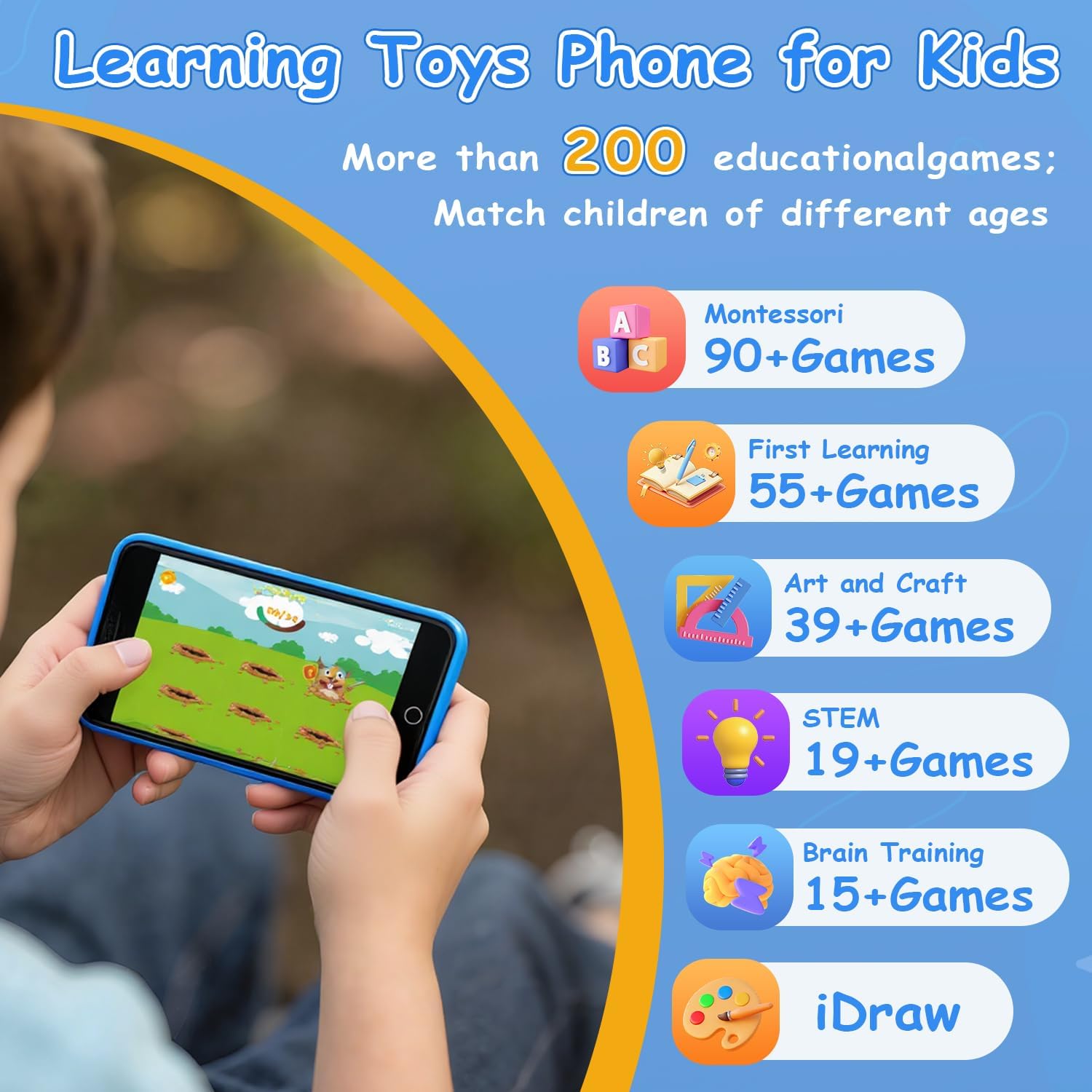
Image: Overview of the diverse educational games and apps available on the device.
5.4 Video Demonstrations
Watch these official videos for a visual guide on operating the MINIBEAR D22 Kids Toy Smartphone:
Kids Toy Smart phone - Overview
Video: A comprehensive overview of the MINIBEAR Kids Toy Smartphone, showcasing its features and various applications.
D22 Operation Video
Video: Demonstrates the operational aspects of the D22 model, including navigation and app usage.
Kids Toy Smartphone 3.97" Toddler Dual Camera Learning Toys - Preview
Video: A short preview highlighting the dual camera and learning features for toddlers.
6. Parental Control Mode
The MINIBEAR D22 includes robust parental control features to manage your child's usage.
- Password Protection: Set a password to access parental control settings and prevent unauthorized changes.
- App Management: Selectively enable or disable specific applications to control what your child can access.
- Screen Time Limits: Set daily or weekly time limits for device usage, including start/end times and session lengths.
- Multiple Accounts: Create separate profiles for different children, each with customized settings.
- Usage Statistics: Monitor your child's activity and time spent on various apps.

Image: Detailed view of the parental control interface, showing options for managing content and time.
7. Maintenance
- Cleaning: Use a soft, dry cloth to clean the screen and exterior of the device. Avoid abrasive cleaners or solvents.
- Storage: Store the device in a cool, dry place away from direct sunlight and extreme temperatures.
- Battery Care: To prolong battery life, avoid fully discharging the device frequently. Charge regularly.
- Protective Case: Keep the silicone case on the device to protect it from drops and impacts.
8. Troubleshooting
- Device Not Turning On: Ensure the device is fully charged. If the battery is completely drained, it may take a few minutes of charging before it powers on.
- Screen Unresponsive: Try restarting the device by holding the Power Button. If unresponsive, allow the battery to drain completely and then recharge.
- Apps Crashing/Freezing: Restart the device. Ensure the SD card is properly inserted.
- Sound Issues: Check the volume settings using the volume buttons. Ensure the device is not muted.
- Forgotten Parental Control Password: Refer to the device's internal settings or contact customer support for assistance with password recovery.
9. Specifications
| Feature | Detail |
|---|---|
| Brand | MINIBEAR |
| Model Number | D22 |
| Screen Size | 3.97 inches HD Touch Screen |
| Age Range | 3-12 years |
| Storage | 8GB Built-in + 32GB SD Card |
| Connectivity | No Wi-Fi, No SIM Card (for core functions) |
| Cameras | Dual Camera (Front & Rear) |
| Included Components | Smart Phone, Silicone Case, Lanyard, 32G SD Card, User Manual |
| Material Type | Plastic |
| Item Dimensions | 4.9 x 2.5 x 0.1 inches |
10. Warranty & Support
MINIBEAR products are manufactured with high-quality standards. For warranty information, technical support, or any inquiries regarding your MINIBEAR D22 Kids Toy Smartphone, please refer to the contact details provided on the product packaging or visit the official MINIBEAR website. Please retain your proof of purchase for warranty claims.