
1. Introduction
The FLYRUIT Air Tracker Tags are MFi certified devices designed to help you locate your personal items using the Apple Find My network. These tags integrate seamlessly with your iPhone, iPad, or Mac, allowing you to track items both nearby and far away. This manual provides instructions for setup, operation, and maintenance of your Air Tracker Tags.
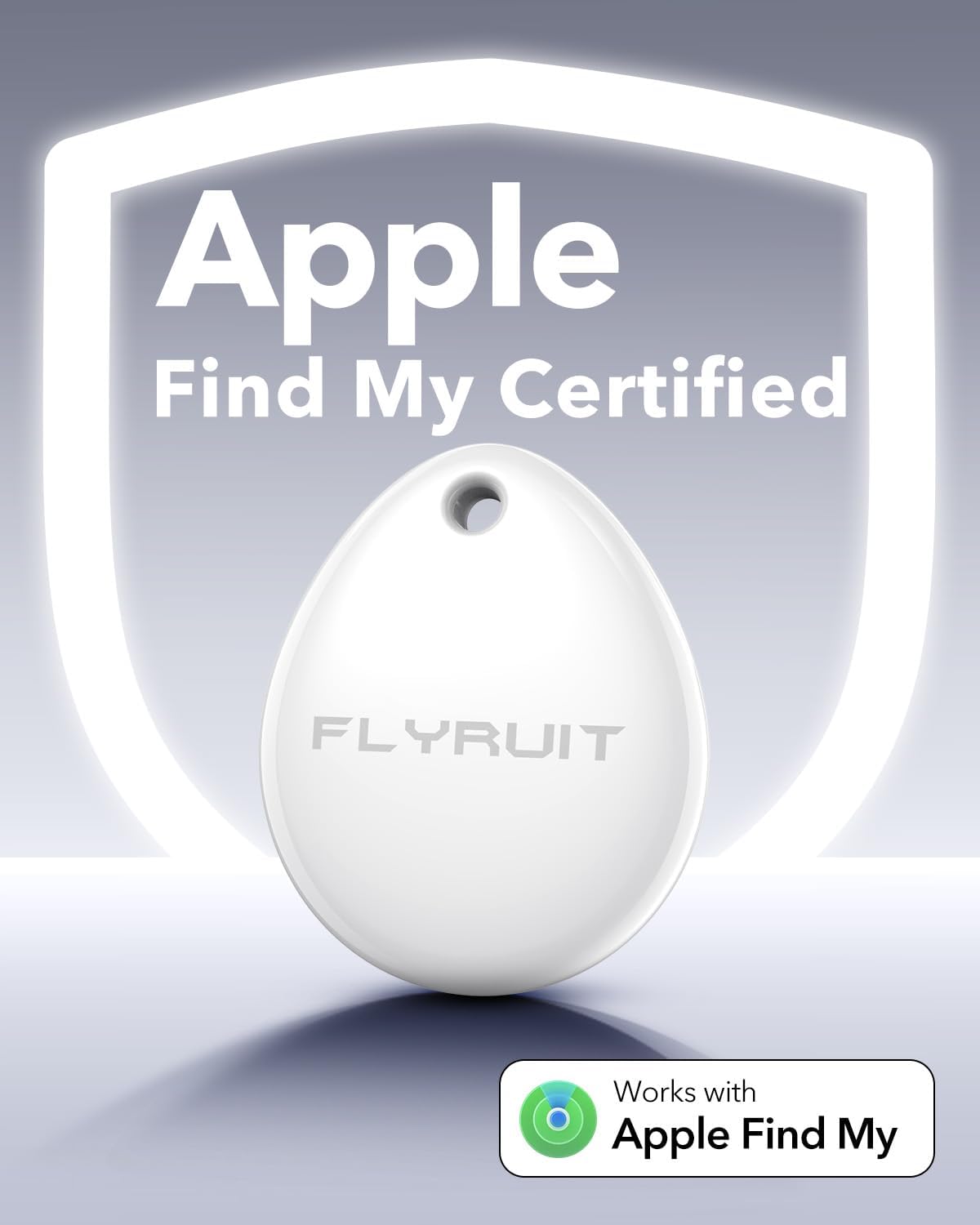
Image: A single FLYRUIT Air Tracker Tag displayed against a shield graphic indicating "Apple Find My Certified".
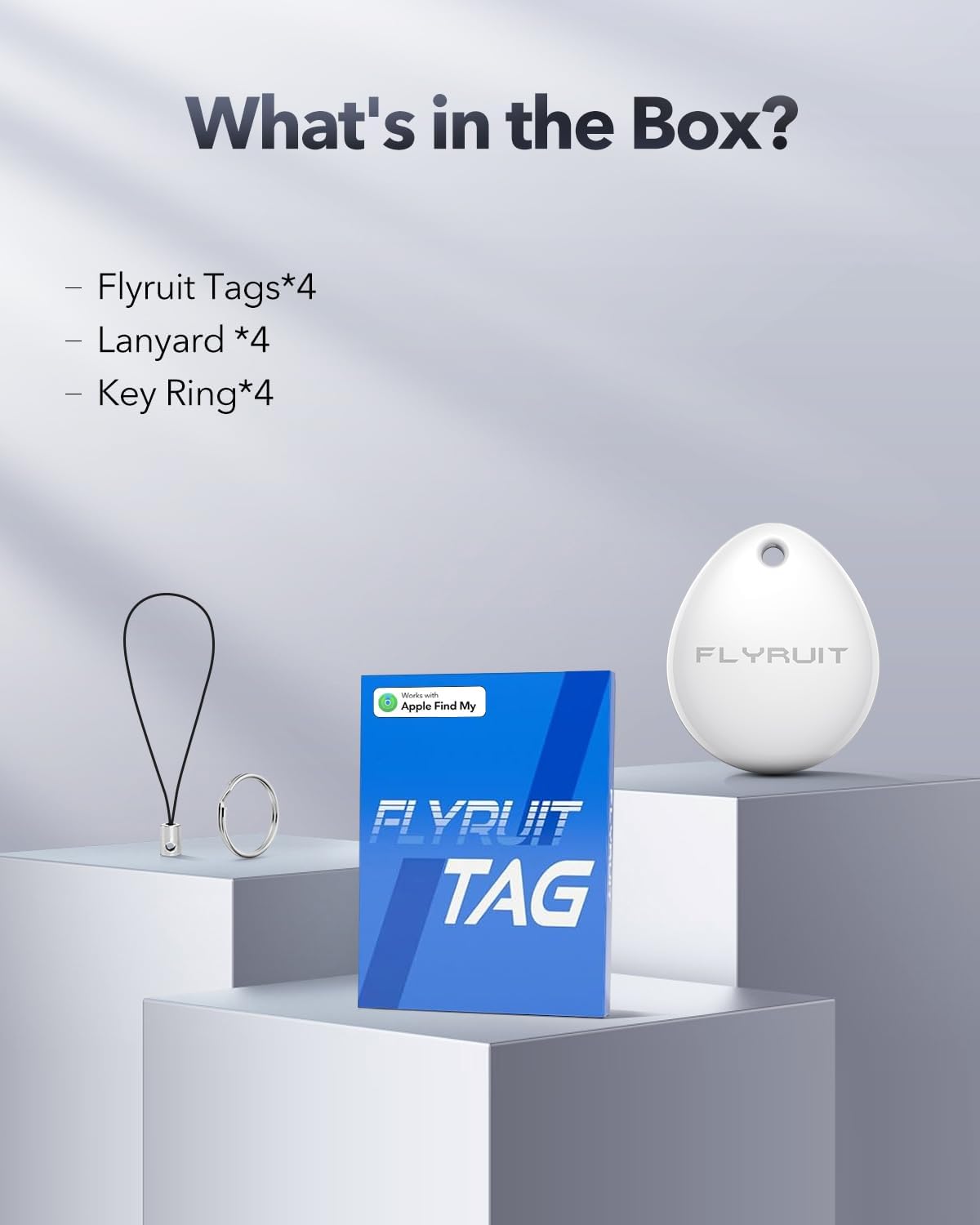
Image: Contents of the FLYRUIT Air Tracker Tag package, including four tags, four lanyards, and four key rings.
2. Setup Guide
Follow these steps to set up your FLYRUIT Air Tracker Tag with your Apple device:
- Power On: Briefly press the button on the tracker tag once. You should hear a "Di-Di-Di-Di" sound, indicating it is powered on and ready for pairing.
- Open Find My App: On your iPhone, open the "Find My" app. Ensure Bluetooth is enabled on your device.
- Add Item: In the Find My app, navigate to the "Items" tab and tap the "+" icon. Select "Add Other Item".
- Connect: The app will search for nearby items. Select "Fly TAG" from the list of detected devices and follow the on-screen prompts to connect and name your tag.

Image: Visual guide showing the four steps to power on the tag, open the Find My app, add an item, and connect the Fly TAG.
3. Operating Instructions
Once your FLYRUIT Air Tracker Tag is set up, you can use the Apple Find My app to locate your items.
3.1 Locating Nearby Items
If your item is within Bluetooth range (approximately 40 meters or 130 feet), you can make the tag play a sound to help you find it.
- Open the Find My app on your iPhone.
- Go to the "Items" tab and select your FLYRUIT tag.
- Tap "Play Sound" to trigger an 80dB alert from the tag. You can also ask Siri to "Find my [item name]".

Image: A woman using the Find My app to locate keys under a bed by playing a loud 80dB sound from the tracker tag.

Image: A split image demonstrating how to find items nearby by playing a sound, and how to find items far away using map navigation.
3.2 Locating Far Away Items (Lost Mode)
If your item is out of Bluetooth range, the Find My network can help locate it. The network consists of millions of Apple devices that can detect your tag and relay its location to you privately and securely.
- Open the Find My app and select your FLYRUIT tag.
- Enable "Lost Mode". You can enter a phone number or email address where you can be contacted if someone finds your item.
- You will receive a notification when your tag is detected by another device on the Find My network, and its location will appear on the map.

Image: A smartphone screen displaying the Find My app with a map showing the location of a lost bag and navigation directions.
3.3 Left-Behind Alerts
To prevent losing your items, you can set up "Left-Behind" alerts:
- In the Find My app, select your FLYRUIT tag.
- Under "Notifications", enable "Notify When Left Behind".
- You will receive an alert on your iPhone if you move away from your item, helping you retrieve it before it's truly lost.
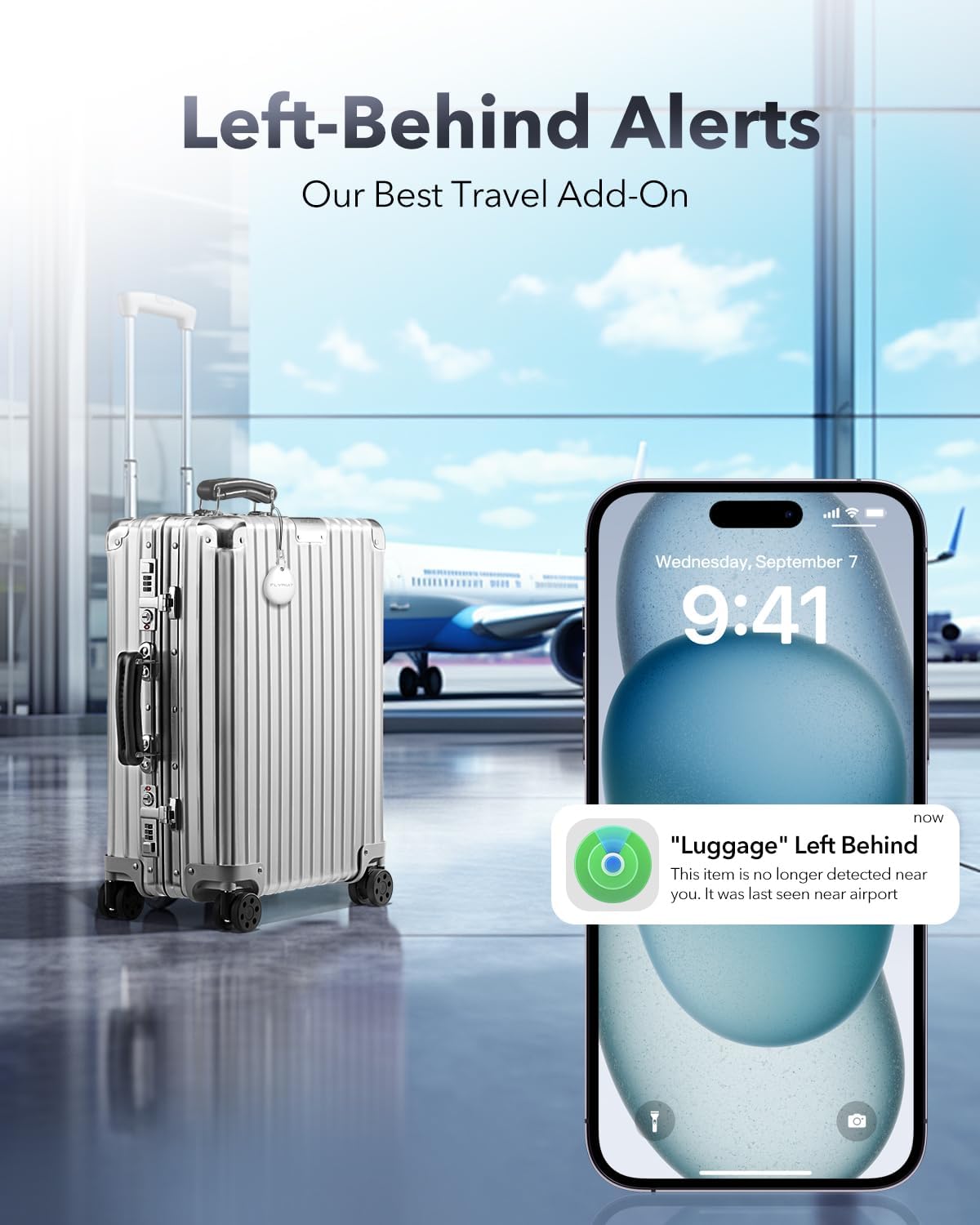
Image: An iPhone showing a "Luggage Left Behind" notification, with a suitcase in an airport terminal, illustrating the anti-loss feature.

Image: A backpack on a park bench with an iPhone showing a "Bag Left Behind" alert, demonstrating the proactive anti-loss feature.
3.4 Sharing Item Location
You can share the location of your tracker tag with up to five family members or trusted contacts, allowing them to help locate the item.
- In the Find My app, select your FLYRUIT tag.
- Tap "Share This Item" and follow the prompts to add contacts.

Image: An iPhone displaying the "Share This Item" feature in the Find My app, illustrating how multiple users can track an item's location.
3.5 Privacy Protection
Your privacy is maintained with the FLYRUIT Air Tracker Tags. Location data is anonymous and encrypted, accessible only by you through your Apple ID. Anti-tracking alerts notify you if an unknown tracker tag is moving with you, requiring iOS 14.5 or later.
3.6 Versatile Tracking
The compact design and included accessories make the FLYRUIT Air Tracker Tag suitable for various items:
- Keys
- Backpacks
- Luggage
- Wallets
- eBikes
- Laptop Bags

Image: Collage demonstrating the versatility of the tracker tag, attached to keys, a backpack, luggage, and a laptop bag.

Image: A visual representation of the tracker tag being used on a backpack, keys, wallet, luggage, and a bike.
4. Maintenance
4.1 Battery Replacement
The FLYRUIT Air Tracker Tag is powered by a user-replaceable CR2032 battery, which lasts up to 12 months. You can monitor the battery status in the Find My app and will receive low-battery reminders.

Image: A hand holding the compact tracker tag, highlighting its 365-day replaceable battery life.

Image: An iPhone screen displaying a low battery alert for the tracker tag, prompting the user to check its status.
To replace the battery:
- Insert a thin tool (like a guitar pick or a small flat-head screwdriver) into the seam of the tag and gently pry off the cover.
- Remove the old CR2032 battery.
- Insert a new CR2032 battery with the positive (+) side facing up.
- Snap the cover back onto the tag until it is securely closed.

Image: Step-by-step visual instructions for easily replacing the CR2032 battery in the tracker tag.
5. Troubleshooting
If you encounter issues with your FLYRUIT Air Tracker Tag, consider the following:
- Tag Not Connecting: Ensure the tag is powered on (press the button to hear the "Di-Di-Di-Di" sound). Check that Bluetooth is enabled on your iPhone and that the Find My app has permission to use Bluetooth. Try restarting your iPhone and the tag.
- No Sound from Tag: Verify the tag's battery level in the Find My app. If low, replace the battery. Ensure your iPhone's volume is up and the tag is within Bluetooth range.
- Inaccurate Location: Ensure your iPhone's Location Services are enabled for the Find My app. The accuracy of location tracking depends on the density of the Apple Find My network in the area.
- Left-Behind Alerts Not Working: Check the settings in the Find My app for your tag to ensure "Notify When Left Behind" is enabled. Also, ensure your iPhone's operating system is iOS 14.5 or later.
- Privacy Alerts: If you receive an alert about an unknown tracker moving with you, this is a built-in privacy feature. Follow the instructions on your iPhone to identify and disable the unknown tag if it is not yours.
6. Specifications
| Feature | Detail |
|---|---|
| Brand | FLYRUIT |
| Model Number | FTAG02W |
| Certification | Apple MFi Certified |
| Compatibility | iOS Only (Requires iOS 14.5 or later) |
| Battery Type | CR2032 (Included, User-Replaceable) |
| Battery Life | Up to 12 months |
| Sound Level | 80dB |
| Bluetooth Range | Up to 40 meters (130 ft) |
| Dimensions | 36.5 × 31 × 8.6 mm |
| Weight | 7g (0.01 Pounds) |
7. Warranty and Support
Your FLYRUIT Air Tracker Tags come with a 24-month warranty from the date of purchase. This warranty covers manufacturing defects and ensures your product functions as intended under normal use.
For technical support, warranty claims, or any questions regarding your FLYRUIT product, please contact our customer service team. You can find contact information on the official FLYRUIT website or through your purchase platform.
Please retain your proof of purchase for warranty validation.
8. Product Videos
User Friendly Tag Overview
Video: A demonstration of the FLYRUIT Air Tracker Tag, highlighting its user-friendly features and ease of integration with the Apple Find My app. This video provides a general overview of the product's functionality.
Convenient Mini Tracker Demonstration
Video: A short video showcasing the convenience and practicality of the FLYRUIT mini tracker for finding various items. It demonstrates how the tracker can be used in daily scenarios.