
1. Introduction
The ATK RS7 V2 is a high-performance 75% aluminum Hall Effect gaming keyboard engineered for competitive play. It features advanced magnetic switch technology, a durable CNC aluminum chassis, and a customizable dual-structure design to optimize both acoustics and stability. This manual provides essential information for setting up, operating, maintaining, and troubleshooting your ATK RS7 V2 keyboard.
2. Key Features
- T0 Performance / Low Latency: Powered by a third-generation Ultra Hall Effect system, achieving an ultra-fast 0.28ms full-chain Rapid Trigger response for professional esports gameplay.
- Aluminum Chassis & Dual-Structure: Features a rigid CNC aluminum chassis with an aluminum plate, plus flexible TOP / Core-Flex switching to balance typing acoustics and stability.
- Premium Magnetic Switch Options: Choose between Leviatan Ultra, Blazeblade, or Snowblade magnetic switches, each optimized for sound, feel, and precision.
- Compact 75% / 81-Key Design: Space-saving layout provides more desk room for mouse movement while maintaining essential keys; includes aesthetic RGB side lighting and a PVD logo.
- Advanced Keycap & Scan Technology: Features high-transparency or mist-finish keycaps, a 256K polling rate, full NKRO (N-Key Rollover), and rapid scanning for split-second accuracy.
3. Setup Guide
3.1 Package Contents
Before proceeding, ensure all items are present in your package:
- ATK RS7 V2 Gaming Keyboard
- USB-C to USB-A Cable
- Keycap Puller (if included)
- Switch Puller (if included)
- User Manual (this document)
3.2 Connecting the Keyboard
- Locate the USB-C port on the ATK RS7 V2 keyboard.
- Connect one end of the provided USB-C cable to the keyboard.
- Connect the other end of the USB-A cable to an available USB port on your computer (PC or Laptop).
- The keyboard will automatically be recognized by your operating system (Windows, macOS, Linux).
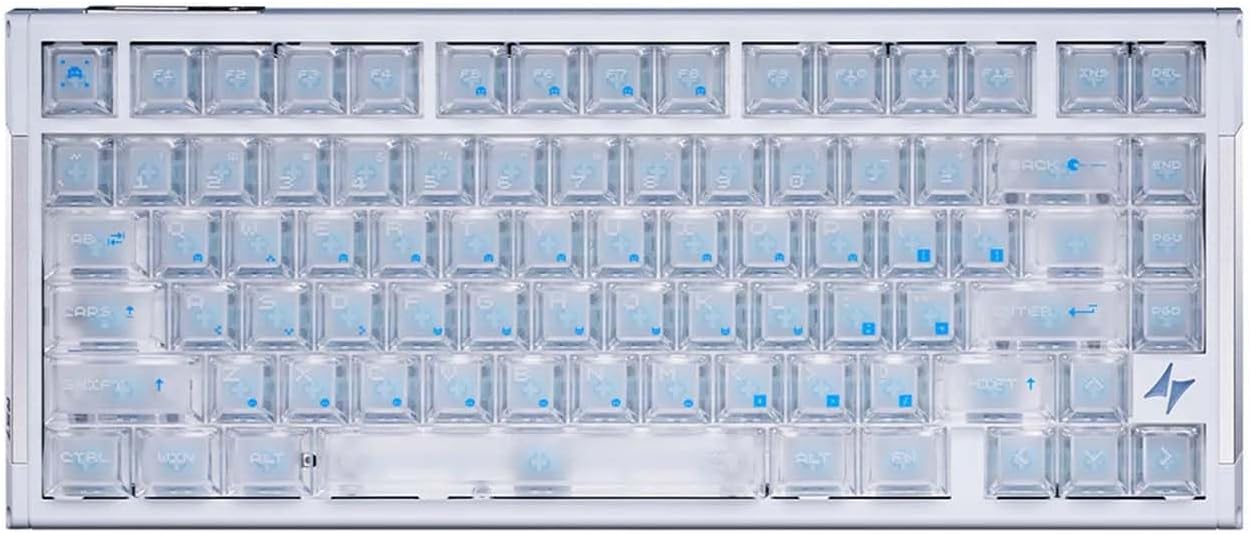
The ATK RS7 V2 keyboard, showcasing its 75% layout and transparent keycaps.
3.3 Software Installation (ATK HUB 3.0)
For full customization and advanced features, download and install the ATK HUB 3.0 software from the official ATK website. This software allows you to:
- Adjust Rapid Trigger settings (RT range, deadzone).
- Remap keys and create macros.
- Customize RGB lighting effects.
- Configure advanced functions like SOCD (Simultaneous Opposite Cardinal Directions) and MT (Mod Tap).
- Manage Champion Presets and Music Rhythm features.
4. Operating Instructions
4.1 Magnetic Switches and Rapid Trigger
The ATK RS7 V2 utilizes third-generation Hall Effect magnetic switches, enabling precise and adjustable actuation. The Rapid Trigger feature allows keys to register both press and release with extreme speed (0.28ms end-to-end latency), providing a competitive edge in gaming. Actuation points can be customized via the ATK HUB 3.0 software.

An illustration of the ATK RS7 V2's third-generation Hall Effect technology, demonstrating its ultra-low latency performance for rapid trigger response.
The keyboard supports various magnetic switch types:

This image presents the three types of premium magnetic switches available for the ATK RS7 V2: Leviatan Ultra (Pro Certified), Blazeblade (Annual Flagship), and Snowblade (Self-developed Acoustic Switch), along with their travel distance, actuation force, and material compositions.
4.2 Dual-Structure Design (TOP/Core-Flex)
The ATK RS7 V2 features a unique TOP/Core-Flex dual-structure design. This allows users to switch between two mounting styles to achieve their preferred typing feel and acoustic profile. The TOP mount provides a firmer, more direct typing experience, while the Core-Flex mount offers a softer, more cushioned feel.

This image details the internal technology of the ATK RS7 V2, highlighting the rapid response Hall Effect system and the switchable TOP/Core-Flex mounting structure for varied typing feel.
4.3 Keyboard Layout and Aesthetics
The 75% layout provides a compact form factor with 81 keys, balancing functionality with desk space efficiency. The keyboard also features aesthetic RGB side lighting and a PVD logo, contributing to its premium design.

The ATK RS7 V2 keyboard demonstrating its compact 75% layout, designed to save desk space while retaining essential keys, shown in a typical gaming setup.
4.4 Keycaps
The ATK RS7 V2 comes with either high-transparency or mist-finish keycaps. Certain variants, like the RS7 V2 Ultra, may include Keytok Custom Edition five-side dye-sub themed keycaps, offering enhanced durability and unique designs.

An overview of the Keytok Custom Edition five-side dye-sub themed keycaps, available with the RS7 V2 Ultra, showcasing various color options and designs.
5. Maintenance
5.1 Cleaning
- Keycaps: Use a keycap puller to carefully remove keycaps. Clean them with a mild soap solution and a soft cloth, then rinse and dry thoroughly before reattaching.
- Keyboard Body: Wipe the aluminum chassis with a soft, damp cloth. Avoid abrasive cleaners or solvents.
- Switches: Use compressed air to remove dust and debris from between the switches. Avoid spraying liquids directly into the switches.
5.2 General Care
- Avoid exposing the keyboard to extreme temperatures, humidity, or direct sunlight.
- Do not spill liquids on the keyboard. In case of a spill, immediately disconnect the keyboard and allow it to dry completely before reconnecting.
- Handle the keyboard with care to prevent physical damage.
6. Troubleshooting
6.1 Keyboard Not Responding
- Ensure the USB-C cable is securely connected to both the keyboard and the computer.
- Try connecting the keyboard to a different USB port on your computer.
- Test the keyboard on another computer to rule out a computer-specific issue.
- Restart your computer.
6.2 Keys Not Registering or Double-Typing
- Check for any debris or foreign objects under the affected keycaps.
- If using ATK HUB 3.0, ensure the Rapid Trigger settings are configured correctly and not set to an overly sensitive level that might cause unintended activations.
- Perform a firmware update via ATK HUB 3.0 if available.
6.3 RGB Lighting Issues
- Ensure ATK HUB 3.0 software is running and lighting effects are enabled.
- Check for any conflicts with other RGB control software.
- Verify that the keyboard's firmware is up to date.
6.4 Software (ATK HUB 3.0) Not Detecting Keyboard
- Ensure the keyboard is properly connected to the computer.
- Restart the ATK HUB 3.0 software.
- Reinstall the ATK HUB 3.0 software.
- Check your operating system's device manager to ensure the keyboard drivers are installed correctly.
7. Specifications
Detailed technical specifications for the ATK RS7 V2 keyboard:
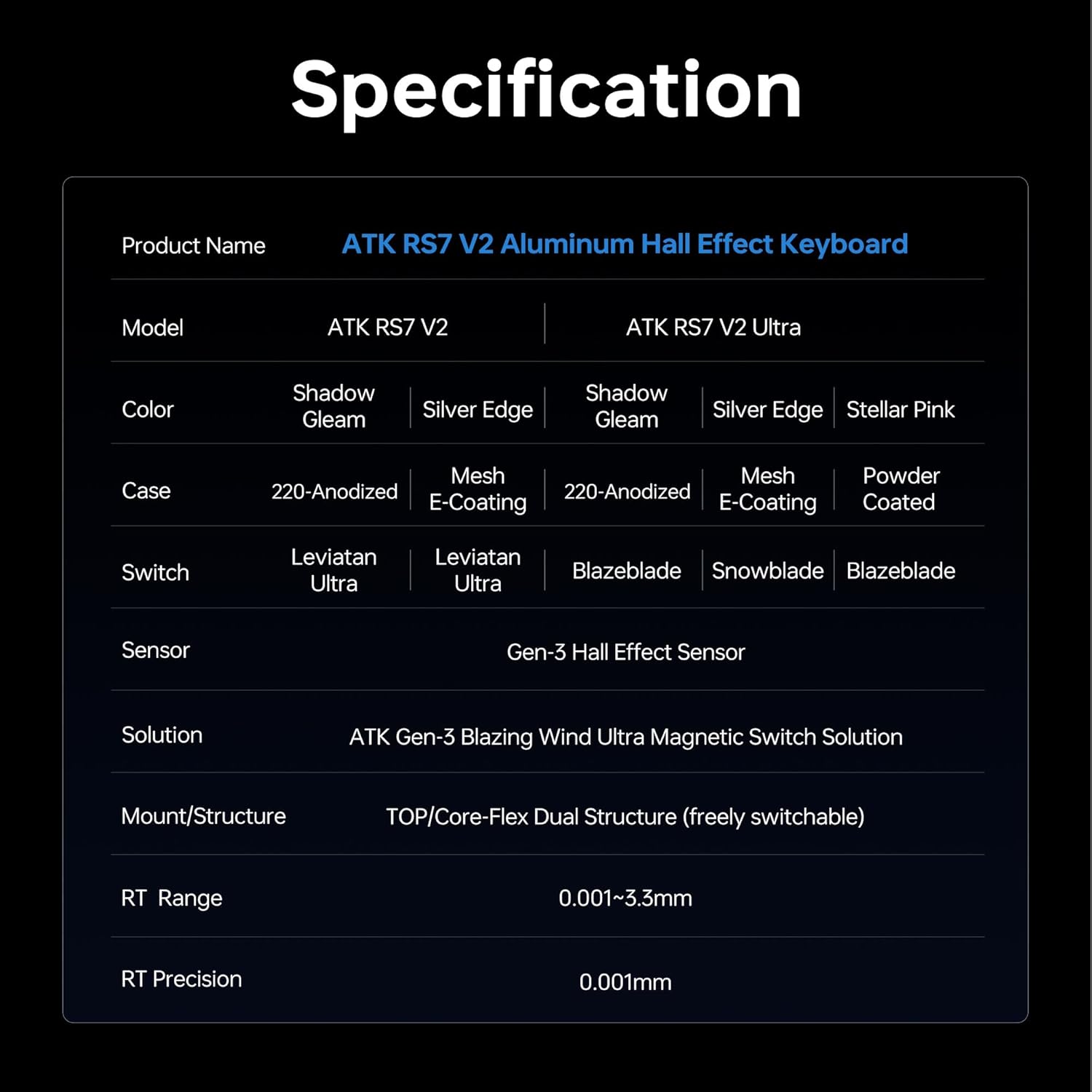
A detailed table outlining the technical specifications of the ATK RS7 V2 keyboard, covering its core components and performance metrics.

The continuation of the technical specifications table for the ATK RS7 V2 keyboard, detailing connectivity, keycap types, internal padding, software compatibility, and advanced functions.
8. Warranty and Support
ATK products are designed for durability and performance. For information regarding warranty coverage, please refer to the warranty card included with your product or visit the official ATK website. For technical support, driver downloads, or further assistance, please contact ATK customer service through their official channels.
You can find more information and support resources by visiting the ATK Store on Amazon.


