
1. Product Overview
The PLERY AX900 is a versatile 2-in-1 USB WiFi Adapter designed to provide high-speed wireless connectivity and Bluetooth functionality for your desktop or laptop PC. It supports the latest Wi-Fi 6 standard, offering enhanced performance and efficiency for various online activities.
Key Features:
- WiFi 6 High-Speed Transmission: Supports speeds up to 600Mbps on 5GHz and 286Mbps on 2.4GHz, utilizing OFDMA and MU-MIMO technologies for improved network throughput and efficiency.
- 2-in-1 WiFi & Bluetooth Adapter: Integrates both Wi-Fi and Bluetooth capabilities, allowing wireless connection to networks and pairing with Bluetooth devices simultaneously.
- Receive & Transmit (AP Mode): Functions as a Wi-Fi client and can also create a hotspot to share internet access with other devices.
- Hassle-Free Setup: Features a built-in driver for automatic installation on Windows 10/11. No external CD or complex setup is required.
- Adjustable High-Gain Antennas & WPA3 Security: Two external antennas enhance signal strength and penetration. WPA3 security protocol provides robust network protection.
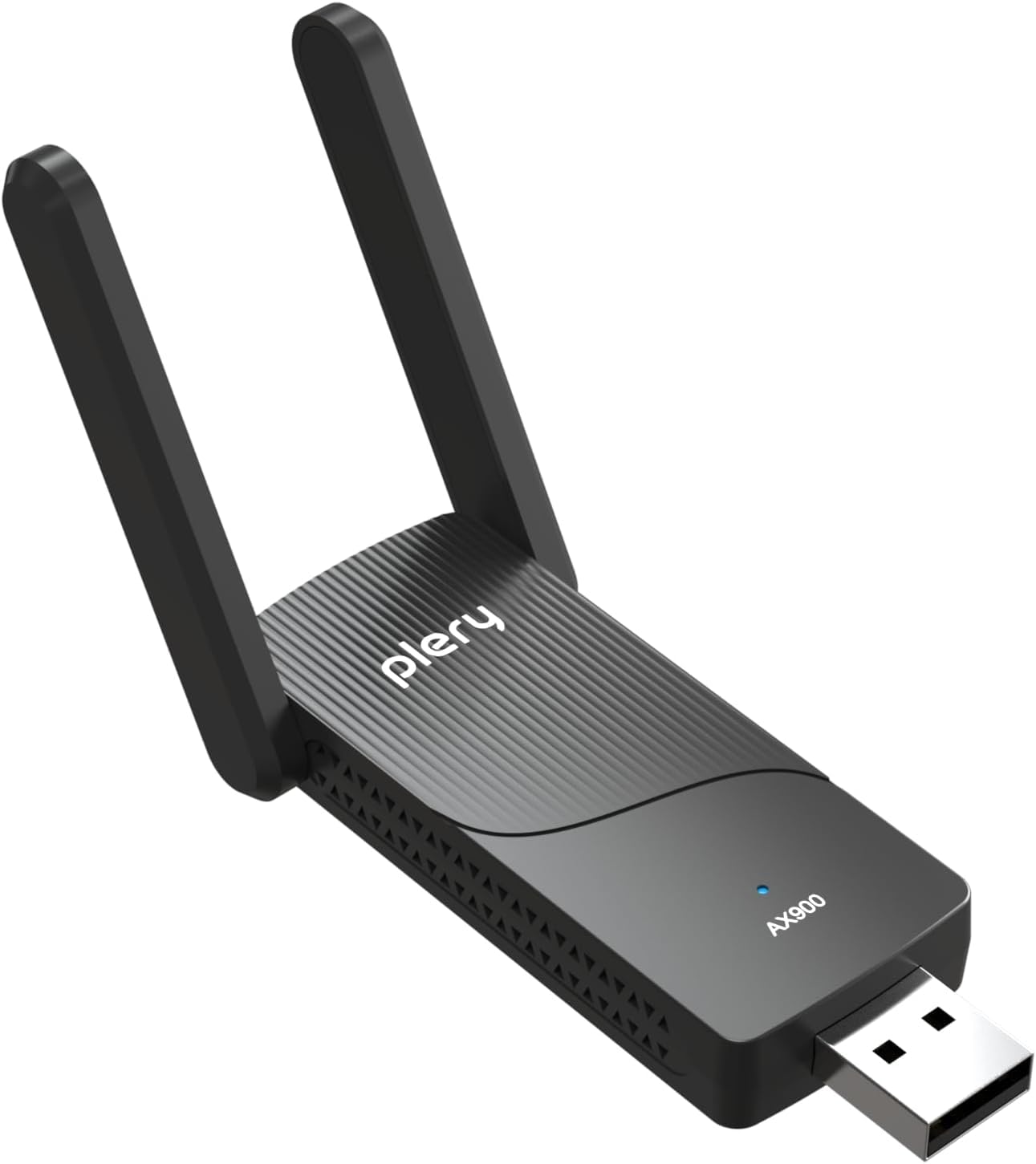
Image: The PLERY AX900 USB WiFi Adapter, showcasing its compact design and dual adjustable antennas.
2. Package Contents
Please verify that all items are present in your package:
- 1 x PLERY AX900 USB WiFi Adapter for PC
3. System Requirements
- Operating System: Windows 10 (64-bit), Windows 11 (64-bit)
- Hardware Interface: USB 2.0 or higher port
Note: This USB WiFi adapter supports Windows 10 and Windows 11 ONLY. It is not compatible with other operating systems.
4. Setup Guide
Follow these steps to install and configure your PLERY AX900 USB WiFi Adapter.
Step 1: Insert the Adapter
Carefully insert the PLERY AX900 USB WiFi Adapter into an available USB port on your desktop or laptop PC. Ensure it is fully seated.

Image: The PLERY AX900 adapter inserted into a USB port on a desktop computer.
Step 2: Driver Installation
The adapter features a built-in driver. Upon insertion, your Windows 10/11 system should automatically detect the device and prompt for driver installation. Follow the on-screen instructions to complete the installation. No external CD or download is typically required.
Video: Demonstrates the easy setup process for the PLERY USB WiFi 6 Adapter, including driver installation on a Windows PC.

Image: Visual guide showing the steps for driver installation and connecting to a Wi-Fi network on Windows.
Step 3: Connect to Wi-Fi
- After driver installation, click the Wi-Fi icon in your system tray (usually in the bottom-right corner of the screen).
- Select your desired Wi-Fi network from the list of available networks.
- Enter the network security key (password) if prompted.
- Click 'Connect'. Your PC should now be connected to the internet via the PLERY AX900 adapter.
Step 4: Bluetooth Pairing (Optional)
To use the Bluetooth functionality:
- Ensure your Bluetooth device is in pairing mode.
- On your PC, go to Settings > Bluetooth & devices.
- Click Add device and select Bluetooth.
- Select your device from the list and follow any on-screen prompts to complete pairing.

Image: Illustrates the Bluetooth BT5.3 capability, connecting to various devices like headphones, keyboards, and speakers.
5. Operating Instructions
Wi-Fi Connection Management
Once connected, you can manage your Wi-Fi connection through the standard Windows network settings. The adapter supports both 2.4GHz and 5GHz bands. For optimal performance, connect to the 5GHz band if your router supports it and you are within close range.
Video: Overview of the PLERY AX900 USB WiFi 6 Dongle, highlighting its dual-band capabilities and high-speed transmission.
AP Mode (Hotspot Function)
The PLERY AX900 can function as a Wi-Fi hotspot, allowing your PC to share its internet connection with other devices. This is useful for creating a temporary wireless network.
- Ensure your PC is connected to the internet (e.g., via Ethernet).
- Go to Settings > Network & internet > Mobile hotspot.
- Toggle the 'Mobile hotspot' switch to On.
- You can customize the network name (SSID) and password under 'Properties'.
Video: Demonstrates the dual-band functionality and AP mode of the USB WiFi antenna for desktop PCs.

Image: Illustrates the adapter's dual functionality as both a receiver for Wi-Fi and Bluetooth, and a transmitter for creating a hotspot.
6. Maintenance
To ensure the longevity and optimal performance of your PLERY AX900 USB WiFi Adapter, follow these maintenance guidelines:
- Cleaning: Gently wipe the adapter with a soft, dry cloth. Avoid using liquid cleaners or solvents.
- Storage: When not in use, store the adapter in a cool, dry place away from direct sunlight and extreme temperatures.
- Handling: Avoid dropping the adapter or subjecting it to strong impacts. Do not force it into USB ports.
- Antennas: The antennas are adjustable. Handle them gently when adjusting their position to avoid damage.
7. Troubleshooting
If you encounter issues with your PLERY AX900 USB WiFi Adapter, please refer to the following common solutions:
- Adapter Not Detected:
- Try plugging the adapter into a different USB port.
- Ensure your PC meets the system requirements (Windows 10/11).
- Restart your computer.
- Driver Installation Issues:
- If the automatic driver installation fails, ensure your internet connection is active (if using another method) and try again.
- Check Device Manager in Windows for any unrecognized devices and attempt to update drivers manually if necessary.
- Poor Wi-Fi Signal/Slow Speed:
- Adjust the position of the adapter's antennas for optimal signal reception. The antennas can rotate up to 180 degrees.
- Ensure the adapter is not obstructed by large objects or other electronic devices.
- Move closer to your Wi-Fi router.
- Verify you are connected to the appropriate band (2.4GHz for range, 5GHz for speed).

Image: Illustrates the 180-degree adjustable antenna, allowing users to optimize signal reception and transmission direction.
- Bluetooth Connection Problems:
- Ensure Bluetooth is enabled on your PC and the device you are trying to pair.
- Make sure the Bluetooth device is in pairing mode.
- Remove and re-pair the Bluetooth device.
If problems persist after trying these steps, please contact PLERY customer support for further assistance.
8. Specifications
| Feature | Detail |
|---|---|
| Brand | PLERY |
| Model | AX900 |
| Hardware Interface | USB 2.0 |
| Color | Black |
| Compatible Devices | Desktop, Laptop |
| Compatible OS | Windows 10, Windows 11 |
| Data Link Protocol | Bluetooth, IEEE 802.11ax/ac/b/g/n, USB |
| Data Transfer Rate | Up to 900 Mbps (600Mbps on 5GHz, 286Mbps on 2.4GHz) |
| Product Dimensions | 3.08"L x 0.4"W x 1.45"H |
| Item Weight | 0.04 kg |
9. Warranty and Support
Warranty Information
The PLERY AX900 USB WiFi Adapter comes with a 1-year warranty from the date of purchase. This warranty covers manufacturing defects and ensures the product functions as described under normal use. Please retain your proof of purchase for warranty claims.
Customer Support
For technical assistance, troubleshooting, or warranty inquiries, please contact PLERY customer support. Refer to the product packaging or the official PLERY website for the most current contact information.
Online Resources: For additional support and updated drivers (if applicable), please visit the official PLERY website.
