
1. Introduction
Welcome to the user manual for your new ASUS Vivobook S16 laptop. This guide provides essential information for setting up, operating, maintaining, and troubleshooting your device. The ASUS Vivobook S16 is a high-performance laptop designed for creators, designers, business professionals, and general users, featuring an Intel Core Ultra 9 285H processor, a vibrant 16-inch 2.8K OLED 120Hz display, 32GB of RAM, and a 1TB SSD, running on Windows 11 Pro.
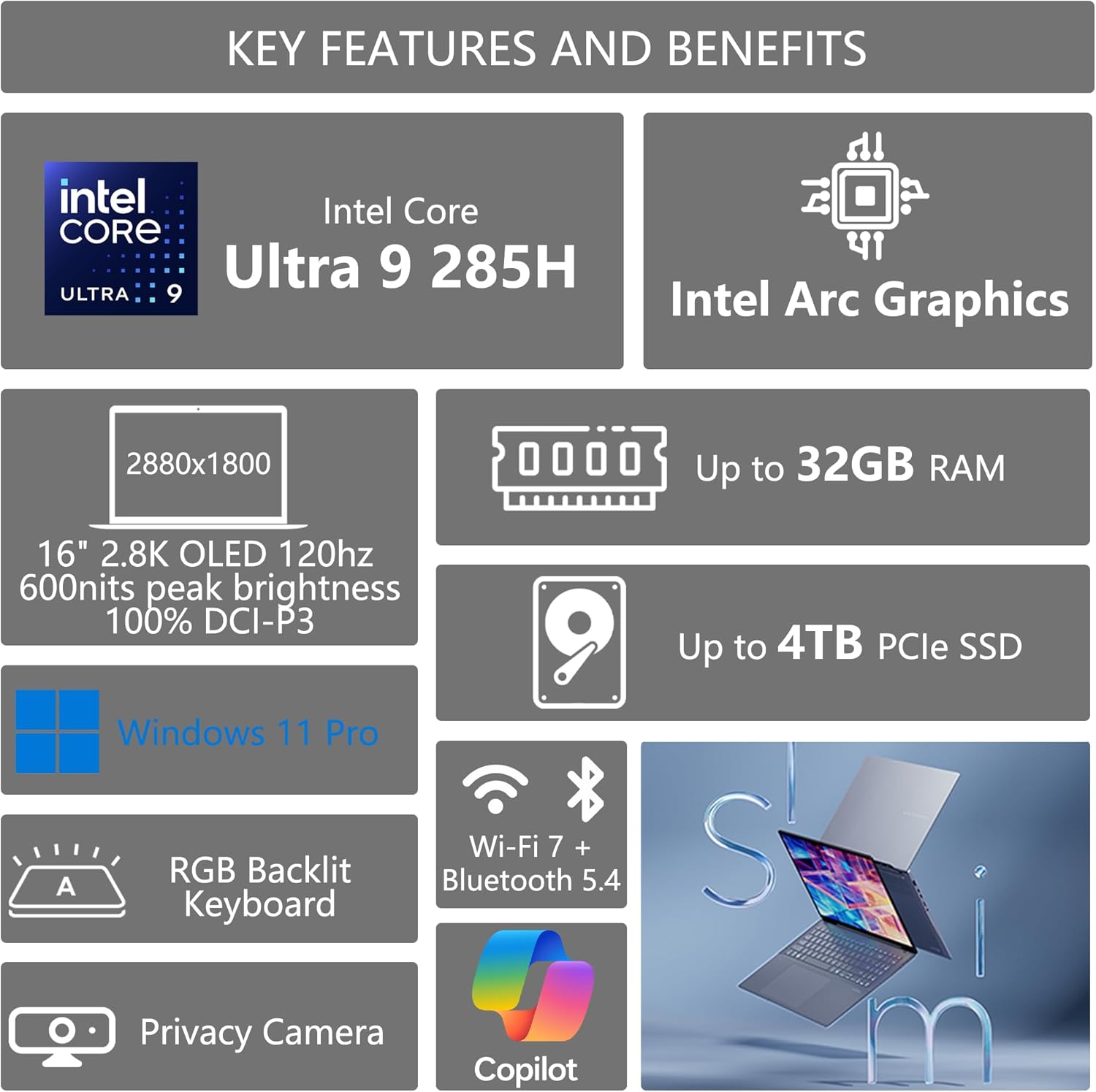
Image: Overview of ASUS Vivobook S16 key features, including Intel Core Ultra 9, Intel Arc Graphics, 16" 2.8K OLED 120Hz display, up to 32GB RAM, up to 4TB PCIe SSD, Windows 11 Pro, RGB Backlit Keyboard, Privacy Camera, Wi-Fi 7 + Bluetooth 5.4, and Copilot integration.
2. Setup
2.1 Unpacking and Initial Inspection
Carefully remove your laptop and all accessories from the packaging. Inspect for any signs of damage. Retain the packaging for future transport or service needs.
2.2 Connecting the Power Adapter
- Connect the AC adapter to the power jack on your laptop.
- Plug the power cord into a wall outlet.
- Allow the battery to charge fully before first use, though you can begin using the laptop immediately.
2.3 Initial Power On and Windows Setup
Press the power button to turn on your laptop. Follow the on-screen instructions to complete the Windows 11 Pro setup, including language selection, network connection, and user account creation.
2.4 Connecting Accessories
Your ASUS Vivobook S16 includes various ports for connecting external devices. Refer to the port diagram below for locations.
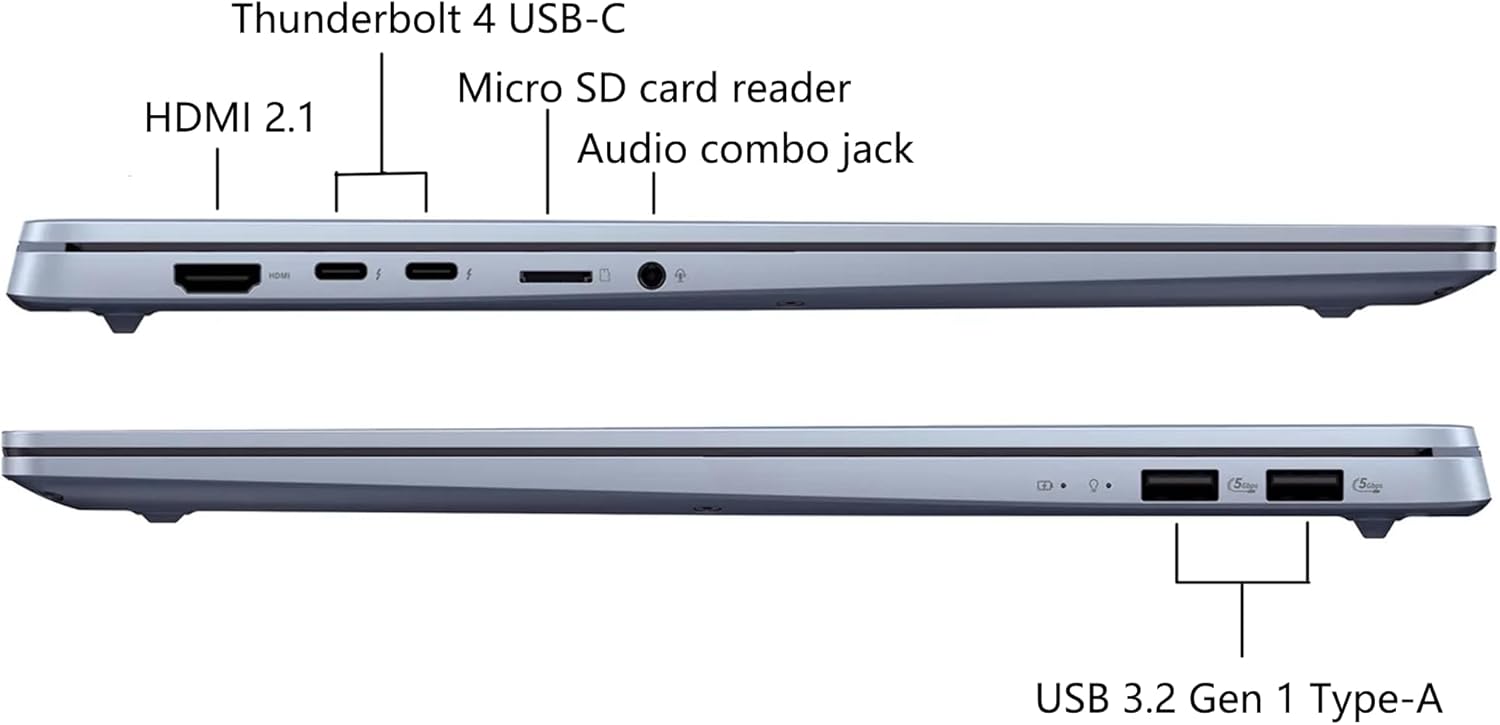
Image: Diagram illustrating the ports on the ASUS Vivobook S16, including HDMI 2.1, Thunderbolt 4 USB-C, Micro SD card reader, Audio combo jack, and USB 3.2 Gen 1 Type-A ports.
The laptop also comes with a DLCA Accessory, which is a Delca Type-C to USB-A 3-in-1 cable for safe and fast data transfer. Connect this accessory to a compatible USB-C port on your laptop as needed.

Image: Packaging for the Delca Type-C to USB-A 3-in-1 Cable, an included accessory for data transfer.
3. Operating Instructions
3.1 Power Management
- Power On: Press the power button located on the keyboard.
- Sleep Mode: Close the lid or press the power button briefly.
- Shut Down: Click the Start button, then Power, and select "Shut down."
- Restart: Click the Start button, then Power, and select "Restart."
3.2 Display Features
The ASUS Vivobook S16 features a 16-inch 2.8K (2880x1800) OLED display with a 120Hz refresh rate, 600 nits peak brightness, and 100% DCI-P3 color gamut for ultra-vivid colors and smooth visuals. Adjust display settings via Windows Settings > System > Display.

Image: Visual representation of the ASUS Vivobook S16's OLED display capabilities, highlighting ultra-vivid colors, 120 Hz refresh rate, 600 nits peak brightness, and 100% DCI-P3 color gamut.
3.3 Keyboard and Touchpad
The laptop is equipped with an RGB Backlit Keyboard with a Num-key. You can customize the backlight settings through the ASUS software or Windows settings.

Image: Illustration of the single-zone RGB backlit keyboard on the ASUS Vivobook S16, showing customizable lighting options.
3.4 Audio System
Experience immersive audio with Dolby Atmos sound, enhanced by Harman/Kardon speakers, Smart Amplifier, and ASUS Audio Booster technology. Adjust volume and sound profiles via Windows settings or the MyASUS application.
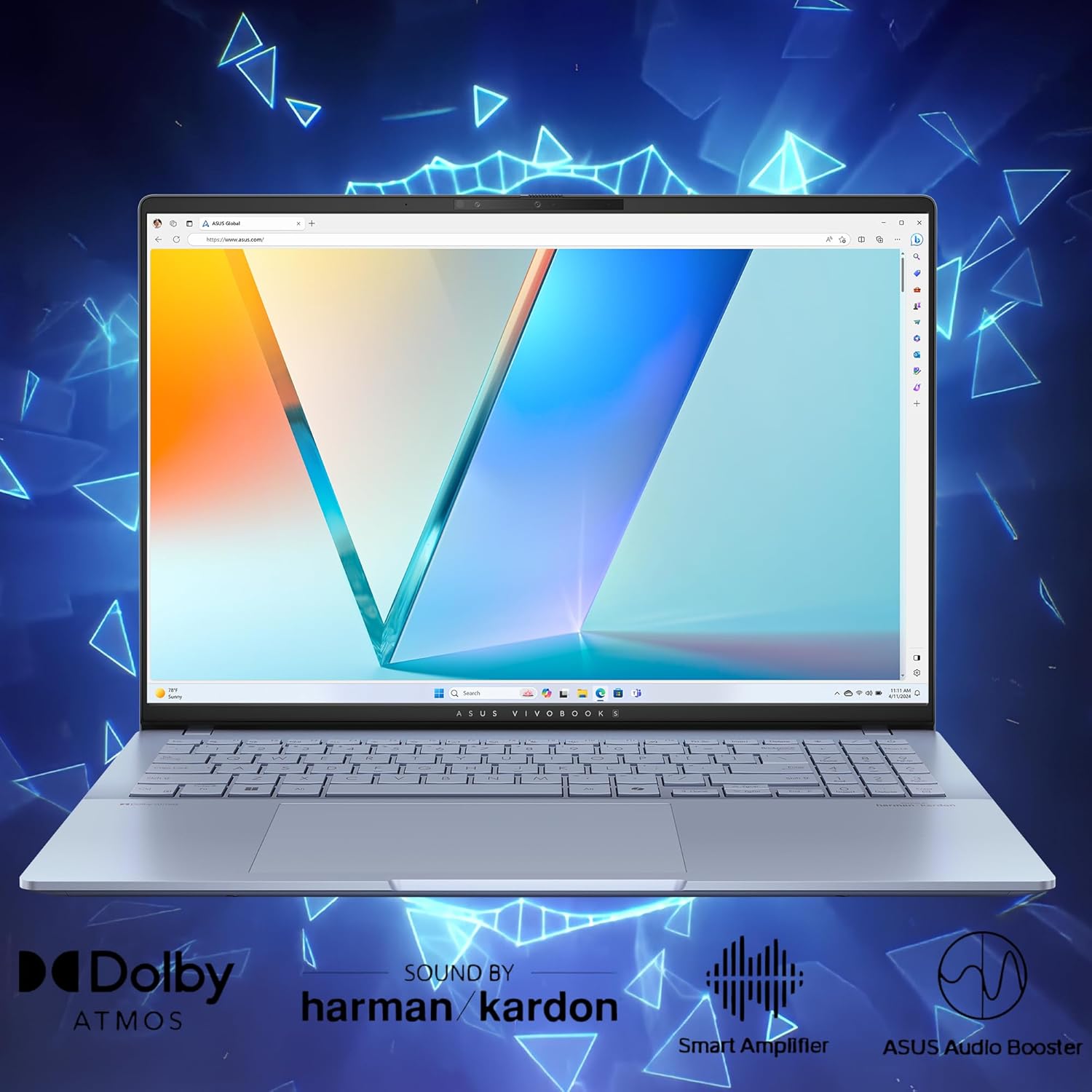
Image: Visual highlighting of the audio features of the ASUS Vivobook S16, including Dolby Atmos, Harman/Kardon sound, Smart Amplifier, and ASUS Audio Booster.
3.5 Camera and Privacy
The integrated 1080P FHD IR Camera includes a physical privacy shutter. Slide the shutter to cover the camera lens when not in use to ensure your privacy.
3.6 Connectivity
The laptop supports Wi-Fi 7 for high-speed wireless internet and Bluetooth 5.4 for connecting wireless peripherals. Manage these connections through the Windows Action Center or Settings.
4. Maintenance
4.1 Cleaning Your Laptop
- Screen: Use a soft, lint-free cloth slightly dampened with water or a screen cleaner. Avoid harsh chemicals.
- Chassis and Keyboard: Wipe with a soft, dry cloth. For stubborn dirt, use a cloth slightly dampened with isopropyl alcohol. Avoid spraying liquids directly onto the laptop.
- Vents: Periodically use compressed air to clear dust from the cooling vents to ensure optimal airflow.
4.2 Battery Care
- Avoid fully discharging the battery frequently.
- Store the laptop in a cool, dry place if not used for extended periods, with the battery charged to about 50%.
- Use only the original ASUS power adapter.
4.3 Software Updates
Regularly check for and install updates for Windows 11 Pro and ASUS drivers/utilities to ensure optimal performance and security. Access Windows updates via Settings > Windows Update. Use the MyASUS application for driver and utility updates.
4.4 Durability
The ASUS Vivobook S16 is built to US Military Grade MIL-STD 810H standards, undergoing multiple tests for durability against factors like high/low temperatures, shock, vibration, and altitude. While robust, handle your laptop with care to prevent damage.

Image: Graphic illustrating the US Military Grade MIL-STD 810H certification for the ASUS Vivobook S16, showing tests for high temperature, low temperature, shock, vibration, and altitude.
5. Troubleshooting
5.1 Common Issues and Solutions
- Laptop does not power on: Ensure the AC adapter is securely connected and the power outlet is functional. Try holding the power button for 15-20 seconds to perform a hard reset.
- Display issues (no image, flickering): Connect an external monitor to check if the issue is with the laptop's display or graphics output. Restart the laptop. Update graphics drivers.
- Wi-Fi or Bluetooth connectivity problems: Check if Wi-Fi/Bluetooth is enabled in Windows settings. Restart your router/modem. Update wireless drivers.
- Keyboard backlight readability: Some users may find the RGB keyboard backlight difficult to read in certain lighting conditions due to the keycap design. Try adjusting the backlight brightness or color settings. In well-lit environments, turning off the backlight might improve readability.
- Slow performance: Check for background applications consuming resources. Ensure sufficient free storage space. Run a virus scan. Update Windows and drivers.
5.2 Restoring Your System
Windows 11 Pro offers recovery options to refresh or reset your PC. Access these via Settings > System > Recovery. Back up your data before performing any system recovery.
6. Specifications
| Feature | Detail |
|---|---|
| Model Name | ASUS Vivobook S16 |
| Processor | Intel Core Ultra 9 285H (2.9 GHz, up to 5.4 GHz, 16 cores, 16 Threads) with Intel AI Boost NPU (up to 13TOPS) |
| Graphics | Integrated Intel Arc Graphics |
| Display | 16" 2.8K WQXGA+ (2880x1800) 16:10 OLED, 120Hz, 600nits HDR peak brightness, 100% DCI-P3, Glare |
| Memory | 32GB LPDDR5X SDRAM |
| Storage | 1TB SSD |
| Operating System | Windows 11 Professional |
| Ports | 2x USB 3.2 Gen 1 Type-A, 2x Thunderbolt 4 (Display/Power Delivery), 1x HDMI 2.1, 1x 3.5mm Combo Audio Jack, 1x Micro SD card reader |
| Wireless Connectivity | Wi-Fi 7, Bluetooth 5.4 |
| Camera | 1080P FHD IR Camera with Privacy Shutter |
| Audio | Dolby Atmos, Harman/Kardon, Smart Amplifier, ASUS Audio Booster |
| Keyboard | RGB Backlit Keyboard with Num-key |
| Dimensions (LxWxH) | 13.92" x 9.72" x 0.55" ~ 0.63" |
| Weight | Approximately 3.31 pounds |
| Color | Mist Blue |

Image: Detailed view of the Intel Core Ultra 9 285H processor, highlighting its 16-core, 16-thread architecture and up to 5.4 GHz clock speed for powerful performance.
7. Warranty and Support
7.1 Product Warranty
Your ASUS Vivobook S16 laptop is covered by a limited warranty. Please refer to the warranty card included in your product packaging or visit the official ASUS support website for detailed warranty terms and conditions specific to your region.
7.2 Technical Support
For technical assistance, driver downloads, FAQs, and further support, please visit the official ASUS support website: www.asus.com/support/. You may also find helpful resources and community forums there.
7.3 Included Accessory
The DLCA Accessory (Delca Type-C to USB-A 3-in-1 Cable) is provided by Delca Electronics. For support related to this specific accessory, please refer to any documentation provided with the accessory or contact Delca Electronics directly if needed.