
1. Product Overview
The MINISO MS191 AI Translation Earbuds are designed to facilitate real-time, two-way language translation, enhancing communication across various scenarios such as travel, business, and learning. These open-ear clip wireless headphones also offer high-definition stereo sound, active noise cancellation, and a comfortable fit for extended use.
Key Features:
- Multi-Language Translation: Supports real-time two-way translation for up to 135 languages via the EarJoy APP. Online translation is available for select languages including Chinese, English, Japanese, Korean, Russian, German, French, and Spanish.
- AI Translation Modes: Features real-time binaural translation, device-assisted mode, and AI chat for diverse communication needs.
- Intuitive Touch Controls: Manage volume, calls, and music playback with simple touch gestures.
- Extended Battery Life: Up to 50 hours of battery life with quick charging, ensuring prolonged use.
- Comfortable Open-Ear Design: Ergonomic design provides all-day comfort without blocking ambient sounds.
- Integrated Smart Tracker: Locate misplaced earbuds instantly via the app, showing real-time position or last-known location.
- Lifetime Free Translation: Access translation features through the EarJoy app without subscription fees.

Image: The MINISO MS191 AI Translation Earbuds resting in their charging case, showcasing their open-ear clip design and compact form factor.
2. What's Included
Please check the package contents upon unboxing to ensure all items are present:
- MINISO MS191 Ear Clip Headphones (Left and Right)
- Headphone Charging Box
- USB-C Charging Cable
- User Manual
- Packaging Box

Image: An illustration showing the MINISO MS191 earbuds, charging case, USB-C cable, and user manual, representing the complete package contents.
3. Setup Guide
3.1 Initial Charging
Before first use, fully charge the earbuds and the charging case. Connect the provided USB-C charging cable to the charging case and a power source. The indicator light on the case will show charging status.
3.2 Pairing with Your Device
- Ensure the earbuds are in the charging case and the case has sufficient power.
- Open the charging case. The earbuds will automatically enter pairing mode.
- On your smartphone or other Bluetooth-enabled device, navigate to the Bluetooth settings.
- Search for available devices and select "MINISO-MS191" from the list.
- Once connected, a confirmation sound will play, and the device will show "Connected".

Image: A smartphone screen displaying Bluetooth settings, with "MINISO-MS191" listed as a connected device, illustrating the quick connect and one-step pairing process.
3.3 EarJoy App Installation
To utilize the full translation capabilities, download and install the EarJoy application on your smartphone.
- Scan the QR code provided in the physical user manual or search for "EarJoy" in your device's app store (iOS/Android).
- Install the application.
- Open the EarJoy app and follow the on-screen instructions to log in or create an account.
- Within the app, connect the earbuds by following the in-app prompts. This typically involves ensuring Bluetooth is on and the earbuds are paired with your phone.

Image: A sequence of three smartphone screens demonstrating the process of logging into the EarJoy app, connecting the earbuds via Bluetooth, and accessing the app's intelligent tools interface.
4. Operating Instructions
4.1 Touch Controls
The MS191 earbuds feature intuitive touch controls on the outer surface of each earbud:
| Action | Gesture |
|---|---|
| Play/Pause Music | Single Press (Either Earbud) |
| Answer/End Call | Single Press (Either Earbud) |
| Volume Up | Double Press (Right Earbud) |
| Volume Down | Double Press (Left Earbud) |
| Activate Voice Assistant | Long Press (Either Earbud) |
| Reject Call | Long Press (Either Earbud) |
| Previous Song | Triple Press (Left Earbud) |
| Next Song | Triple Press (Right Earbud) |

Image: A visual guide illustrating the various touch control gestures for play/pause, call management, volume adjustment, voice assistant activation, and track navigation on the earbuds.
4.2 Translation Modes (via EarJoy App)
The EarJoy app provides several translation modes to suit different communication needs:
- AI Dialogue Mode: Engage in natural conversations with AI, ideal for language learning or practicing.
- Translator Mode: Facilitates real-time two-way translation between two individuals speaking different languages.
- Free Dialogue Mode: Allows for more fluid, multi-person conversations with continuous translation.
- Phone + Headset Mode: Use your phone's microphone for input and hear translations through the earbuds.
- Photo Translation: Translate text from images (e.g., menus, signs) by taking a photo through the app.

Image: Icons depicting AI Dialogue Mode, Translator Mode, Free Dialogue Mode, and Phone + Headset Mode, illustrating the versatility of the translation features.
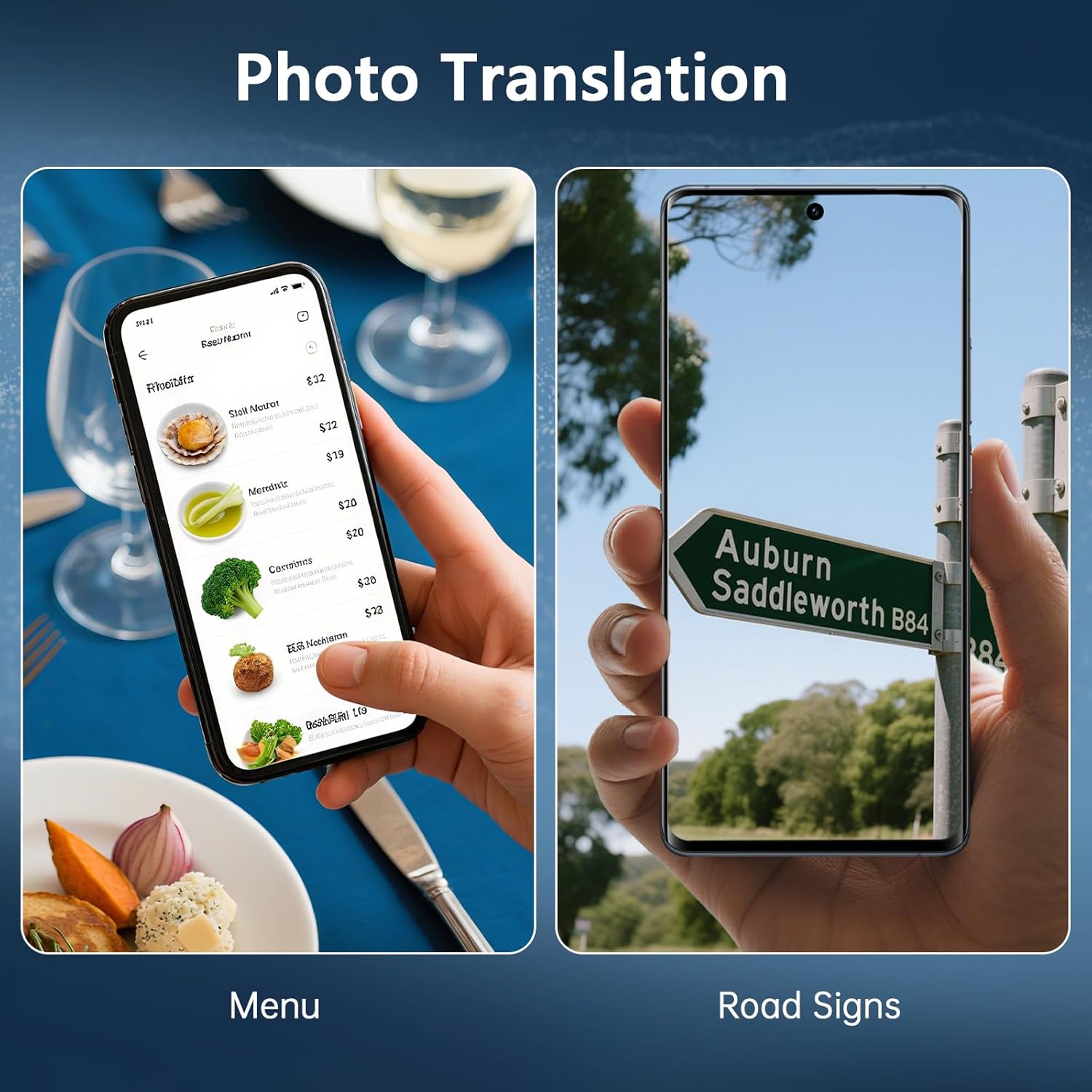
Image: Two examples of the photo translation feature in action, showing a menu and a road sign being translated from an image captured by a smartphone.
5. Maintenance
5.1 Cleaning
- Gently wipe the earbuds and charging case with a soft, dry, lint-free cloth.
- Do not use abrasive cleaners, alcohol, or chemical solvents.
- Avoid getting moisture in any openings.
5.2 Storage
- Store the earbuds in their charging case when not in use to protect them and keep them charged.
- Keep the device in a cool, dry place, away from extreme temperatures and direct sunlight.
5.3 Battery Care
- Charge the earbuds regularly, even if not used frequently, to maintain battery health.
- Avoid fully depleting the battery for extended periods.
6. Troubleshooting
6.1 Connectivity Issues
- Earbuds not pairing: Ensure Bluetooth is enabled on your device and the earbuds are in pairing mode. Try resetting your device's Bluetooth or restarting the earbuds by placing them back in the case and taking them out again.
- Unstable connection: Ensure your device is within the 10-meter wireless range. Avoid obstacles that may interfere with the Bluetooth signal.
6.2 Translation Problems
- Inaccurate translation: Ensure a stable internet connection for online translation. Speak clearly and at a moderate pace. Check that the correct source and target languages are selected in the EarJoy app.
- App not responding: Close and reopen the EarJoy app. Ensure the app is updated to the latest version.
6.3 Lost Earbuds
- Use the built-in smart tracker feature in the EarJoy app to locate your earbuds. The app can display their real-time position, last-known location, or activate a sound alert.
7. Specifications
| Feature | Detail |
|---|---|
| Model Name | MINISO MS191 |
| Connectivity Technology | Wireless (Bluetooth 5.4) |
| Control Type | Touch Control |
| Battery Type | 1 Lithium Ion battery (included) |
| Battery Life | Up to 50 hours (with charging case) |
| Water Resistance Level | Waterproof |
| Item Weight | 0.09 Kilograms / 3.2 ounces |
| Ear Placement | Open Ear |
| Noise Control | Adaptive Noise Cancellation |
| Wireless Range | 10 meters |
| Supported Languages | 135 (via EarJoy App) |
| Material | Plastic |
8. Warranty and Support
8.1 Warranty Information
MINISO products are covered by a limited warranty against defects in materials and workmanship. Please refer to the warranty card included in your product packaging for specific terms, conditions, and duration. Keep your proof of purchase for warranty claims.
8.2 Customer Support
For technical assistance, troubleshooting, or any inquiries regarding your MINISO MS191 AI Translation Earbuds, please contact our customer support team. Our support team is available to help with any questions you may have.
- Website: Visit the official MINISO website for support resources and FAQs.
- Email: Refer to your product packaging or the MINISO website for customer service email contact.
- Phone: Refer to your product packaging or the MINISO website for customer service phone numbers.