
1. Introduction
Thank you for choosing the ASHATA Portable Monitor. This manual provides essential information for the proper setup, operation, and maintenance of your 15.6-inch portable display. Please read this manual thoroughly before using the product to ensure optimal performance and longevity.
2. Safety Information
- Do not expose the monitor to rain or moisture to prevent fire or electric shock.
- Avoid placing the monitor near heat sources such as radiators, heat registers, stoves, or other heat-producing appliances.
- Use only attachments/accessories specified by the manufacturer.
- Unplug this monitor during lightning storms or when unused for long periods.
- Clean the screen with a soft, lint-free cloth. Avoid using harsh chemicals.
3. Package Contents
Please check the package contents upon unboxing. If any items are missing or damaged, contact customer support.
- 1 x Portable Display
- 1 x HD Multimedia Cable
- 1 x USB C Cable
- 1 x USB Power Cable
- 1 x User Manual
4. Product Overview
The ASHATA Portable Monitor is a 15.6-inch Full HD (1920x1080P) display designed for versatility and portability. It features a touch screen and comes with a protective PU leather case that doubles as a stand.
4.1 Display Features
- Screen Size: 15.6 inch
- Resolution: 1920 x 1080P FHD
- Aspect Ratio: 16:9
- Refresh Rate: 60Hz
- Viewing Angle: 178 degrees (85/85/85/85)
- Brightness: 250cd/m²
- Color Gamut: 62% sRGB
- Response Time: 6ms
- Special Features: Touch Screen, Blue Light Reduction, Flicker-Free

Figure 4.1: The 15.6-inch display showcasing its Full HD resolution (1920x1080P) and 16:9 aspect ratio.
4.2 Interfaces
The monitor is equipped with multiple ports for broad compatibility:
- USB C x2: Supports power, video, and touch signal transmission.
- HD Multimedia Interface: For video input from various devices.
- Micro USB x1: Typically used for touch functionality or peripheral connection.
- 3.5mm AUX x1: For audio output to headphones or external speakers.
4.3 Protective Case
The included PU leather protective case is designed for durability and convenience. It can be folded into three different positions to serve as a stand, providing flexible viewing angles and protecting the screen during transport.

Figure 4.2: The ASHATA Portable Monitor positioned with its protective case functioning as a stand.
5. Setup Instructions
Follow these steps to connect and power your ASHATA Portable Monitor.
5.1 Power Requirements
The monitor requires a 5V 3A power adapter (not included). For best performance, an independent power supply is recommended.
5.2 Connecting to Devices
The monitor supports plug-and-play functionality, requiring no driver installation.
- Connecting to Mobile Phones (USB-C):
Use a single USB-C cable to connect your compatible mobile phone to the monitor. This cable can transmit power, video, and touch signals simultaneously, enabling extended display or screen mirroring.

Figure 5.1: Connecting a mobile phone to the portable monitor using a USB-C cable.
- Connecting to Laptops/PCs (USB-C):
For Windows or OS X PCs, a single USB-C cable can be used for display extension or mirroring. Ensure your laptop's USB-C port supports video output (DisplayPort Alternate Mode).
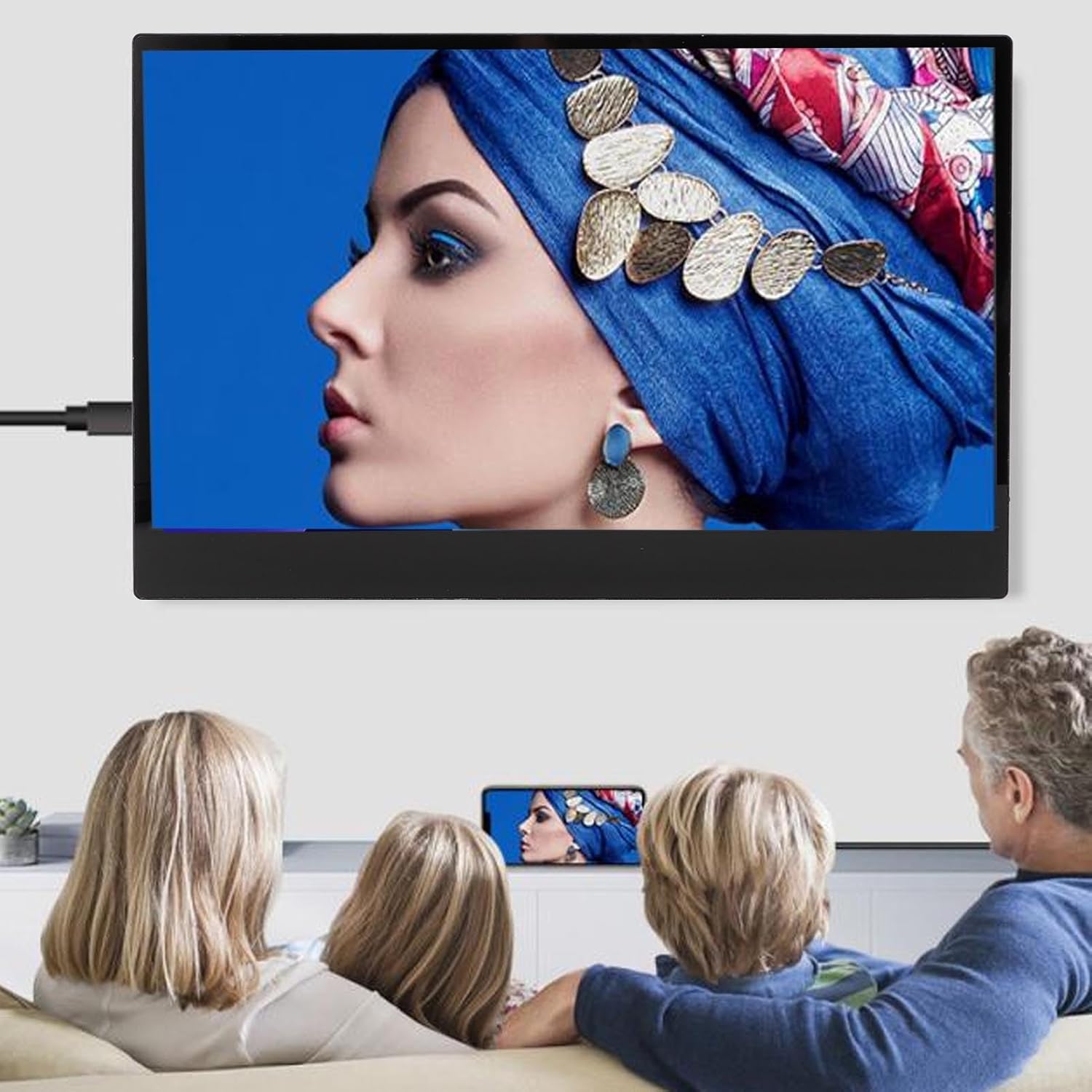
Figure 5.2: The portable monitor connected to a laptop, extending the display.
- Connecting to Laptops/PCs (HD Multimedia Interface + USB):
Alternatively, connect your PC or OS X computer using an HD Multimedia Interface cable for video and a separate USB cable for power and touch functionality. This setup supports dual-screen display (same or different content).
- Connecting to Gaming Devices:
Use the HD Multimedia Interface to connect gaming consoles (e.g., Switch, PS5, Xbox) for an enhanced gaming experience. Ensure external power is supplied to the monitor.
6. Operating Instructions
Once connected and powered, your ASHATA Portable Monitor is ready for use. It supports various display modes and applications.
6.1 Display Modes
- Mirroring Mode: Duplicates your primary screen's content onto the portable monitor.
- Split Screen (Extend) Mode: Extends your desktop, allowing you to use the portable monitor as a secondary display for increased productivity.
6.2 Touch Screen Functionality
The integrated touch screen allows for intuitive interaction with compatible devices. Ensure the Micro USB or USB-C connection is established for touch input.
6.3 Versatile Applications
The monitor is suitable for a wide range of uses:
- Business Meetings: Share presentations or collaborate effectively.
- Gaming: Enjoy games on a larger, portable screen.
- Media Consumption: Watch videos, TV shows, or view photos with enhanced clarity.
- Productivity: Use as a second screen for laptops or PCs to improve workflow.

Figure 6.1: The portable monitor used for family entertainment, displaying content from a smartphone.

Figure 6.2: The portable monitor enhancing a mobile gaming or media viewing experience.

Figure 6.3: Visual representation of the monitor's 63% color gamut IPS screen, offering improved color reproduction.

Figure 6.4: The monitor's 1080P picture quality providing a high-definition visual effect.
7. Maintenance
Proper maintenance ensures the longevity and optimal performance of your monitor.
- Cleaning the Screen: Gently wipe the screen with a soft, lint-free cloth. For stubborn marks, slightly dampen the cloth with water or a screen-specific cleaning solution. Avoid spraying liquid directly onto the screen.
- Cleaning the Casing: Use a soft, dry cloth to clean the monitor's casing.
- Storage: When not in use, store the monitor in its protective PU leather case in a cool, dry place away from direct sunlight.
- Cable Care: Avoid bending or twisting cables excessively to prevent damage.
8. Troubleshooting
If you encounter issues with your ASHATA Portable Monitor, refer to the following common solutions:
- No Display/Black Screen:
- Ensure the monitor is properly powered with a 5V 3A adapter.
- Check all cable connections (USB-C, HD Multimedia Interface) are secure.
- Verify the source device is outputting video.
- Try a different cable or port if available.
- No Touch Functionality:
- Ensure the USB-C cable is fully connected and supports touch data, or that the Micro USB cable is connected for touch.
- Confirm your device supports external touch input.
- Flickering Screen:
- Check for loose cable connections.
- Ensure the power supply is stable and sufficient.
- Reduce screen brightness if flickering persists.
- No Audio:
- Verify that the 3.5mm AUX cable is correctly connected to external speakers or headphones.
- Check audio settings on your source device.
9. Specifications
| Feature | Specification |
|---|---|
| Item Type | Portable Display |
| Brand | ASHATA |
| Screen Size | 15.6 inch |
| Resolution | 1920 x 1080P FHD |
| Contrast Ratio | 1000:1 |
| Aspect Ratio | 16:9 (H:V) |
| Display Color | 262K (6 bit) |
| Brightness | 250cd/m² |
| Color Gamut | 62% sRGB |
| Color Temperature | 6485K |
| Refresh Rate | 60Hz |
| Response Time | 6ms |
| Viewing Angle | 85/85/85/85 (CR≥10) |
| Wall Mount | Approx. 75 x 75mm / 3 x 3in |
| Interfaces | USB C x2, HD Multimedia Interface, Micro USB x1, 3.5mm AUX x1 |
| Supported Languages | Chinese, English, German, French, Japanese, Korean, Italian, Spanish, etc. |
| Item Weight | 4.8 pounds |
| Package Dimensions | 16.14 x 11.02 x 2.36 inches |
10. Warranty and Support
Specific warranty information for the ASHATA Portable Monitor is not provided in the product details. For warranty claims, technical support, or further assistance, please refer to the contact information provided with your purchase or visit the official ASHATA website.