
GNCC GL1-2N
GNCC GL1-2N Lightbulb Camera User Manual
Model: GL1-2N
Introduction
This manual provides comprehensive instructions for the installation, operation, and maintenance of your GNCC GL1-2N Lightbulb Camera. Please read this manual thoroughly before using the product to ensure proper setup and functionality. This camera offers 2K HD resolution, 360° pan/tilt, night vision, motion detection, and two-way audio for enhanced home security.
Package Contents
Verify that all items are present in your package:
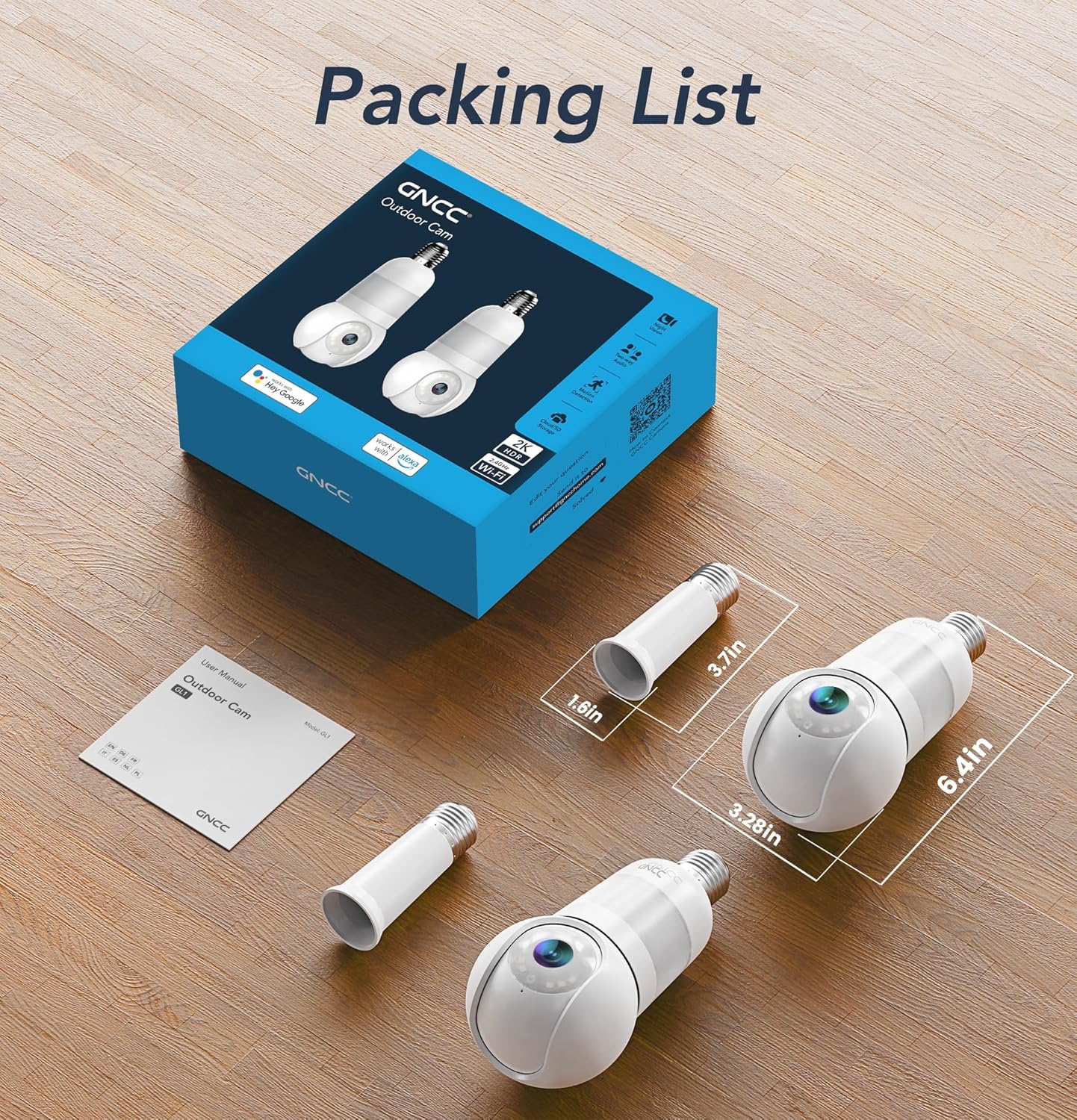
- GNCC GL1-2N Lightbulb Camera (2 units)
- E27 Socket Extender (2 units)
- E27 to 2-prong plug adapter (2 units)
- User Manual
Product Overview
The GNCC GL1-2N Lightbulb Camera is designed for outdoor security, featuring a screw-in installation into standard E26/E27 light sockets. Key features include:
- 2K Ultra-HD Resolution: Provides clear video footage.
- 360° Pan and 90° Tilt: Offers extensive coverage with remote control.
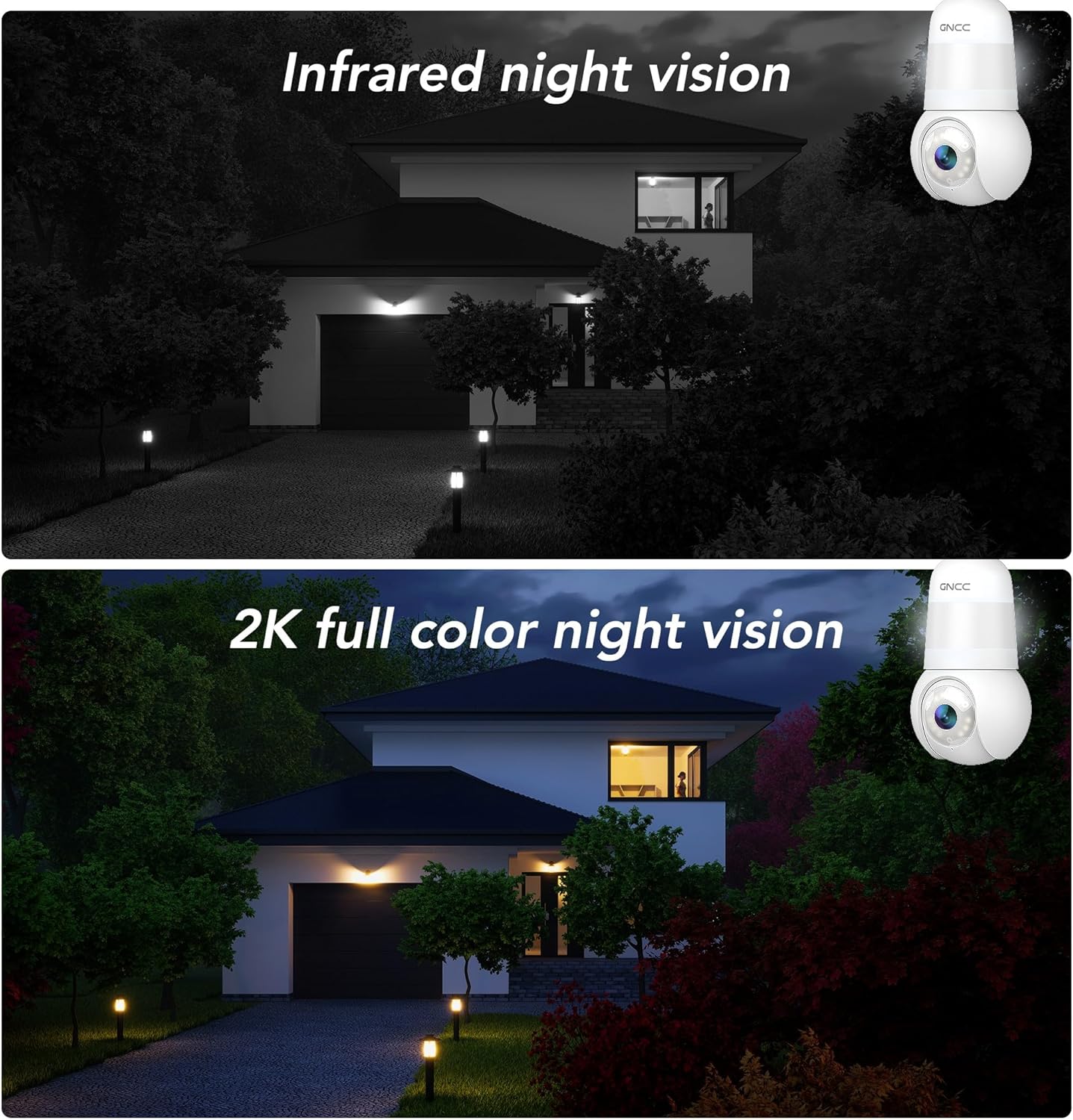
- Dual Night Vision Modes: Infrared for stealth and full-color with spotlight assistance.
- Smart Motion & Sound Detection: Triggers alerts and recordings.
- Two-Way Audio: Allows for real-time communication.
- Flexible Storage: Supports Micro SD card (up to 128GB) and cloud storage options.
- 2.4GHz Wi-Fi Connectivity: Ensures stable signal.
Setup Instructions
1. Installation
The camera is designed for quick, screw-in installation into any standard E26/E27 light socket. No drilling or complex wiring is required.
- Ensure the power to the light socket is turned off before installation.
- Screw the GNCC Lightbulb Camera directly into an E26/E27 light socket.
- If needed, use the included E27 socket extender for optimal positioning.
- For alternative power, use the E27 to 2-prong plug adapter with a standard power outlet.
- Turn on the power to the light socket. The camera will power on and enter pairing mode.

2. App Download and Wi-Fi Connection
The camera requires the OSAIO app for operation and connects only to 2.4GHz Wi-Fi networks.
- Download the "OSAIO" app from your smartphone's app store (iOS or Android).
- Register for an account or log in if you already have one.
- Follow the in-app instructions to add your new camera. The app will guide you through the pairing process.
- Ensure your smartphone is connected to a 2.4GHz Wi-Fi network during setup. The camera does not support 5GHz Wi-Fi.
- The app may use Bluetooth for initial device discovery, simplifying the connection process.

Operating Instructions
1. Live View and Pan/Tilt Control
Access the live video feed through the OSAIO app. Use the on-screen controls to remotely pan the camera 350° horizontally and tilt it 90° vertically to adjust the viewing angle.
2. Night Vision Modes
The camera offers two night vision modes:
- Infrared Night Vision: Provides clear black and white video in low-light conditions without visible light.
- Full-Color Night Vision: Activates the built-in spotlight to provide full-color video at night, useful for identifying details like clothing or vehicle colors. This mode can be enabled via the app settings.

3. Two-Way Audio
Use the built-in microphone and speaker for real-time two-way communication. Tap the microphone icon in the OSAIO app to speak, and release to listen.
4. Motion and Sound Detection
The camera detects motion and sound, sending instant alerts to your phone via the OSAIO app. Event videos are automatically recorded.
- Adjust motion detection sensitivity levels in the app to minimize false alarms.
- Optional AI recognition (subscription required) can differentiate between people, packages, vehicles, and pets for more targeted alerts.

5. Storage Options
Choose between local or cloud storage for your video recordings:
- Micro SD Card: Insert a Micro SD card (up to 128GB, not included) into the camera for continuous local recording.
- Cloud Storage: Secure, encrypted cloud storage options are available (subscription required, includes a 14-day free trial).

6. Lightbulb Control
The camera can function as a lightbulb. Control its on/off state directly from the OSAIO app.
7. Multi-Device Family Access Sharing
Share the camera's live stream with up to 3 family members simultaneously through the OSAIO app, allowing multiple users to monitor the property.
Maintenance
- Cleaning: Gently wipe the camera lens and body with a soft, dry cloth. Do not use liquid cleaners or abrasive materials.
- Firmware Updates: Regularly check the OSAIO app for available firmware updates. Keeping the firmware updated ensures optimal performance and security.
- Power Cycle: If the camera experiences issues, try turning off the power to the light socket for 10 seconds, then turning it back on to restart the device.
Troubleshooting
| Problem | Solution |
|---|---|
| Camera not connecting to Wi-Fi |
|
| Frequent false alarms |
|
| Camera gets stuck or does not rotate |
|
| Poor two-way audio quality |
|
| SD card not recording |
|
Specifications
| Feature | Detail |
|---|---|
| Model Name | GL1-2N |
| Connectivity Technology | Wireless (Wi-Fi) |
| Wi-Fi Frequency | 2.4GHz Only |
| Video Capture Resolution | 2K Ultra-HD |
| Pan/Tilt Range | 350° Horizontal Pan, 90° Vertical Tilt |
| Night Vision | Infrared, Full-Color (Spotlight Assisted) |
| Audio | 2-Way Audio (Built-in Microphone & Speaker) |
| Storage Options | Micro SD Card (up to 128GB, not included), Cloud Storage (Subscription) |
| Mount Type | Light Socket (E26/E27) |
| Compatible Devices | Smartphone (iOS/Android), Amazon Alexa, Google Assistant |
| Item Dimensions | 5.5 x 2.7 x 2.7 inches |
| Power Source | Corded Electric |
Warranty and Support
For warranty information and technical support, please refer to the documentation included with your product or visit the official GNCC website. Contact their customer service for assistance with any product-related issues or inquiries.
You can often find support resources, FAQs, and contact information on the manufacturer's website: www.gncc.com (Note: This is a placeholder URL, please refer to your product packaging for the correct support website.)
Related documentsGL1-2N

Ask a question about this manual
Ask about setup, troubleshooting, compatibility, parts, safety, or missing instructions. Manuals+ will review the question and use this page’s manual context to help answer it.