Introduction
The Nivian Smart WiFi Door Alarm (Model NVS-DOORALARM-W) is a wireless magnetic sensor designed to enhance the security of your home or office. It provides real-time notifications to your mobile device, features a powerful 100 dB siren, and offers flexible control options including a manual disarm button. This manual provides detailed instructions for installation, operation, maintenance, and troubleshooting to ensure optimal performance of your device.
Safety Information
- Read all instructions carefully before use.
- Keep the device away from water and high humidity.
- Do not attempt to disassemble or repair the device yourself. Contact support if needed.
- Ensure the device is installed within the specified operating temperature range (0°C to 40°C).
- Use only recommended power sources or batteries if applicable.
Package Contents
Please check that all items are present in your package:
- Nivian Smart WiFi Door Alarm (Main Unit and Magnetic Sensor)
- Double-sided adhesive tape for installation
- User Manual (this document)
Product Overview
The Nivian Smart WiFi Door Alarm consists of two main parts: the main sensor unit and a smaller magnetic contact. When these two parts are separated (e.g., when a door or window opens), the alarm is triggered if armed.
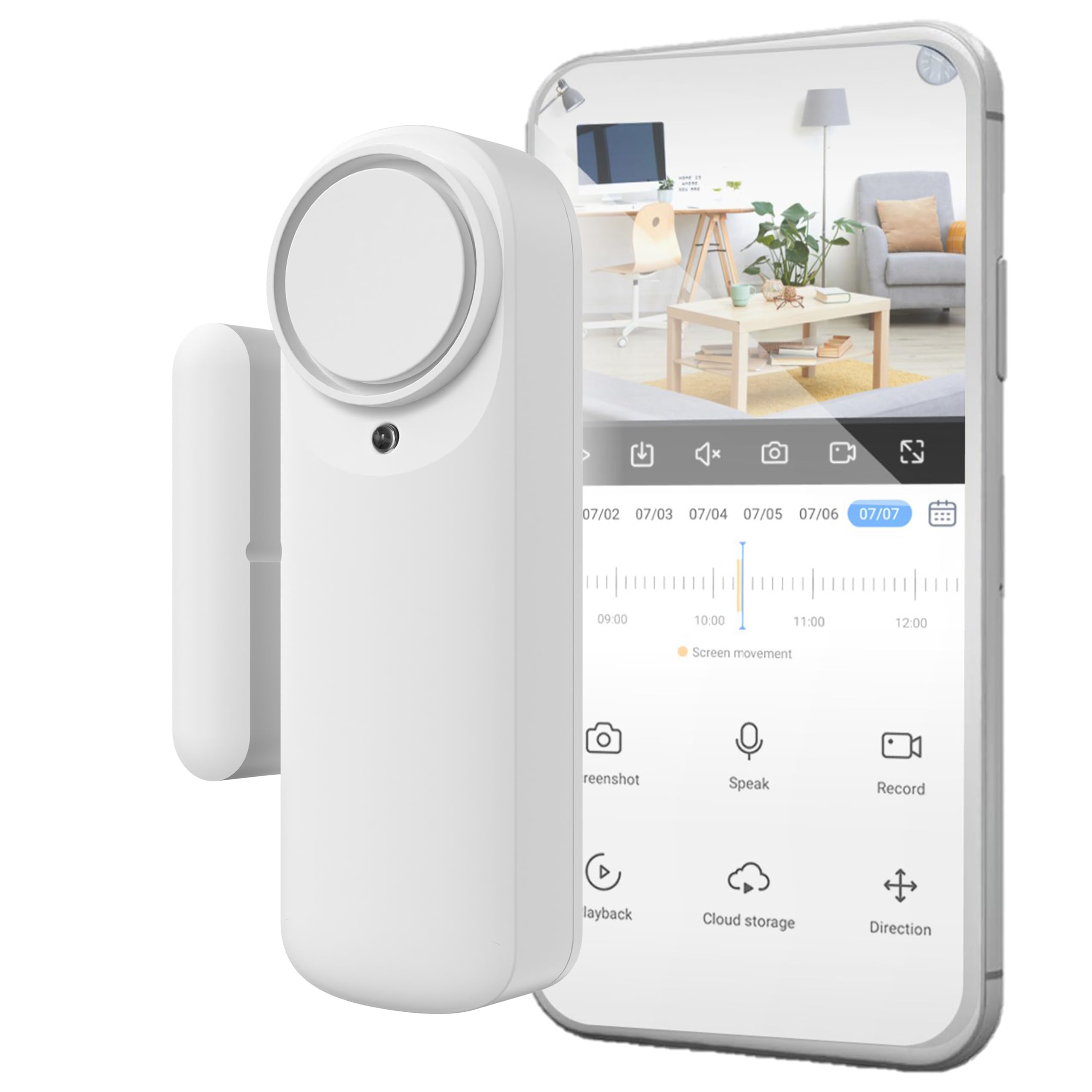
Image: Overview of the Nivian Smart WiFi Door Alarm, highlighting its WiFi connectivity, battery-powered wireless design, app/manual disarm options, powerful siren, and compatibility with Amazon Alexa, Google Assistant, and Tuya Smart Home.
Key Features:
- WiFi Connectivity: Connects to your home 2.4 GHz WiFi network for stable communication.
- Wireless Design: Battery-powered for flexible placement without cables.
- Magnetic Sensor: Detects opening and closing of doors or windows.
- 100 dB Siren: Integrated siren activates upon intrusion when armed.
- Mobile App Control: Arm, disarm, and receive real-time notifications via a dedicated app.
- Manual Disarm Button: Provides an alternative disarm method without the app.
- LED Status Indicator: For quick visual control of the device status.
Setup
1. Physical Installation
The Nivian Smart WiFi Door Alarm is designed for quick and easy installation using double-sided adhesive tape. No tools are required.
- Choose a Location: Select a clean, dry surface on your door or window frame. Ensure the main unit and magnetic sensor can be mounted close to each other, typically within 1-2 cm when the door/window is closed.
- Clean the Surface: Wipe the installation area with a clean cloth to remove dust or grease.
- Attach Adhesive Tape: Apply the provided double-sided adhesive tape to the back of both the main sensor unit and the magnetic sensor.
- Mount the Main Unit: Affix the larger main sensor unit to the door or window frame.
- Mount the Magnetic Sensor: Affix the smaller magnetic sensor to the moving part of the door or window, aligning it with the main unit. Ensure the alignment marks on both parts are facing each other and they are within 1-2 cm when the door/window is closed.
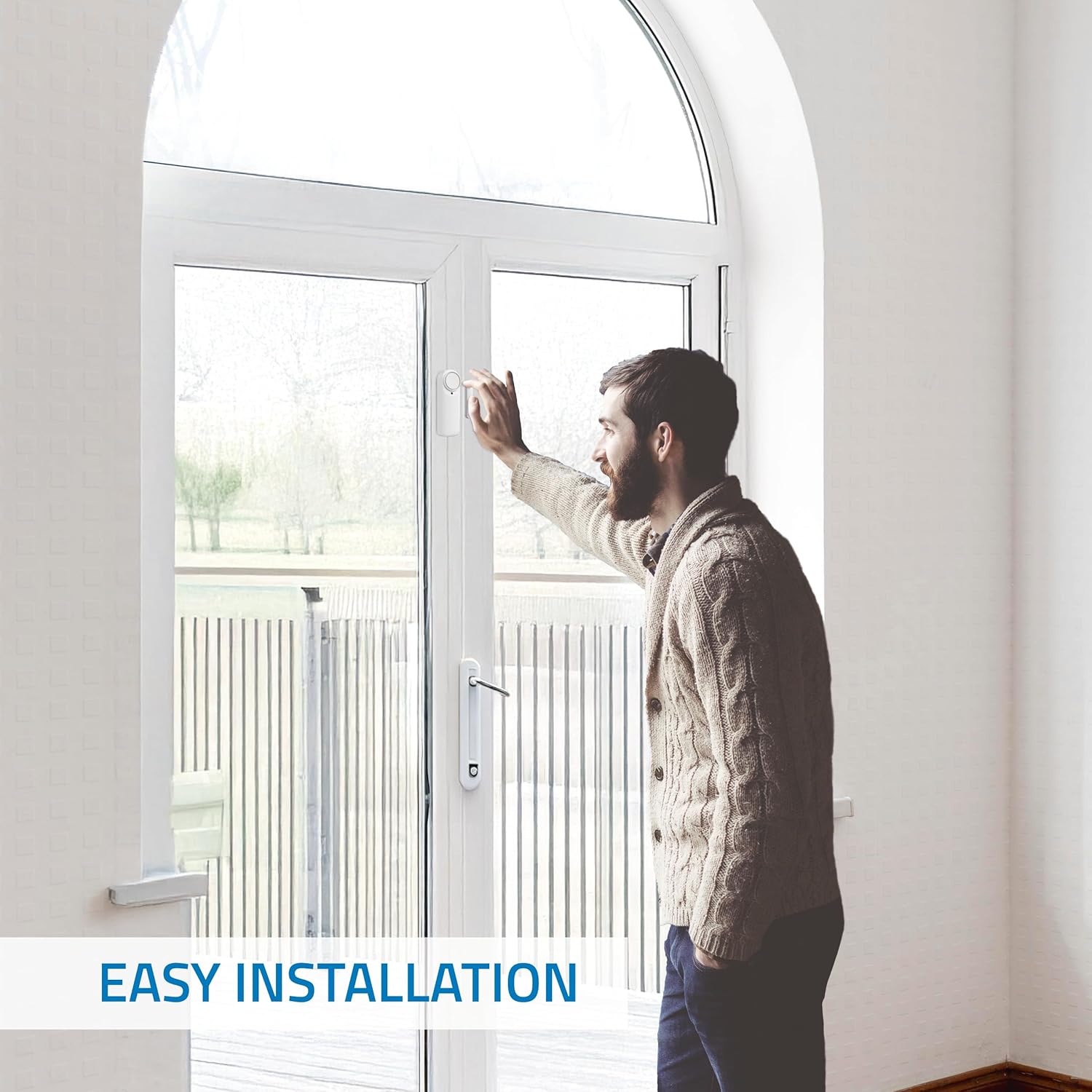
Image: A person demonstrating the easy installation of the Nivian Smart WiFi Door Alarm on a door frame, highlighting its wireless and tool-free setup.

Image: A diagram illustrating the dimensions of the Nivian Smart WiFi Door Alarm and its recommended placement on a door, showing the main unit and magnetic sensor alignment.
2. App Download and Device Pairing
To control your Nivian Smart WiFi Door Alarm, you need to download the compatible mobile application (e.g., Tuya Smart or Smart Life app).
- Download the App: Search for "Tuya Smart" or "Smart Life" in your smartphone's app store (Google Play Store for Android or Apple App Store for iOS) and download it.
- Register/Log In: Open the app and register for a new account or log in if you already have one.
- Add Device:
- Ensure your smartphone is connected to a 2.4 GHz WiFi network.
- Open the app and tap the "+" icon (usually in the top right corner) to add a device.
- Select "Security & Video Surveillance" or "Sensor" category, then choose "Door/Window Sensor (Wi-Fi)".
- Follow the on-screen instructions to put the device into pairing mode (this usually involves pressing and holding a button on the main unit until an indicator light flashes).
- Enter your WiFi network password when prompted.
- Wait for the app to detect and connect to your device. Once connected, you can rename the device for easy identification.
Operating Instructions
Arming and Disarming the Alarm
You can arm or disarm the alarm using the mobile application or the manual button on the device.
- Via Mobile App:
Open the Nivian Smart WiFi Door Alarm device page in the app. You will see options to "Arm" or "Disarm" the alarm. Tap the desired option. You can also set entry and exit delays within the app settings.
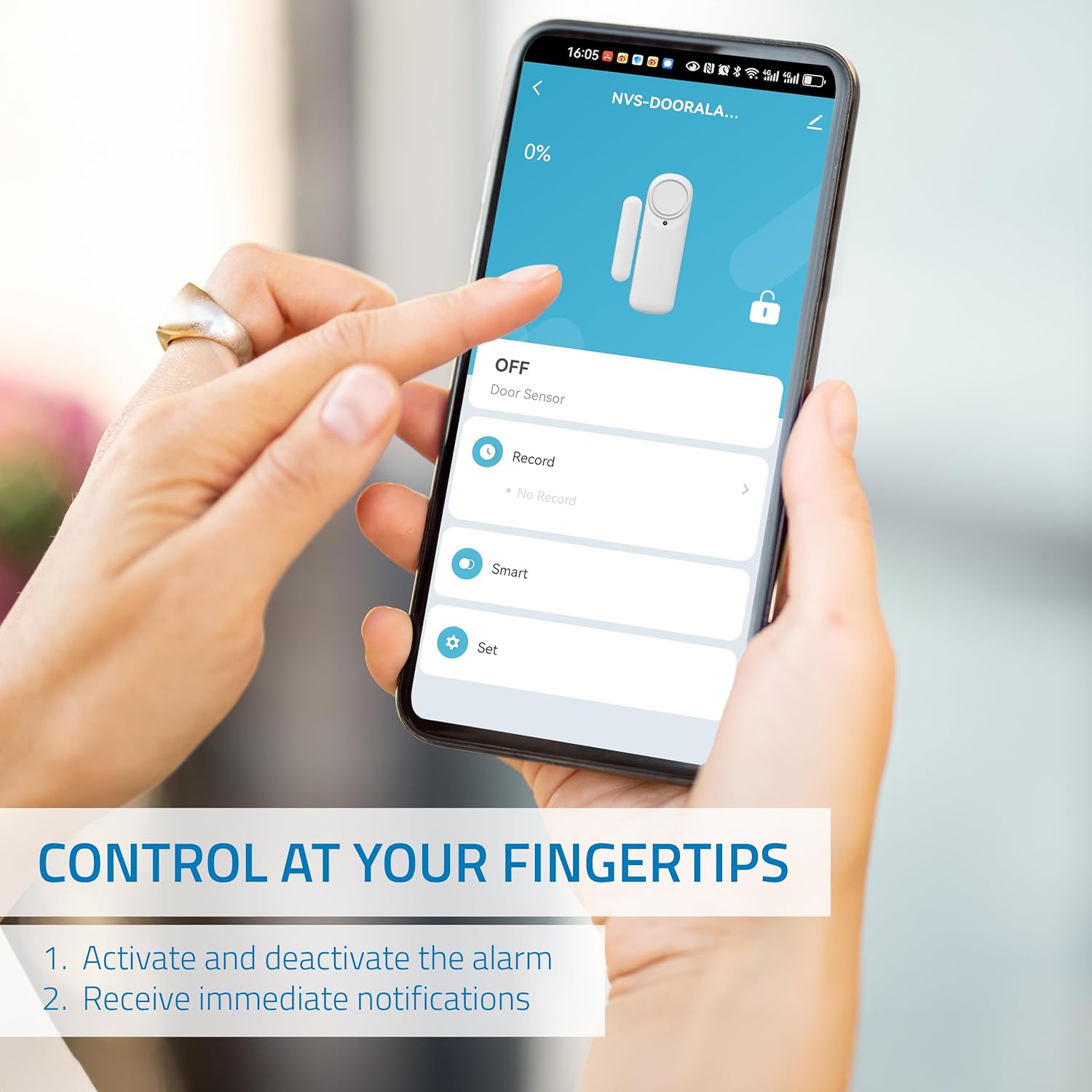
Image: A smartphone screen displaying the control interface for the Nivian Smart WiFi Door Alarm, showing options to activate/deactivate the alarm and receive notifications.
- Via Manual Button:
The main sensor unit features a manual button. Press this button to arm or disarm the alarm. Refer to the device's LED indicator for status confirmation (e.g., solid light for armed, flashing for disarmed).
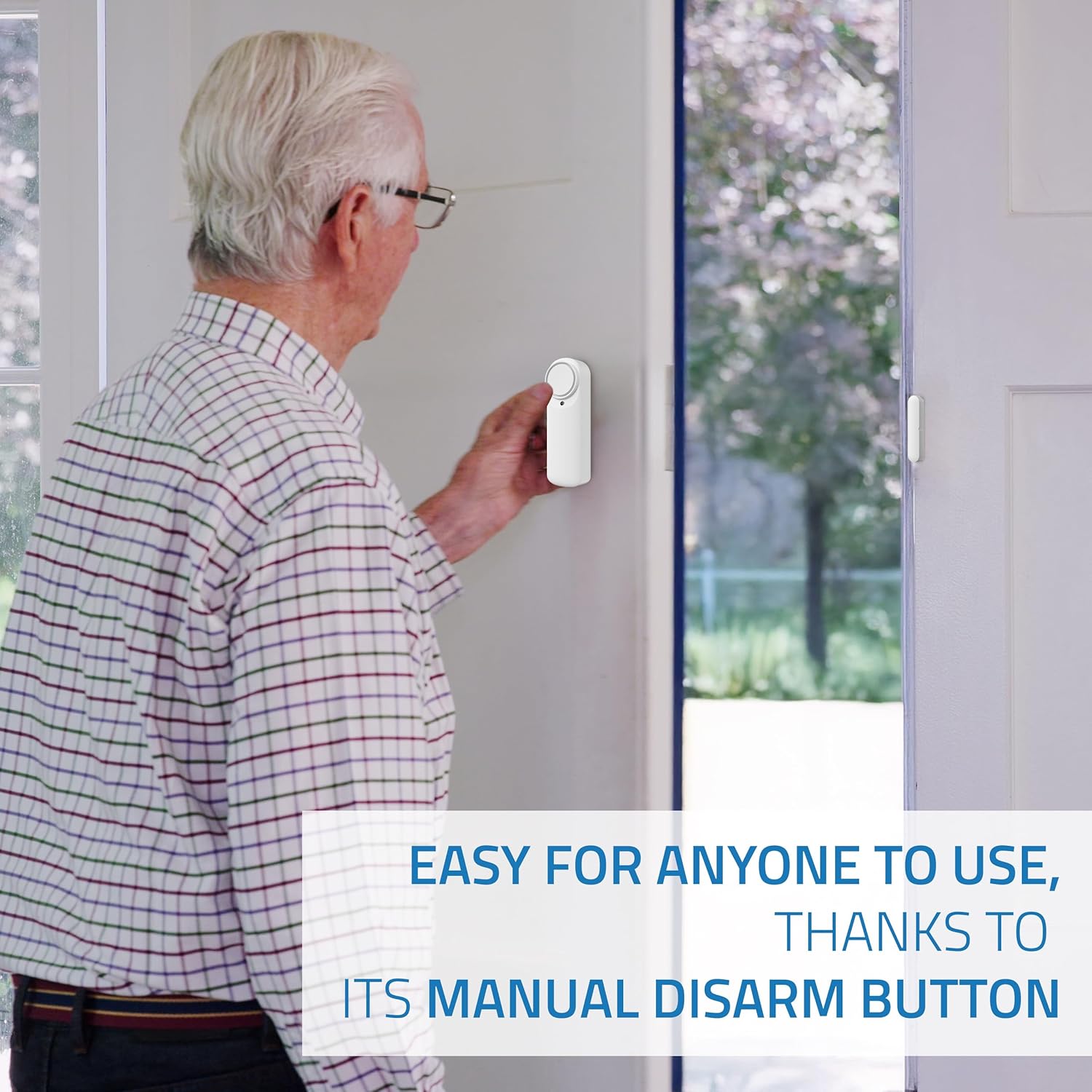
Image: An elderly man demonstrating the use of the manual disarm button on the Nivian Smart WiFi Door Alarm, highlighting its ease of use for all users.
Receiving Notifications
When the alarm is armed and the door/window is opened, you will receive instant notifications on your mobile device. Ensure app notifications are enabled in your phone's settings.
- Intrusion Alerts: Immediate alerts when the sensor is triggered.
- Door Open/Close Status: Real-time updates on the door's status.
- Low Battery Alerts: Notifications when the device's battery is low.
Siren Functionality
The integrated 100 dB siren will activate automatically if an intrusion is detected while the alarm is armed. This serves as a deterrent and alerts occupants or neighbors.
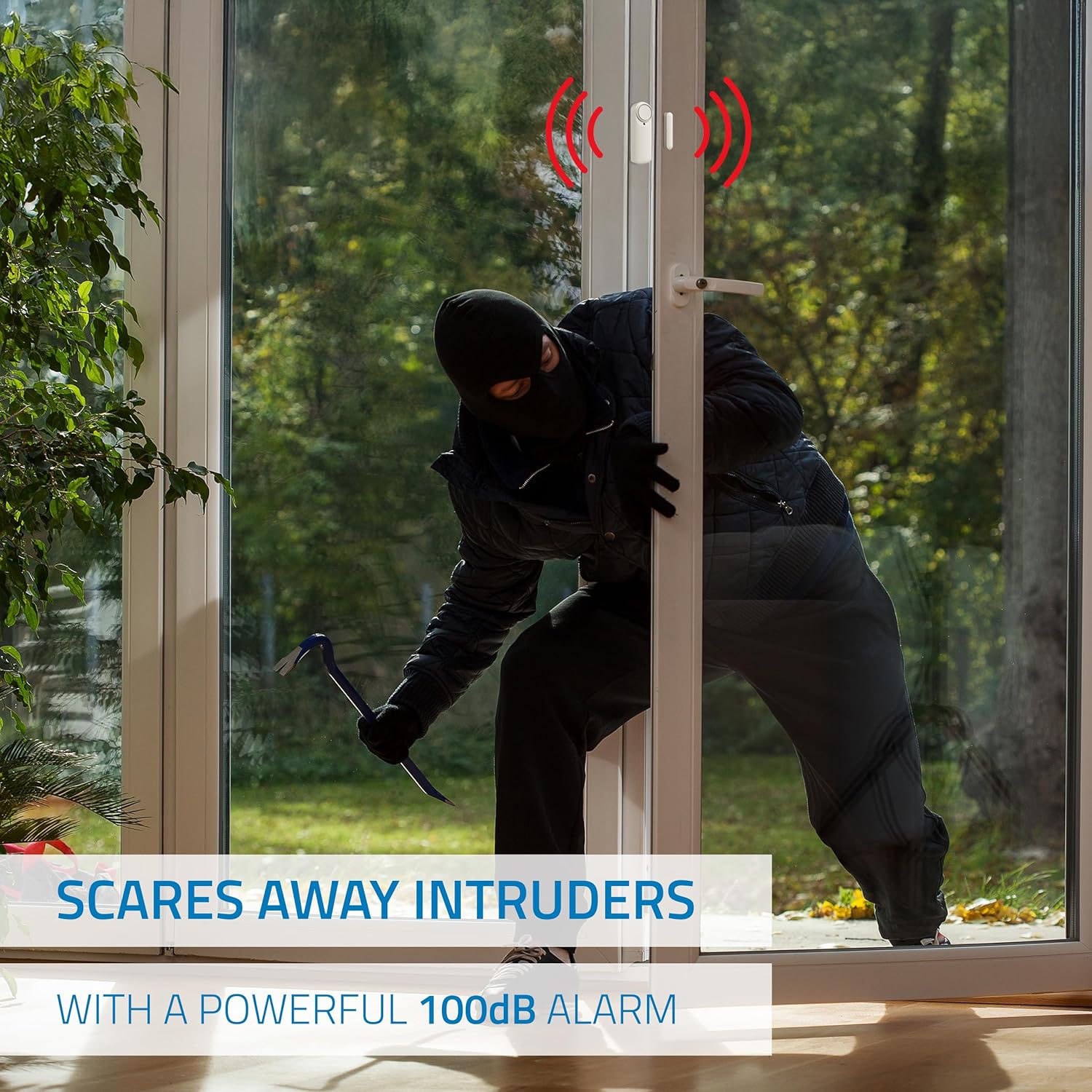
Image: An illustration depicting the Nivian Smart WiFi Door Alarm's powerful 100 dB siren activating to deter an intruder attempting to enter through a door.
Sharing Access
You can share control of the alarm with family members or employees through the mobile application. Look for the "Share Device" or "Device Sharing" option in the app settings.
Maintenance
Battery Replacement
The Nivian Smart WiFi Door Alarm is battery-powered. When you receive a low battery notification, it's time to replace the batteries. The device uses standard batteries (specific type not provided in product data, typically AAA or CR2). Refer to the device's battery compartment for the exact type.
- Carefully open the battery compartment on the main sensor unit.
- Remove the old batteries.
- Insert new batteries, ensuring correct polarity (+/-).
- Close the battery compartment securely.
Cleaning
To maintain the device's appearance and functionality, clean it periodically.
- Use a soft, dry cloth to wipe the exterior of the device.
- Do not use liquid cleaners, aerosols, or solvents, as these can damage the device.
Troubleshooting
| Problem | Possible Cause | Solution |
|---|---|---|
| Device not connecting to WiFi / Lost connection | Incorrect WiFi password; Device too far from router; Router is 5 GHz only; Network interference. |
|
| No notifications received | App notifications disabled; Phone not connected to internet; Device not armed. |
|
| Siren not activating | Alarm not armed; Low battery; Device malfunction. |
|
| False alarms | Improper sensor alignment; Device movement; Environmental factors. |
|
Specifications
- Brand: NIVIAN
- Model Number: NVS-DOORALARM-W
- Sensor Technology: Magnetic Sensor
- Connectivity: WiFi (2.4 GHz)
- Power Source: Battery Powered (Batteries not included, type to be confirmed on device)
- Sound Level: 100 Decibels
- Mounting Type: Door Mount (Adhesive)
- Product Dimensions (L x W x H): 1 x 1 x 5 cm; 70 grams (Main unit and sensor combined)
- Operating Temperature: 0°C to 40°C
- Operating Humidity: <80%
- Compatible Devices: Smartphone, Tablet (via Tuya Smart / Smart Life App)
- Control Method: Application, Manual Button
- Country of Origin: China
Warranty Information
Nivian products are designed for reliability and performance. This product comes with a standard manufacturer's warranty against defects in materials and workmanship. Please refer to the warranty card included in your product packaging or visit the official Nivian website for detailed warranty terms and conditions. Keep your purchase receipt as proof of purchase.
Support
For technical support, frequently asked questions, or additional resources, please visit the Nivian website or contact our customer service team.
- Online Resources:
- Nivian Home Instagram (for tutorials & tips)
- Nivian YouTube Channel (for tutorials & tips)
- Customer Service: Refer to your product packaging or the Nivian website for contact details.

Image: Nivian brand information, including links to Nivian Home Web for information, technical support, and warranty, along with QR codes for Instagram and YouTube tutorials and tips.


