
1. Introduction
This manual provides essential information for setting up, operating, and maintaining your Lenovo ThinkCentre M810z All-in-One Desktop PC. Please read this manual thoroughly to ensure proper usage and to maximize the lifespan of your device.
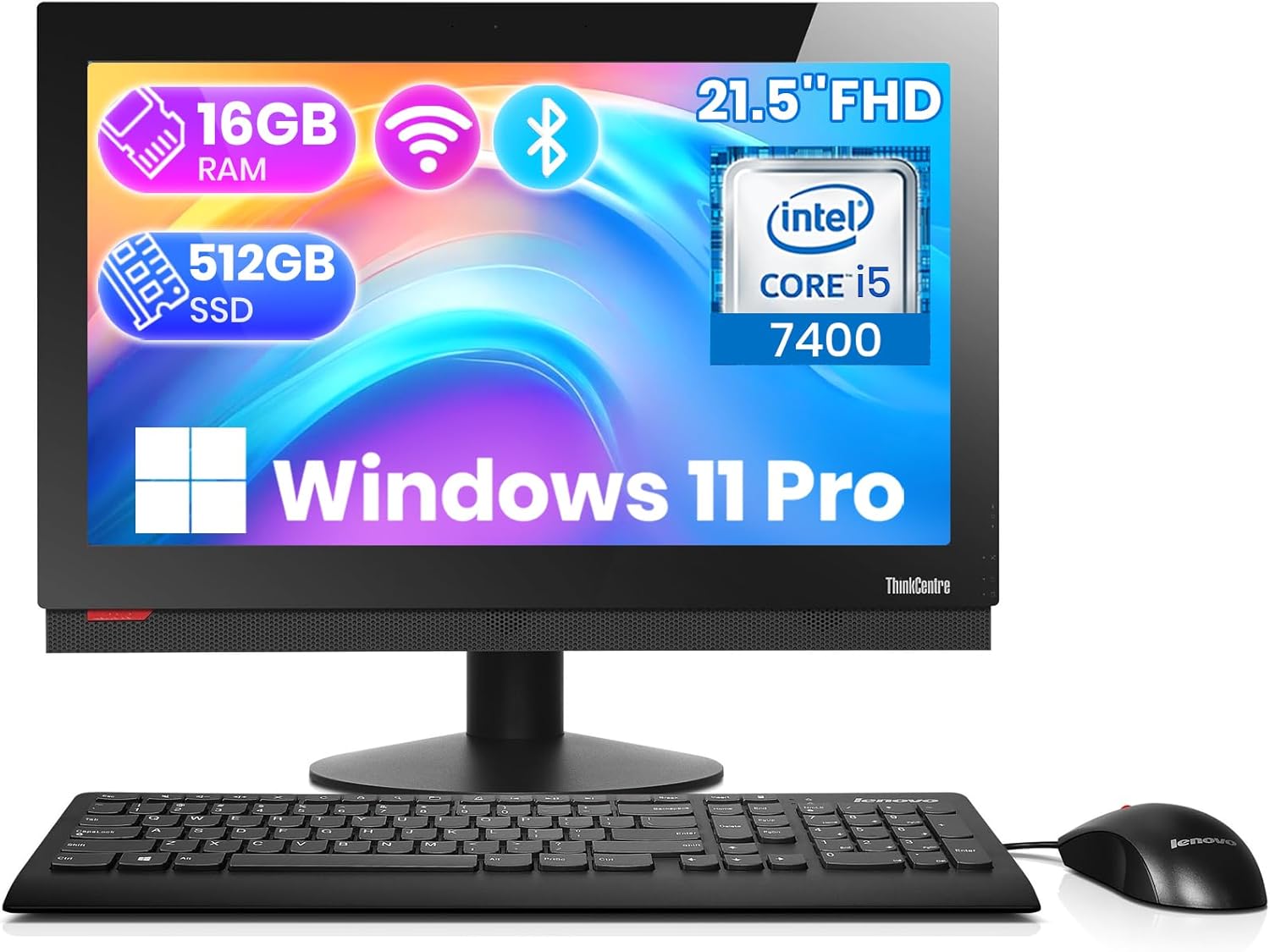
Image 1: Front view of the Lenovo ThinkCentre M810z All-in-One Desktop PC, showcasing the 21.5-inch display, included keyboard, and mouse.
2. Setup Guide
2.1 Unpacking and Initial Placement
Carefully remove all components from the packaging. Place the All-in-One PC on a stable, flat surface with adequate ventilation. Ensure no vents are obstructed.
2.2 Connecting Peripherals
- Power Connection: Connect the power cable to the PC and then to a power outlet.
- Keyboard and Mouse: Connect the included keyboard and mouse to the available USB ports.
- Network Connection: For a wired connection, connect an Ethernet cable to the RJ45 port. For wireless, ensure Wi-Fi is enabled in the operating system settings.
- External Devices: Connect any other external devices (e.g., external hard drives, printers) to the appropriate ports.

Image 2: Detailed view of the rear ports on the Lenovo ThinkCentre M810z, including USB, DisplayPort, and Ethernet (RJ45) connections.

Image 3: Side profile of the Lenovo ThinkCentre M810z, highlighting the integrated optical drive and additional side-mounted USB ports and audio jacks.
2.3 First Power On
Press the power button, usually located on the side or bottom bezel of the display. Follow the on-screen instructions to complete the Windows 11 Pro setup process, including language selection, network configuration, and user account creation.
3. Operating Instructions
3.1 Windows 11 Pro Overview
Your Lenovo ThinkCentre M810z comes pre-installed with Windows 11 Pro. Familiarize yourself with the new interface, Start Menu, and taskbar. Utilize the search function to quickly find applications and settings.
3.2 Display Features
- 21.5-inch Full HD (1920x1080) IPS Display: Enjoy crisp visuals and wide viewing angles.
- Adjustable Stand: The monitor stand allows for tilt adjustments to optimize your viewing experience.

Image 4: Side view of the Lenovo ThinkCentre M810z, illustrating the adjustable stand for ergonomic positioning.
3.3 Connectivity
The All-in-One PC offers a variety of ports for versatile connectivity:
- USB Ports: Multiple USB 2.0 and USB 3.0 ports for connecting peripherals and external storage.
- DisplayPort: For connecting an external monitor.
- RJ45 (Ethernet): For a stable wired network connection.
- Audio Interface: Headphone/Microphone jack.
- 9-in-1 Card Reader: For easy access to data from various memory card formats.
4. Maintenance
4.1 Cleaning
- Screen: Use a soft, lint-free cloth lightly dampened with water or a screen cleaner. Avoid harsh chemicals.
- Chassis: Wipe the exterior with a soft, dry cloth. Use compressed air to clear dust from vents.
4.2 Software Updates
Regularly check for and install Windows updates to ensure system stability, security, and performance. You can find updates in the Windows Settings under "Windows Update."
4.3 Data Backup
Periodically back up your important data to an external drive or cloud storage to prevent data loss.
5. Troubleshooting
5.1 No Power
- Ensure the power cable is securely connected to both the PC and the power outlet.
- Verify the power outlet is functional by plugging in another device.
5.2 Display Issues
- If the screen is blank, ensure the PC is powered on.
- Check display settings in Windows if the resolution or display quality is not optimal.
5.3 Peripheral Not Responding
- Try connecting the keyboard or mouse to a different USB port.
- Restart the computer.
- Ensure drivers are up to date (check Device Manager in Windows).
5.4 Slow Performance
- Close unnecessary applications running in the background.
- Run a disk cleanup and defragmentation (for HDD, not necessary for SSD).
- Check for malware or viruses.
- Ensure sufficient free space on the SSD.
6. Specifications
| Feature | Detail |
|---|---|
| Screen Size | 21.5 Inches |
| Screen Resolution | 1920x1080 (Full HD) |
| Screen Type | IPS LED Backlight |
| Processor | Intel Core i5-7400 (3.0GHz, up to 3.5GHz) |
| RAM | 16GB DDR4 2400MHz |
| Storage | 512GB SSD |
| Graphics | Integrated Graphics |
| Operating System | Windows 11 Pro |
| USB Ports | 4x USB 2.0, 2x USB 3.0 |
| Video Interface | DisplayPort |
| Network | RJ45 (Ethernet), WiFi |
| Card Reader | 9-in-1 Card Reader |
| Item Weight | 25 pounds |
7. Warranty and Support
For warranty information and technical support, please refer to the documentation included with your product or visit the official Lenovo support website. Keep your purchase receipt for warranty claims.
For general inquiries or further assistance, you may contact Lenovo customer service.