1. Introduction
This manual provides essential information for the setup, operation, and maintenance of your PELADN WO7 Mini PC. The WO7 is a compact desktop computer equipped with an AMD Ryzen 7 7735U processor, 32GB DDR5 RAM, and a 1TB NVMe SSD, designed for efficient performance in various computing tasks, including gaming and multitasking.
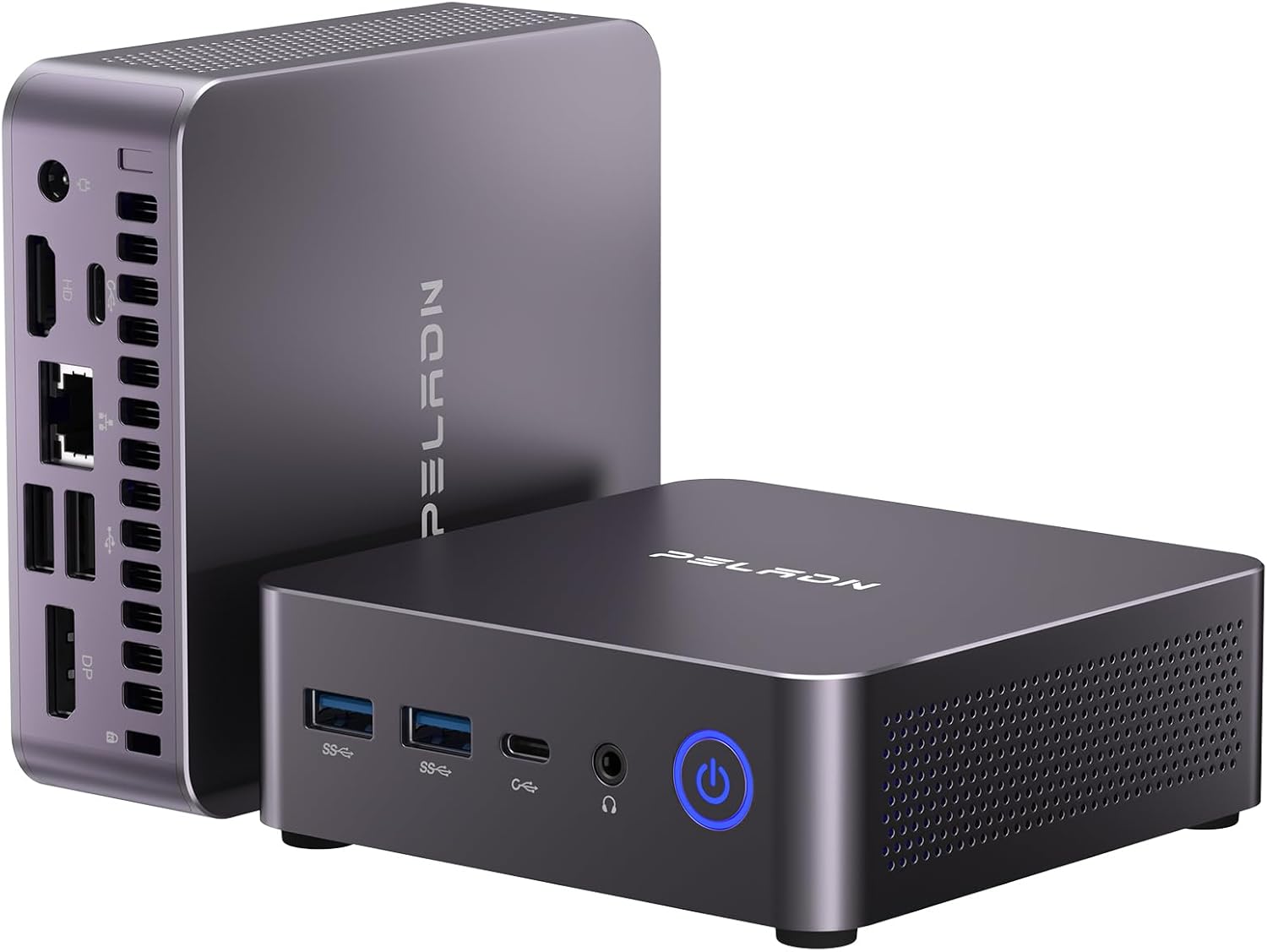
Figure 1: PELADN WO7 Mini PC, showcasing its compact design and port layout.
2. Package Contents
Verify that all items listed below are included in your package:
- 1 x PELADN WO7 Mini PC (32GB RAM, 1TB SSD)
- 1 x HD cable
- 1 x VESA Mount with Screws
- 1 x Power Adapter
- 1 x User Manual

Figure 2: Included accessories with the PELADN WO7 Mini PC.
3. Product Overview
3.1. Key Features
- Processor: AMD Ryzen 7 7735U (8 Cores/16 Threads, up to 4.75Ghz)
- Graphics: Integrated Radeon 680M 12 CU Graphics Card
- Memory: 32GB DDR5 RAM (expandable to 64GB)
- Storage: 1TB NVMe SSD (up to 4TB)
- Display Output: Supports 4K/60Hz Quadruple Display via DP, HD, and Dual Type-C ports
- Wireless Connectivity: WiFi 6 and Bluetooth 5.2
- Operating System: Pre-installed OS (supports Linux, Ubuntu)
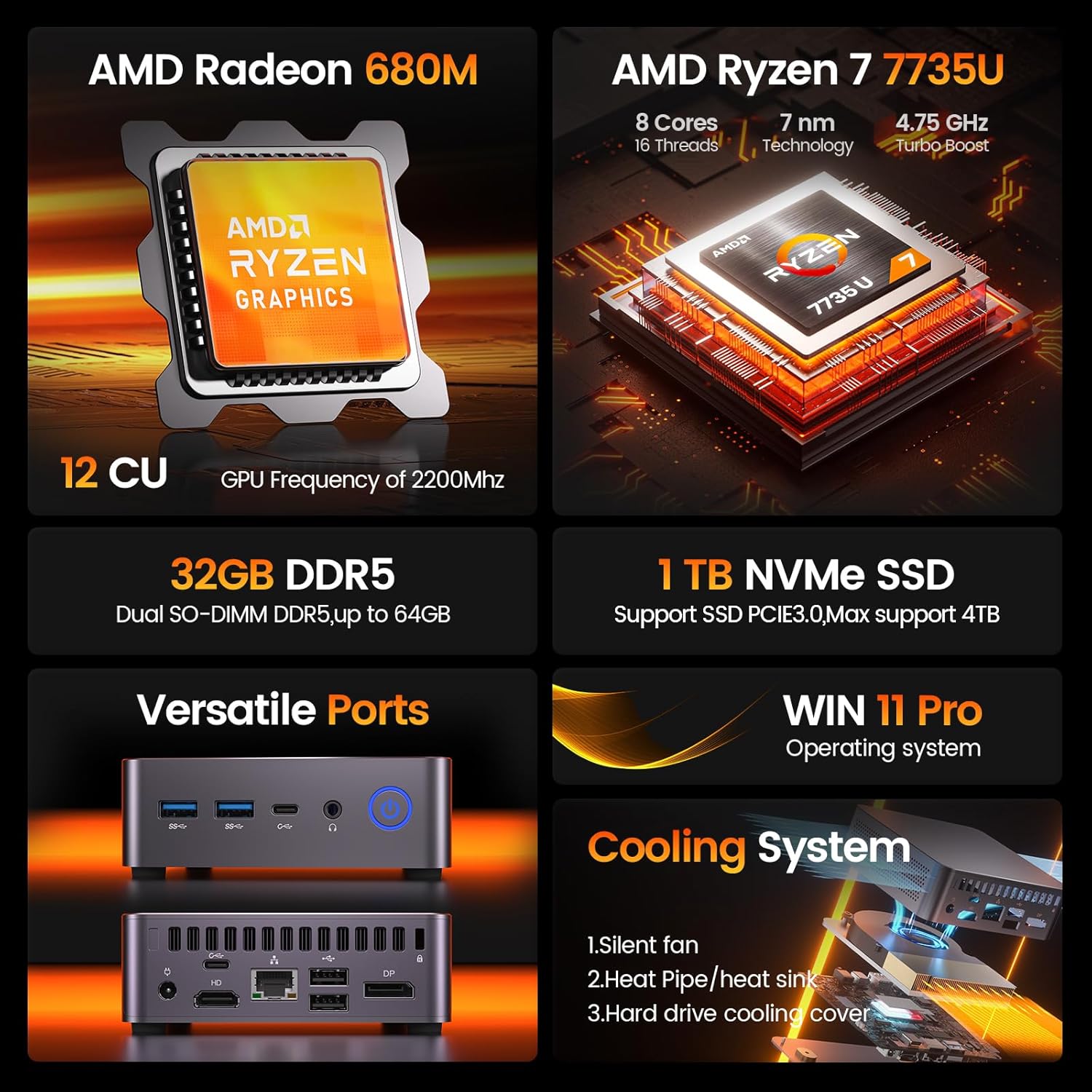
Figure 3: Overview of PELADN WO7 Mini PC's core features.
3.2. Port Layout
The PELADN WO7 Mini PC offers a comprehensive set of ports for various connectivity needs:
- Front Ports:
- 2 x USB 3.2 ports
- 2 x Type-C USB 3.2 ports
- 1 x 2-in-1 Audio Jack (Headphone & Microphone)
- 1 x Power Button
- Rear Ports:
- 1 x DC Power Port
- 1 x HD 2.0 Port
- 1 x LAN Port (2.5G)
- 2 x USB 2.0 Ports
- 2 x DP 1.4 Ports
- 1 x Anti-theft Lock Slot

Figure 4: Front and Rear Port Layout.
4. Setup
Follow these steps to set up your PELADN WO7 Mini PC:
- Connect Power: Plug the power adapter into the DC Power Port on the rear of the Mini PC, then connect it to a power outlet.
- Connect Display: Connect your monitor(s) to the Mini PC using the HD, DP, or Type-C ports. The device supports up to four 4K displays simultaneously.
- Connect Peripherals: Connect your keyboard, mouse, and other USB devices to the available USB ports.
- Network Connection: For initial setup, it is recommended to use a wired Ethernet connection via the LAN port. Alternatively, you can connect via WiFi 6 after the initial setup.
- Power On: Press the power button on the front of the Mini PC. The pre-installed operating system will guide you through the initial configuration.
4.1. Unboxing and Initial Connection
Video 1: A visual guide to unboxing the PELADN WO7 Mini PC and connecting its essential components for the first time.
5. Operating Instructions
5.1. Power On/Off
- To Power On: Press the power button on the front of the Mini PC. The power indicator light will illuminate.
- To Power Off: Access the operating system's shutdown menu (e.g., Start Menu > Power > Shut down in Windows) or press and hold the power button for 5-7 seconds for a forced shutdown (not recommended for regular use).
5.2. Multi-Display Configuration
The PELADN WO7 supports up to four 4K displays simultaneously, offering enhanced productivity and immersive entertainment. Connect your displays to the available HD, DP, and Type-C ports. The operating system will automatically detect the connected displays, allowing you to configure display settings (e.g., extend, duplicate, primary display) through the display settings menu.

Figure 5: Quadruple Display Setup.
6. Connectivity
The Mini PC features advanced connectivity options:
- WiFi 6: Provides faster and more stable wireless internet for browsing, streaming, and gaming.
- Bluetooth 5.2: For stable and efficient connection to various wireless devices such as speakers, headphones, and other peripherals.
- Ethernet (2.5G): A high-speed wired network connection for optimal internet performance.

Figure 6: High-Speed Wireless Connectivity.
7. Specifications
| Feature | Detail |
|---|---|
| Model Number | WO7 |
| Processor | AMD Ryzen 7 7735U (8C/16T, up to 4.75Ghz) |
| Graphics Coprocessor | Radeon 680M Graphics (Integrated) |
| RAM | 32GB DDR5 (Expandable to 64GB) |
| Hard Drive | 1TB NVMe SSD (Supports up to 4TB) |
| Max Screen Resolution | 3840x2160 (4K) |
| Display Output | 2x DP 1.4, 1x HD 2.0, 2x Type-C (Quadruple Display Support) |
| USB Ports | 2x USB 3.2, 2x USB 2.0, 2x Type-C USB 3.2 |
| Network | LAN (2.5G), WiFi 6 |
| Bluetooth | Bluetooth 5.2 |
| Audio | 1x 2-in-1 Audio Jack (HP&MIC) |
| Operating System | Pre-installed OS (Supports Linux, Ubuntu) |
| Item Weight | 2.31 pounds |
| Package Dimensions | 6.5 x 6.46 x 4.57 inches |
8. Maintenance
To ensure the longevity and optimal performance of your PELADN WO7 Mini PC, consider the following maintenance tips:
- Keep Vents Clear: Ensure that the ventilation holes on the sides of the Mini PC are not obstructed to prevent overheating.
- Regular Cleaning: Periodically clean the exterior of the device with a soft, dry cloth. Use compressed air to gently clear dust from the vents.
- Software Updates: Regularly update your operating system and drivers to ensure stability and security.
- Safe Shutdown: Always shut down the Mini PC properly through the operating system to prevent data corruption.
9. Troubleshooting
If you encounter issues with your PELADN WO7 Mini PC, try the following basic troubleshooting steps:
- No Power:
- Check if the power adapter is securely connected to both the Mini PC and the power outlet.
- Ensure the power outlet is functional.
- No Display:
- Verify that the display cable (HD, DP, or Type-C) is securely connected to both the Mini PC and the monitor.
- Ensure the monitor is powered on and set to the correct input source.
- Try a different display cable or port.
- Peripheral Not Detected:
- Ensure the peripheral is properly connected to a USB port.
- Try connecting the peripheral to a different USB port.
- Restart the Mini PC.
- Slow Performance:
- Close unnecessary applications running in the background.
- Check for and install any pending operating system updates.
- Ensure adequate ventilation to prevent thermal throttling.
10. Warranty and Support
For detailed warranty information and technical support, please refer to the official PELADN website or contact PELADN customer service. Keep your purchase receipt for warranty claims.