
1. Introduction
This manual provides detailed instructions for the installation, operation, and maintenance of the Generic MY-7078 Biometric Fingerprint Time Attendance Machine. This device is designed to streamline workplace attendance tracking using advanced fingerprint recognition technology. Please read this manual thoroughly before operating the device to ensure proper usage and optimal performance.
2. Product Overview
The MY-7078 is an advanced biometric time attendance system featuring a high-precision optical fingerprint sensor and a 2.4-inch TFT color display. It supports both offline and online operation, offering multiple identification methods including fingerprint and password authentication. The device is equipped with intelligent learning capabilities to adapt to environmental changes and minor finger injuries, ensuring fast and accurate recognition.
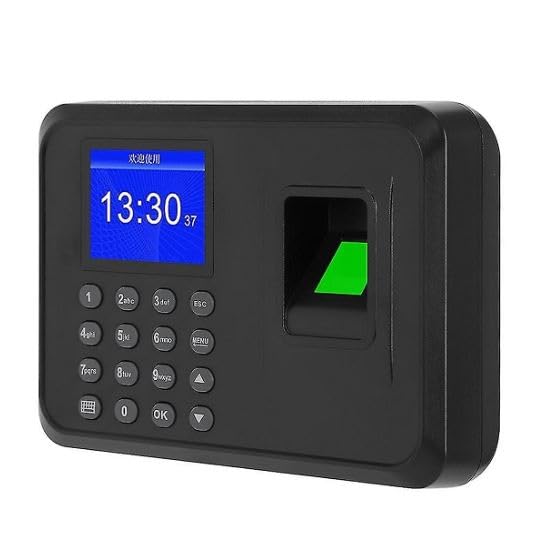
Figure 1: MY-7078 Device Front View. This image displays the device's screen, numeric keypad, and the illuminated fingerprint scanner on the right side.
Key Features:
- Advanced Recognition: Sub-1-second fingerprint recognition with intelligent learning.
- Display & Interface: 2.4-inch TFT color screen, T9 input method, multi-language support (English, Chinese, Korean).
- Versatile Connectivity: USB communication for data transfer (attendance records, fingerprint data).
- Operating Modes: Supports both offline and online working modes.
- Identification Methods: Fingerprint and password authentication.
- Power Management: Energy-saving optical sensor and advanced power management with auto-sleep.
3. Package Contents
Please verify that all items are present in the package:
- MY-7078 Biometric Fingerprint Time Attendance Machine
- DC 5V/1A Power Adapter (100-240V compatible)
- Mounting Screws
- User Manual (this document)
4. Setup
4.1 Wall Mounting
The MY-7078 device is designed for wall mounting. Choose a suitable location that is easily accessible for users and protected from direct sunlight or moisture.
- Mark the desired drilling points on the wall using the device or a mounting template (if provided).
- Drill holes at the marked positions.
- Insert wall plugs (if necessary) into the drilled holes.
- Secure the device to the wall using the provided mounting screws.

Figure 2: Device Wall Mounted. This image shows the time attendance machine installed on a wall in an office setting, demonstrating its typical placement.
4.2 Power Connection
Connect the DC 5V/1A power adapter to the device's power input port and then plug the adapter into a standard electrical outlet. The device will power on automatically.
5. Operating Instructions
5.1 Initial Setup and Administrator Enrollment
Upon first power-on, it is recommended to set up an administrator account. This account will have access to the device's menu for configuration and user management.
- Press the MENU button.
- If prompted, enter the default administrator password (consult your device's specific default, often 0000 or 1234) or enroll the first fingerprint as an administrator.
- Navigate to User Management and select Add User.
- Assign a User ID and enroll the administrator's fingerprint multiple times for accuracy.
- Set the user's privilege level to Administrator.
5.2 User Enrollment (Fingerprint/Password)
To add new users to the system:
- Access the main menu using the administrator's fingerprint or password.
- Navigate to User Management > Add User.
- Enter a unique User ID.
- Select Enroll Fingerprint and follow the on-screen prompts to place the finger on the sensor multiple times until successful.
- Alternatively, select Enroll Password and enter a numeric password.
- Set the user's privilege level (e.g., User).
- Repeat for all users.
5.3 Time Attendance Recording
Users can record their attendance by:
- Fingerprint: Place a registered finger on the optical sensor. The device will confirm successful recognition with a voice prompt and display.
- Password: Enter the assigned User ID, then press OK, then enter the password and press OK again.
The device automatically records the time and date of each successful authentication.
5.4 Data Management (USB)
Attendance records and user data can be transferred via a USB flash drive.
- Insert a formatted USB flash drive into the device's USB port.
- Access the main menu as an administrator.
- Navigate to Data Management > Download Data or Upload Data (for user/fingerprint data backup/restore).
- Select the desired data type (e.g., attendance records, user information).
- Confirm the transfer. The device will indicate completion.
- Safely remove the USB flash drive.
The device can generate attendance reports directly, simplifying workforce management.
5.5 System Settings
From the administrator menu, you can configure various system settings:
- Time & Date: Adjust the device's internal clock.
- Language: Select from available languages (English, Chinese, Korean).
- Voice Prompts: Enable or disable voice feedback.
- Network Settings: (If applicable) Configure network parameters for online operation.
- Power Management: Adjust auto-sleep and other energy-saving features.
- System Info: View device details and firmware version.
6. Maintenance
- Cleaning: Use a soft, dry cloth to clean the device's screen and fingerprint sensor. Avoid abrasive cleaners or liquids that could damage the components.
- Data Backup: Regularly back up attendance records and user data to a USB flash drive to prevent data loss.
- Firmware Updates: Check the manufacturer's website for any available firmware updates to ensure optimal performance and security.
- Environmental Conditions: Ensure the device is operated within its specified temperature and humidity ranges. Avoid extreme conditions.
7. Troubleshooting
| Problem | Possible Cause | Solution |
|---|---|---|
| Device does not power on. | No power supply or faulty adapter. | Check power connection. Ensure adapter is correctly plugged in and functional. |
| Fingerprint recognition fails frequently. | Finger is dirty, wet, or injured; poor enrollment quality; sensor is dirty. | Ensure finger is clean and dry. Re-enroll fingerprint if necessary, ensuring good contact. Clean the fingerprint sensor. |
| Cannot access menu. | No administrator set up or incorrect administrator authentication. | Ensure an administrator is enrolled. Use the correct administrator fingerprint or password. |
| USB data transfer fails. | USB drive not formatted correctly; USB drive faulty; incorrect menu operation. | Ensure USB drive is formatted to FAT32. Try a different USB drive. Follow data transfer instructions carefully. |
8. Specifications
| Model Name | MY-7078 |
| Brand | Generic |
| Display | 2.4-inch TFT Color Screen |
| Fingerprint Sensor | Optical, 500DPI |
| Identification Methods | Fingerprint, Password |
| Recognition Speed | < 1 second |
| Connectivity | USB (for data transfer) |
| Power Supply | DC 5V/1A Adapter (100-240V compatible) |
| Material | ABS |
| Dimensions (D x W x H) | 28 cm x 14 cm x 5 cm |
| Weight | 455 Grams |
| Mounting Type | Wall Mount |
| Languages Supported | English, Chinese, Korean |
9. Warranty and Support
This product comes with a limited warranty. For specific warranty terms and conditions, please refer to the documentation provided with your purchase or contact your retailer.
For technical support or inquiries, please contact your product vendor or refer to their official support channels.


