
1. Introduction
This user manual provides detailed instructions for the Dpofirs Android E-reader, Model Dp17pz240tfa-11. Please read this manual thoroughly before using your device to ensure proper operation and to maximize your reading experience. Keep this manual for future reference.
2. Product Overview
2.1 Key Features
- Display: 5.76-inch HD E-paper display with 920x680 resolution and 198 PPI.
- Performance: Quad-Core Processor, 1GB RAM.
- Storage: 32GB internal ROM, expandable up to 1TB via storage card (sold separately).
- Connectivity: Wi-Fi and Bluetooth support.
- Reading Customization: 24 adjustable color temperatures and enhanced contrast, dark mode, personalized front light, adjustable font size.
- Supported Formats: PDF, EPUB, MOBI, TXT, FB2, DOC, AZW, AZW3.
- Battery: Built-in 1300mAh Lithium Polymer battery.
- Interface: Capacitive touch screen and physical page-turn buttons.
2.2 Device Components
Familiarize yourself with the physical components of your Dpofirs Android E-reader.

This image shows the front of the Dpofirs Android E-reader, highlighting its compact design and E-paper display. The device is designed for comfortable one-handed reading.

This image provides a close-up view of the Type-C charging port located on the device, used for charging the e-reader's internal battery.

This image shows the slot for expandable storage, allowing users to insert a storage card (up to 1TB) to increase the device's capacity for e-books and other files.
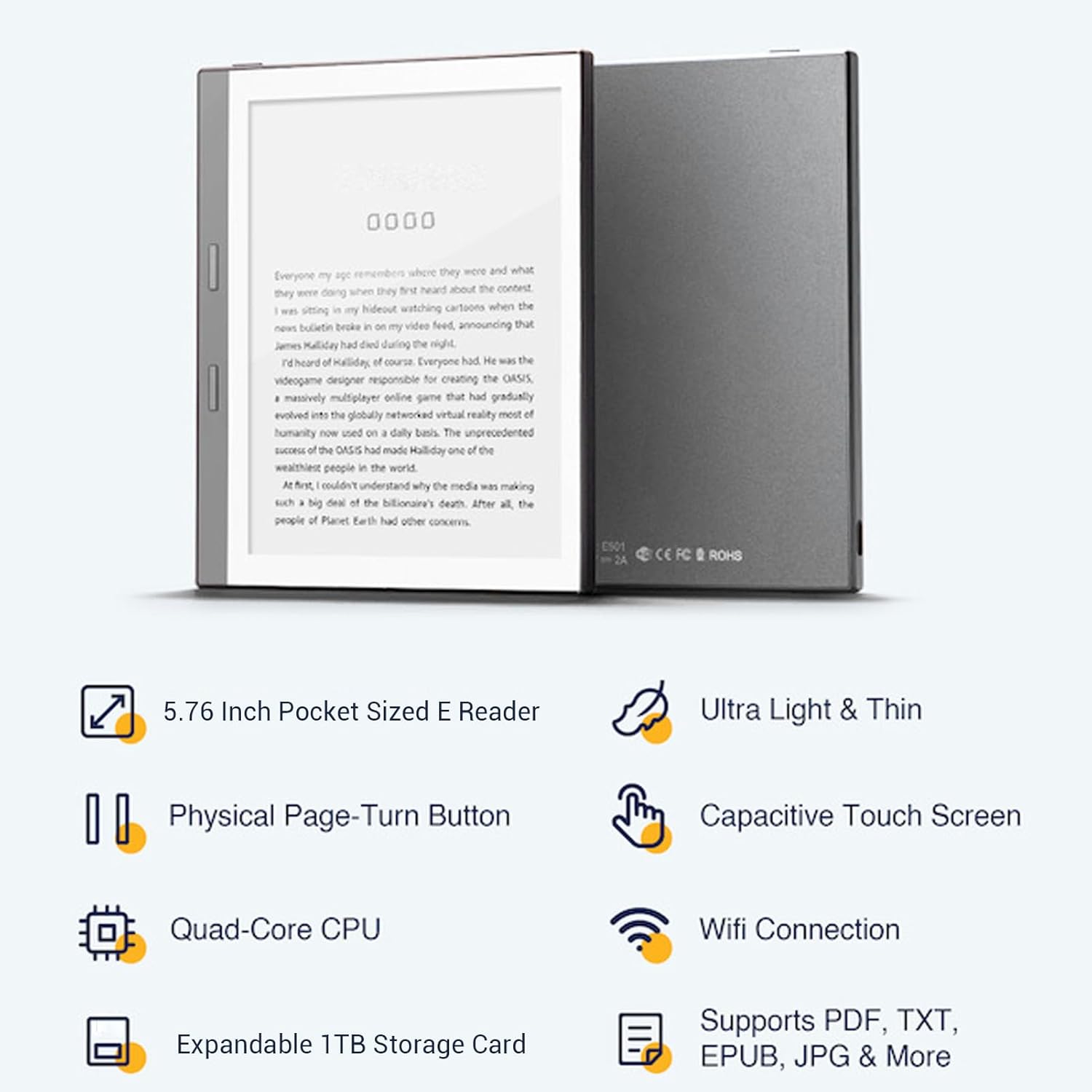
This image displays both the front and back of the e-reader, showcasing its slim profile and the location of the model number and regulatory markings on the rear panel.
3. Setup
3.1 Initial Charging
Before first use, fully charge your Dpofirs Android E-reader. Connect the provided power cord to the Type-C charging port on the device and plug the other end into a power adapter. The charging indicator will show the charging status.
3.2 Power On/Off
- To power on: Press and hold the power button until the screen activates.
- To power off: Press and hold the power button, then select 'Power Off' from the options that appear on the screen.
- To put to sleep: Briefly press the power button. Press again to wake the device.
4. Operating Instructions
4.1 Navigation
The e-reader features both a capacitive touch screen and physical page-turn buttons for navigation.
- Touch Screen: Tap to select items, swipe to scroll, and pinch to zoom (if supported by the application).
- Page-Turn Buttons: Use the physical buttons on the side of the device to turn pages forward or backward during reading.

This image demonstrates a user interacting with the e-reader, specifically using the physical page-turn buttons to navigate through a book.
4.2 Reading Customization
Enhance your reading comfort with various customization options:
- Font Size: Adjust the font size to your preference for optimal readability.
- Color Temperature & Contrast: The device offers 24 adjustable color temperatures and enhanced contrast settings, suitable for both indoor and outdoor reading, including direct sunlight.
- Dark Mode: Activate dark mode for comfortable reading in low-light conditions, displaying white text on a black background.

This image illustrates the on-screen menu for adjusting font size, allowing users to customize their reading experience.
4.3 Supported File Formats
The Dpofirs Android E-reader supports a wide range of e-book formats, including PDF, EPUB, MOBI, TXT, FB2, DOC, AZW, and AZW3. This allows for versatile access to your digital library.
5. Connectivity
5.1 Wi-Fi Connection
To connect to a Wi-Fi network:
- Go to 'Settings' from the home screen.
- Select 'Network & Internet'.
- Turn on Wi-Fi and select your desired network from the list.
- Enter the password if prompted and tap 'Connect'.
5.2 Bluetooth Connection
To pair with a Bluetooth device:
- Go to 'Settings' from the home screen.
- Select 'Connected devices'.
- Turn on Bluetooth and tap 'Pair new device'.
- Select your Bluetooth device from the list and follow the on-screen instructions to complete pairing.
6. Storage
The Dpofirs Android E-reader comes with 1GB RAM for smooth operation and 32GB of internal storage (ROM) for your e-books and applications. For users requiring more space, the device supports expandable storage up to 1TB using a compatible storage card (not included).
7. Battery
The e-reader is equipped with a 1300mAh Lithium Polymer battery. For optimal battery life, it is recommended to fully charge the device before its first use and to avoid completely draining the battery regularly. Use the provided charging cable and a compatible power adapter.
8. Maintenance
- Keep the device away from extreme temperatures and direct sunlight.
- Avoid exposing the device to water or high humidity.
- Clean the screen with a soft, lint-free cloth. Do not use abrasive cleaners.
- Handle the device with care to prevent drops or impacts.
9. Troubleshooting
9.1 Device Not Turning On
- Ensure the battery is charged. Connect the device to a power source and allow it to charge for at least 30 minutes before attempting to power it on again.
- Press and hold the power button for 10-15 seconds to perform a hard reset.
9.2 Screen Not Responding
- Restart the device.
- Ensure the screen is clean and free of debris.
9.3 Cannot Connect to Wi-Fi
- Verify that Wi-Fi is enabled in the device settings.
- Check if other devices can connect to the same Wi-Fi network.
- Restart your Wi-Fi router.
- Ensure you are entering the correct Wi-Fi password.
For further assistance, please refer to the support information in Section 11.
10. Specifications
| Feature | Specification |
|---|---|
| Brand | Dpofirs |
| Model Number | Dp17pz240tfa-11 |
| Display Technology | E-Ink |
| Screen Size | 5.76 inches |
| Display Resolution | 920x680 |
| RAM | 1GB |
| Internal Storage (ROM) | 32GB |
| Max. Expandable Storage | 1TB (Storage card not included) |
| Battery Type | Lithium Ion Polymer (1300mAh) |
| Color | Gray |
| Supported File Formats | PDF, EPUB, MOBI, TXT, FB2, DOC, AZW, AZW3 |
| Features | E-paper technology, Wi-Fi/Bluetooth connectivity, expandable storage, touch screen |
| Included Components | E-reader, Protective Case, Power Cord, User Manual |
| Country of Origin | China |
11. Warranty and Support
11.1 Warranty Information
This Dpofirs Android E-reader comes with a 1-year warranty from the date of purchase. The warranty covers manufacturing defects and malfunctions under normal use. It does not cover damage caused by misuse, accidents, unauthorized modifications, or external factors.
11.2 Customer Support
If you encounter any issues or have questions regarding your Dpofirs Android E-reader that are not addressed in this manual, please contact Dpofirs customer support through the retailer where you purchased the device or visit the official Dpofirs website for contact information.
12. Product in Action
Watch this video to see the Dpofirs Android E-reader in use, demonstrating its features and functionality.
This video showcases the compact design, capacitive touch screen, physical page-turn buttons, and customizable reading options of the Dpofirs Android E-reader. It also highlights its portability and ability to store a vast library of books.