
Autel K-M.100
Autel MaxiIM K-M.100 Diagnostic Tool User Manual
1. Introduction
Welcome to the user manual for the Autel MaxiIM K-M.100 Diagnostic Tool. This manual provides essential information for the proper setup, operation, maintenance, and troubleshooting of your device. Please read this manual thoroughly before using the tool to ensure safe and effective operation.
The Autel MaxiIM K-M.100 is a professional automotive diagnostic and key programming tool designed for a wide range of vehicle models. It features advanced hardware for fast performance and supports continuous software updates.
2. Product Overview
2.1. Components
The Autel MaxiIM K-M.100 package includes the following items:
- Autel Diagnostic Tool K-M.100 (Main Unit)
- VCI 200 Adapter
- Packing Box
2.2. Device Features
The MaxiIM K-M.100 is equipped with advanced features to enhance diagnostic and key programming capabilities:
- Operating System: Android 9.0 with Rockchip PX30 processor for quick boot-up and smooth multitasking.
- Display: 5.5-inch (1280x720) touchscreen for clear data visualization.
- Memory: 2GB RAM + 64GB internal storage.
- Battery: 4950mAh battery for extended operation.
- Vehicle Coverage: Supports over 700 vehicle models globally.
- Updates: Includes lifetime software updates.
2.3. Product Images

Figure 1: Front and back view of the Autel MaxiIM K-M.100 Diagnostic Tool, showing the main unit and the VCI200 adapter.
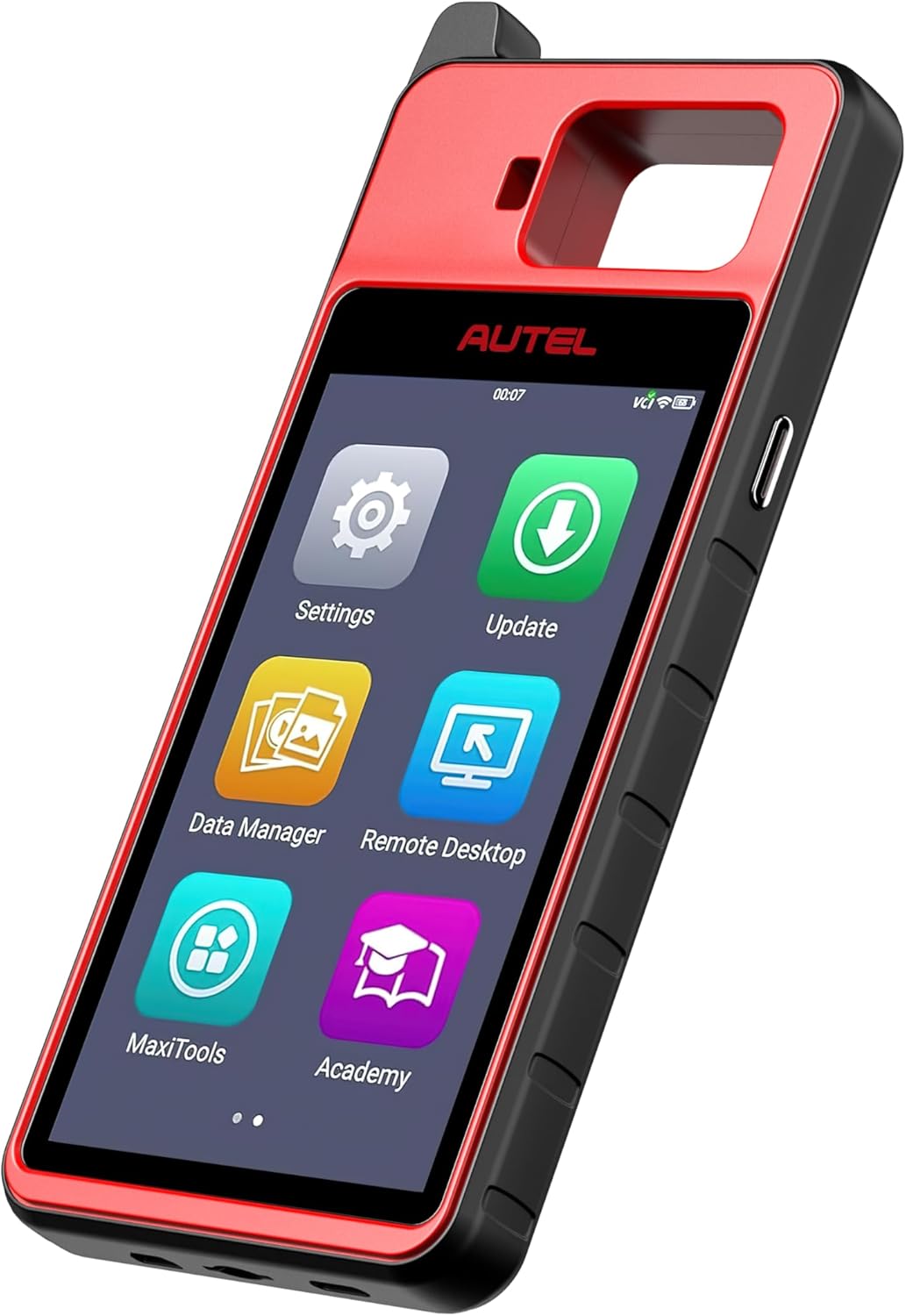
Figure 2: Angled view of the Autel MaxiIM K-M.100 Diagnostic Tool, highlighting its ergonomic design.

Figure 3: Front view of the Autel MaxiIM K-M.100 Diagnostic Tool, showing the main menu interface on the screen.
3. Setup
Follow these steps to set up your Autel MaxiIM K-M.100 for first-time use:
3.1. Initial Charging
- Connect the provided power adapter to the MaxiIM K-M.100 charging port.
- Plug the adapter into a standard electrical outlet.
- Allow the device to charge completely before first use. The charging indicator will show the battery status.
3.2. Powering On/Off
- To Power On: Press and hold the Power button (usually located on the side) until the screen illuminates.
- To Power Off: Press and hold the Power button, then select "Power Off" from the options on the screen.
3.3. Initial Software Configuration
- Upon first boot, follow the on-screen prompts to select your language, time zone, and Wi-Fi network.
- Register your device with Autel by creating an account or logging in with an existing one. This is necessary for software updates and support.
- Perform a system update to ensure all software is current. Navigate to the "Update" icon on the main screen and follow instructions.
4. Operating Instructions
4.1. Connecting to a Vehicle
- Locate the vehicle's OBD2 port, typically under the dashboard on the driver's side.
- Plug the VCI200 adapter into the vehicle's OBD2 port. Ensure a secure connection.
- The VCI200 adapter will establish a wireless connection with the MaxiIM K-M.100 main unit. Verify the connection status indicator on the main unit.
- Turn the vehicle's ignition to the "ON" position (engine off).
4.2. Performing Diagnostics
- From the main menu, select the "Diagnostics" application.
- Choose the vehicle manufacturer, model, and year as prompted.
- The system will automatically scan for available vehicle systems.
- Select the desired diagnostic function, such as "Auto Scan" for a full system scan, "Control Unit" for specific module access, or "Service Functions" for maintenance tasks.
- Follow the on-screen instructions to read fault codes, view live data, perform active tests, or access special functions.
4.3. Key Programming (IMMO)
The MaxiIM K-M.100 supports various immobilizer and key programming functions:
- From the main menu, select the "IMMO" application.
- Choose the vehicle manufacturer, model, and year.
- Select the specific IMMO function you wish to perform, such as "Key Learning," "Remote Control Learning," "IMMO Data Read," or "IMMO ECU Reset."
- Follow the detailed on-screen instructions carefully. These procedures often require specific steps like turning the ignition on/off, inserting/removing keys, or entering security codes.
- Ensure the vehicle battery is adequately charged during key programming procedures to prevent interruptions.
4.4. Software Updates
Regular software updates ensure your tool has the latest vehicle coverage and functions:
- Connect the MaxiIM K-M.100 to a stable Wi-Fi network.
- Tap the "Update" icon on the main screen.
- Select the available updates and tap "Download All" or select specific updates.
- Once downloaded, tap "Install" to apply the updates. The device may restart during this process.
5. Maintenance
5.1. Cleaning the Device
- Use a soft, damp cloth to clean the exterior of the main unit and VCI adapter.
- Avoid using abrasive cleaners or solvents that could damage the screen or casing.
- Keep the charging port and OBD2 connector free of dust and debris.
5.2. Battery Care
- Charge the device regularly, even if not in frequent use, to maintain battery health.
- Avoid exposing the device to extreme temperatures, which can degrade battery performance.
5.3. Software Maintenance
- Perform software updates as they become available to ensure optimal performance and access to new features.
- Regularly back up important diagnostic data to an external storage device or cloud service if available.
6. Troubleshooting
This section addresses common issues you might encounter with your MaxiIM K-M.100.
| Problem | Possible Cause | Solution |
|---|---|---|
| Device does not power on. | Low battery; Power button not held long enough; Device malfunction. | Charge the device fully; Press and hold the Power button for 3-5 seconds; Contact support if issue persists. |
| VCI200 adapter not connecting. | Loose connection; VCI not powered; Bluetooth interference. | Ensure VCI is firmly plugged into OBD2 port; Check vehicle ignition is ON; Move away from strong wireless signals. |
| Unable to communicate with vehicle. | Incorrect vehicle selection; Faulty OBD2 port; Software issue. | Verify vehicle information; Check vehicle's OBD2 port with another tool; Perform software update; Contact support. |
| Software update fails. | Unstable Wi-Fi connection; Insufficient storage space. | Ensure strong Wi-Fi signal; Clear unnecessary data to free up space; Retry update. |
If you encounter issues not listed here or if the suggested solutions do not resolve the problem, please contact Autel customer support.
7. Specifications
Technical specifications for the Autel MaxiIM K-M.100 Diagnostic Tool:
- Brand: Autel
- Model: Autel Diagnostic Tool + VCI200 Adapter (K-M.100)
- Operating System: Android 9.0
- Item Weight: 3.79 pounds
- Package Dimensions: 12.7 x 10.8 x 4 inches
- Manufacturer Part Number: Autel Maxi-I-M Tool with VCI200
- ASIN: B0FMK83KGN
- Automotive Fit Type: Vehicle Specific Fit
- Date First Available: August 15, 2025
8. Warranty and Support
Autel provides comprehensive support for the MaxiIM K-M.100 Diagnostic Tool.
- Quality Backup: The product includes a 12-month quality backup from the date of purchase.
- Software Updates: Enjoy lifelong software upgrades to keep your tool current with the latest vehicle data and functionalities.
- Technical Support: For any technical assistance, compatibility checks, or troubleshooting, please contact Autel customer support.
Contact Email: autelcare@outlook.com (Available 24/7)
Related documentsK-M.100


Ask a question about this manual
Ask about setup, troubleshooting, compatibility, parts, safety, or missing instructions. Manuals+ will review the question and use this page’s manual context to help answer it.