
Introduction
This manual provides detailed instructions for the installation, operation, and maintenance of your OBO HANDS Smart Drawer Lock (Model OBO-CTL10). This smart lock offers multiple unlocking methods including fingerprint, RFID card, password, NFC, and Tuya app control, designed for enhanced security in home and office environments.
Please read this manual thoroughly before installation and use to ensure proper function and longevity of the product.
Product Overview
The OBO HANDS Smart Drawer Lock is constructed from sturdy zinc alloy and ABS, providing robust security against prying and vandalism. It is designed for use with single-door wooden cabinets and drawers, offering a discreet, invisible installation.
Key Features:
- Multiple Unlocking Methods: Fingerprint, RFID Card, Password, NFC, and Tuya App.
- High Security: Withstands up to 440 lbs of pull tension when screw-installed.
- Invisible Installation: Maintains the aesthetic of your furniture.
- Long Battery Life: Powered by 3 x AA batteries (not included), capable of 6000 unlocks.
- Battery Monitoring: Features a battery indicator and low battery reminder.
- Emergency Power: Type-C emergency charging port available.
- Versatile Application: Suitable for nightstands, office cabinets, kitchen drawers, refrigerators, and freezer chests.
Installation Guide
The OBO HANDS Smart Drawer Lock is designed for easy installation on single-door wooden cabinets. For double-door cabinets, an additional metal piece is required to prevent opening from the other side.
Installation Steps:
- Prepare the Surface: Ensure the cabinet or drawer surface is clean and dry.
- Mark Drilling Points: Use the provided template to mark the drilling points for the keypad and the main lock body.
- Drill Holes: Carefully drill holes according to the marked points.
- Insert Keypad Cable: Pass the fingerprint keypad's cable through the drilled hole from the outside to the inside of the cabinet.
- Secure Keypad: Secure the keypad to the cabinet exterior using screws.
- Connect Lock Body: Connect the keypad cable to the main lock body.
- Secure Lock Body: Secure the main lock body inside the cabinet with screws.
- Install Batteries: Insert 3 x AA batteries into the battery holder and close the cover.
- Install Latch: Locate the lateral installation position for the latch. Ensure the beveled side faces outwards and screw it into place.
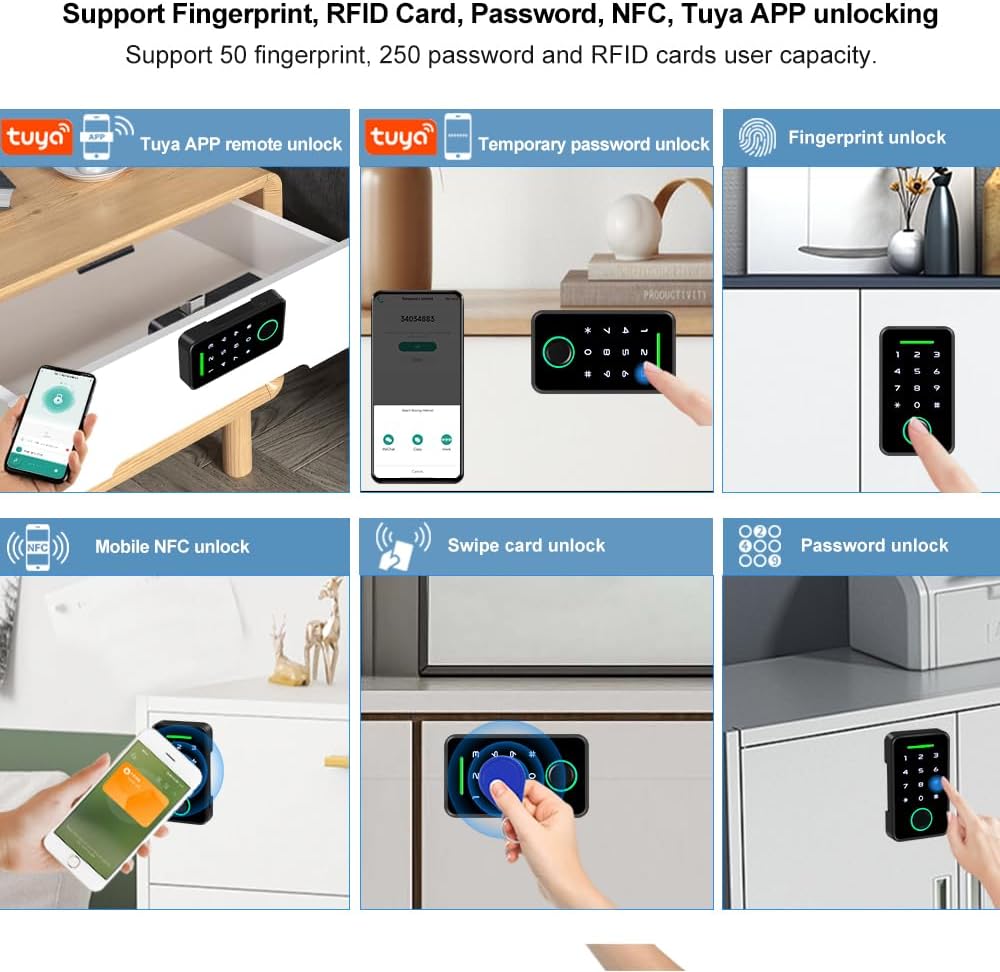
Image Description: This image illustrates the six key steps for easy installation of the smart drawer lock. It shows drilling holes, inserting the fingerprint panel cable, securing the lock panel, connecting the wiring, locating the latch position, and screwing the latch into place, culminating in a completed installation.
Video Description: This video demonstrates the physical installation process of the OBO HANDS Smart Drawer Lock, including drilling, wiring, and securing the components. It also shows how to install the additional metal piece for double-door cabinets.

Image Description: This image shows the installation of the smart lock on a double-door cabinet. It highlights the need for an additional metal piece on the second door to secure it and prevent opening from the other side when the main door is locked.
Operation Instructions
The OBO HANDS Smart Drawer Lock offers multiple convenient ways to unlock your cabinet or drawer.
Unlocking Methods:
- Fingerprint Unlock: Place your registered fingerprint on the sensor.
- Password Unlock: Enter your programmed password on the keypad.
- RFID Card Unlock: Swipe a registered RFID card over the sensor area.
- NFC Unlock: Use a mobile phone with NFC capabilities to unlock by tapping it near the sensor.
- Tuya App Remote Unlock: Control the lock remotely via the Tuya Smart app on your smartphone.
- Temporary Password Unlock: Generate temporary passwords through the Tuya app for guest access.
Initial Setup and Programming:
- Administrator Setup: The first fingerprint or password registered will be designated as the administrator. Follow the on-screen prompts or voice guidance for initial setup.
- Adding Users: As an administrator, you can add additional fingerprints, passwords, and RFID cards for other users. Refer to the detailed instructions in the Tuya app or the lock's internal menu for specific steps.
- Tuya App Connection: Download the Tuya Smart app from your app store. Follow the in-app instructions to pair your smart lock with the app using Bluetooth. This enables remote control, temporary password generation, and access record queries.

Image Description: This image displays the various unlocking methods available for the smart drawer lock, including Tuya APP remote unlock, temporary password unlock, fingerprint unlock, mobile NFC unlock, swipe card unlock, and password unlock, showing visual examples for each.
Video Description: This video demonstrates the process of connecting the OBO HANDS Smart Drawer Lock to the Tuya app and setting up NFC unlocking using a mobile phone. It shows how to add a physical card to the phone's wallet and then use the phone to unlock the device.
Maintenance
Battery Replacement:
The smart lock is powered by 3 x AA batteries (not included). It features a low-power technology for extended battery life, supporting approximately 6000 unlocks per set of new batteries. The lock includes a battery indicator and will provide a low battery reminder when replacement is needed.
- When the low battery reminder activates, replace the batteries promptly to ensure continuous operation.
- To replace, open the battery compartment cover on the main lock body, remove old batteries, insert new AA batteries according to polarity markings, and close the cover.
Emergency Power:
In case of complete battery depletion, the lock can be temporarily powered using a Type-C cable connected to an external power source (e.g., power bank) via the emergency charging port on the keypad. This allows you to unlock the cabinet and replace the internal batteries.

Image Description: This image shows the battery compartment of the smart lock, indicating where to insert the 3 x AA batteries. It also highlights the Type-C emergency charging port on the keypad, demonstrating how to use an external power bank to provide temporary power.
Troubleshooting
| Problem | Possible Cause | Solution |
|---|---|---|
| Lock does not respond. | Batteries are dead or critically low. | Connect a Type-C power source to the emergency charging port to open the lock, then replace the internal AA batteries. |
| Fingerprint not recognized. | Fingerprint sensor is dirty; unregistered fingerprint; incorrect placement. | Clean the sensor. Ensure the fingerprint is registered. Place the entire pad of the registered finger firmly on the sensor. Try re-registering the fingerprint if issues persist. |
| RFID card/NFC not working. | Card/phone not registered; incorrect placement; NFC disabled on phone. | Ensure the card/phone is registered. Place the card/phone directly over the sensor area. Verify NFC is enabled on your mobile device. |
| Tuya App connection issues. | Bluetooth is off; app not updated; lock not in pairing mode. | Ensure Bluetooth is enabled on your phone. Update the Tuya app to the latest version. Follow the app's instructions to put the lock into pairing mode. |
| Lock does not secure properly. | Latch misalignment; obstruction. | Check if the latch is correctly aligned with the lock body. Ensure there are no obstructions preventing the lock from engaging fully. Re-adjust the latch if necessary. |
Specifications
| Feature | Detail |
|---|---|
| Brand | OBO HANDS |
| Model Name | OBO-CTL10 |
| Lock Type | Electronic |
| Unlocking Methods | Fingerprint, RFID Card, Password, NFC, Tuya App |
| Material | Zinc Alloy, ABS Plastic |
| Color | Black |
| Dimensions (L x W x H) | 4.5 x 3.5 x 4.5 inches (approximate) |
| Item Weight | 0.78 Pounds (12.5 ounces) |
| Power Source | 3 x AA Batteries (not included) |
| Emergency Power | Type-C USB Port |
| Connectivity | Bluetooth (for Tuya App) |
| Special Features | Alarm, Battery Indicator, Fob Unlock, Passcode Unlock |
| Recommended Uses | Drawers, Cabinets (wooden, single-door) |

Image Description: This image provides a detailed diagram of the smart lock components, including dimensions (53mm width, 96mm height for keypad; 37mm width, 96mm height for lock body), and labels for the work indicator, card sensing area, fingerprint sensor, USB emergency power port, and battery holder. It also lists key features like Tuya App Unlock, Temporary Password, Fingerprint, RFID Card, Password, Records Query, Do Not Disturb Mode, Backlight keypad, Emergency power supply, and Battery Tips.
Warranty and Support
Specific warranty information is not provided in the product details. For warranty claims, technical support, or any questions regarding your OBO HANDS Smart Drawer Lock, please contact the seller or manufacturer directly through the platform where the product was purchased.
Always refer to the latest information provided by the manufacturer for the most accurate and up-to-date support details.