
1. Introduction
Thank you for purchasing the Volam 10.25-inch Portable Display Audio System. This device is designed to enhance your driving experience with its advanced features, including wireless CarPlay and Android Auto, a built-in Android operating system for media streaming, and a high-resolution display. This manual provides essential information for proper installation, operation, and maintenance of your new device.
The Volam display features an IN-CELL touchscreen with a wide viewing angle and delicate display performance on its 10.25-inch large screen. The curved glass design offers a premium feel and smooth touch operation. Enjoy clear navigation and video content with superior clarity.
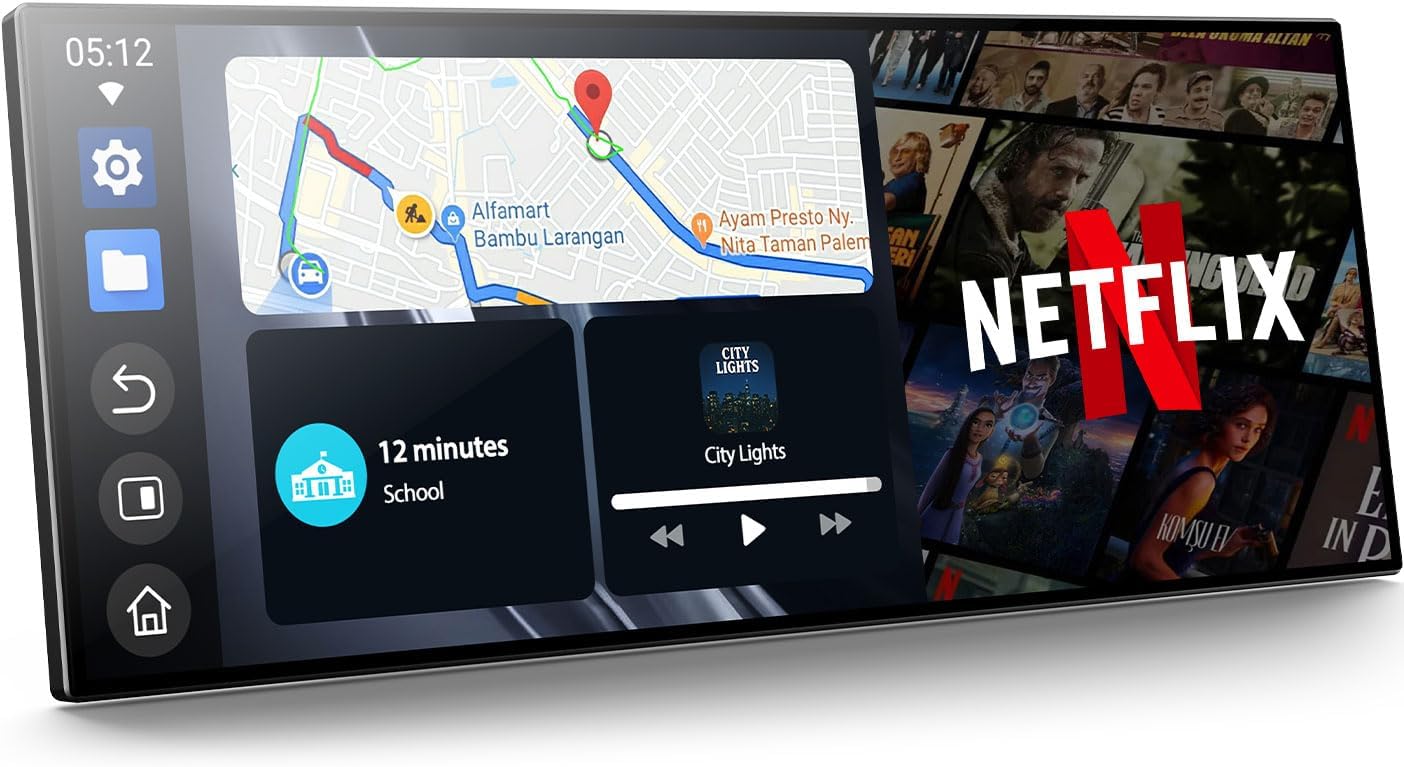
Image: The Volam 10.25-inch portable display audio system showcasing navigation on one side and Netflix content on the other, demonstrating its split-screen capability.
2. Safety Information
Please read all safety instructions carefully before using the device. Failure to follow these instructions may result in injury or damage to the device.
- Do not operate the device in a manner that distracts you from driving. Always prioritize road safety.
- Ensure the device is securely mounted and does not obstruct your view or interfere with vehicle controls.
- Avoid exposing the device to extreme temperatures, direct sunlight for prolonged periods, or excessive moisture.
- Do not attempt to disassemble or repair the device yourself. Refer all servicing to qualified personnel.
- Important Note: Simultaneous use of the vehicle's original digital terrestrial TV function and this device's digital terrestrial TV reception may cause interference.
3. Package Contents
Verify that all items are present in the package:

Image: An illustration detailing the package contents, including the 10.25-inch portable car screen, AUX audio cable, 1080P rear camera, cigarette lighter power cable, adhesive bracket, suction bracket, and installation accessories.
- Volam 10.25-inch Portable Display Audio System
- AUX Audio Cable (1.5m)
- 1080P Rear Camera (24.5m cable)
- Cigarette Lighter Power Cable (11.5 feet)
- Suction Cup Mount
- Adhesive Mount
- Installation Accessories
4. Setup
4.1 Mounting the Device
Choose between the suction cup mount or the adhesive mount for installation.
Suction Cup Mount Installation:
- Clean the surface where the mount will be placed.
- Attach the gasket to the mount.
- Press firmly to secure the mount.
- Adjust to the desired position and lock it in place.

Image: A four-step visual guide demonstrating how to install the suction cup mount, from cleaning the surface to locking the device in position.
Adhesive Mount Installation:
- Clean the surface thoroughly.
- Peel off the protective film and attach the adhesive mount.
- Press the mount firmly. Wait 24 hours before using the device to ensure strong adhesion.
Image: A three-step visual guide demonstrating how to install the adhesive mount, including cleaning the surface, applying the mount, and waiting 24 hours before use.
4.2 Power Connection
Connect the device to your vehicle's cigarette lighter socket using the provided power cable.
4.3 Rear Camera Connection
For automatic display of the rear camera image when reversing, connect the red wire of the rear camera to the positive terminal of your car's reverse lamp.
5. Operating Instructions
5.1 Wireless CarPlay & Android Auto
The device supports wireless CarPlay for iPhones (iOS 10 and later) and Android Auto for Android smartphones (Android 11 and later). Xiaomi and AQUOS smartphones are not supported.
Initial Connection for Wireless CarPlay:
- On your smartphone, enable Bluetooth and Wi-Fi.
- Open CarPlay on the device.
- Search for the device's Bluetooth name (e.g., "Wonsidary-xooxCick") on your smartphone and confirm the connection to CarPlay.
- Once successfully connected, CarPlay functions will be available.

Image: A three-step guide illustrating the wireless CarPlay connection process, showing smartphone settings and the successful connection on the display.
Initial Connection for Wireless Android Auto:
- On your smartphone, enable Bluetooth and Wi-Fi.
- Open Android Auto on the device.
- Search for the device's Bluetooth name (e.g., "Wonsidary-xooxCick") on your smartphone and confirm the connection to Android Auto.
- Once successfully connected, Android Auto functions will be available.

Image: A three-step guide illustrating the wireless Android Auto connection process, showing smartphone settings and the successful connection on the display.
After the initial successful connection, simply ensure your smartphone's Bluetooth and Wi-Fi are on. The device will automatically connect when you enter the car, providing instant access to navigation, music, calls, and messages without the need for cables.
5.2 Android OS Features
The device comes with a built-in Android system, transforming your car into a smart entertainment space. Popular apps like YouTube, TikTok, and Netflix are pre-installed and can be launched immediately upon connecting to the internet. No complicated installation is required.

Image: The display showing various entertainment apps like YouTube, Netflix, and TikTok, highlighting the built-in Android system's capabilities.
To access online video apps like Netflix and YouTube, you need to connect to the internet and log in to your respective accounts.

Image: A visual guide demonstrating how to connect to a portable hotspot and access online video applications like YouTube on the display.
5.3 Split Screen Functionality
The convenient split-screen display function allows you to operate navigation and music, or videos and messages simultaneously. This feature enhances efficiency while driving, allowing you to confirm information at a glance.

Image: The display showing a split screen, with CarPlay on one side and a video playing on the other, demonstrating multitasking capabilities.
5.4 Voice Control
Equipped with voice control, you can manage navigation, phone calls, messages, and music using your voice while driving, ensuring a safer and more convenient experience.

Image: The display illustrating voice control features, including making calls, playing music, and online navigation, all controllable by voice commands.
5.5 4-Way Audio Output Modes
In addition to the built-in speaker, the device supports FM transmission, in-car Bluetooth, and AUX output. This allows you to play high-quality music and navigation audio through your car stereo, customizing your in-car sound environment.
Image: An illustration detailing the four audio output modes: built-in speaker, FM transmission, Bluetooth, and AUX output, allowing for versatile sound customization.
5.6 1080P Backup Camera
The 1080P high-definition rear camera makes parking significantly easier. It features an IP67 fully waterproof design, making it resistant to heavy rain and high-pressure car washes. It operates reliably even in extreme cold environments down to -30°C. With an adjustable auxiliary frame function, the image is displayed instantly on the screen the moment you engage reverse gear. No complicated operations are required, making it ideal for beginners or those who find parking challenging.

Image: The display showing a 1080P backup camera view with adjustable guidelines, assisting with parking maneuvers.
6. Maintenance
- Cleaning: Use a soft, dry cloth to clean the display screen. For stubborn smudges, lightly dampen the cloth with water or a screen cleaner. Avoid using harsh chemicals or abrasive materials.
- Storage: If storing the device for an extended period, disconnect it from power and store it in a cool, dry place.
- Software Updates (OTA): The device supports Over-The-Air (OTA) updates via Wi-Fi to upgrade to the latest version, providing new features, improved convenience, smoother operation, and continuous enhancements.
OTA Upgrade Steps:
- Click the 'Settings' button on the display.
- Connect to a Wi-Fi network.
- Navigate to 'System' and then 'System updates' to check for updates.
- Confirm and proceed with the upgrade.

Image: A four-step visual guide demonstrating the OTA update process, from accessing settings to confirming the system upgrade.
7. Troubleshooting
| Problem | Possible Cause | Solution |
|---|---|---|
| Device does not power on. | No power connection or faulty cable. | Ensure the cigarette lighter power cable is securely connected and the vehicle's power outlet is functional. |
| Wireless CarPlay/Android Auto fails to connect. | Bluetooth/Wi-Fi off on phone, incompatible phone model, or incorrect pairing. | Ensure Bluetooth and Wi-Fi are enabled on your smartphone. Verify your phone model is iOS 10+ or Android 11+ (Xiaomi and AQUOS not supported). Re-attempt pairing as per instructions. |
| Rear camera image not displayed when reversing. | Incorrect wiring of the rear camera. | Check that the red wire of the rear camera is correctly connected to the positive terminal of the vehicle's reverse lamp. |
| Screen is dim or unclear in direct sunlight. | Normal operation, but brightness might need adjustment. | The high-brightness IPS panel is designed for clear display even in direct sunlight. Adjust screen brightness settings if needed. |
| System lag or unresponsiveness. | Overheating or temporary software issue. | The device uses high heat dissipation materials to prevent lag. If issues persist, try restarting the device. Ensure proper ventilation around the unit. |
8. Specifications
- Model Number: RC29
- Brand: Volam
- Display Size: 10.25 inches
- Display Type: IN-CELL Touchscreen, IPS Panel
- Resolution: 1920 x 720
- Brightness: 600 Cd/m2
- Operating System: Android OS
- Connectivity: Bluetooth 5.2, Dual-band Wi-Fi (2.4GHz & 5GHz)
- Special Features: Wireless CarPlay, Wireless Android Auto, Parking Assist, Split Screen, Voice Control
- Audio Output Modes: Built-in Speaker, FM Transmitter, Car Bluetooth, AUX Output
- Rear Camera: 1080P, IP67 Waterproof, -30°C operational temperature
- Compatible Devices: Smartphones (iPhone iOS 10+, Android 11+; Xiaomi and AQUOS not supported)
- Package Dimensions: 29.1 x 14.2 x 10.7 cm
- Weight: 1.22 kg
- UPC: 758918448123

Image: A graphic detailing key display specifications including its 10.25-inch size, In-Cell touch technology, 1920x720 resolution, 600 Cd/m2 brightness, and superior cooling performance.
9. Warranty & Support
This product comes with a 12-month warranty from the date of purchase. If you encounter any problems or have questions regarding the product during use, please do not hesitate to contact us. Our customer support team is ready to assist you.
For support, please refer to the contact information provided with your purchase or visit the official Volam website.