
1. Introduction
Thank you for choosing the TABWEE T60 Pro Tablet. This manual provides essential information for setting up, operating, maintaining, and troubleshooting your device. Please read it carefully to ensure optimal performance and longevity of your tablet.
2. What's in the Box
Upon unboxing your TABWEE T60 Pro Tablet, please verify that all the following items are included:
- 1 x TABWEE T60 Pro Tablet
- 1 x Bluetooth Keyboard
- 1 x Bluetooth Mouse
- 1 x Stylus Pen
- 1 x Protective Case
- 1 x 18W Charger
- 1 x Type-C Charging Cable
- 1 x User Manual

Image: All items included in the TABWEE T60 Pro Tablet package.
3. Setup
3.1 Initial Power On
- Press and hold the power button located on the side of the tablet until the TABWEE logo appears on the screen.
- Follow the on-screen prompts to select your language, region, and accept the terms and conditions.
3.2 Connecting to Wi-Fi
- During the initial setup, you will be prompted to connect to a Wi-Fi network. Select your preferred network from the list.
- Enter the Wi-Fi password if required and tap 'Connect'.
- If you skip this step, you can connect later via 'Settings' > 'Network & Internet' > 'Wi-Fi'.
3.3 Google Account Setup
Sign in with your Google account to access the Google Play Store, Gmail, and other Google services. If you don't have an account, you can create one during this step.
3.4 Attaching the Protective Case and Keyboard
The included protective case is designed to fit your TABWEE T60 Pro Tablet securely. Align the tablet with the case and gently press it into place. The keyboard can be magnetically attached to the case or connected via Bluetooth for a laptop-like experience.
4. Operating Instructions
4.1 Display and Visual Experience
The TABWEE T60 Pro features a 13.4-inch FHD+ display with a 120Hz refresh rate, providing a smooth and immersive visual experience. It also supports Widevine L1 for high-definition streaming content.
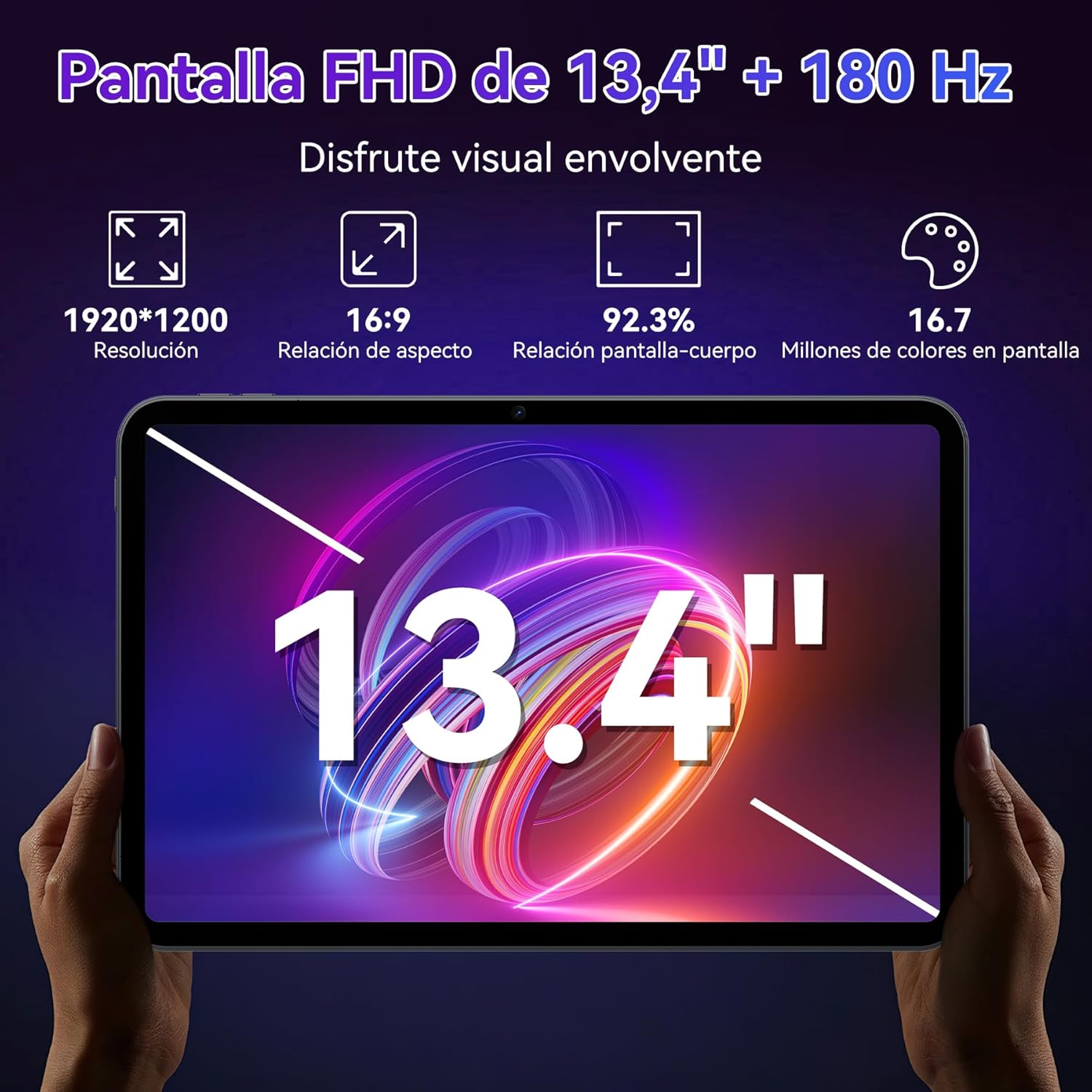
Image: Detailed view of the 13.4-inch FHD+ display specifications.

Image: Visual representation of the tablet's display features, including 120Hz refresh rate and TÜV Rheinland certification.
4.2 Android 15 and Performance
The tablet runs on Android 15, optimized with Gemini AI for enhanced speed and privacy. It features an Octa-Core Unisoc T7280 processor, 24GB RAM (8GB physical + 16GB virtual), and 256GB UFS storage, expandable up to 2TB with a TF card.

Image: Key improvements and features of Android 15.

Image: Android 15 Hyper-Engine details for performance and intelligence.

Image: Memory and storage expansion capabilities.

Image: Octa-Core Falcon Engine processor architecture.
4.3 AI Assistant (Gemini AI)
Leverage the integrated Gemini AI 2.0 for intelligent assistance, including smart chats, text-to-image generation, smart Q&A, and personalized recommendations. This AI enhances user interaction and productivity.

Image: Overview of Gemini AI 2.0 capabilities.

Image: Examples of Gemini AI voice control in various scenarios.
4.4 Connectivity
The tablet supports Bluetooth 5.0 for connecting peripherals and 5G Wi-Fi for high-speed internet access, ensuring stable and fast data transfer.

Image: Connectivity features including Bluetooth 5.0 and 5G Wi-Fi.
4.5 Camera Features
Equipped with a 16MP AI rear camera and an 8MP AI front camera, the tablet supports Face ID for secure unlocking and intelligent Google Lens features.

Image: Details of the tablet's camera system and features.
4.6 Battery Management
The 10000mAh battery provides extended usage time, and with 18W fast charging, your tablet can be quickly recharged. The OTG function allows the tablet to act as a power bank for other devices.

Image: Battery capacity and fast charging information.

Image: Battery life estimates for various activities.
4.7 Keyboard and Mouse Usage
The included Bluetooth keyboard and mouse transform your tablet into a versatile workstation. To connect:
- Ensure the keyboard and mouse are charged and powered on.
- On your tablet, go to 'Settings' > 'Connected devices' > 'Bluetooth'.
- Enable Bluetooth and search for available devices.
- Select the keyboard and mouse from the list to pair them. Follow any on-screen prompts.

Image: Tablet used with keyboard and mouse for productivity.
5. Maintenance
5.1 Cleaning the Tablet
Use a soft, lint-free cloth to clean the screen and body of the tablet. Avoid using harsh chemicals or abrasive materials, as they can damage the screen and finish. For stubborn smudges, slightly dampen the cloth with water or a screen-cleaning solution.
5.2 Battery Care
To prolong battery life, avoid exposing the tablet to extreme temperatures. Charge the battery regularly, but avoid leaving it fully charged or fully discharged for extended periods. Use only the provided charger and cable.
5.3 Software Updates
Regularly check for and install software updates to ensure your tablet has the latest features, security patches, and performance improvements. Go to 'Settings' > 'System' > 'System update' to check for updates.
6. Troubleshooting
6.1 Tablet Not Turning On
- Ensure the battery is charged. Connect the tablet to the charger and wait a few minutes before attempting to power it on again.
- Press and hold the power button for at least 10-15 seconds to perform a forced restart.
6.2 Screen Unresponsive
- Restart the tablet.
- If the screen remains unresponsive, try a factory reset (note: this will erase all data).
6.3 Wi-Fi Connectivity Issues
- Toggle Wi-Fi off and on in 'Settings'.
- Restart your Wi-Fi router.
- Forget the network and reconnect.
6.4 Apps Crashing or Freezing
- Clear the cache and data for the problematic app in 'Settings' > 'Apps'.
- Uninstall and reinstall the app.
- Ensure your tablet's software is up to date.
7. Specifications
| Feature | Specification |
|---|---|
| Brand | TABWEE |
| Model Name | T60 Pro |
| Product Dimensions | 30.94 x 20.14 x 0.79 cm |
| Weight | 412 g |
| Screen Size | 13.4 Inches |
| Screen Resolution | 1920 x 1200 Pixels |
| Processor | Unisoc T7280 Octa-Core (2.2 GHz) |
| RAM | 24 GB (8GB physical + 16GB virtual) |
| Storage | 256 GB (Expandable up to 2TB with TF card) |
| Operating System | Android 15 & Gemini AI 2.0 |
| Rear Camera Resolution | 16 MP |
| Front Camera Resolution | 8 MP |
| Battery Capacity | 10000 mAh |
| Connectivity | Bluetooth 5.0, Wi-Fi (802.11ac) |
| Color | Black |
8. Warranty and Support
Your TABWEE T60 Pro Tablet comes with an extended 4-year warranty (2 years standard + 2 years extra). This warranty covers manufacturing defects and ensures peace of mind for your purchase.

Image: Information regarding TABWEE's warranty and support commitment.
8.1 Customer Support
For any technical assistance, warranty claims, or product inquiries, please contact our customer support team:
- Email: serviceplus.linda@gmail.com
- Phone (UK): +44 7700 156388
- Phone (US): +1 (717) 896-6060
- Phone (CA): +1 (587) 841-0500
- Phone (DE): +49 157 3598 0115

Image: Contact details for post-sales support.


