
ORICO AP42F
ORICO Magnetic M.2 2230/2242 NVMe SSD Enclosure Instruction Manual
Brand: ORICO | Model: AP42F
1. Introduction
The ORICO Magnetic M.2 2230/2242 NVMe SSD Enclosure (Model AP42F) is a versatile device designed to expand storage and enhance data transfer capabilities for various devices. It features dual SD/TF card slots, support for M.2 NVMe SSDs, PD 100W charging, and a magnetic attachment system. This manual provides essential information for proper setup, operation, and maintenance of your enclosure.

Figure 1.1: ORICO Magnetic M.2 SSD Enclosure in use with an iPhone.
2. Package Contents
Verify that all items listed below are included in your package:
- Magnetic M.2 NVMe SSD Enclosure
- 0.3m USB-C to USB-C Cable (10Gbps)
- Magnetic Ring
- Thermal Pad
- Screws
- Screwdriver
- User Manual

Figure 2.1: Included package contents.
3. Specifications
| Feature | Description |
|---|---|
| Model Number | AP42F |
| Product Dimensions | 2 x 2 x 0.5 inches (70mm L x 60mm W x 13mm H) |
| Item Weight | 4.2 ounces |
| SSD Compatibility | M.2 NVMe (M Key) 2230/2242 SSDs (up to 2TB) |
| Card Reader | Dual SD/TF 3.0 slots (SD, SDHC, SDXC, Micro SD, Micro SDHC, Micro SDXC) |
| Data Transfer Speed | Up to 10Gbps (USB 3.2 Gen2) |
| Charging Port | PD 100W (up to 85W output) |
| Compatible Devices | iPhone 15/16/17 Pro/Pro Max series, iPad Pro, MacBook, Android phones, laptops, tablets (USB-C models) |
| Compatible Systems | Mac OS, iOS, Windows, Linux, Android |
4. Setup: SSD Installation
Follow these steps to install an M.2 NVMe SSD into the enclosure:
- Open the Enclosure: Unscrew the single screw on the bottom cover and carefully remove the cover.
- Install the Hard Drive: Insert your M.2 NVMe SSD (2230 or 2242 size, M Key only) into the slot at a 30-degree angle. Gently press down and secure it with the provided screw.
- Apply Thermal Pad: Place the thermal pad onto the top surface of the installed SSD. This aids in heat dissipation.
- Complete Installation: Close the bottom cover and tighten the screw to secure it.
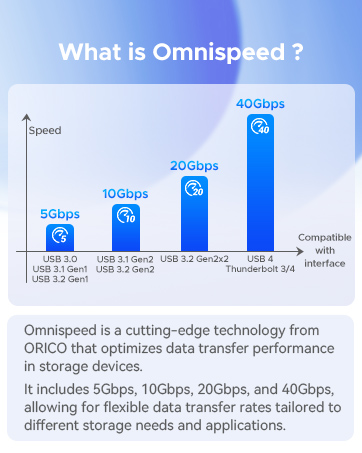
Figure 4.1: SSD Installation Steps.
5. Operating Instructions
5.1. Connecting to Devices
Connect the enclosure to your compatible device (iPhone 15/16/17 series, iPad Pro, MacBook, Android phone, laptop, or tablet) using the provided USB-C cable. The magnetic attachment allows for secure mounting to compatible devices or cases with a magnetic ring.

Figure 5.1: Magnetic attachment options.
5.2. 4K ProRes Direct Recording (iPhone)
The enclosure supports direct 4K ProRes video recording from iPhone 15/16/17 Pro/Pro Max series to the installed M.2 SSD. This feature helps manage phone storage and streamlines workflow by saving large video files directly to external storage.
- ProRes HDR 4K/120fps recording requires iPhone 16/17 Pro/Pro Max.
- ProRes 4K/60fps recording supports iPhone 15/16/17 Pro/Pro Max.

Figure 5.2: 4K ProRes video recording setup.
5.3. High-Speed Data Transfer
Utilizing USB 3.2 Gen2 technology, the enclosure provides data transfer speeds up to 10Gbps (1000MB/s), allowing for rapid transfer of large files. It supports UASP acceleration for efficient workflows.

Figure 5.3: High-speed data transfer capabilities.
5.4. SD/TF Card Reader Functionality
The dual SD/TF card slots support various card types (SD, SDHC, SDXC, Micro SD, Micro SDHC, Micro SDXC) with read speeds up to 104MB/s. This allows for quick transfer of photos and videos from camera memory cards to your connected device or SSD.

Figure 5.4: Fast SD/TF card reader in action.
5.5. PD 100W Charging
The integrated PD 100W charging port enables simultaneous high-speed data transfer and device charging (up to 85W output). This is beneficial for extended video recording sessions or heavy-duty tasks, ensuring your device remains powered.

Figure 5.5: PD 100W fast charging capability.
5.6. File Transfer Steps
For iPhone (iOS):
- Connect the enclosure to your iPhone 15/16/17 series.
- Select the photos or videos you wish to transfer.
- Click "Save to Files".
- Click "Browse".
- Select "AP42F" (the enclosure).
- Click "Save".
Note: This functionality is not applicable for iPhone 14/13/12/11/X/SE series.

Figure 5.6: iPhone file transfer process.
For Android Phones:
- Connect the enclosure to your Android phone.
- Click "Files" or open your file manager application.
- Navigate to "Images" or the desired media folder.
- Select the photos or videos you wish to copy.
- Select "AP42F" (the enclosure) as the destination.
- Confirm the transfer.

Figure 5.7: Android file transfer process.
6. Compatibility
The ORICO AP42F enclosure offers broad compatibility:
- SSD Compatibility: M.2 NVMe (M Key) SSDs in 2230 and 2242 form factors. Not compatible with mSATA or M.2 SATA protocols.
- Card Compatibility: SD, SDHC, SDXC, Micro SD, Micro SDHC, Micro SDXC cards.
- Device Compatibility: USB-C enabled devices including iPhone 15/16/17 Pro/Pro Max series, iPad Air/Pro series, MacBook Air/Pro series, Android phones, laptops, and tablets.
- System Compatibility: Mac OS, iOS, Windows, Linux, and Android operating systems.

Figure 6.1: Extensive compatibility overview.
7. Maintenance
7.1. Heat Dissipation
The enclosure features an aluminum alloy frame and includes a thermal pad to assist in heat dissipation from the SSD. Proper heat management is crucial for maintaining SSD performance and longevity, especially during prolonged high-speed operations.

Figure 7.1: Multi-heat dissipation features.
7.2. General Care
- Keep the device clean and free from dust.
- Avoid exposing the device to extreme temperatures or humidity.
- Do not attempt to disassemble the enclosure beyond SSD installation.
8. Troubleshooting
8.1. SSD Disconnections or Recording Interruptions
If you experience disconnections or interruptions during recording, especially when using higher-power SSDs, consider the following:
- SSD Power Consumption: Due to power limitations of some phone's USB ports, it is recommended to use SSDs with a power consumption of 4.5W or lower.
- External Power Supply: For higher-power SSDs, an external power supply connected via the PD port is required to ensure stable operation and prevent disconnections.
8.2. Magnetic Attachment Issues
The enclosure features strong magnets for secure attachment. If the enclosure separates from the back cover when attempting to remove it from a device, exercise caution. The single screw securing the enclosure's internal components may not be sufficient to withstand strong magnetic force during removal. To prevent accidental separation, gently slide the enclosure off the device rather than pulling directly.
8.3. Recording Failures (iPhone ProRes)
Some users have reported issues with iPhone ProRes recording failing to save or getting stuck in a 'spinning' state when using this enclosure. While the enclosure is designed to support ProRes recording, ensure your iPhone's software is up to date. If issues persist, verify the SSD's power requirements are met (as per 8.1) and consider testing with a different SSD or external drive to isolate the problem.
9. Safety Information
- Do not expose the device to water or excessive moisture.
- Avoid dropping or subjecting the device to strong impacts.
- Keep out of reach of children.
- Use only the specified power adapters and cables.
10. Warranty and Support
For warranty information, technical support, or customer service, please refer to the official ORICO website or contact your retailer. Keep your purchase receipt for warranty claims.
Ask a question about this manual
Ask about setup, troubleshooting, compatibility, parts, safety, or missing instructions. Manuals+ will review the question and use this page’s manual context to help answer it.