
Introduction
Thank you for choosing the ORICO AP42F Magnetic M.2 NVMe SSD Enclosure. This device is designed to expand your storage capabilities and enhance data transfer efficiency across various devices, including iPhones, iPads, MacBooks, Android phones, laptops, and tablets. It features high-speed data transmission, an integrated SD/TF card reader, and PD100W charging support, making it an ideal solution for professionals and enthusiasts requiring portable and robust data management.
Safety Information
- Keep the device away from water, fire, and high temperatures.
- Avoid dropping or subjecting the device to strong impacts.
- Do not attempt to disassemble or modify the device. Unauthorized modifications may void the warranty and pose safety risks.
- Use only compatible M.2 NVMe SSDs (2230/2242 M Key) and power adapters.
- Ensure proper ventilation during operation to prevent overheating.
Package Contents
Please verify that all items are present in your package:
- Magnetic M.2 NVMe 2230/2242 SSD Enclosure
- 0.3m USB-C to USB-C Cable (10Gbps)
- Magnetic Ring
- Thermal Pad
- Screws
- Screwdriver
- User Manual

The image above illustrates the components included in your ORICO AP42F package. Ensure all items are accounted for before proceeding with setup.
Product Overview
The ORICO AP42F enclosure integrates an M.2 NVMe SSD slot, TF/SD card reader slots, and a PD100W charging port into a compact, magnetic design. Below is a diagram highlighting its key features:

This diagram identifies the various ports and features of the ORICO AP42F, including the PD 100W charging port, the M.2 SSD slot for 2230/2242 NVMe drives, the magnetic suction ring for secure attachment, and dedicated slots for TF and SD 3.0 cards, alongside the main USB 3.2 Gen2 (10Gbps) data port.
Setup
1. Installing the M.2 NVMe SSD
Follow these steps to install your M.2 NVMe SSD into the enclosure:
- Open the Enclosure: Unscrew and remove the bottom cover of the enclosure.
- Install the Hard Drive: Insert your M.2 NVMe SSD (2230 or 2242, M Key only) into the slot at a 30-degree angle. Gently push down and secure it with the provided screw.
- Apply Thermal Pad: Place the thermal pad on top of the installed SSD to aid in heat dissipation.
- Complete Installation: Close the bottom cover and tighten the screws to secure it.

The image above provides a visual guide for installing the M.2 NVMe SSD, ensuring correct placement and secure fastening within the enclosure.
2. Attaching the Magnetic Ring (Optional)
For devices without built-in magnetic attachment, use the included magnetic ring for secure mounting:
- Clean the back surface of your device or phone case.
- Peel off the adhesive backing from the magnetic ring.
- Carefully align and press the magnetic ring onto the desired location on your device or case. Ensure it is centered and firmly attached.
- Allow the adhesive to set for a few hours before attaching the enclosure.

This image demonstrates how the enclosure magnetically attaches to a compatible phone and how the included magnetic ring can be used to enable magnetic attachment on other devices or cases.
Operating Instructions
1. Connecting to Devices
Connect the ORICO AP42F to your device using the provided USB-C to USB-C cable. The enclosure is compatible with a wide range of devices and operating systems.

The image above highlights the broad compatibility of the ORICO AP42F with various devices and operating systems, including Mac OS, iOS, Windows, Linux, and Android.
2. 4K ProRes Direct Recording (iPhone 15/16/17 Pro/Pro Max Series)
The enclosure supports direct 4K ProRes video recording to the installed M.2 NVMe SSD, eliminating phone storage limitations.
- Connect the ORICO AP42F to your compatible iPhone (15/16/17 Pro/Pro Max series).
- Ensure the SSD is properly installed and recognized by your iPhone.
- Open your iPhone's camera application and select ProRes video recording mode.
- Record directly to the external SSD.
Note: ProRes HDR 4K/120fps requires iPhone 16/17 Pro/Pro Max; 4K/60fps supports iPhone 15/16/17 Pro/Pro Max.
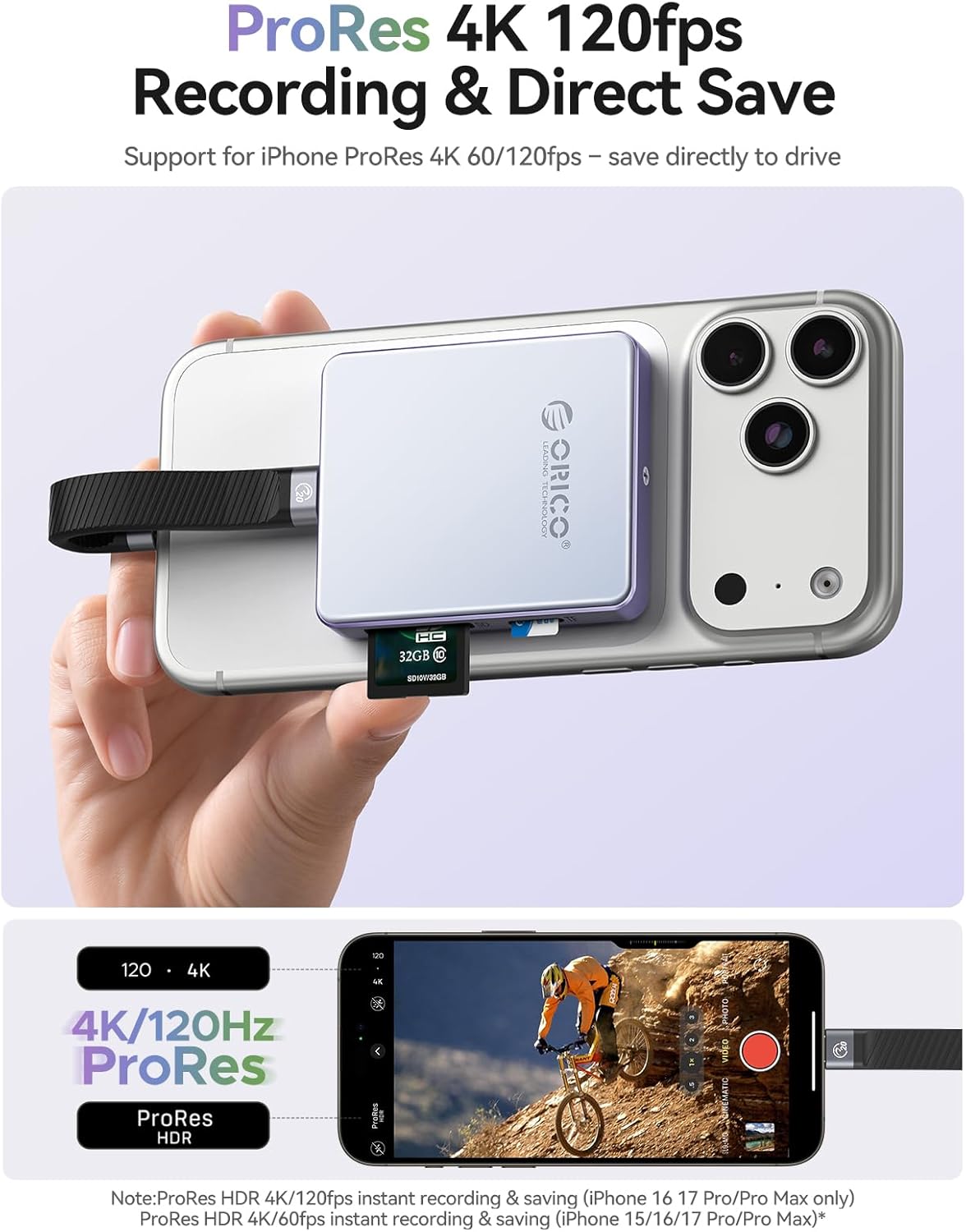
This image demonstrates an iPhone recording 4K ProRes video directly to the ORICO AP42F enclosure, highlighting its capability to save high-resolution video files externally.
3. Using the SD/TF Card Reader
The integrated SD/TF card slots allow for high-speed data transfer from memory cards.
- Insert your SD or TF (MicroSD) card into the corresponding slot on the enclosure.
- Connect the enclosure to your computer or compatible mobile device.
- Access the card's contents through your device's file manager.
Note: Supports UHS-II SD, SDHC, SDXC, Micro SD, Micro SDHC, and Micro SDXC cards with read speeds up to 104MB/s.

The image above illustrates the high-speed data transfer capability of the integrated SD/TF card reader, showing a read speed of up to 104MB/s when connected to a laptop.
4. High-Speed Data Transfer (10Gbps)
Leverage USB 3.2 Gen2 technology for rapid file transfers.
- Connect the enclosure to your device using the USB-C cable.
- Drag and drop files between your device and the SSD or memory cards.
- Experience transfer speeds up to 10Gbps (1000MB/s).
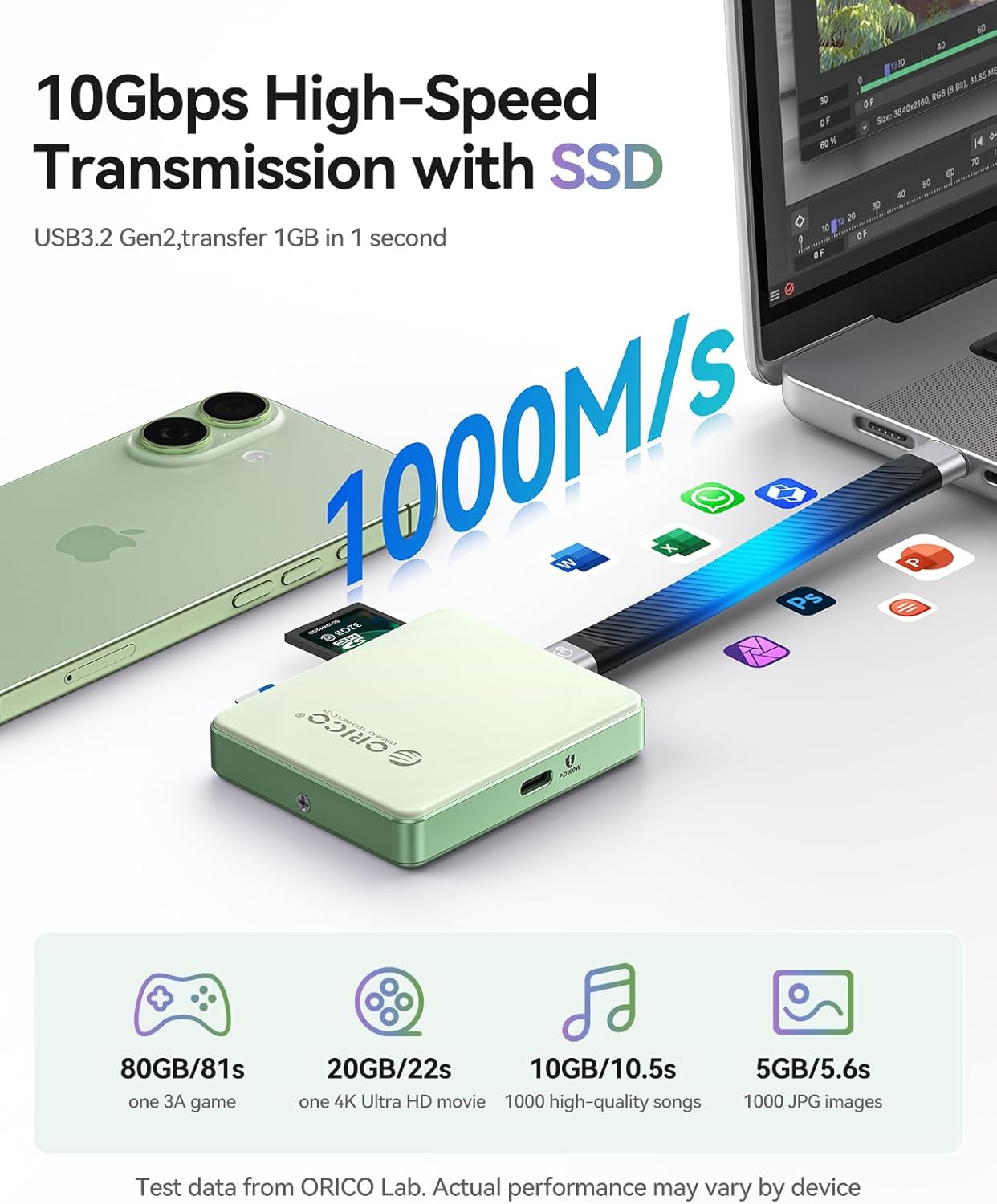
This image visually represents the 10Gbps high-speed data transmission capability of the ORICO AP42F, showing a 1GB file transfer in approximately 1 second.
5. PD100W Charging
The PD100W charging port allows for simultaneous data transfer and device charging.
- Connect a PD-compatible power adapter to the PD100W port on the enclosure.
- Connect the enclosure to your device.
- Your device will charge while data transfer operations are in progress.
Note: The enclosure supports up to 100W PD power input and provides up to 85W output for charging connected devices. This device is not a magnetic battery and does not support magnetic charging.
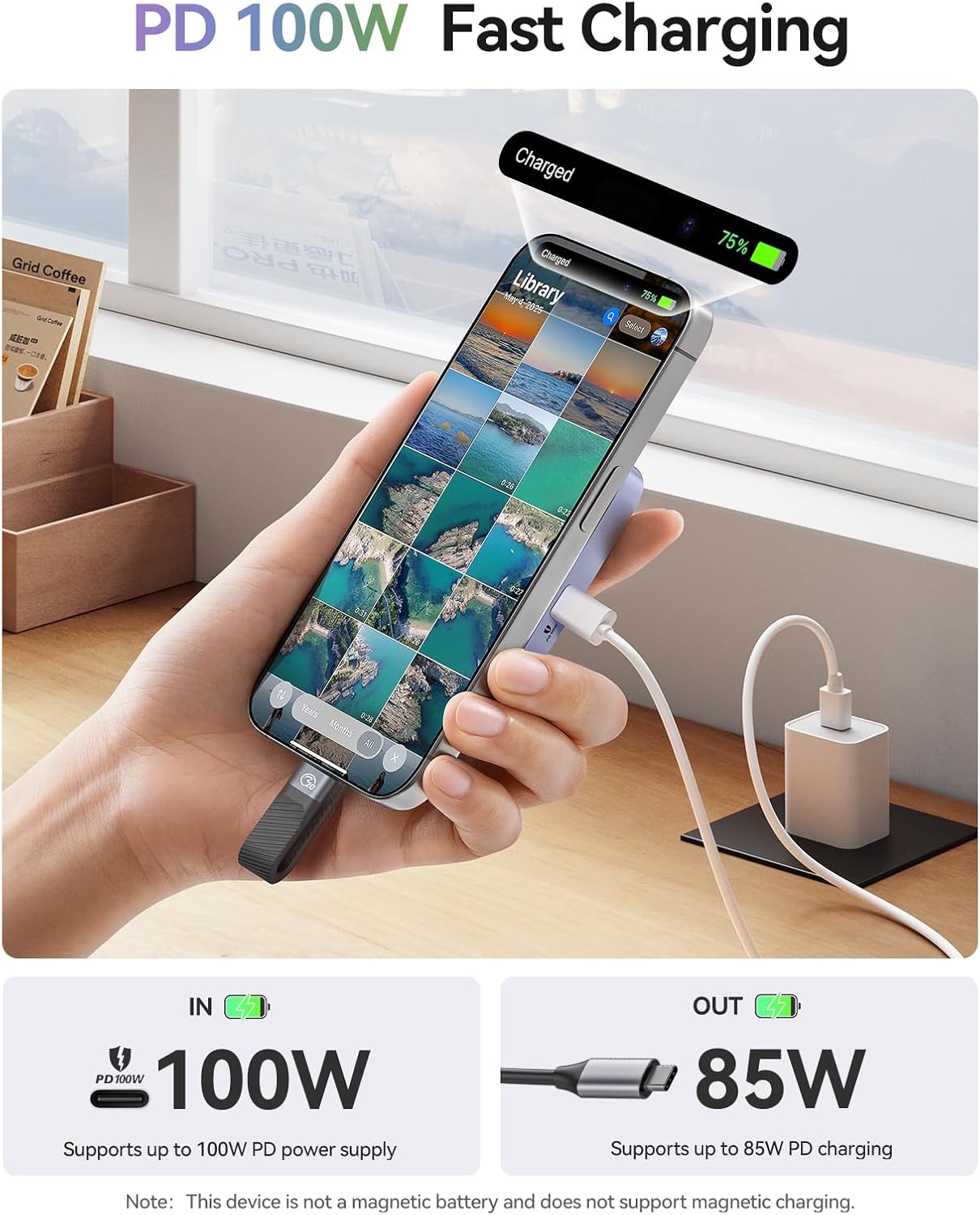
The image above illustrates the PD 100W fast charging feature, showing how the enclosure can charge a connected iPhone while simultaneously handling data operations.
6. Saving Files to iPhone/Android
Follow these general steps to save files from the enclosure to your mobile device:
For iPhone (iOS 15/16/17 Series):
- Connect the enclosure to your iPhone.
- Select the photos or videos you wish to save.
- Click "Save to Files".
- Click "Browse".
- Select "AP42F" (or the recognized drive name).
- Click "Save".

This image provides a step-by-step visual guide for transferring and saving files from the ORICO AP42F to a compatible iPhone.
For Android Phones:
- Connect the enclosure to your Android phone.
- Click "Files" (or open your file manager app).
- Click "Images" (or navigate to the desired file type).
- Select the photos or videos you wish to copy.
- Click "AP42F" (or the recognized drive name).
- Click the checkmark to confirm saving.

This image provides a step-by-step visual guide for transferring and saving files from the ORICO AP42F to a compatible Android phone.
Maintenance
- Cleaning: Use a soft, dry cloth to clean the exterior of the enclosure. Avoid liquid cleaners or abrasive materials.
- Storage: Store the device in a cool, dry place away from direct sunlight and extreme temperatures.
- Thermal Management: The enclosure features an aluminum alloy frame and thermal pad for multi-heat dissipation. Ensure the device is not covered during heavy use to allow for proper cooling.

The image above highlights the thermal design of the ORICO AP42F, showcasing its aluminum alloy frame and thermal pad which contribute to efficient heat dissipation during operation.
Troubleshooting
- Device Not Recognized:
- Ensure the USB-C cable is securely connected to both the enclosure and your device.
- Try connecting to a different USB-C port or device.
- Verify that the M.2 NVMe SSD is correctly installed and secured within the enclosure.
- For phones, ensure the phone's USB port power limitations are not exceeded. If using a high-power SSD, connect an external power supply via the PD port. - Slow Transfer Speeds:
- Ensure you are using the provided USB 3.2 Gen2 cable and connecting to a compatible USB 3.2 Gen2 port on your host device.
- Check the health and speed rating of your M.2 NVMe SSD and SD/TF cards.
- Close any background applications that might be consuming system resources. - Disconnections During Recording:
- This can occur if the SSD power draw exceeds the phone's USB port power limit. Connect an external power supply to the PD port to ensure stable power delivery. - Enclosure Gets Warm:
- It is normal for the enclosure to warm up during high-speed data transfer or prolonged use, especially with NVMe SSDs. The aluminum design aids in heat dissipation. If it becomes excessively hot, ensure adequate ventilation and consider reducing workload. - SD/TF Card Not Reading:
- Ensure the card is fully inserted into the correct slot.
- Check if the card is damaged or corrupted. Try another card if possible.
- Verify card compatibility (UHS-II SD, SDHC, SDXC, Micro SD, Micro SDHC, Micro SDXC).
Specifications
| Feature | Detail |
|---|---|
| Model Number | AP42F |
| Product Dimensions | 2 x 2 x 0.5 inches (5.08 x 5.08 x 1.27 cm) |
| Item Weight | 4.6 ounces (130 grams) |
| Compatible SSDs | M.2 NVMe (M Key) 2230/2242 SSDs (up to 2TB) |
| Data Interface | USB 3.2 Gen2 Type-C (10Gbps) |
| Card Reader | SD 3.0 (UHS-II compatible), TF 3.0 (MicroSD) |
| Card Reader Speed | Up to 104MB/s (Read) |
| Charging Port | PD100W (Input up to 100W, Output up to 85W) |
| Magnetic Attachment | 17 built-in magnets |
| Compatible Devices | iPhone 15/16/17 Pro/Pro Max series, iPad Pro, MacBook, Android phones, laptops, tablets with Type-C port |
| Compatible Systems | Mac OS, iOS, Windows, Linux, Android |
| Material | Aluminum Alloy Frame |
Official Product Videos
Video 1: Magnetic NVMe SSD Enclosure AP42
This video provides a quick overview of the ORICO AP42F Magnetic NVMe SSD Enclosure, demonstrating its key features such as SSD installation, magnetic attachment to an iPhone for 4K ProRes recording, and compatibility with various devices for high-speed data transfer.
Warranty and Support
ORICO products come with a standard manufacturer's warranty. For detailed warranty information, please refer to the warranty card included in your package or visit the official ORICO website. If you encounter any issues or require technical assistance, please contact ORICO customer support through their official channels. Please have your model number (AP42F) and purchase details ready when contacting support.


