1. Product Overview
The CAMECHO 9.66" 3 Channel Mirror Dash Cam is designed to provide comprehensive vehicle surveillance with its triple camera system. It integrates a front 1080P camera, a 720P interior camera, and a 720P IP66 waterproof backup camera, allowing simultaneous recording from three angles. The device features a 9.66-inch IPS touchscreen for intuitive control and offers advanced functions such as WiFi connectivity for app control, G-Sensor for emergency recording, loop recording, super night vision, exposure compensation, and reversing assistance.

Image: CAMECHO 9.66 inch mirror dash cam with three cameras, capturing front, interior, and rear views simultaneously.
2. Package Contents
Please verify that all items listed below are included in your package:
- 1 x Rearview Mirror Dashcam
- 1 x 64GB TF Card
- 1 x Rearview Camera
- 1 x Power Cord
- 1 x Bandage Set (for mounting)
- 1 x Extended Line (for rear camera)
- 1 x Anti-slip Mats
- 1 x User Manual
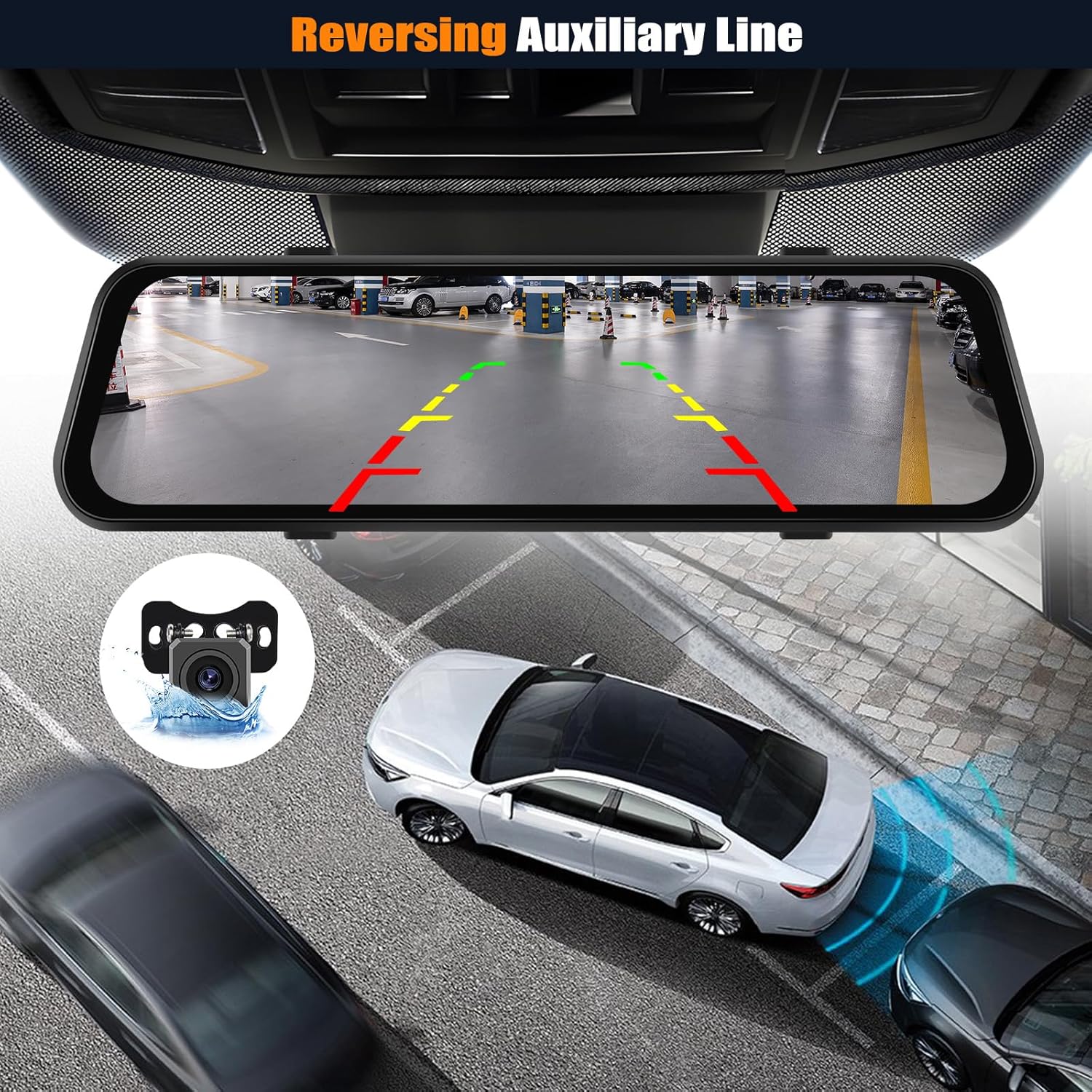
Image: Detailed diagram of the CAMECHO dash cam and its included accessories.
3. Installation Guide
3.1 Mounting the Mirror Dashcam
- Secure the mirror dashcam over your existing rearview mirror using the provided bandages. Ensure it is firmly attached and does not obstruct your view.
- Adjust the front camera lens to capture the desired road view. The lens is retractable and adjustable.
3.2 Connecting to Power
- Connect the power cord to the dashcam's power input port.
- Plug the other end of the power cord into your vehicle's 12V power outlet (cigarette lighter socket).
- Route the power cable neatly along the windshield trim and dashboard to avoid interference with driving.
3.3 Installing the Rear Camera
- Mount the rear camera at the back of your vehicle, typically above the license plate or on the rear window. Ensure it has a clear view.
- Connect the rear camera to the dashcam using the extended line.
- For reversing assistance, connect the red wire of the rear camera cable to your vehicle's reverse light power supply. This enables automatic display of the rear view with guide lines when reversing.
3.4 Installing the Interior Camera
The interior camera is integrated into the mirror dashcam unit. No separate installation is required for this camera.
4. Basic Operation
4.1 Power On/Off
- The dashcam will automatically power on and begin recording when your vehicle starts.
- It will automatically power off when the vehicle is turned off.
- To manually power on/off, press and hold the power button located on the unit.
4.2 Touch Screen Controls
The 9.66-inch IPS touchscreen allows for easy navigation and control:
- Switch Camera Views: Swipe left or right on the screen to cycle through front, interior, rear, or multi-view displays.
- Adjust Viewing Angle: Swipe up or down on the screen to adjust the vertical viewing angle of the selected camera.
- Access Menus: Tap on icons displayed on the screen for video recording, playback, settings, and other functions.
4.3 Multi-Screen Display
The dash cam supports various display modes, allowing you to view different camera feeds simultaneously or individually. Swipe the screen to switch between these modes.

Image: Multi-screen display options on the CAMECHO mirror dash cam.
5. Key Features
5.1 Loop Recording
The device continuously records video in segments. When the storage card is full, it automatically overwrites the oldest unlocked footage with new recordings, ensuring uninterrupted recording. Locked videos (from G-Sensor events) are protected from being overwritten.
5.2 G-Sensor (Emergency Recording)
The built-in G-Sensor detects sudden impacts or collisions. In such an event, it automatically locks the current video footage to prevent it from being overwritten, securing critical evidence.

Image: Visual representation of Parking Monitor, G-Sensor, and Loop Recording functions.
5.3 Super Night Vision & Exposure Compensation
The upgraded 1080P front camera and 720P backup camera provide clear video recordings even in low-light conditions. The exposure compensation feature adjusts brightness to prevent overexposure or underexposure, enhancing image quality and detail at night.

Image: Demonstration of Exposure Compensation for clearer night driving footage.
5.4 Reversing Assistance
When the vehicle is put into reverse gear (if the rear camera is correctly wired to the reverse light), the dashcam automatically displays the rear camera feed on the full screen with adjustable guide lines, aiding in safe parking and reducing blind spots.

Image: Reversing Auxiliary Line feature displayed on the dash cam screen.
6. APP Control & WiFi Connection
The dashcam supports WiFi connectivity, allowing you to connect it to your smartphone via a dedicated app for enhanced control and functionality.
- Download the App: Search for and download the designated app (e.g., "Viidure App" as shown in the image) from your smartphone's app store.
- Connect to WiFi: On your smartphone, go to WiFi settings and connect to the dashcam's WiFi network (e.g., "CarDV-TL446af").
- Add Device: Open the app, follow the on-screen instructions to add your dashcam as a device.
- Control & View: Once connected, you can view real-time camera feeds, replay recorded videos, download footage to your phone, take photos, and adjust complex settings directly from the app.

Image: Instructions for WiFi and APP control, showing app download, WiFi connection, device addition, and recording start.
7. Specifications
| Feature | Specification |
|---|---|
| Product Dimensions | 1.4"D x 2.6"W x 10"H |
| Item Weight | 1.9 pounds |
| Front Camera Resolution | 1080p (150° wide angle) |
| Interior Camera Resolution | 720P (120° wide angle) |
| Rear Camera Resolution | 720P (120° wide angle, IP66 waterproof) |
| Display | 9.66" IPS Touch Screen |
| Connectivity Technology | Bluetooth, Wireless (WiFi for App Control) |
| Special Features | Loop Recording, G-Sensor, Night Vision, Reverse Assist, Exposure Compensation, APP Control |
| Included Storage | 64GB TF Card |
| Mounting Type | Rearview Mirror Mount |
8. Maintenance
To ensure optimal performance and longevity of your CAMECHO dash cam, follow these maintenance guidelines:
- Clean Lenses: Regularly clean the camera lenses with a soft, lint-free cloth to ensure clear recordings. Avoid abrasive materials that could scratch the lenses.
- Check SD Card: Periodically check the 64GB TF card for errors or corruption. Format the card monthly to maintain optimal recording performance and prevent data issues.
- Firmware Updates: Check the official CAMECHO website or app for any available firmware updates to improve performance and add new features.
- Temperature Control: Avoid exposing the dashcam to extreme temperatures for prolonged periods, as this can affect battery life and electronic components.
9. Troubleshooting
If you encounter issues with your dash cam, refer to the following common troubleshooting steps:
- Dashcam not powering on: Ensure the power cord is securely connected to both the dashcam and the vehicle's 12V power outlet. Check if the vehicle's power outlet is functioning.
- Recording issues (e.g., freezing, skipping): Format the TF card regularly. Ensure the TF card is a high-speed Class 10 or U3 card. Replace the TF card if issues persist.
- Screen is too bright/dim: Adjust the screen brightness through the dashcam's settings menu or by swiping on the screen (if supported by the interface).
- Rear camera not displaying: Check all cable connections for the rear camera. Ensure the extended line is properly connected. If wired for reverse assist, verify the connection to the reverse light.
- WiFi connection problems: Ensure the dashcam's WiFi is enabled. Restart both the dashcam and your smartphone. Try reconnecting through the app.
- G-Sensor sensitivity: Adjust the G-Sensor sensitivity in the settings menu if it's triggering too often or not at all.
For further assistance, please contact customer support.
10. Warranty and Support
CAMECHO products typically come with a manufacturer's warranty. Please refer to the warranty card included in your package for specific terms and conditions. For technical support, troubleshooting, or warranty claims, you may contact CAMECHO customer service.
Customer Support Email: CAMECHOVIP@126.com

Image: CAMECHO customer support information.