
1. Introduction
Thank you for purchasing the ASHATA 13-inch LED Digital Photo Frame. This smart picture frame is designed to display your cherished memories with vibrant clarity, offering a range of features including motion sensing, adjustable brightness, and multimedia support for photos, videos, and music. It also includes practical functions such as a clock, calendar, and alarm clock, making it a versatile addition to your home or office.
This manual provides detailed instructions on how to set up, operate, and maintain your digital photo frame to ensure optimal performance and longevity.

Figure 1: The ASHATA 13-inch Digital Photo Frame, showcasing its display capabilities.
2. Important Safety Information
Please read all instructions carefully before using the product and retain this manual for future reference. Failure to follow these instructions may result in electric shock, fire, or damage to the device.
- Do not expose the device to rain or moisture to prevent fire or shock hazards.
- Do not disassemble the product. Refer all servicing to qualified service personnel.
- Ensure the power adapter is compatible with your local power supply and is properly connected.
- Keep the device away from direct sunlight, heat sources, and extreme temperatures.
- Avoid placing heavy objects on the power cord or the device itself.
- Clean the screen and frame with a soft, dry cloth. Do not use liquid cleaners or aerosols.
3. Package Contents
Verify that all items listed below are included in your package. If any items are missing or damaged, please contact your retailer or ASHATA customer support.
- 1 x Digital Photo Frame
- 1 x Stand
- 1 x Adapter (US Plug)
- 1 x Remote Control
- 1 x Instruction Manual

Figure 2: The digital photo frame shown alongside its remote control, illustrating the included accessories.
4. Setup Guide
Follow these steps to set up your ASHATA Digital Photo Frame:
- Unpacking: Carefully open the box and remove the digital photo frame from its protective packaging.
- Remove Protective Film: Gently peel off any protective film from the screen of the frame.
- Install Stand: Attach the included stand to the back of the photo frame. Ensure it is securely fastened to provide stable support.
- Power Connection: Connect the power adapter to the DC IN port on the back of the frame, then plug the adapter into a wall outlet.
- Insert Storage Media: Insert your compatible memory card (Storage Card, MMC, MS Card) or USB disk into the corresponding slot on the frame. The frame supports up to 32GB storage.
- Power On: The frame should automatically power on once connected to power. If not, press the power button on the back or on the remote control.
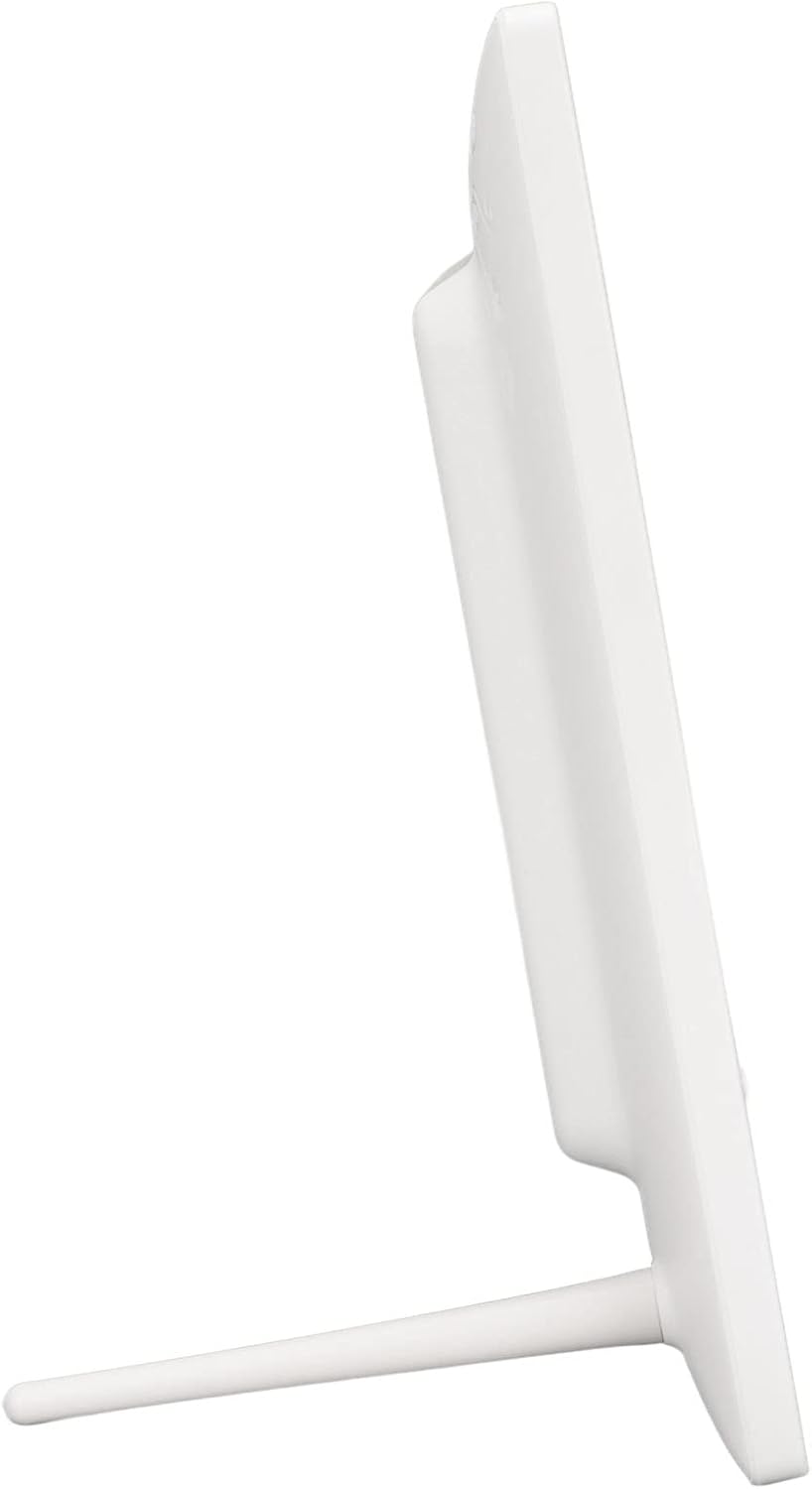
Figure 3: Side profile of the digital photo frame, highlighting the stand for stable placement.

Figure 4: Rear view of the digital photo frame, indicating the location of ports for power and storage media.
5. Operating Instructions
5.1 Basic Navigation and Controls
The digital photo frame can be operated using the buttons on the back of the frame or the included remote control. The remote control provides full functionality for navigating menus and controlling playback.
5.2 Media Playback
The frame supports various media formats:
- Picture Format: JPEG (can be enlarged and rotated).
- Video Formats: MP4, AVI, MPG, FLV, VOB.
- Sound Format: MP3, WMA.
Once storage media is inserted, the frame will typically begin playing content automatically or prompt you to select a media type (Photo, Music, Video).
5.3 Image Preview and Slideshow
The frame features an image preview function, allowing you to quickly browse thumbnails of your photos to find a specific image. You can then select it for full-screen display.
For slideshows, you can customize various settings:
- Slideshow Effects: Choose from different transition effects between photos.
- Slide Speed: Adjust the duration each photo is displayed.
- Repeat Mode: Set the slideshow to repeat all photos or a specific selection.

Figure 5: The digital photo frame demonstrating its image preview and slideshow features, allowing for customized display settings.
5.4 Motion Sensing Function
The integrated motion sensor detects human movement within a range of 0-3 meters (0-9.8 feet) and an angle of approximately 120 degrees. This feature helps conserve energy:
- If no human movement is detected for a set period (default 30 seconds, adjustable), the screen will automatically turn off and enter standby mode.
- Upon detecting movement again, the screen will automatically turn on and resume playback.
5.5 Adjustable Brightness Screen
The 13-inch LED screen offers adjustable brightness settings. You can modify the brightness level through the menu to suit your viewing environment and preferences, ensuring optimal visual quality and fine color reproduction.
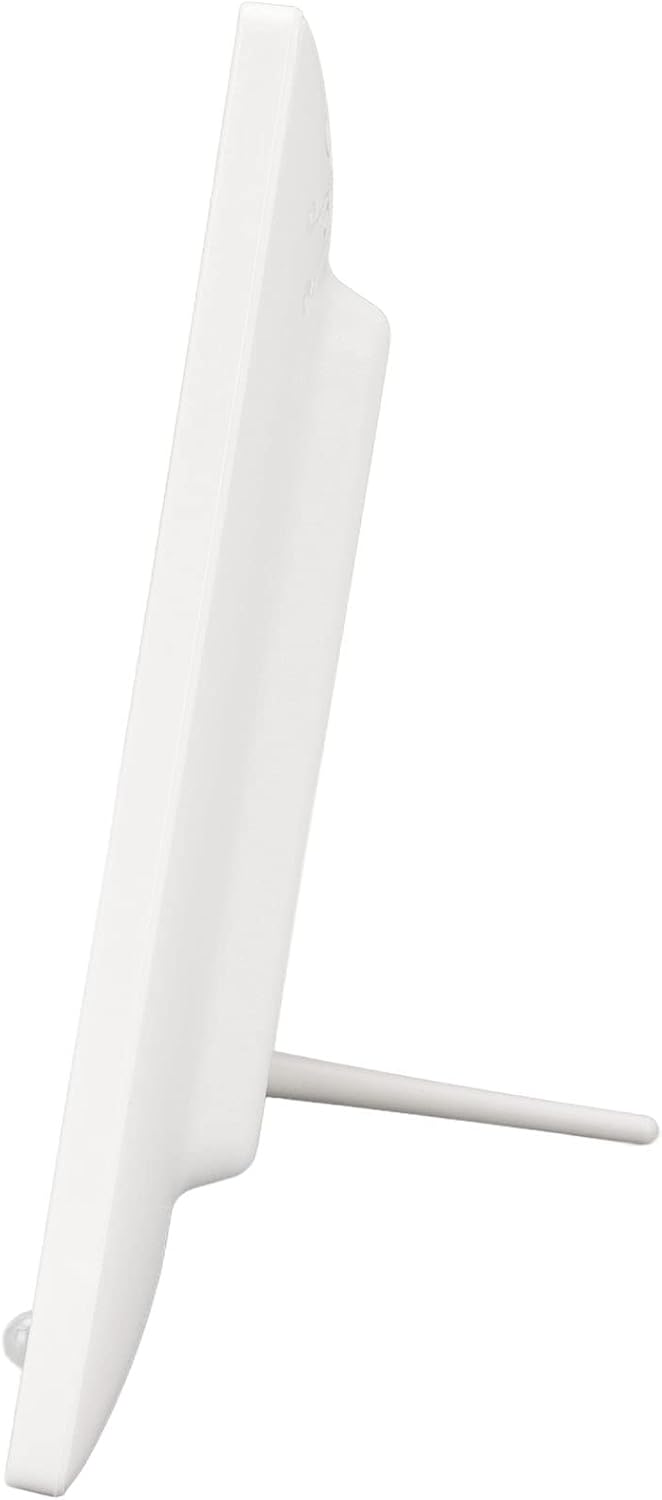
Figure 6: The digital photo frame showcasing its vibrant display and adjustable brightness, enhancing the viewing experience.
5.6 Multi-Function Features
The smart picture frame includes several utility functions:
- Clock and Calendar: Display the current time and date.
- Alarm Clock: Set alarms for reminders.
- Timer Switch: Schedule automatic power on/off times.
- Scrolling Caption: Display custom text messages on the screen.
- Auto Copy Function: Easily copy files from inserted storage media.
- Built-in Stereo Sound Output: Enjoy audio playback for videos and use your favorite songs as background music for photo slideshows.
6. Maintenance
Proper care and maintenance will extend the life of your digital photo frame:
- Cleaning the Screen: Use a soft, lint-free cloth (e.g., microfiber cloth) to gently wipe the screen. Do not use abrasive cleaners, solvents, or spray directly onto the screen.
- Cleaning the Frame: Wipe the frame with a soft, slightly damp cloth. Ensure no moisture enters the ports or openings.
- Storage: When not in use for extended periods, store the frame in a cool, dry place, away from direct sunlight and extreme temperatures.
- Power Off: Always power off the device and unplug it from the power outlet before cleaning or when not in use.
7. Troubleshooting
If you encounter issues with your ASHATA Digital Photo Frame, please refer to the following common problems and solutions:
| Problem | Possible Solution |
|---|---|
| Frame does not power on. |
|
| No image/video displayed. |
|
| Remote control not working. |
|
| Motion sensor not responding. |
|
If the problem persists after trying these solutions, please contact ASHATA customer support for further assistance.
8. Product Specifications
Below are the technical specifications for the ASHATA Digital Photo Frame:
| Feature | Description |
|---|---|
| Item Type | Digital Photo Frame |
| Material | ABS |
| Color | White |
| Screen Size | 13 Inch LED Digital Screen |
| Resolution | 1080P |
| Aspect Ratio | 16:9 |
| Supported Picture Formats | JPEG (enlarge, rotate) |
| Supported Video Formats | MP4, AVI, MPG, FLV, VOB |
| Supported Sound Formats | MP3, WMA |
| Supported Storage Media | Storage Card, MMC, MS Card, U Disk (up to 32GB) |
| Motion Sensor Range | 0-3 meters (0-9.8ft), approx. 120 degrees |
| Video System | NTSC, PAL Switch Support |
| Output Interface | Headphone Output Interface |
| Remote Control Battery | 1 x Button Cell CR2025 160mAh (Built-in) |
| Product Dimensions | 39 x 7 x 2.51 cm; 1.19 kg |
| Connectivity Technology | USB |
| Human Interface Input | Touchscreen |
9. Warranty and Support
ASHATA products are manufactured to high-quality standards. For information regarding warranty coverage, please refer to the warranty card included with your product or contact your point of purchase. Keep your purchase receipt as proof of purchase.
For technical support, troubleshooting assistance, or inquiries about replacement parts, please visit the official ASHATA store on Amazon or contact their customer service directly. You can find more information at: ASHATA Store on Amazon.