
Veise VE017-K
Veise VE017-K Fingerprint Smart Lock User Manual
Model: VE017-K
1. Introduction
Thank you for choosing the Veise VE017-K Fingerprint Smart Lock. This manual provides detailed instructions for installation, operation, and maintenance to ensure optimal performance and security. This smart lock offers multiple access methods including fingerprint, passcode, key fob, mechanical key, and app control.
2. What's Included
Verify that all components are present before beginning installation:
- Fingerprint Smart Lock (Exterior & Interior assembly)
- 2 Knobs
- Mounting Plate
- Screws
- Latch
- Strike Plate
- 2 IC Cards
- 2 Mechanical Keys
- User Manual
- Installation Manual
3. Specifications
| Brand | Veise |
| Model Number | VE017-K |
| Lock Type | Biometric, Deadbolt, Keypad |
| Material | Aluminum |
| Color | Matte Black |
| Item Dimensions (L x W x H) | 10.04 x 7.28 x 3.35 inches |
| Item Weight | 3.4 Pounds |
| Connectivity | Bluetooth, WiFi (Veise G1 WiFi Gateway Required) |
| Special Features | Anti-Peeping Password, Auto-Lock, Fingerprint, Access Sharing, Voice Prompts in 3 Languages, Event History, Back-Lit Keypad, Emergency Power Port, IP55 Waterproof |
4. Setup and Installation
4.1 Door Compatibility Check
Before installation, ensure your door meets the following specifications:
- Door Thickness: 1-3/8" to 2" (35mm to 50mm)
- Hole Diameter: 1-1/2" to 2-1/8" (38mm to 54mm)
- Backset: 2-3/8" or 2-3/4" (60mm or 70mm)
- Minimum Distance: ≥4" (101.6mm) between the deadbolt and the handle below.
The lock is designed for standard US doors and automatically detects left or right door orientation.

Image: Door measurement guide for Veise VE017-K smart lock, illustrating door thickness, hole diameter, backset, and minimum distance requirements. It also shows compatibility with chiseled and single cylinder doors, and incompatibility with mortise/integrated locks.
4.2 Installation Steps
A detailed installation video is available to guide you through the process. No special wiring is required; a screwdriver is the only tool needed.
Video: Official Veise VE017-K Installation Guide. This video demonstrates the step-by-step process of installing the smart lock on a door, including preparing the door, mounting the components, and securing the lock.
4.3 App Pairing (KK Home App)
To utilize the smart features of your lock, download the KK Home App and pair your device. Ensure your phone is within 2 meters of the lock during the pairing process.
Video: Official Veise VE017-K KK Home App Pairing Guide. This video illustrates how to connect your smart lock to the KK Home mobile application, enabling remote control and management features.
5. Operating the Smart Lock
5.1 Unlocking Methods
The Veise VE017-K offers multiple convenient ways to unlock your door:
- Fingerprint: Place your registered finger on the sensor for a 0.2-second unlock. The AI self-learning feature improves recognition over time.
- Passcode: Enter your 6-10 digit passcode on the touchscreen keypad. The anti-peeping function allows you to enter random digits before or after your actual code for privacy.
- IC Card/Key Fob: Tap the provided IC card or key fob against the lock's sensor.
- Mechanical Key: Use the physical key as a traditional backup.
- App Control: Unlock or lock your door remotely via the KK Home App (requires Veise G1 Gateway, sold separately).

Image: Visual representation of the 5-in-1 smart access options for the Veise VE017-K lock, including fingerprint, PIN codes, IC cards, mechanical keys, and app control.
5.2 App Features (KK Home App)
The KK Home App provides comprehensive control and management:
- User Management: Add, modify, or delete users and their access permissions.
- Passcode Generation: Create permanent, recurring, duration-based, or one-time passcodes.
- Access Sharing: Grant temporary access to guests or service providers.
- Activity Log: View a complete history of all entry and exit activities.
- Remote Control: Lock/unlock remotely, receive real-time notifications (requires Veise G1 Gateway).

Image: Screenshot of the KK Home App interface demonstrating remote user management, including family and guest access settings, and an access log for monitoring entry activity.

Image: Visual guide to creating various PIN codes (Permanent, Recurring, Duration, One-time) through the KK Home App, with options to share them via messaging platforms.
5.3 Auto-Lock Feature
The auto-lock function can be customized via the app to automatically lock the door after a set period (10-180 seconds) once it closes.

Image: A user interacting with the auto-lock feature on the KK Home App, which allows setting a delay for the lock to automatically engage after the door closes.
5.4 Silent & Vacation Modes
- Silent Mode: Deactivates sound prompts for quiet operation.
- Vacation Mode: Disables all user codes except the admin password, enhancing security during extended absences.
5.5 Voice Control (with G1 Gateway)
When paired with the Veise G1 Gateway (sold separately), the smart lock is compatible with Alexa and Google Assistant for voice commands.
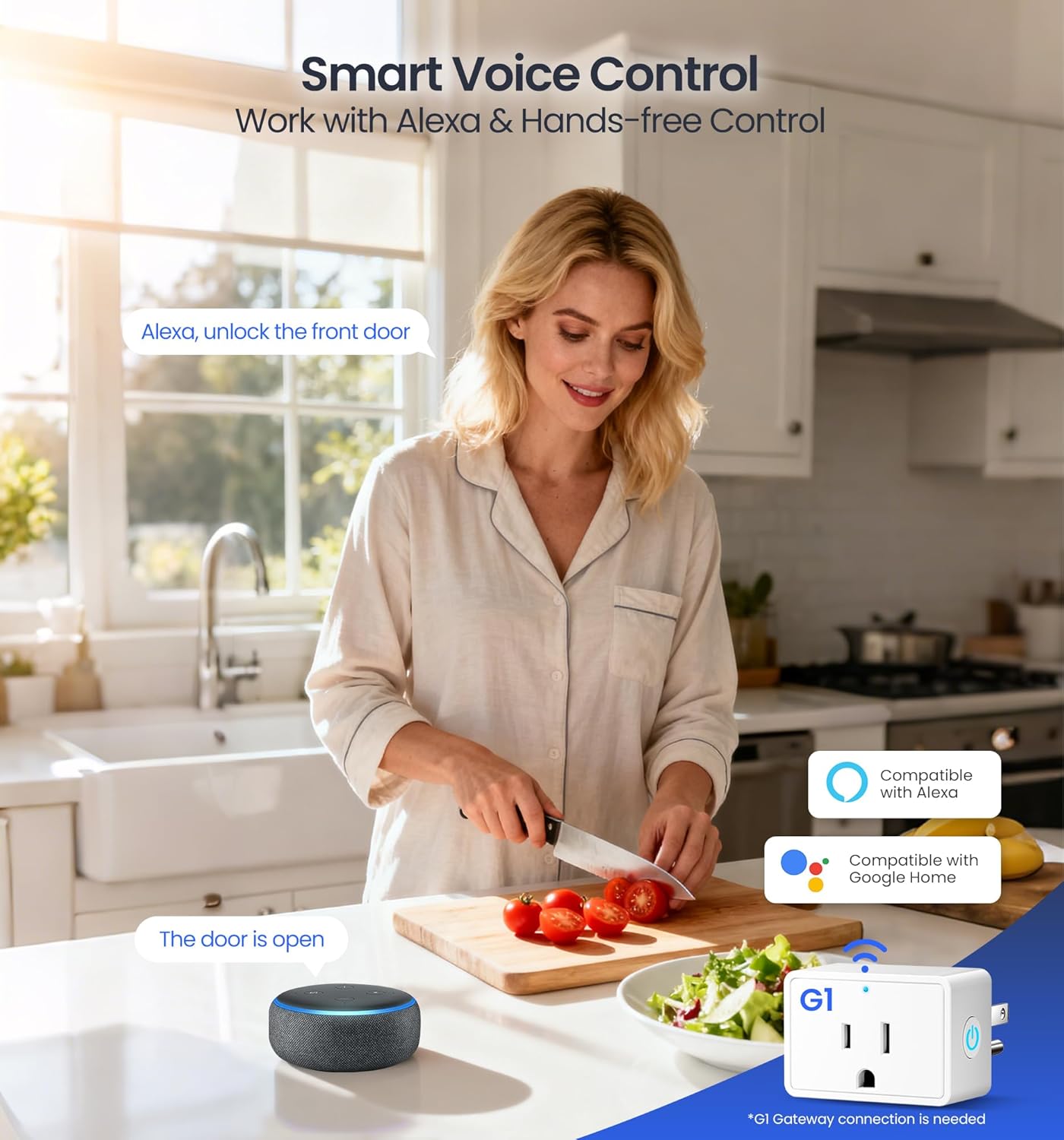
Image: A kitchen scene illustrating the smart voice control feature of the Veise lock, compatible with Alexa and Google Home when connected to the G1 Gateway.
6. Maintenance
6.1 Battery Replacement
The lock is powered by 4 AA batteries (not included) and provides up to 1 year of daily use. The KK Home App will provide low-battery alerts. To replace batteries, remove the interior assembly cover and insert new AA batteries, ensuring correct polarity.
6.2 Emergency Power
In case of complete battery depletion, a USB-C emergency power port is located on the bottom of the exterior keypad. Connect a power bank to temporarily power the lock and gain access.

Image: The Veise smart lock on an open door, with callouts for its security features including a built-in alarm, emergency power port, BHMA/ANSI certification, 10-month battery life, and IP55 weatherproofing.
7. Troubleshooting
7.1 Lock Reset Procedure
If you encounter issues or need to restore factory settings, follow these steps:
- Keep the door open and the lock unlocked (internal knob vertical).
- Using the reset tool (or a similar pointed object), press and hold the reset button for 5 seconds until you hear voice prompts "Restored to factory settings" and "DingDong" & "Beep". The latch will extend out automatically.
- Use the default master password (12345678) to unlock successfully. The reset is now complete.
Video: Official Veise VE017-K Reset Guide. This video demonstrates how to perform a factory reset on the smart lock, including locating the reset button and confirming the reset process.
7.2 Common Issues and Solutions
- Lock not responding: Check battery levels. Use the emergency USB-C port or mechanical key if batteries are dead.
- Fingerprint not recognized: Ensure your finger is clean and dry. Re-register your fingerprint if issues persist.
- Keypad unresponsive: Check for low battery. Ensure no debris is on the keypad.
- App connectivity issues: Ensure Bluetooth is enabled on your phone. If using Wi-Fi, verify the G1 Gateway is properly connected and within range.
8. Warranty and Support
Veise provides comprehensive customer support and warranty for your VE017-K Smart Lock:
- Warranty: At least a 2-year warranty from the date of purchase.
- US-Based Phone Support: Available Monday-Friday 9 AM – 5 PM PST, and Saturday 7 AM – 3 PM PST.
- 24/7 Email Service: For assistance outside of phone support hours.
- Lifetime Support: Professional assistance available for the lifetime of the product.
For further assistance, please refer to the contact information provided with your product or visit the official Veise website.
Related documentsVE017-K


Ask a question about this manual
Ask about setup, troubleshooting, compatibility, parts, safety, or missing instructions. Manuals+ will review the question and use this page’s manual context to help answer it.