
1. Introduction
Thank you for choosing the MIKUSO KB-099U Large Print Computer Keyboard. This keyboard is specifically designed to provide enhanced visibility and ease of use for individuals with visual impairments, seniors, beginners, and anyone who benefits from larger, clearer characters. Its full-size layout, durable laser-etched keys, and ergonomic features ensure a comfortable and efficient typing experience.

Figure 1: MIKUSO Large Print Computer Keyboard Overview
2. Safety Information
Please read and follow these safety guidelines to ensure proper operation and longevity of your keyboard:
- Avoid exposing the keyboard to extreme temperatures, humidity, or direct sunlight.
- Do not disassemble or attempt to repair the keyboard yourself. Contact qualified personnel for service.
- Keep the keyboard away from liquids. While it includes a protective cover, excessive liquid exposure can cause damage.
- Use only with compatible devices as specified in the specifications section.
3. Setup
The MIKUSO KB-099U keyboard features a simple plug-and-play setup, requiring no additional software installation.
- Unpack the Keyboard: Carefully remove the keyboard and its accessories from the packaging.
- Connect to Computer: Locate an available USB-A port on your laptop or PC. Insert the USB cable from the keyboard firmly into the USB port.
- System Recognition: Your operating system (Windows 2000/XP/7/8/10, Vista, or Mac OS) should automatically detect and install the necessary drivers. This process typically takes a few seconds.
- Begin Typing: Once recognized, the keyboard is ready for immediate use.
Note: While compatible with Mac OS, some multimedia keys may not function fully on Mac OS systems.
Video 1: Demonstrating the plug-and-play setup and initial use of the MIKUSO Large Print Computer Keyboard.
4. Operating Instructions
The MIKUSO KB-099U keyboard is designed for intuitive operation with several features to enhance your typing experience.
4.1. High Visibility Keys
The keys feature large, laser-etched characters that are approximately 4 times larger than standard keyboard print. This design ensures high contrast and prevents fading, making them easy to read for extended periods.

Figure 2: Visual comparison highlighting the larger print on the MIKUSO keyboard keys.
4.2. Ergonomic Design
The keyboard includes a built-in wrist rest to provide support and comfort during long typing sessions, reducing strain. Additionally, foldable stands on the underside allow you to adjust the typing angle for personalized ergonomics. A silicone pad at the bottom ensures stability and prevents the keyboard from sliding.

Figure 3: Ergonomic features including wrist rest and adjustable stands.
4.3. Multimedia Shortcut Keys
Utilize the 12 multimedia shortcut keys (FN + F1-F12 combinations) for quick access to functions such as music control, volume adjustment, and opening the computer's calculator. These shortcuts are designed to improve efficiency.
4.4. Indicator Lights
The upper right corner of the keyboard features indicator lights for Caps Lock and Numeric Lock, providing visual confirmation of their active status.
Video 2: Demonstrating the tactile feel of the keys and the overall comfortable typing experience.
5. Maintenance
To maintain the performance and appearance of your MIKUSO KB-099U keyboard, follow these simple maintenance tips:
- Cleaning: Use a soft, damp cloth to wipe down the keyboard surface. Avoid harsh chemicals or abrasive cleaners.
- Protective Cover: The included waterproof keyboard cover is designed to protect against spills, dust, and debris. Use it to keep your keyboard clean, especially in dusty environments or during breaks.
- Key Durability: The laser-etched characters are designed to be non-fading, ensuring long-term readability without special care.

Figure 4: The included keyboard cover provides protection against spills and dust.
6. Troubleshooting
If you encounter any issues with your MIKUSO KB-099U keyboard, please refer to the following common solutions:
- Keyboard Not Responding: Ensure the USB cable is securely plugged into a working USB-A port on your computer. Try plugging it into a different USB port.
- Keys Not Functioning: Restart your computer. If the issue persists, try connecting the keyboard to another computer to determine if the problem lies with the keyboard or the computer.
- Multimedia Keys Not Working (Mac OS): As noted, some multimedia keys may have limited functionality on Mac OS systems due to operating system differences.
For further assistance, please contact MIKUSO customer support.
7. Specifications
| Feature | Detail |
|---|---|
| Model Number | KB-099U |
| Product Dimensions | 17.6 x 7 x 1.15 inches |
| Item Weight | 1.3 pounds |
| Connectivity Technology | Corded, USB-A |
| Keyboard Description | Membrane |
| Special Features | Comfortable Key, High-Contrast, Non-Fade Letters, Wrist Rest, Large Print |
| Color | Black |
| Material | Plastic |
| Compatible Devices | Laptop, PC (Windows 2000/XP/7/8/10, Vista, Mac OS) |
| What's in the Box | Wired keyboard, Original keyboard cover |
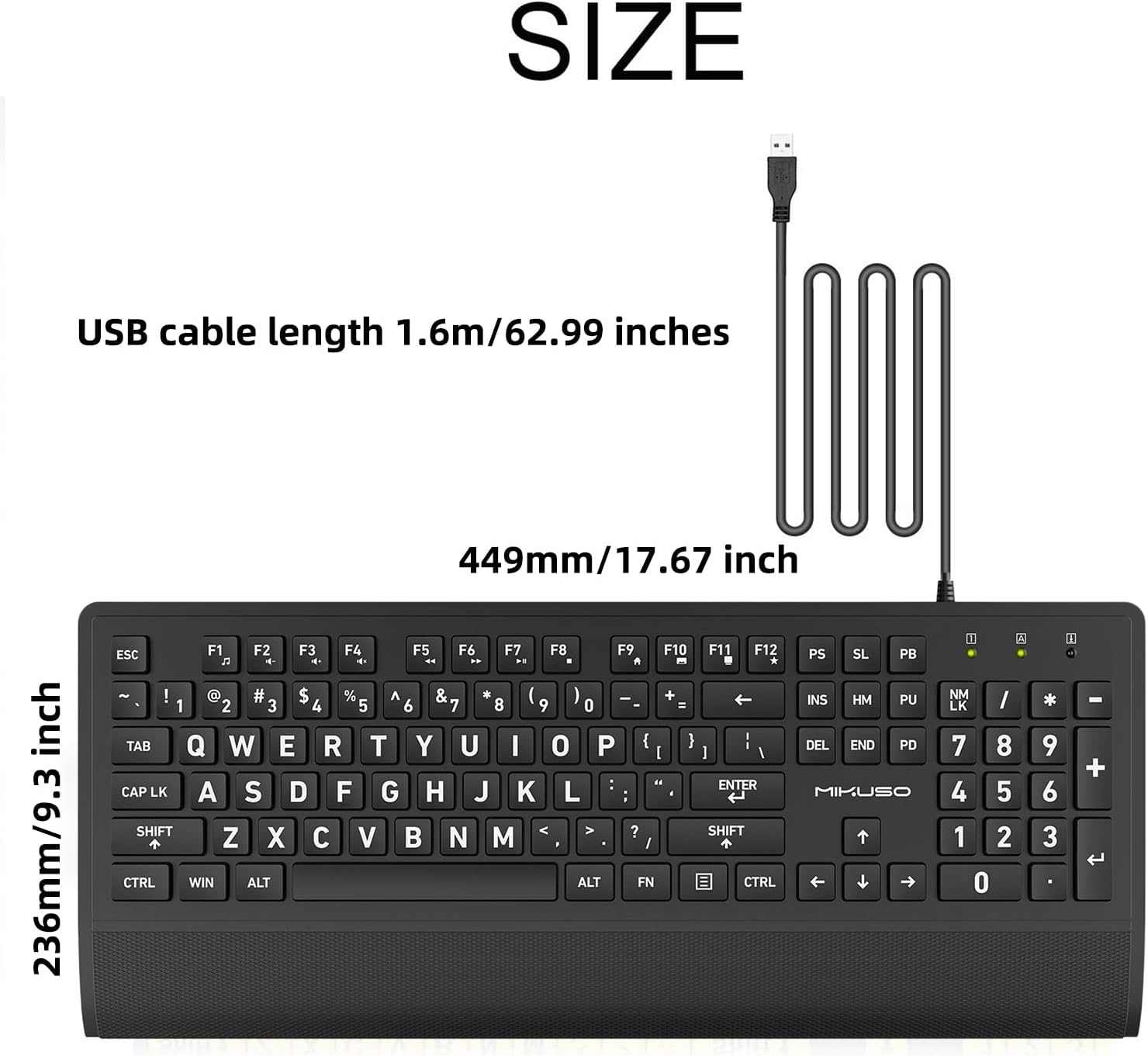
Figure 5: Detailed dimensions of the MIKUSO KB-099U keyboard.
8. Warranty and Support
For warranty information or technical support, please refer to the product packaging or contact MIKUSO customer service directly. Keep your purchase receipt for warranty claims.