1. Introduction
This manual provides essential information for setting up, operating, and maintaining your GEEKOM GT2 Mega Ai Mini PC. This compact desktop computer features an Intel Core Ultra 9 285H processor with integrated Intel Arc 140T GPU, 32GB DDR5 RAM, and a 2TB SSD. It comes pre-installed with Windows 11 Pro and offers advanced connectivity options including Dual 2.5G LAN, WiFi 7, and USB4 ports.
Please read this manual thoroughly before using the device to ensure proper functionality and longevity.
2. What's in the Box
Verify that all items are present in the packaging:
- 1 x GEEKOM GT2 MEGA Mini PC
- 1 x HDMI Cable
- 1 x VESA Mount
- 1 x Power Adapter
- 1 x User Guide (this document)
3. Product Overview
3.1 Front and Rear Ports
The GEEKOM GT2 Mega Mini PC is equipped with a variety of ports for versatile connectivity.

- Front Ports: Power Button, 3x USB 3.2 Gen2 Type-A, 1x SD 4.0 Card Reader, 1x 3.5mm Headset Jack.
- Rear Ports: 1x Kensington Lock, 1x DC In, 2x HDMI 2.0 (4K@120Hz), 1x USB 3.2 Gen2 Type-A, 1x USB 2.0 Type-A, 2x 2.5G LAN RJ45, 2x USB4 Type-C (40Gbps, 8K video, 15W PD).
3.2 Internal Components and Expandability
The mini PC is designed for efficient performance and offers storage expansion options.

- RAM: Dual-channel DDR5 5600MHz SODIMM, expandable up to 128GB.
- SSD: One M.2 2280 NVMe PCIe Gen4 x4 SSD slot (up to 4TB) and one M.2 2242 SATA III SSD slot (up to 2TB).
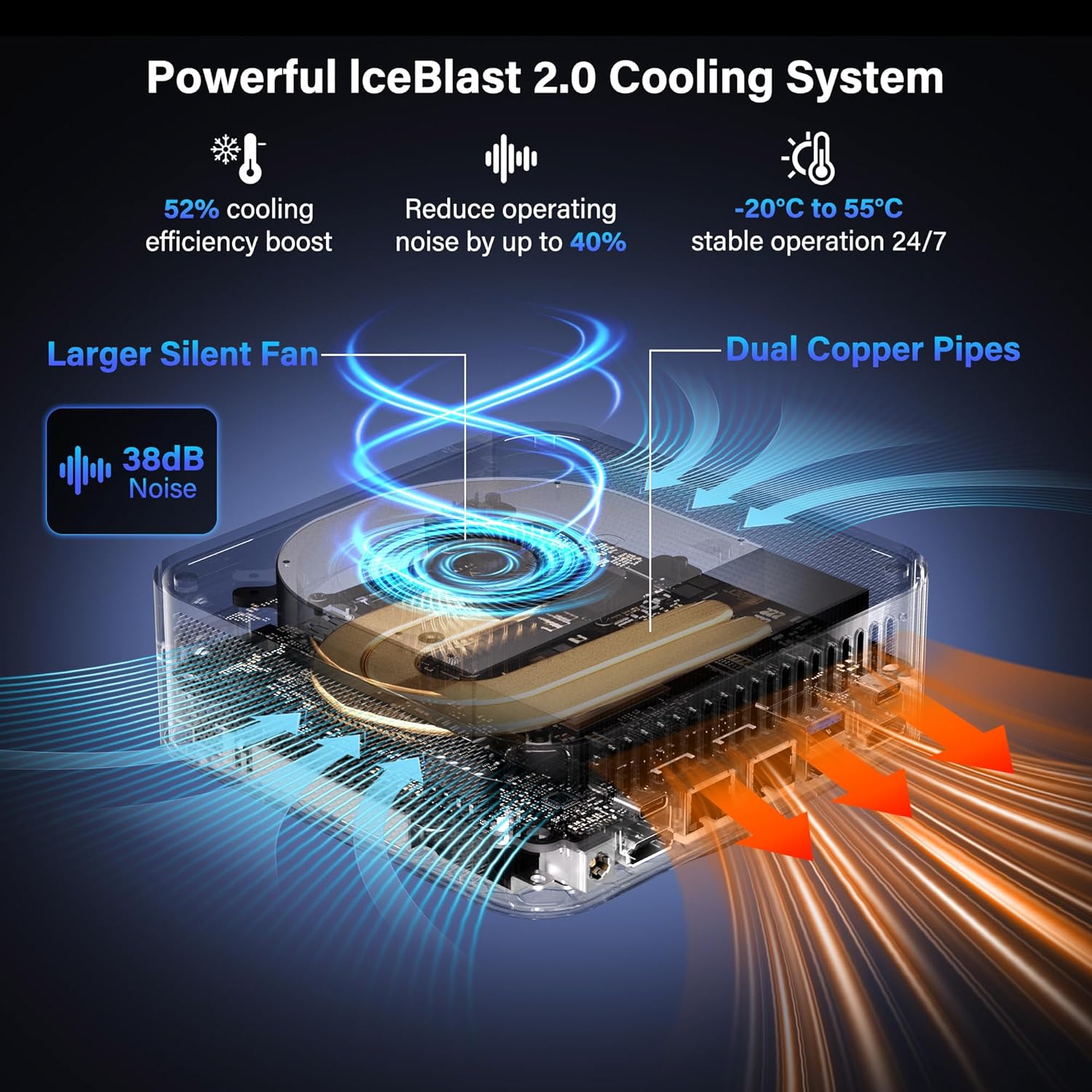
- Cooling: IceBlast 2.0 cooling system with dual copper heat pipes and a large silent fan.
4. Setup Instructions
4.1 Initial Connection
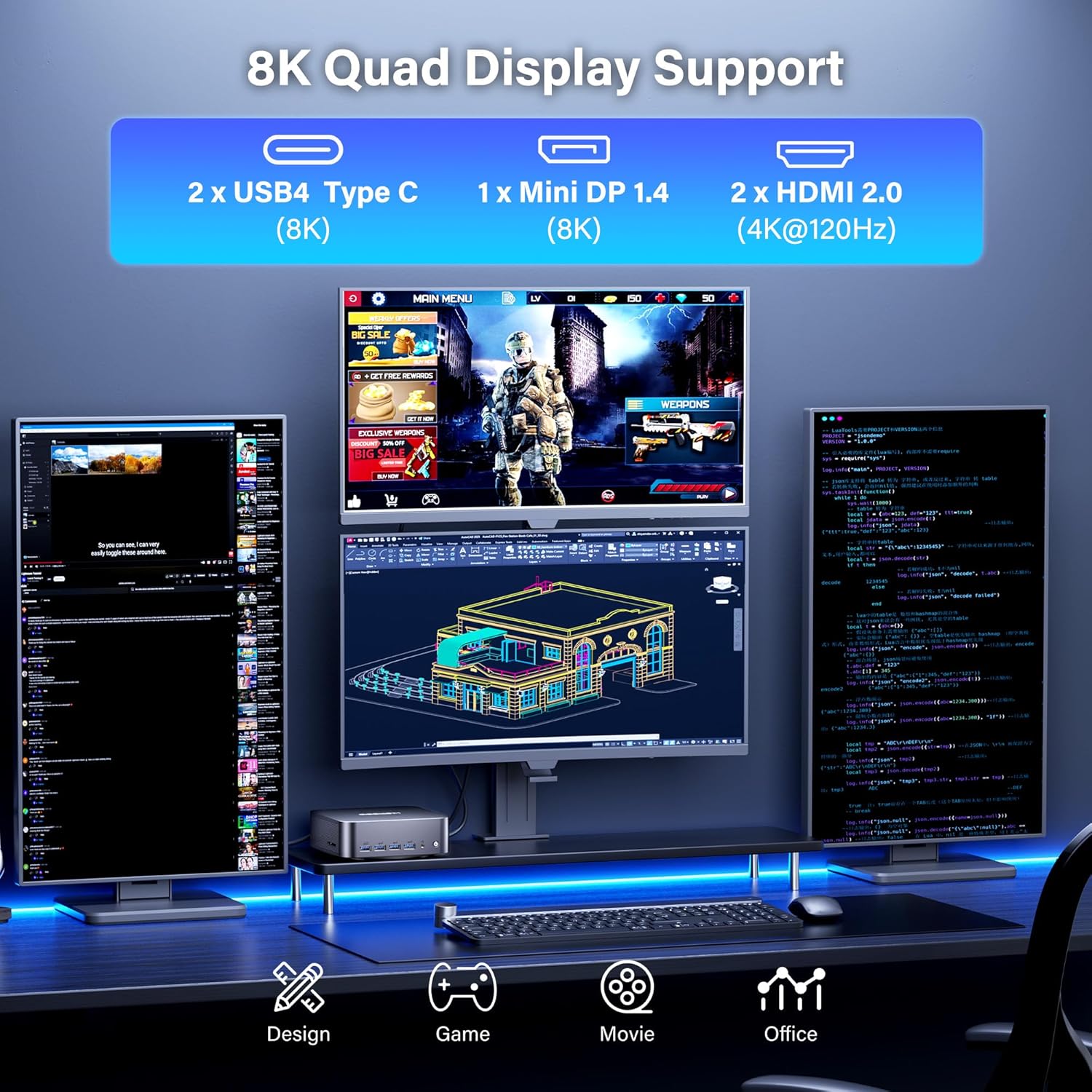
- Connect Display: Use the provided HDMI cable or a Mini DP/USB4 cable to connect your monitor(s) to the mini PC. The device supports up to four displays simultaneously (2x 8K, 2x 4K).
- Connect Peripherals: Plug in your keyboard, mouse, and any other USB devices into the available USB ports.
- Connect Network: For wired internet, connect an Ethernet cable to one of the 2.5G LAN ports. For wireless, ensure your WiFi network is available.
- Connect Power: Plug the power adapter into the DC In port on the mini PC, then connect the adapter to a power outlet.
- Power On: Press the power button located on the front of the mini PC.

4.2 VESA Mount Installation (Optional)
The GEEKOM GT2 Mega Mini PC can be mounted to the back of a VESA-compatible monitor to save desk space.
- Attach the VESA mount bracket to the back of your monitor using the provided screws.
- Slide the mini PC onto the VESA mount until it clicks securely into place.

5. Operating Instructions
5.1 First Boot and Windows 11 Pro Setup
Upon first boot, the system will guide you through the Windows 11 Pro setup process. Follow the on-screen instructions to configure your language, region, network, and user account.

5.2 Multi-Display Configuration
The GT2 Mega supports up to four displays. To configure multiple displays in Windows:
- Connect all desired monitors to the available HDMI, Mini DP, or USB4 ports.
- Right-click on the desktop and select "Display settings".
- In the Display settings, you can detect, arrange, and configure the resolution and orientation of each monitor.
6. Maintenance
6.1 Cleaning
- Ensure the device is powered off and unplugged before cleaning.
- Use a soft, dry cloth to wipe the exterior of the mini PC.
- For dust accumulation in vents, use compressed air carefully. Do not insert objects into the vents.
6.2 Software Updates
Regularly update your Windows operating system and drivers to ensure optimal performance and security.
- Windows Updates: Go to Settings > Windows Update and check for updates.
- Driver Updates: Visit the GEEKOM official website or Intel's support page for the latest drivers for your processor and graphics.
6.3 Cooling System
The IceBlast 2.0 cooling system is designed for efficient heat dissipation. Ensure proper airflow around the device by not blocking the vents.

7. Troubleshooting
7.1 General Issues
- No Power: Ensure the power adapter is securely connected to both the mini PC and a working power outlet.
- No Display: Check all display cable connections. Ensure the monitor is powered on and set to the correct input source. Try a different cable or monitor if possible.
- Peripheral Not Detected: Reconnect the peripheral to a different USB port. Ensure drivers are installed if required.
- Slow Performance: Check for background applications consuming resources. Ensure sufficient free storage space. Consider updating drivers and Windows.
7.2 Windows 11 Pro Initial Setup Issue (PIN Creation)
If you encounter an issue during the initial Windows 11 Pro setup where the PIN creation screen does not appear or freezes, follow these steps:
- When the PIN screen appears to be stuck, press Shift + F10 simultaneously. A Command Prompt window should appear. Leave this window open.
- Press Alt + Tab several times. This should bring the PIN input screen to the foreground.
- Enter your PIN and proceed with the setup.
- If the Windows 11 sign-in screen appears to be stuck after setup, press and hold the Shift key while clicking the Power icon (bottom right of screen) and selecting "Restart".
- From the blue "Choose an option" screen, select "Troubleshoot".
- Select "Reset this PC".
- Choose "Keep my files" (or "Remove everything" if you prefer a clean reset).
- Select "Local reinstall".
- Follow the prompts to complete the reset process. After the reset, the Windows setup should proceed normally.
8. Specifications
| Feature | Detail |
|---|---|
| Processor | Intel Core Ultra 9 285H (5.4 GHz, 16 Cores) |
| Graphics | Intel Arc 140T GPU (Integrated) |
| RAM | 32GB DDR5 5600MHz (Expandable to 128GB) |
| Storage | 2TB NVMe PCIe Gen4 x4 SSD (Supports up to 4TB), 1x M.2 2242 SATA III SSD slot (Supports up to 2TB) |
| Operating System | Windows 11 Pro |
| Display Output | 2x HDMI 2.0 (4K@120Hz), 1x Mini DP 1.4 (8K), 2x USB4 Type-C (8K) - Supports Quad Display |
| Connectivity | WiFi 7, Bluetooth 5.4, Dual 2.5G LAN |
| USB Ports | 2x USB4 Type-C, 4x USB 3.2 Gen2 Type-A, 1x USB 2.0 Type-A |
| Other Ports | 1x SD 4.0 Card Reader, 1x 3.5mm Headset Jack, 1x Kensington Lock |
| Dimensions (LxWxH) | 8.94 x 6.92 x 5.27 inches |
| Weight | 3.65 pounds |
| Cooling System | IceBlast 2.0 (Dual Copper Pipes, Silent Fan) |
9. Warranty and Support
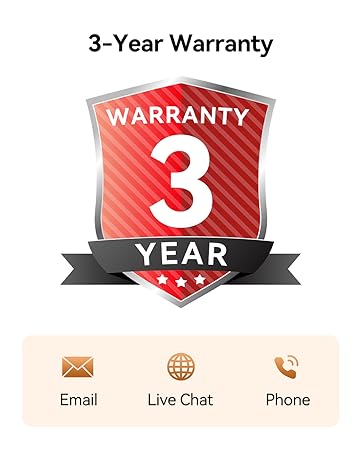
The GEEKOM GT2 Mega Mini PC comes with a 3-year warranty. For technical assistance or warranty claims, please contact GEEKOM customer support.
9.1 Contacting Support
You can reach GEEKOM support through the following methods:
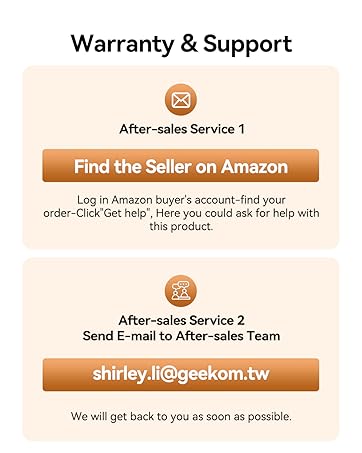
- Email: Contact the after-sales team at shirley.li@geekom.tw.
- Amazon Seller Page: If purchased on Amazon, log into your Amazon buyer's account, find your order, and click "Get help" to contact the seller.
To ensure authenticity and warranty coverage, always purchase GEEKOM products from the Official Amazon Store or GEEKOM's official website.


