
Introduction
This manual provides essential information for the proper setup, operation, maintenance, and troubleshooting of your Acer 7-in-1 Wireless Charging Station with LED Clock. Please read this guide thoroughly before using the product to ensure optimal performance and safety.
Product Overview
The Acer 7-in-1 Wireless Charging Station is a versatile device designed to charge multiple electronic devices simultaneously while also functioning as an LED clock with night light features. It supports wireless charging for compatible smartphones, Apple Watches, and AirPods, along with additional wired charging options.

Image: The Acer 7-in-1 Wireless Charging Station in white, showcasing its various charging pads and LED clock display.
Setup
1. Unboxing and Initial Placement
Carefully remove all components from the packaging. Place the charging station on a stable, flat surface, such as a nightstand or desk, ensuring adequate ventilation around the device.
2. Power Connection
Connect the provided power cable to the input port on the back of the charging station and then plug it into a standard wall outlet. The LED clock display will illuminate upon successful connection.
3. Clock Setup and Bluetooth Synchronization
The LED clock features Bluetooth-enabled automatic time synchronization. To set the time, weekday, and indoor temperature:
- Ensure Bluetooth is enabled on your smartphone.
- Search for and connect to the device named "S1" in your phone's Bluetooth settings.
- The clock will automatically update its time, weekday, and indoor temperature.
Manual adjustments for the clock and week settings can be made using the controls located on the back of the unit.
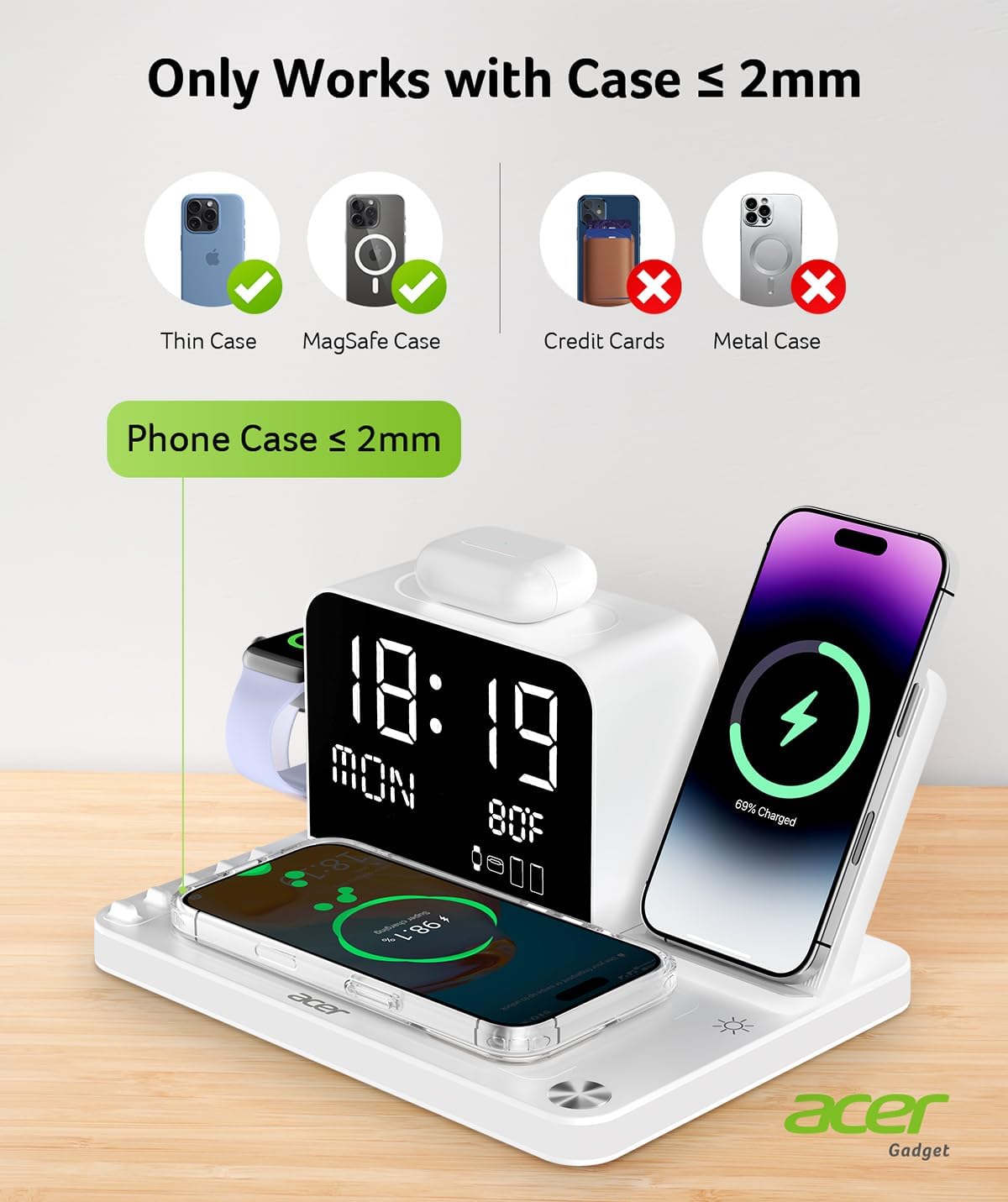
Image: A smartphone screen showing Bluetooth settings connected to "S1", with the charging station displaying time and temperature, illustrating the Bluetooth time synchronization feature.
Video: This video demonstrates the setup and various features of the Acer 7-in-1 Wireless Charging Station, including device placement and night light operation.
Operating Instructions
1. Wireless Charging for Phones
The station offers two wireless charging areas for smartphones:
- Vertical Charging Stand: Place your compatible iPhone (16/15/14/13/12 Pro Max Series) vertically on the stand. This position is ideal for viewing content or video calls. Note: For Android phones, an additional magnetic compatible case is required.
- Horizontal Charging Pad: Place a second compatible smartphone flat on the charging pad located at the base of the unit.
For optimal wireless charging, ensure phone cases are under 2mm thick. The LED display will show charging indicators for active devices.

Image: The charging station with two smartphones wirelessly charging, one on the vertical stand and one on the horizontal pad, demonstrating dual charging capability.
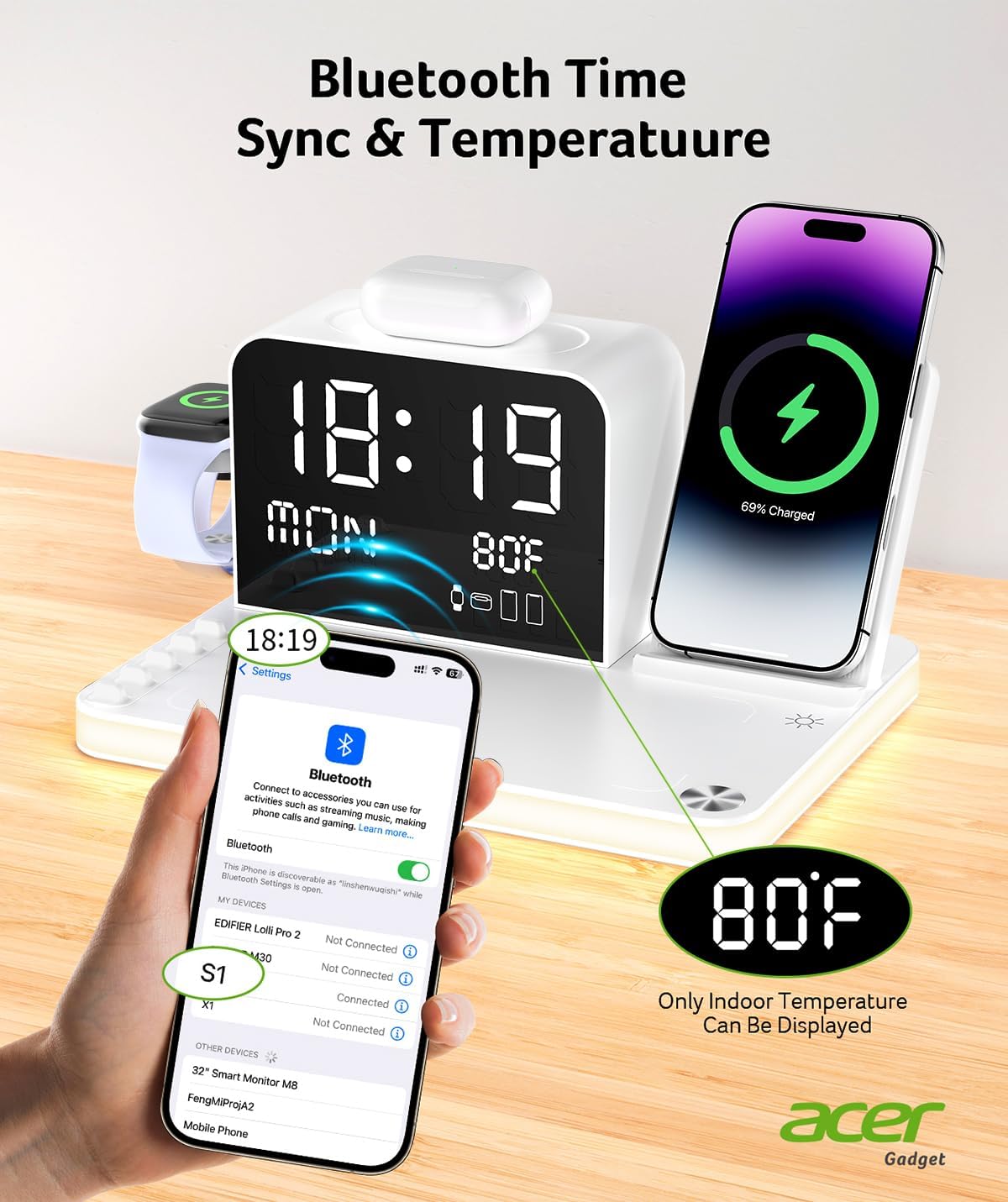
Image: An illustration showing that only phone cases with a thickness of 2mm or less are compatible with the wireless charging function, excluding credit cards or metal cases.
2. Apple Watch Charging
A dedicated charging area for Apple Watch (Series 1-10) is located on the side of the clock unit. Simply place your Apple Watch onto the magnetic charging module.
3. AirPods Charging
Place your AirPods case (compatible with wireless charging) on the designated pad on top of the clock unit. Ensure the AirPods case is centered for proper charging.
4. Wired Charging (USB-C & USB-A Ports)
The charging station includes USB-C and USB-A output ports on the back for charging additional devices that require a wired connection.
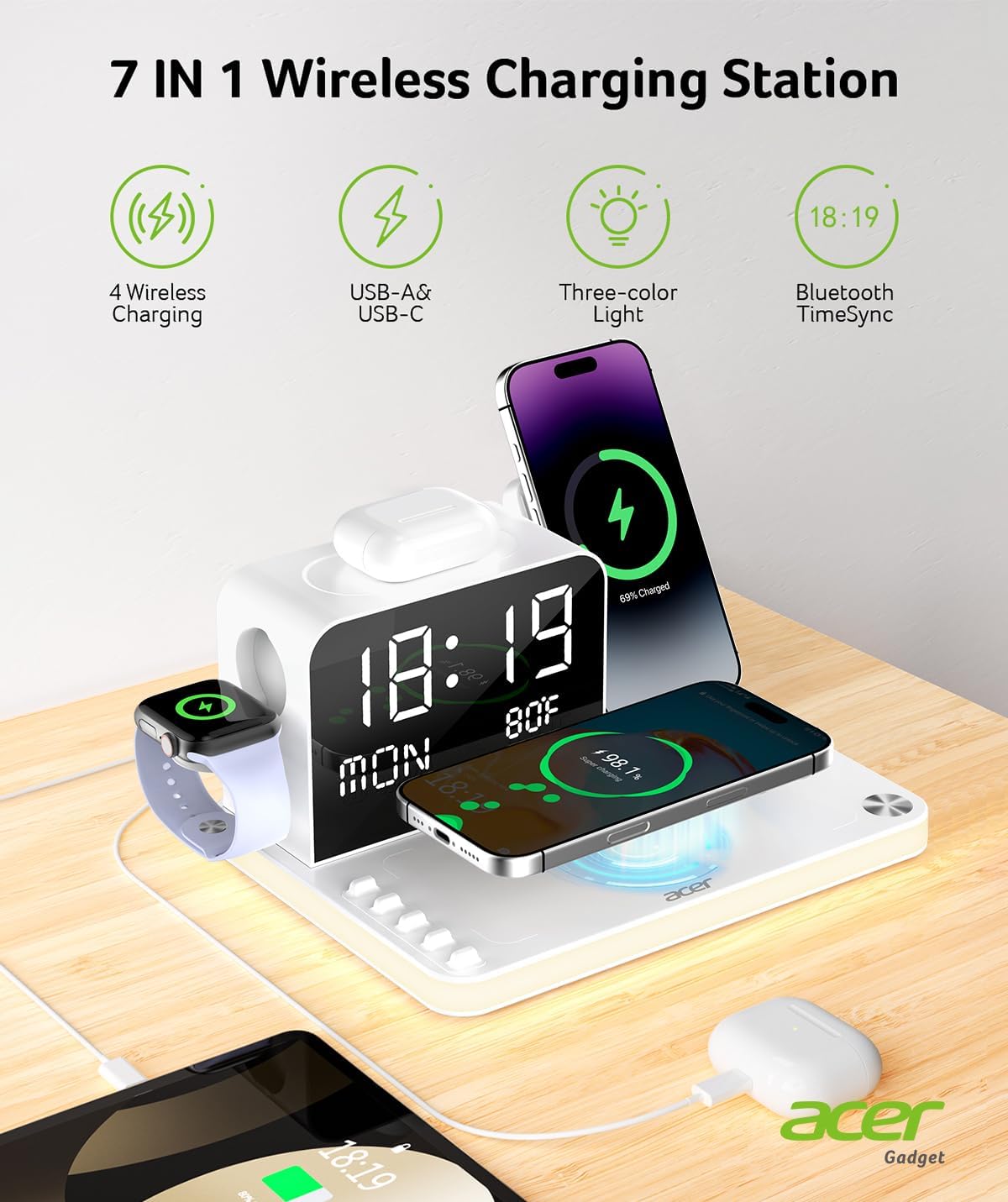
Image: An overview of the 7-in-1 features, including 4 wireless charging zones, USB-A & USB-C ports, three-color light, and Bluetooth TimeSync.
Video: This video demonstrates the various charging capabilities of the Acer 7-in-1 Wireless Charging Station for iPhone, Apple Watch, and AirPods.
5. LED Clock and Display Functions
- Time and Date: Displays current time and weekday.
- Temperature: Shows indoor temperature (Note: Temperature display is temporarily suspended when a phone is wirelessly charging on the horizontal pad).
- Charging Indicators: Small icons below the time indicate which charging zones are active.
- Brightness Adjustment: The LED display has 4 adjustable brightness levels.
- 12/24 Hour Format: Toggle between 12-hour and 24-hour time formats using the dedicated button on the back.
- Fahrenheit/Celsius: Switch between Fahrenheit and Celsius temperature units using the dedicated button on the back.
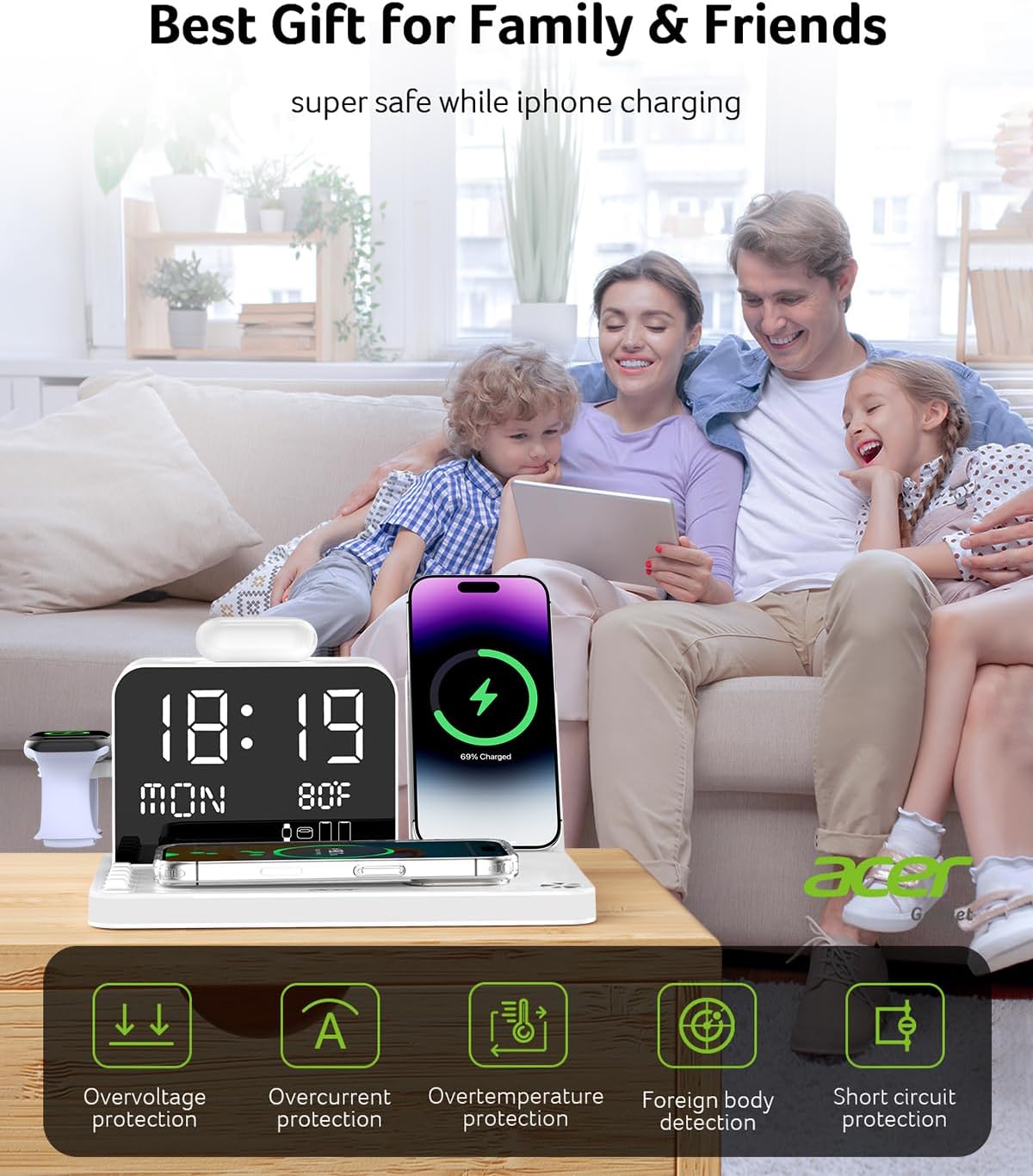
Image: A detailed diagram highlighting the various buttons and charging areas on the Acer 7-in-1 Wireless Charging Station, including input/output ports and clock adjustment buttons.
6. Night Light Functionality
The integrated night light offers customizable illumination:
- Adjustable Brightness: The night light features 4 adjustable brightness levels.
- Color Modes: Choose from three versatile modes: white, warm white, and warm yellow.
- Control: Use the two front buttons to adjust brightness or turn the lights off.
- Automatic Activation: A built-in sensor automatically activates a soft glow in low-light conditions for safe navigation.
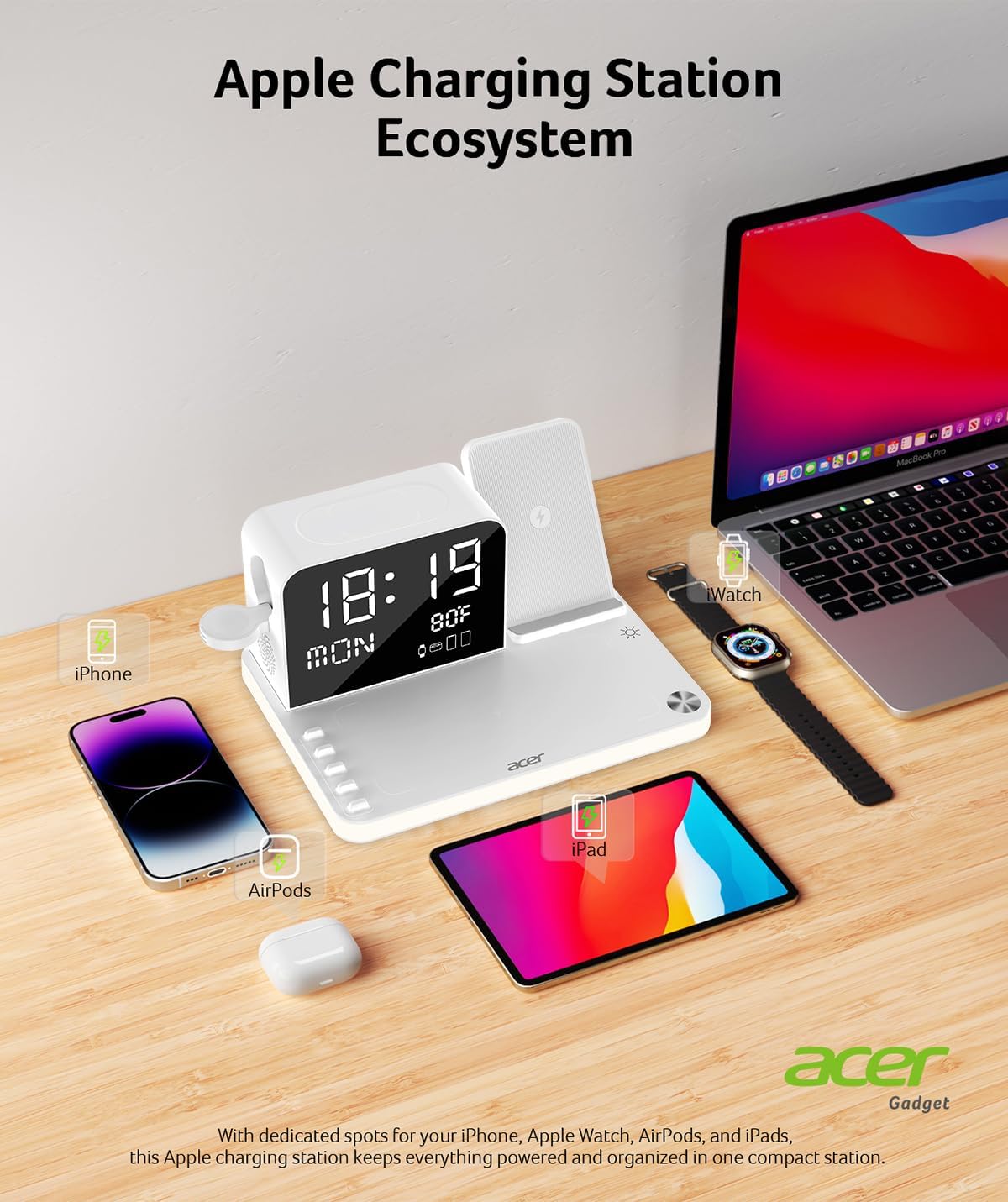
Image: The charging station displaying different night light colors (white, warm white, warm yellow) and adjustable brightness levels.
Maintenance
1. Cleaning
To clean the device, disconnect it from the power source. Use a soft, dry cloth to wipe down the surfaces. Avoid using abrasive cleaners, solvents, or harsh chemicals, as these may damage the finish or electronic components.
2. Safety Precautions
The Acer 7-in-1 Wireless Charging Station is equipped with multiple safety features:
- Overcurrent Protection
- Overvoltage Protection
- Overtemperature Protection
- Foreign Body Detection
- Short Circuit Protection
Always ensure devices are placed correctly on the charging pads and avoid placing metal objects or foreign bodies on the wireless charging surfaces.
Troubleshooting
- Device not charging wirelessly:
- Ensure your device is compatible with wireless charging.
- Check that the device is centered on the charging pad.
- Remove any thick or metallic phone cases (cases should be under 2mm).
- Verify no foreign objects are between the device and the charging pad. - Clock not syncing via Bluetooth:
- Confirm Bluetooth is active on your smartphone.
- Ensure the charging station is powered on.
- Try restarting Bluetooth on your phone and reconnecting to "S1". - LED display or night light not working:
- Check the power connection.
- Adjust brightness levels using the control buttons. - Temperature display is off:
- The indoor temperature display will not show while a phone is charging wirelessly on the horizontal pad. This is normal operation.
Specifications
| Brand | Acer |
| Model | 7-in-1 Wireless Charging Station |
| Total Output | 30W Max |
| Wireless Phone Charging | Dual Wireless (iPhone 16/15/14/13/12/Pro Max Series, Android with magnetic case) |
| Apple Watch Charging | iWatch 10/9/8/7/6/5/4/3/2/1 |
| AirPods Charging | Airpods 4, Airpods 3, AirPods Pro 2, AirPods Pro, AirPods (3rd generation), AirPods 2 Wireless Charging Case |
| Wired Charging Ports | 1x USB-C, 1x USB-A |
| LED Clock Features | Bluetooth Auto Time Sync, Weekday, Temperature (F/C), 12/24H Format, 4 Brightness Levels |
| Night Light Features | 4 Adjustable Brightness Levels, White/Warm White/Warm Yellow Modes, Auto Low-Light Activation |
| Safety Protections | Overcurrent, Overvoltage, Overtemperature, Foreign Body Detection, Short Circuit |
| Dimensions | 9.13 x 7.01 x 4.41 inches |
| Item Weight | 1.87 pounds |
Warranty and Support
1. Warranty Information
This Acer 7-in-1 Wireless Charging Station is covered by an 18-month warranty from the date of purchase. Please retain your proof of purchase for warranty claims.
2. Customer Support
For any inquiries, technical assistance, or warranty support, please contact Acer customer service. 24-hour customer service is available to assist you.
For further assistance, please refer to the official Acer support website or contact your retailer.


