1. Introduction
This manual provides comprehensive instructions for setting up, operating, and maintaining your FULLJA 10.1-inch Smart WiFi Digital Photo Frame (Model Z108). Please read this guide thoroughly to ensure optimal performance and longevity of your device. This digital photo frame is designed to display photos and videos, offering features such as an IPS touch screen, auto-rotate, slideshow capabilities, and wireless content sharing via the VPhoto app or email.
2. Setup
2.1 Unboxing and Physical Setup
Carefully remove all components from the packaging. The package includes the digital photo frame, a power adapter, and a stand. Attach the stand to the back of the frame to position it securely on a flat surface. The frame supports both horizontal and vertical orientations, automatically adjusting the display.

Image: Rear view of the digital photo frame, highlighting the power input, USB port, TF card slot, and the detachable stand for flexible placement.
2.2 Power Connection
Connect the power adapter to the DC IN port on the back of the frame, then plug the adapter into a standard electrical outlet. The frame will power on automatically.
2.3 Network Connection (Wi-Fi)
- Once powered on, the frame will display a welcome screen. Follow the on-screen prompts to select your preferred language.
- Navigate to the Wi-Fi settings. The frame will scan for available networks.
- Select your Wi-Fi network from the list and enter the password if required.
- Confirm the connection. A stable Wi-Fi connection is essential for sharing photos and videos via the app and email.
2.4 VPhoto App Download and Frame Binding
To wirelessly share content, download the free 'VPhoto' app on your smartphone or tablet. Search for 'VPhoto' in your device's app store (Apple App Store or Google Play Store).
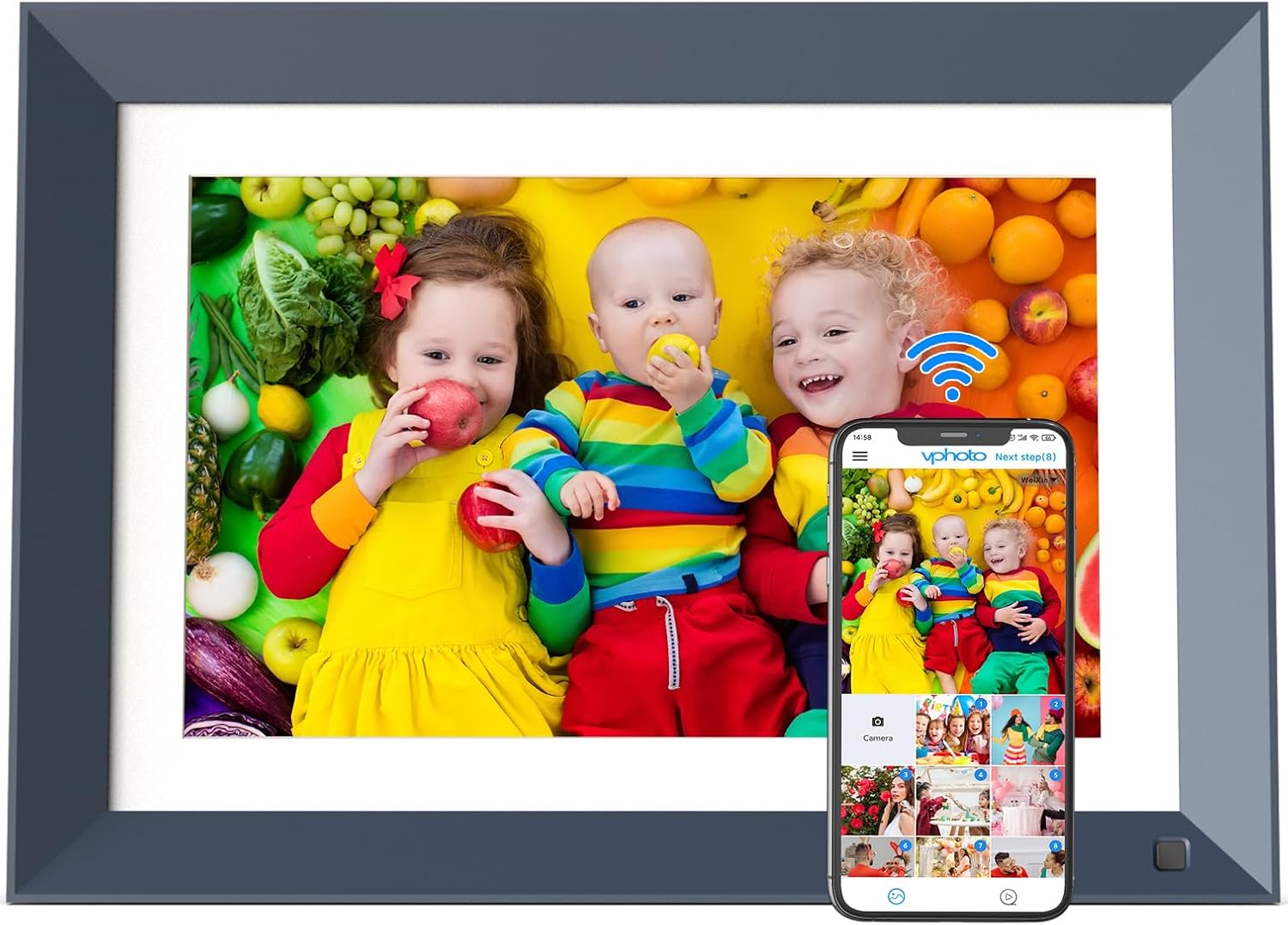
Image: The digital photo frame showcasing a family photo, alongside a smartphone screen demonstrating the VPhoto app for wireless sharing.
After installing the app:
- Open the VPhoto app and create an account.
- On your digital photo frame, go to the 'Add User' or 'Settings' section to find the QR code for binding.
- In the VPhoto app, select 'Add new frame' and use your phone's camera to scan the QR code displayed on the digital photo frame.
- Once scanned, the frame will be bound to your app, allowing you to send photos and videos wirelessly.
2.5 Setup Overview Video
Video: A brief overview demonstrating the initial setup process, including unboxing, connecting the stand, plugging in the power, and connecting to Wi-Fi. This video also shows the VPhoto app interface for sending content.
3. Operating the Digital Photo Frame
3.1 Touch Screen Interaction
The FULLJA digital photo frame features an IPS touch screen for intuitive navigation. Tap icons to select functions, swipe to browse content, and pinch to zoom on photos.

Image: A user's hand touching the screen of the digital photo frame, demonstrating its touch-sensitive interface for easy control.
3.2 Photo and Video Playback
The frame supports various photo and video formats. You can view individual items or create dynamic slideshows. Customize slideshow settings such as display interval and transition effects to personalize your viewing experience.
Video: Demonstrates how to navigate slideshow settings, including adjusting display intervals and transition effects for a personalized photo viewing experience.
3.3 Wireless Content Sharing
Utilize the VPhoto app or email to send photos and videos directly to your frame from anywhere. The app allows multiple users (up to 30 members) to share content with a single frame, making it ideal for families and friends.

Image: A visual representation of wireless sharing, where a smartphone screen shows the VPhoto app sending images to the digital photo frame.
Video: Illustrates the process of sending photos and videos to the digital frame using the VPhoto app, highlighting the ease and speed of wireless sharing.
3.4 Additional Features
- Auto-Rotate: The frame automatically adjusts image orientation for vertical or horizontal display.
- Light Sensor: Automatically adjusts screen brightness based on ambient light conditions for optimal viewing.
- Motion Sensor: The frame can be set to automatically turn on/off when motion is detected, conserving energy.
- Calendar, Weather, Alarm, Clock: Access these utility features directly from the frame's interface.

Image: The digital photo frame showcasing its intelligent motion sensor feature, which automatically turns the display on or off based on proximity.
4. Maintenance
4.1 Cleaning
To clean the screen, gently wipe it with a soft, lint-free cloth. For stubborn smudges, slightly dampen the cloth with water or a screen-safe cleaner. Avoid harsh chemicals or abrasive materials.
4.2 Storage Management
The frame comes with 16GB of built-in storage. For additional storage, you can insert a TF card into the designated slot or connect a USB drive via the Micro USB port. Regularly manage your content to ensure sufficient space.

Image: The digital photo frame illustrating its large storage capacity, with 16GB built-in, and the ability to expand via TF card or Micro USB.
4.3 Power Settings
Customize power settings to optimize energy consumption. This includes setting sleep modes, scheduled on/off times, and adjusting the motion sensor sensitivity.
5. Troubleshooting
If you encounter any issues with your FULLJA digital photo frame, please refer to the following common solutions:
- Frame Not Powering On: Ensure the power adapter is securely connected to both the frame and a working electrical outlet.
- Wi-Fi Connectivity Issues: Verify your Wi-Fi password is correct. Try restarting your router and the digital photo frame. Ensure the frame is within range of your Wi-Fi network.
- Photos/Videos Not Transferring: Check that the frame is properly connected to the VPhoto app and has a stable internet connection. Ensure the file formats are supported by the frame.
- Screen Unresponsive: Try restarting the frame by unplugging it for a few seconds and then plugging it back in.
- Image Orientation Incorrect: The frame features auto-rotate. If an image is consistently displayed incorrectly, check the original image orientation or adjust settings within the frame's display options.
For persistent issues, please contact customer support.
6. Specifications
| Feature | Specification |
|---|---|
| Model | Z108 |
| Screen Size | 10.1 Inches |
| Display Resolution | 1280x800 IPS Display |
| Internal Storage | 16GB |
| Connectivity | Wi-Fi |
| Ports | TF Card Slot, Micro USB |
| Product Dimensions | 8.64 x 11.83 x 0.99 inches |
| Item Weight | 1.5 pounds |
| Special Features | IPS Touch Screen, Auto-Rotate, Motion Sensor, Light Sensor, Calendar, Weather, Alarm, Clock |
7. Warranty and Support
Your FULLJA Digital Photo Frame is backed by our commitment to quality. For any questions, technical assistance, or warranty inquiries, please contact our dedicated customer service team. Support is always available to assist you with your product.
Please refer to the contact information provided in your product packaging or on the official FULLJA website for the most up-to-date support channels.


